This article explains how to add a new contact to your Firefish database. Contacts are typically hiring managers, clients, or other business stakeholders rather than job seekers.
You will learn how to open the New Person panel, check for existing records to avoid duplicates, and create a new contact profile.
In this article
Open the New Person side panel
To begin creating a contact:
-
Select New Person from the main Firefish navigation.

-
The New Person side panel opens.
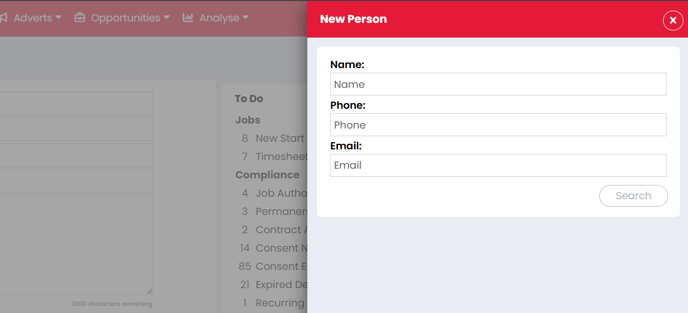
ℹ️ Note: You will also see the new person icon  in relevant areas throughout the system, which will open the same side panel.
Search for existing records
Before creating a new contact, Firefish checks for existing people in your database to help prevent duplicates.
-
Enter the contact’s name or email address.
-
Review the results displayed.
If the contact already exists, select their name to open the existing record instead of creating a new one.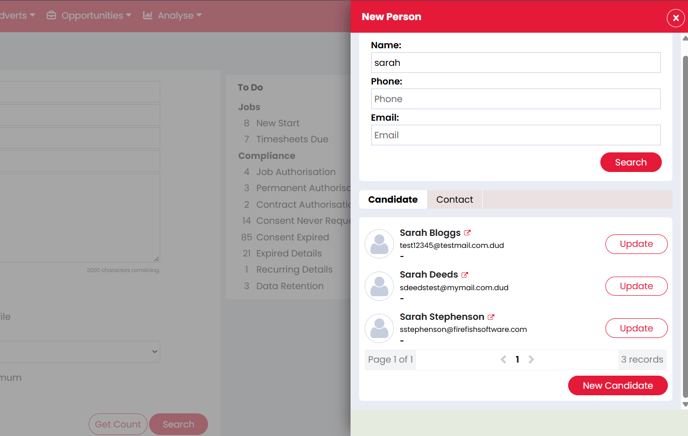
Create a new contact
If no matching record is found:
-
Select Create new contact.
-
Enter the contact’s details.
-
Complete all mandatory fields.
-
Select Save to create the contact record.
- You will be taken to the new record.
Once saved, the contact profile opens automatically.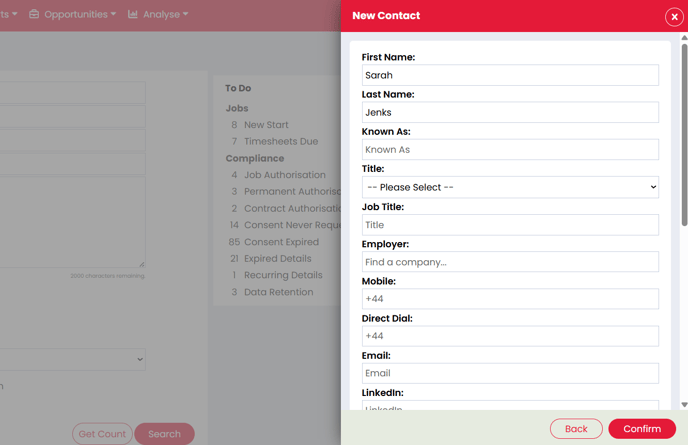
What happens next
After creating a contact, you can:
Troubleshooting and tips
-
Always check search results carefully before creating a new contact.
-
Contacts and candidates may share similar names or email domains but represent different people.
-
Mandatory fields may vary depending on your Firefish configuration.