Candidate Channel & Source Tracking helps you see how candidates entered your workflow, where they came from, and which sources are producing the best results across adverts and jobs.
Contents
- What are Channel and Source?
- Where Channel and Source appear
- Common Channel and Source examples
- Candidate Source dropdowns
- Reporting on Channel and Source
- Application Source vs Original Source
- Why older data may show as Unknown
What are Channel and Source?
Firefish tracks two pieces of information when a candidate applies to an advert or is added to a job workflow:
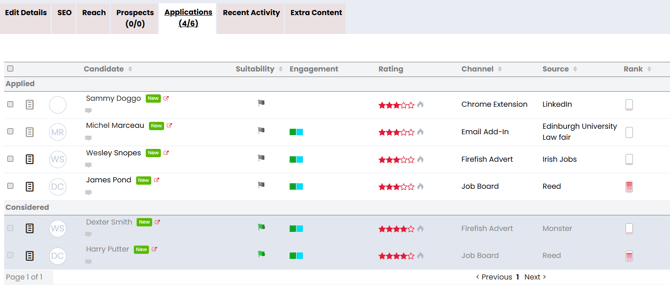
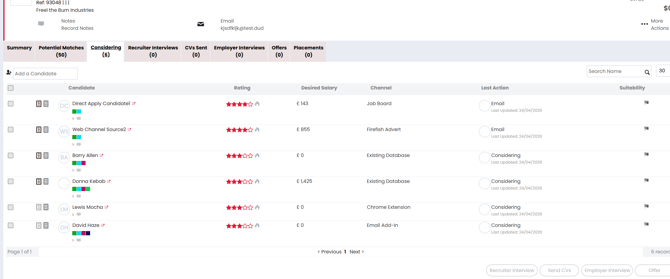
Channel shows how the candidate action happened.
For example, the candidate may have applied through your website, come from a job board, been added from the Chrome Extension, or been added from your existing database.
Source shows where the candidate came from.
For example, the source could be LinkedIn, Job Alert, Mailshot, Indeed, Reed, Added Manually, Potential Matches, or a custom source from your Candidate Source dropdown.
A simple way to think about it is:
Channel = how they got there
Source = where they came from

Where Channel and Source appear
You can see Channel and Source in key areas of Firefish, including:
- The Applications tab on an advert
- The candidate’s Recent Activity
- The Considering list on a job
- Reports and dashboard cards that use candidate job progress data
Common Channel and Source examples
| Candidate journey | Channel | Source |
|---|---|---|
| Candidate applies directly on your Firefish website | Firefish Advert | The source selected by the candidate |
| Candidate applies from a Job Alert email | Firefish Advert | Job Alert |
| Candidate applies from a Mailshot | Firefish Advert | Mailshot |
| Candidate applies through a job board direct apply route | Job Board | The job board name |
| Candidate is added by the recruiter using the Chrome Extension | Chrome Extension | LinkedIn or Web Profile |
| Candidate is added by the recruiter using the Email Add-In | Email Add-In | The selected source |
| Candidate is added by the recruiter from your database to a job | Existing Database | Added Manually or Potential Matches |
| Candidate is added through an integration or API profile | Integration | The integration or API profile name |
If Firefish cannot identify the Channel or Source, the value may show as Unknown.
Candidate Source dropdowns
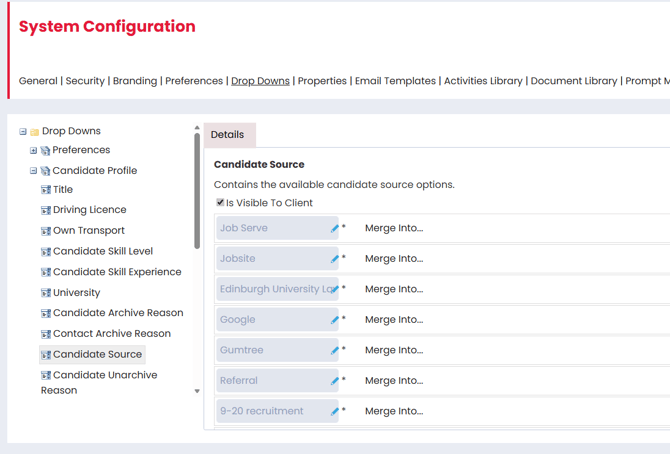
When a candidate applies through your website, they may be asked where they found the role. The options in this dropdown come from your Candidate Source settings.
You can manage these by going to:
Settings > System Configuration > Drop Downs > Candidate Profiles > Candidate Sources
Some source values are created and locked automatically by Firefish. For example, sources linked to job boards, integrations, API profiles, or system journeys may be locked so they stay connected to the correct reporting data.
This means some source values cannot be edited or deleted while they are linked to an active system feature.
Reporting on Channel and Source
Channel and Source reporting helps you understand which routes are bringing in candidates and which sources are leading to stronger results.
You can use this information to answer questions like:
- Which job boards are giving us the most applications?
- Which sources are leading to the most considered candidates?
- Which sources are producing placements?
- Do different industries, roles, or locations perform better on different sources?
Standard Reports
To report on advert application sources, go to:
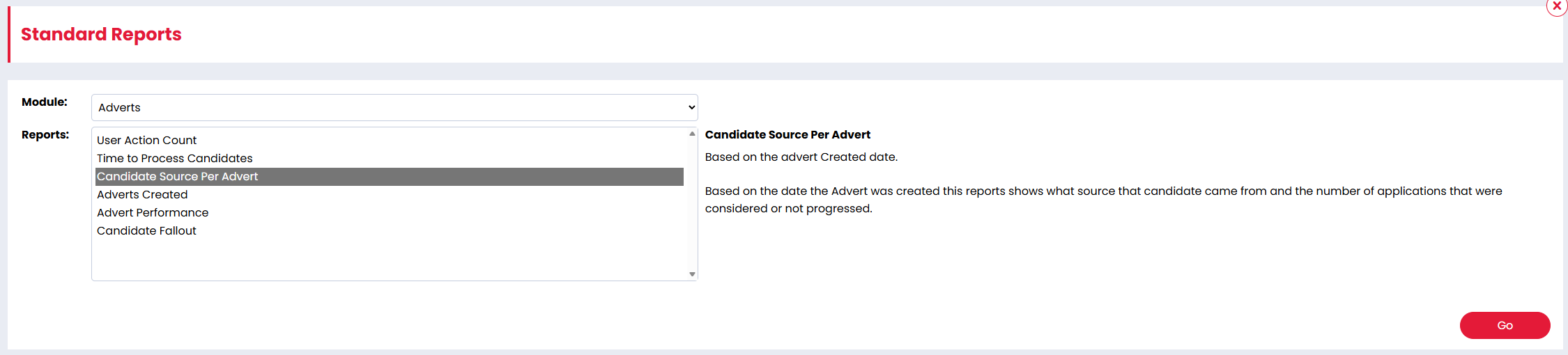
Analyse > Standard Reports > Adverts > Candidate Source Per Advert
This report shows the source candidates came from for each advert, including application outcomes such as considered or not progressed.
To report on candidate source performance by job, go to:
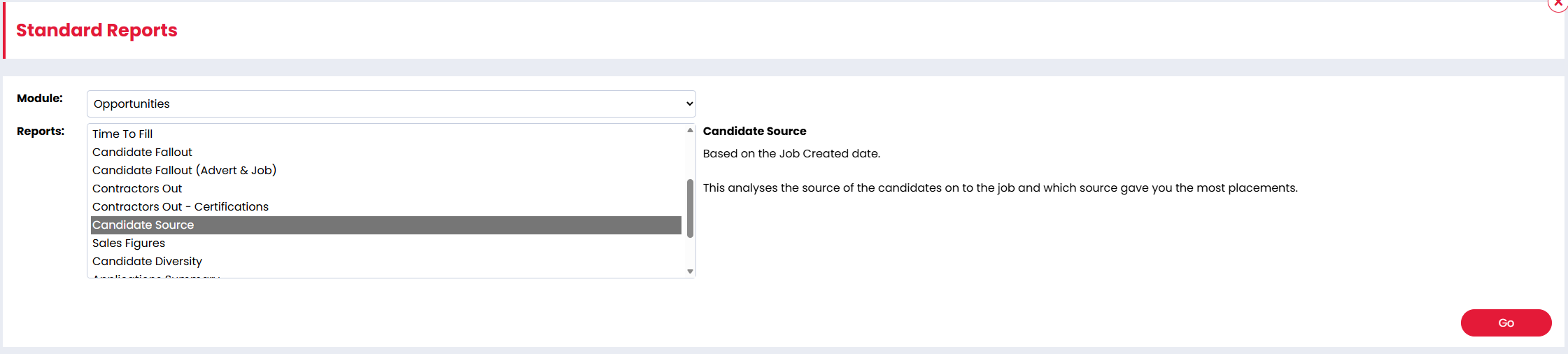
Analyse > Standard Reports > Opportunities > Candidate Source
This report helps you review which sources are leading to results on your jobs, including placements.
Reports Dashboard
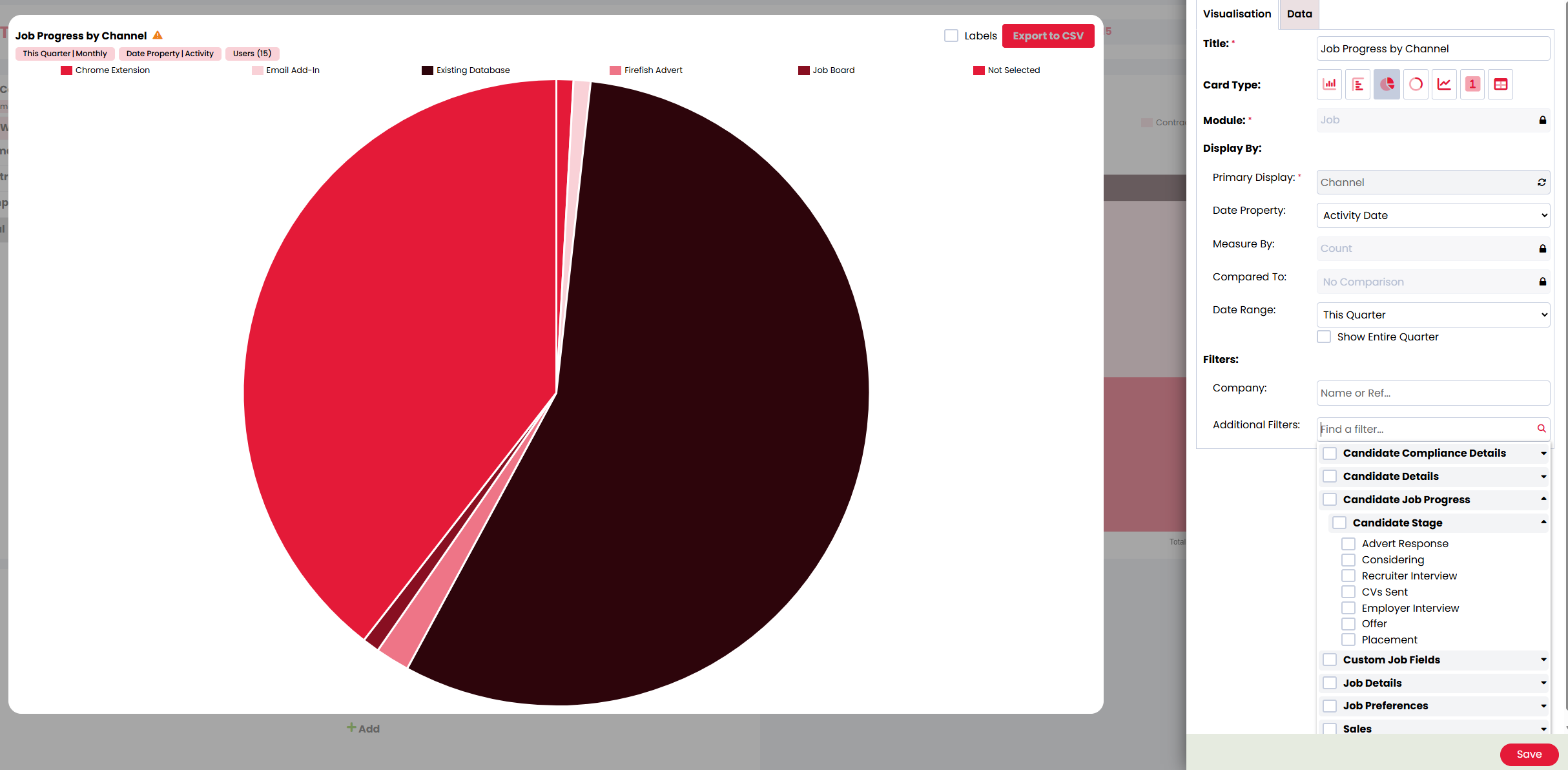
You can also use the Reports Dashboard to build cards using Channel and Source.
When creating dashboard cards using the Jobs module, Channel and Source are available under Candidate Job Progress. You can use them as:
- A primary display
- A data column
- A filter
This is useful if you want to group, filter, or drill into candidate progress by Channel or Source.
Application Source vs Original Source
A candidate record can have one Original Source, but that same candidate may appear against several jobs or adverts.
Because of this, the Source shown on an advert application or job workflow may not always match the candidate’s Original Source.
For example, a candidate’s Original Source might be LinkedIn, but they could later apply to a specific advert from a Job Alert. In that case, the advert application source would show Job Alert, because that is the source of that specific action.
Why older data may show as Unknown
Candidate Channel & Source Tracking was added in late 2024.
Before this, Firefish did not track Channel and Source in the same way. To help with reporting, Firefish mapped older advert application data where it could safely identify the correct values.
Some older records may still show Unknown or have missing source information. This usually means Firefish could not identify the original Channel or Source confidently, so it did not guess.
This is most common for older workflow actions where the candidate was added manually, moved from potential matches, or added through tools that did not previously store Channel and Source data.