Use Candidate Portal Settings to control what candidates can view, update, and manage within the Candidate Portal. Configure visibility for profile information, preferences, references, and payroll details to create a tailored onboarding and self-service experience for your candidates.
Locating Candidate Portal Settings
- Go to the Settings cog.
-
Open the Candidate Portal menu option.
General Settings
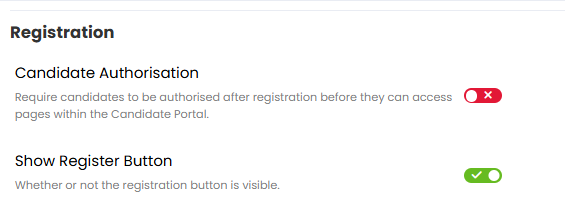
Registration
Activate or deactivate:
- Candidate Authorisation - decide whether candidates need to be authorised after registration. Candidate's cannot be considered to jobs until they have been authorised.
- Show Register Button - decide if the Register button is available on your Firefish jobs page or website.
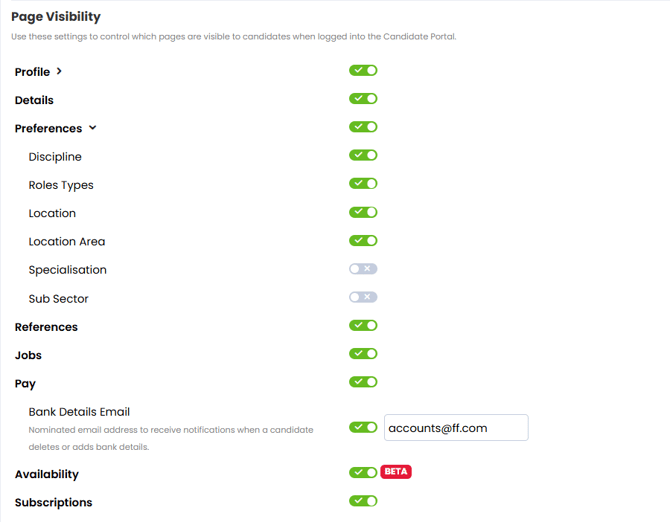
Page Visibility
Within the Page Visibility section you can enable or disable candidate portal pages and fields.
The pages and fields on the Candidate Portal directly correlate with those available to you and your team on your CRM - i.e. the Profile tab for you is available to candidates as My Profile.
From the General tab you can activate or hide:
-
Profile tab and subsequent field
-
Details - learn more about hiding individual fields here.
-
Preferences tab and subsequent fields.
-
References tab.
-
Jobs tab (i.e. your Recruitment tab).
-
Pay tab - and activate the bank details email
-
Availability tab.
-
Subscriptions tab.