Installing the Chrome Extension
Download the Extension
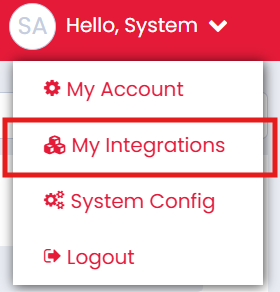
To download the Chrome Extension, navigate to the My Integrations page within Firefish, then select the 'Chrome Extension' tab and click Download Chrome Extension. This will begin the download of a compressed (.zip) file to your device.
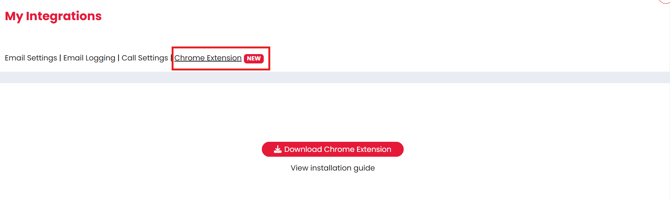
Please note: If you have pop-ups blocked, you may need to enable.
Unzip the Downloaded File
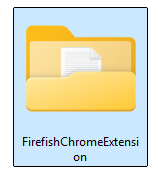
Once the download has completed, locate the .zip file in your downloads folder and extract (unzip) it. This will create a folder containing the unpacked extension files that Chrome needs to install.
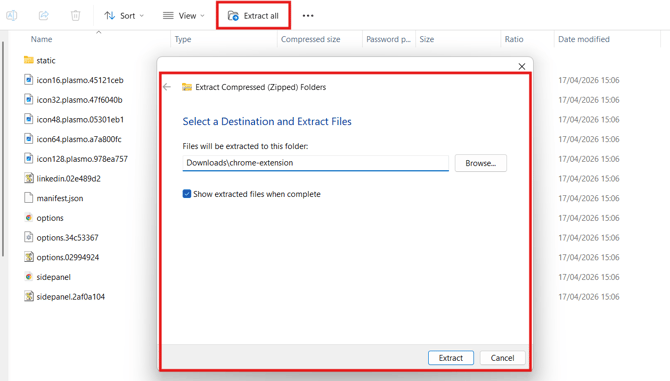
Open Chrome Extension
Open your Chrome browser, select the Extensions icon in the toolbar (the puzzle piece icon), and click Manage Extensions.
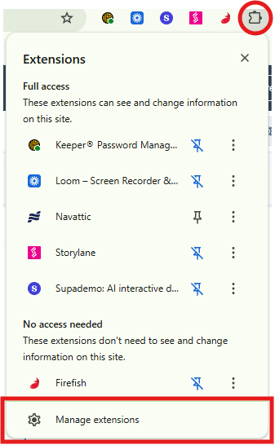
Enable Chrome Developer Mode
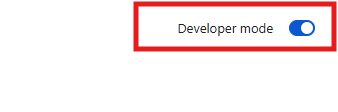
On the Extensions page, check whether Developer mode is enabled. You will find the toggle in the top-right corner of the page. If it is not already switched on, enable it now — this is required to load an unpacked extension.
Load the Unpacked Extension
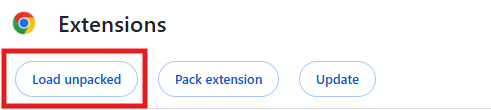
With Developer mode enabled, click Load unpacked in the top-left of the Extensions page. In the file browser that appears, navigate to and select the folder you unzipped in Step 2.
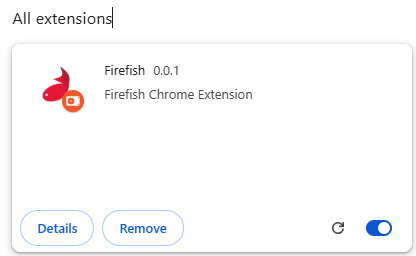
The Chrome Extension will now be installed and visible in your Extensions list, ready for use.
Logging In to the Chrome Extension
Once the extension has been installed, you will need to log in before you can start using it. Click the Extensions icon in your Chrome toolbar and select the Firefish extension to open it.
You will be prompted to enter:
- Your Firefish URL — this is the web address you use to access your system
- Your Firefish username and password — the same credentials you use to log in to Firefish
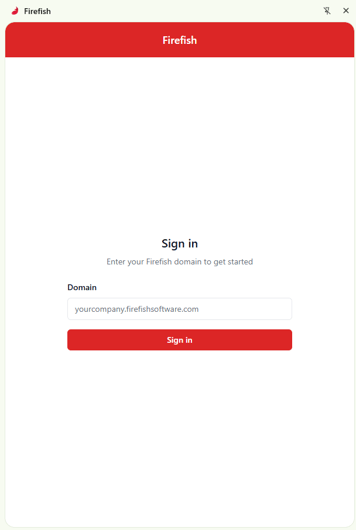
Once you have entered your details, click Log In. The extension will connect to your FireFish instance and you will be ready to start using it.
Using the Chrome Extension
When you visit a profile, the extension automatically searches your database to check whether a record already exists for that person — saving you time and preventing duplicates.
Please note: For best performance, you should scroll some of the page when first visiting it.
Creating a Candidate Record
When browsing a profile, open the Chrome Extension from your toolbar. If no matching record is found in your database, you will be presented with the option to Create a New Candidate.
The extension will automatically map over the following information from a profile:
- Personal email address
- Job title
- Profile URL
- Mobile number (where available)
You will also see tabs for Marketing Preferences and Job Preferences. Complete any required fields — such as the legal basis for owning the record — before saving.
Parsing a profile
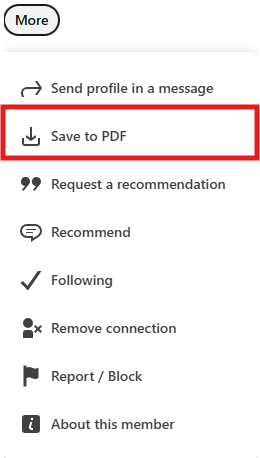
When creating the record, you can also attach the candidate's CV. Download their PDF profile — this will be automatically parsed and pulled into the Chrome Extension. Once you are happy with the information, click Create to add the record to Firefish.
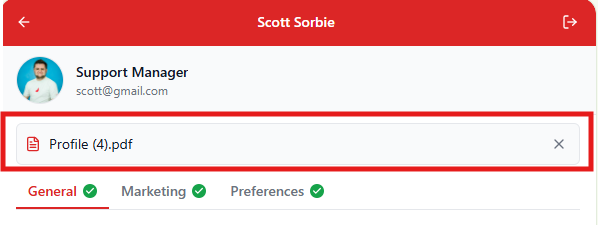
Once created, the candidate record in Firefish will include their parsed CV, skills, experience, and any notes you have added.
Matching Candidates to Jobs
After a record has been created (or if a match already exists), you can use the extension to view any open jobs you may want to consider the candidate for. This is accessible directly within the extension panel.
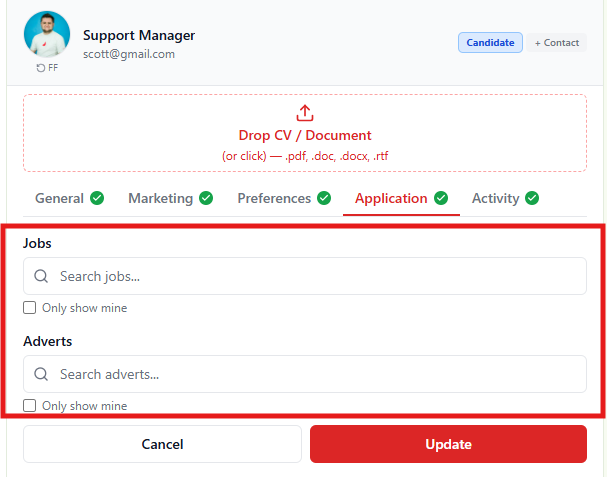
Logging Activities
You can log activities against a candidate or contact directly from the Chrome Extension without switching over to Firefish. Click the Activities tab within the extension and add your note — for example, recording that you have sent a DM message or are waiting to hear back.
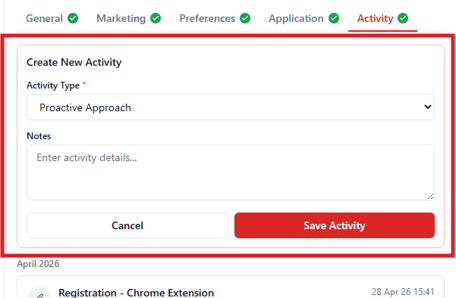
Once saved, the activity will appear on the corresponding record in Firefish immediately.
Creating a Contact Record
If you are viewing someone's profile and would like to create a Contact record for BD purposes — rather than, or in addition to, a Candidate record — you can do so from the same extension panel. Select Create New Contact and the extension will map over:
- First and last name
- Employer
- Job title
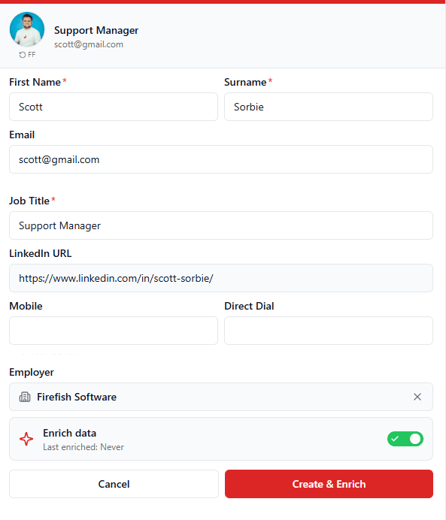
Note: If you have an existing Candidate record for this person and want to also track them as a Contact for BD activity, you can create a Contact record from the same profile. The personal email address on the Candidate record and the professional email on the Contact record will remain separate.
Using Firefish Enrich
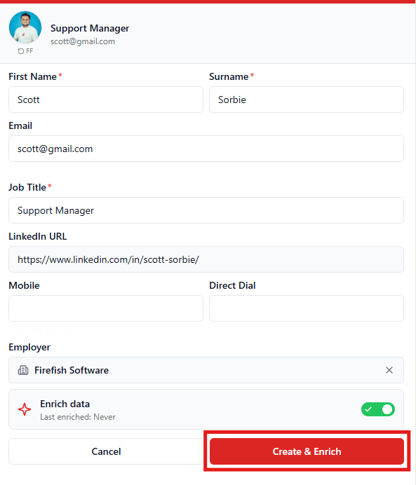
If your account has Firefish Enrich credits available, you can enrich a newly created Contact record at the point of creation. Simply select Create & Enrich when creating the contact from the extension.
Enrich will go off and verify and add additional data to the record, including:
- Validated phone number
- Professional email address
- Verified job information
Toggling Between Candidate and Contact Records
The Chrome Extension allows you to seamlessly toggle between Candidate and Contact views for the same person — giving you full visibility of both records directly from your browser, without needing to navigate back into Firefish.