Candidate Email Sequences help you keep in touch with your candidates by sending a planned series of emails to them from Firefish.
-
- What are Candidate Email Sequences?
- Before you start
- Create your candidate sequence templates
- Create and edit a Candidate Sequence
- Choose when emails are sent
- Add email stages
- Manually enrol a Candidate
- Bulk enrol Candidates from Candidate Search
- Bulk enrol Candidates from Incomplete Candidates
- Track active sequences
- Unenroll Candidates
- Report on Candidate Sequences
- FAQs
What are Candidate Email Sequences?
Candidate Email Sequences let you send a series of automated emails to your candidates.
They're useful for repeatable follow-up workflows such as:
- re-engaging lapsed candidates you haven't spoken to in a while
- prompting candidates to complete their profile or log in to the Candidate Portal
- keeping in touch with candidates you haven't placed yet
- keeping outreach consistent across your team
In this release, sequences send emails only.
There is one Candidate Sequence type:
- Custom Sequence: you decide who goes in. Enrol candidates yourself from a Candidate Record, from Candidate Search, or from your Incomplete Candidates list.
The automatic sequence types — Added to Lead and Terms Review — are for Contacts only.
Note: Contact and Candidate sequences are kept completely separate. They have their own templates, their own sequences, their own permission to send, and their own view in the Email Sequences list. If a person exists as both a Candidate and a Contact, each side is managed on its own.
Before You Start
To create and manage sequences you'll need the right user access. Super Users can manage sequence setup. Users with the Custom Sequences permission can enrol and unenrol candidates.
A candidate must also be eligible before they can be added to a sequence. They'll need:
- a valid email address
- Automations switched on
- to be active — not archived and not marked for deletion
- to meet the rules set on the sequence
Automations Subscriptions
By default, all candidates have the Automations subscription switched on. This applies to every candidate already on your database, and to every candidate created from now on — however they're created. Web registration, an advert application, the API, the Outlook add-in and browser extensions, and candidates you add manually all arrive with Automations ticked.
If you don't want a candidate to be eligible for any sequence at any time, open the Subscriptions tab on their record and untick Automations.
Note: Removing the Automations subscription will also immediately unenrol the candidate from any candidate sequences they are in. Firefish will warn you before you save.
Candidate Automations are separate from Contact Automations. On a record that is both a candidate and a contact, changing one does not change the other.
Create Your Candidate Sequence Templates
Sequence emails use templates from the Activities Library.
Go to System Configuration > Activities Library, choose Emails, then open the Candidate module and the Sequences category.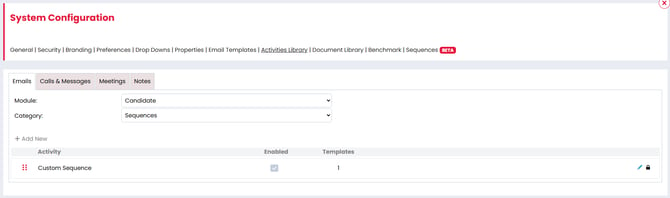
Candidate has one sequence template type: Custom Sequence.
Add the subject line, email content, and any candidate merge fields you want to use.
Candidate templates and Contact templates can't be mixed. When you're building a Candidate Sequence you'll only be offered Candidate templates, and Contact sequences will only ever offer Contact templates.
If a template is already used in a sequence, Firefish will warn you before you edit it. Templates currently used in a sequence can't be deleted.
Create and Edit a Candidate Sequence
Go to Settings > System Configuration > Sequences.
From here you can view existing sequences or create a new one. The list shows the Audience of every sequence, so you can tell your Candidate and Contact sequences apart at a glance, and filter between them.
When creating a sequence, choose the Audience first — Contact or Candidate.
The Audience can't be changed once the sequence is saved. If you change the Audience while you're still setting the sequence up, any Sequence Type and type-specific details you've already chosen will reset, so you only ever end up with valid setup.
Then choose the Sequence Type. When the Audience is Candidate, Custom Sequence is the only type available.
You'll then set the sequence name and the rest of the sequence settings.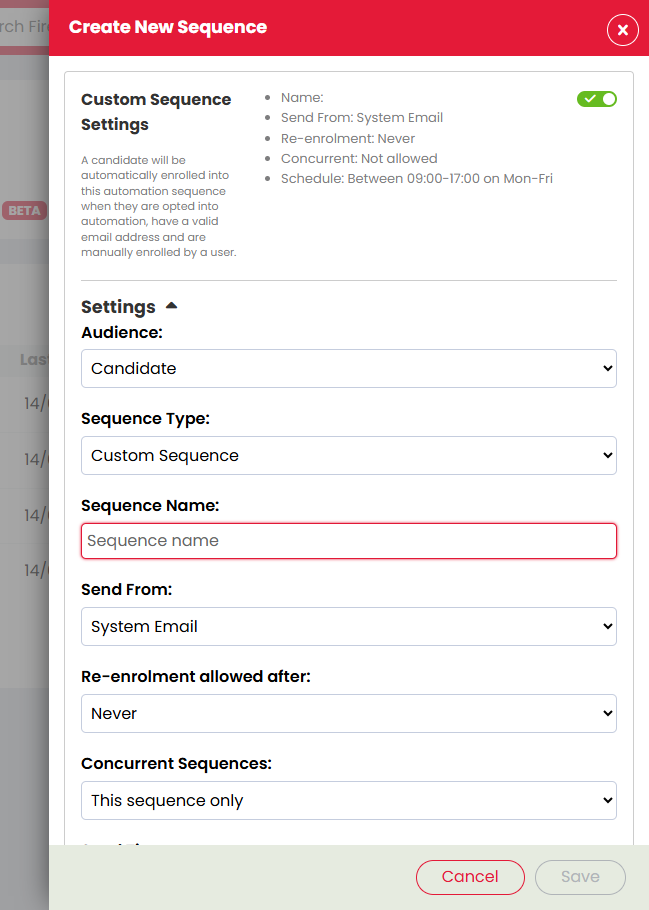
Editing Sequences
Any edits made to an existing sequence will only affect newly enrolled candidates. Candidates already enrolled will continue to progress through the rules that were in place when they were added, until they're unenrolled.
The same applies to switching a sequence off. Open the sequence and switch Enabled off to stop any new candidates being enrolled — candidates already in the sequence carry on.
Deleting Sequences
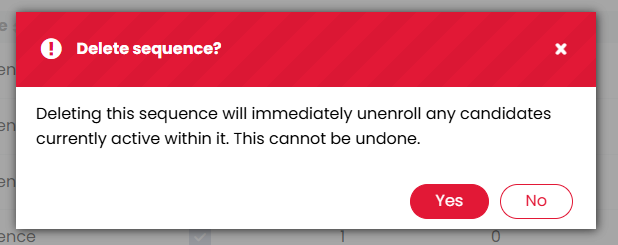
Delete a sequence by clicking the bin icon in the summary list. Doing so will immediately unenrol any candidates who are mid-way through it.
Choose When Emails Are Sent
Each sequence has its own sending rules so emails go out at sensible times.
You can choose:
- who the email sends from — the System Email, or the Record Owner
- whether candidates can be re-enrolled into the same sequence later
- whether candidates can be in other sequences at the same time, or whether this sequence is exclusive
- the days emails can send — weekdays only, or include weekends
- the time window emails can send in
The default send window is 09:00–17:00, weekdays only, and it uses the time zone set in your System Configuration settings.
If you choose Record Owner, Firefish uses the candidate's owner at the time each email sends, not the owner they had when they were enrolled. If a candidate changes owner part-way through a sequence, the remaining emails come from the new owner.
Switching Send on Weekends off means Saturday and Sunday are skipped when Firefish counts the wait days between stages. For example, if an email sends on a Friday and the next stage waits two days, Saturday and Sunday are skipped, Monday is day one, Tuesday is day two — so the next email sends on Tuesday.
If a stage becomes due outside your selected send window, Firefish waits until the next available send time.
Add Email Stages
Each sequence starts with Stage 1. This stage is required and can't be deleted.
For each stage, choose:
- the email template to send
- how many days to wait before sending it
You can add more stages after Stage 1. Each stage is sent in order, based on the wait time from the previous stage.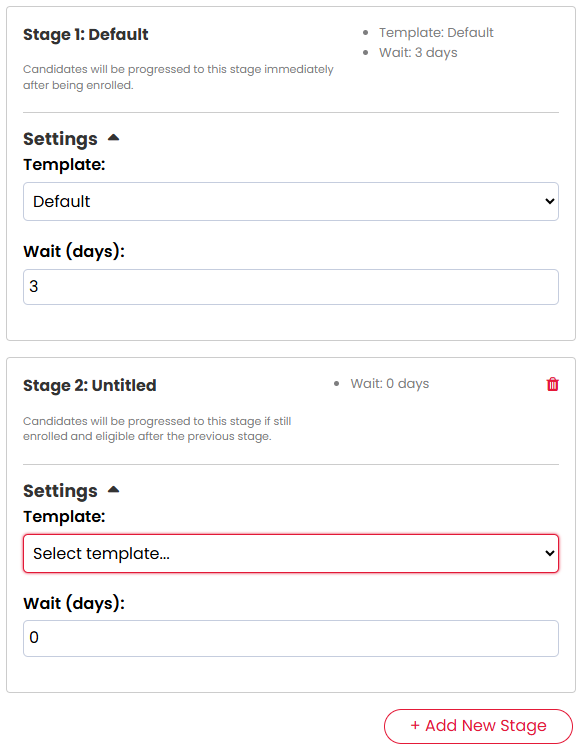 Stages can't be reordered in this release, so it's worth planning your sequence before enabling it.
Manually Enrol a Candidate
Candidate Sequences can be started from a Candidate Record.
Open the candidate, then use the Task menu to choose Enrol into Sequence. Select the sequence you want to use and confirm.
You'll only see this option if:
- you have the Custom Sequences permission
- the candidate has a valid email address
- the candidate has Automations switched on
- there is at least one enabled Candidate Sequence available
Only Candidate Sequences are offered here — your Contact sequences will never appear on a Candidate Record.
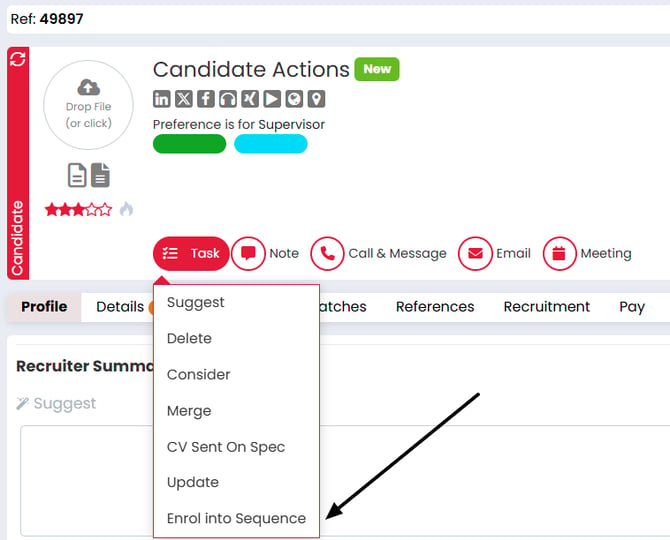
Once enrolled, Firefish adds an Enrolled into Sequence entry to the candidate's activity feed, and a sequence status shows on the record.
Bulk Enrol Candidates From Candidate Search
You can also add multiple candidates to a sequence from Candidate Search. This is where most sequence enrolment is likely to happen — for example, searching for candidates who haven't been updated in over two years, and enrolling that whole group into a re-engagement sequence.
Select the candidates you want to enrol, then choose the Sequence bulk action. Pick the enabled Candidate Sequence you want to use and continue.
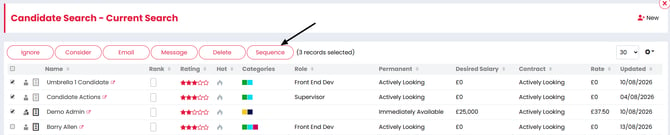
Firefish checks each selected candidate first and shows you who can and can't be enrolled, and why. Common reasons a candidate is skipped are:
- they don't have a valid email address
- they don't have Automations switched on
- they're archived or marked for deletion
- they're already enrolled in that sequence
- they were enrolled before and the sequence's re-enrolment rules don't allow them back in yet
- they're in another sequence that the exclusivity rules don't allow them to combine with
Candidates who aren't eligible are simply skipped — they don't stop the eligible ones from going through. When the action finishes, Firefish shows you a summary of how many candidates were added and how many weren't actioned.
Bulk Enrol Candidates From Incomplete Candidates
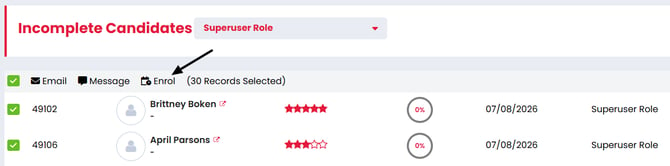
The same bulk action is available on your Incomplete Candidates list, reached from your dashboard.
Select the candidates you want, then choose Enrol. The workflow is exactly the same as it is from a search results list.
This is designed for one of the most likely uses of candidate sequencing: re-engaging candidates whose profiles are incomplete or missing data, with a sequence that encourages them to fill in the gaps — either by logging in to their Candidate Portal or by replying to your email.
Track Active Sequences
Go to People > Email Sequences to see active sequence enrolments. Use the tabs at the top of the list to move between Contacts and Candidates. Contacts is the default view.
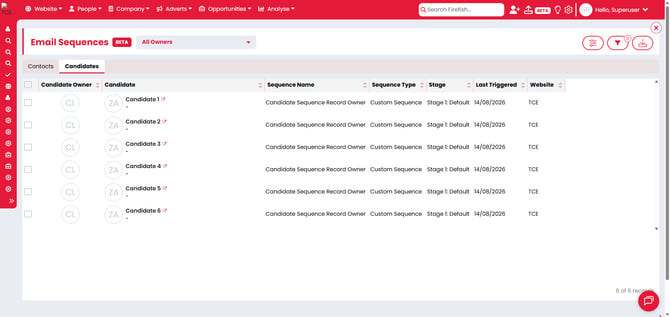
Each active sequence enrolment appears as its own row. If a candidate is in more than one sequence, they'll appear once for each active sequence.
In the Candidates view you can see details such as:
- Candidate Owner
- Candidate
- Sequence Name
- Sequence Type
- Stage
- Last Triggered
You can also filter by candidate, sequence name, sequence type, stage and Last Triggered date range. The owner filter matches on both the Candidate Owner and the Temp Owner, and includes a Not Selected option so you can pick up enrolments for candidates who have no owner set.
Completed and unenrolled enrolments drop off this list — it only ever shows what's currently active.
Your dashboard also has an Enrolled in Sequence item under Candidate Activity, showing how many of your candidates are currently in a sequence. Clicking it opens the Email Sequences list on the Candidates view, filtered to you.
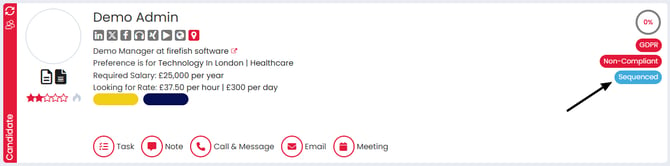
On the Candidate Record itself, Firefish shows a status alongside the candidate's other record pills when they're currently in a sequence. If they're in more than one, hover over it to see which sequences they're in. Nothing is shown if the candidate isn't in a sequence.
Unenrol Candidates
You can remove a candidate from a sequence from the Candidate Record or from People > Email Sequences.
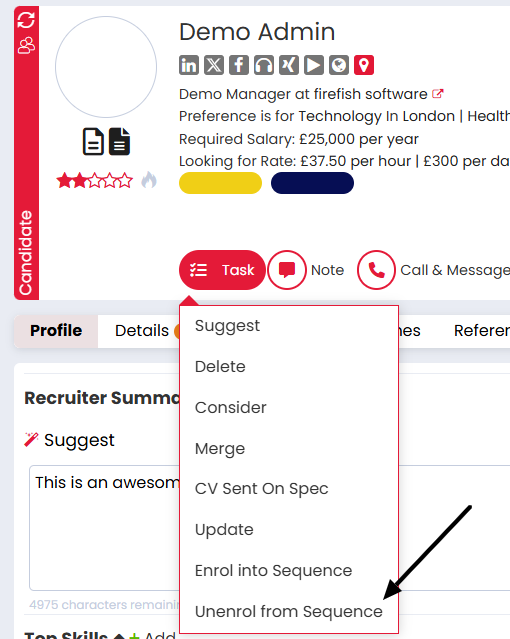
On the Candidate Record, use the Task menu and choose Unenrol from Sequence. If the candidate is in more than one sequence, you can choose a single sequence to remove them from, or remove them from all of them.
From the Email Sequences list, users with the right permission can select one or more rows and bulk unenrol them. Firefish will ask you to confirm before removing them. Because each row is a single enrolment, selecting one row only stops that one — any other sequences that candidate is in carry on.

Candidates are also removed from a sequence automatically when:
- they reach the end of the sequence
- Automations is unticked on their record
- the sequence is deleted
- the candidate is merged into another record
- the candidate is archived or marked for deletion
Whichever way it happens, Firefish records an Unenrolled from Sequence entry on the candidate's activity feed with the reason — Manually Unenrolled, Sequence Completed, Opted out of Automations, Sequence Deleted, Candidate Merged, or Candidate Archived.
Once a candidate is unenrolled, future emails in that sequence stop.
Report on Candidate Sequences
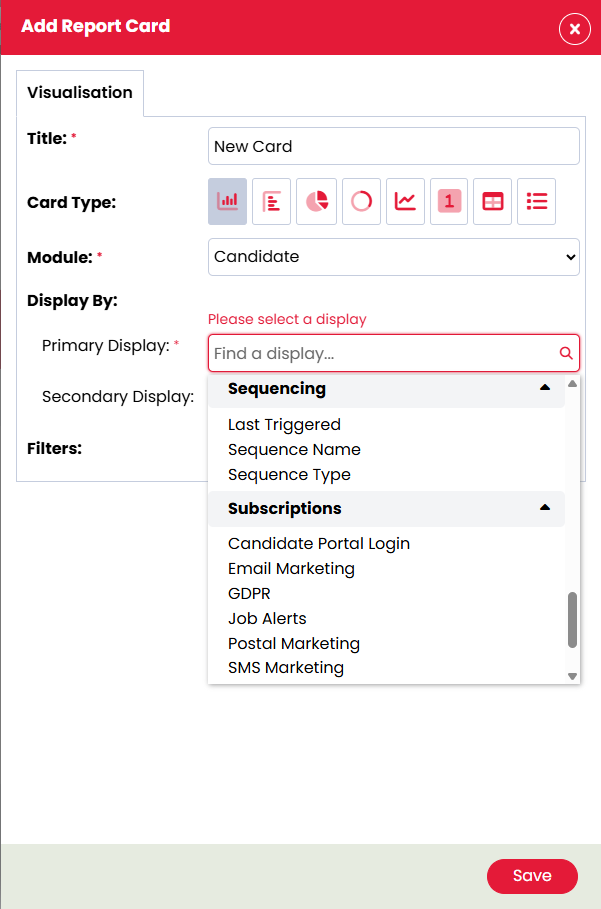
Candidate sequencing data is available in the Reports Dashboard. Add a card, choose the Candidate module, and you'll find a Sequencing group containing Sequence Name, Sequence Type and Last Triggered.
FAQs
Why can't I see Candidate Sequences?
Your site may not have Sequences enabled, or your user permissions may not allow you to access that area.
Why can't I enrol a Candidate?
The candidate may not have a valid email address, may not have Automations switched on, may be archived or marked for deletion, or may already be active in that sequence. You'll also need at least one enabled Candidate Sequence set up before the option appears.
Can I use my Contact templates for a Candidate sequence?
No. Candidate sequences use Candidate templates from the Activities Library, and Contact sequences use Contact templates. They're kept separate so the content and merge fields are always right for the audience.
Can a Candidate be in more than one sequence?
Yes, if the sequence settings allow concurrent sequences. If they're in more than one, each active sequence is tracked separately.
What happens if I untick Automations for a Candidate?
They're removed from active candidate sequences and future sequence emails stop.
What happens on a record that's both a Candidate and a Contact?
The two sides are independent. Candidate Automations only affects candidate sequences and Contact Automations only affects contact sequences, the sequence status on each record only reflects that audience, and candidate sequence emails always use the candidate's details.
What happens if the Candidate replies to a sequence email?
Replying doesn't automatically take a candidate out of a sequence. If someone responds and you don't want them to receive the rest of the emails, unenrol them from their record.
Can I enrol Candidates from a Talent Pool?
Not in this release. Candidates can be enrolled from a Candidate Record, from Candidate Search, and from your Incomplete Candidates list.
What happens if I disable a sequence?
Disabling a sequence stops new candidates being added. Candidates already active in the sequence continue unless they're unenrolled.
What happens if I edit an active sequence?
Changes apply to candidates enrolled from that point onwards. Candidates already in the sequence continue with the version they were added to.
Can I pause a sequence?
No. Pause and resume controls aren't available in this release.
Can I reorder stages?
No. Stages send in the order they're added.
Can sequences send SMS or tasks?
No. Candidate Sequences send emails only.
Who does the sequence email come from?
Whichever you chose on the sequence — the System Email, or the candidate's Record Owner at the time the email sends.
Where can I see what happened?
Enrolments, sequence stage emails and unenrolments are all recorded on the candidate's activity feed.