Contact Email Sequences help you keep client outreach moving by sending a planned series of emails to Contacts from Firefish.
- What are Contact Email Sequences?
- Before you start
- Create your sequence templates
- Create and Edit a Contact Sequence
- Add email stages
- Choose when emails are sent
- Manually enrol a Contact
- Bulk enrol Contacts from Contact Search
- Use Added to Lead sequences
- Use Terms Review sequences
- Track active sequences
- unenroll Contacts
- FAQs
What are Contact Email Sequences?
Contact Email Sequences let you send a series of automated emails to client Contacts and hiring managers.
They’re useful for repeatable follow-up workflows such as:
- nurturing new business leads
- following up after adding a Contact to a Lead
- reminding the right Contact when Terms are due for review
- keeping outreach consistent across your team
In this release, sequences are for send emails only.
There are three Contact Sequence types:
- Manual Sequence: enrol Contacts yourself from a Contact Record or Contact Search.
- Added to Lead: automatically enrol a Contact when they’re added to a matching Lead Type.
- Terms Review: automatically enrol the nominated Terms Contact when Permanent or Contract Terms are due for review.
Before you start
To create and manage sequences, you’ll need the right user access. Super Users can manage sequence setup. Users with the Manual Sequences permission can manually enrol and unenroll Contacts.
A Contact must also be eligible before they can be added to a sequence. They’ll need:
- a valid email address
- Automations switched on
- to be active, not archived
- An assigned owner
- to meet the rules set on the sequence
Automations Subscriptions
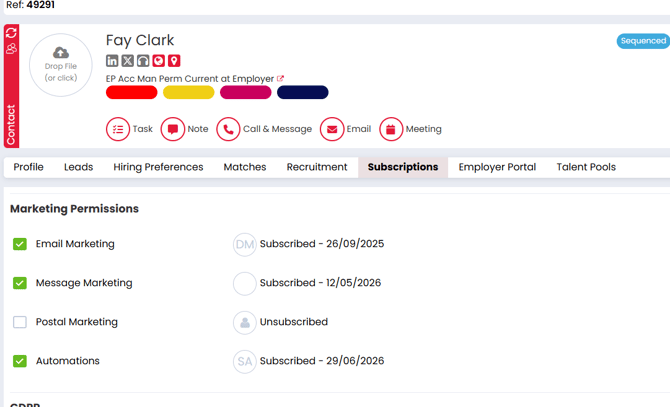
By default, all contacts are created with the Automations subscription. If you don't want a contact to be eligible for any sequences at any time, click the subscriptions tab on their record and remove this permission by unticking the box.
Note: Removing the automations subscription will also immediately unenrol the contact from any sequences they are in.
Create your sequence templates
Sequence emails use templates from the Activities Library.
Go to System Configuration > Activities Library, then open the Contact > Sequences area.
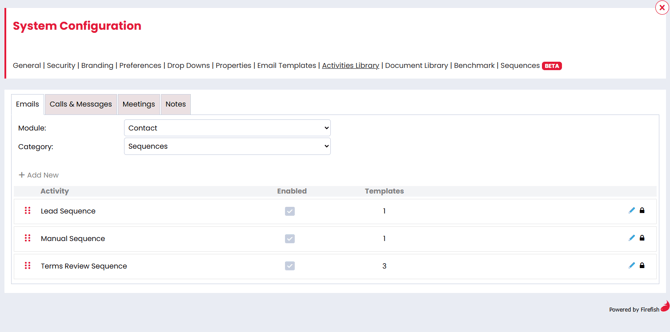
You can create templates for:
- Lead Sequence
- Manual Sequence
- Terms Review Sequence
Add the subject line, email content, and any Contact merge fields you want to use.
If a template is already used in a sequence, Firefish will warn you before you edit it. Templates currently used in a sequence can’t be deleted.
Create and Edit a Contact Sequence
Go to Settings > System Configuration > Sequences.
From here, you can view existing sequences or create a new one.
When creating a sequence, choose the Sequence Type first:
- Added to Lead
- Manual Sequence
- Terms Review
The audience will be Contact.
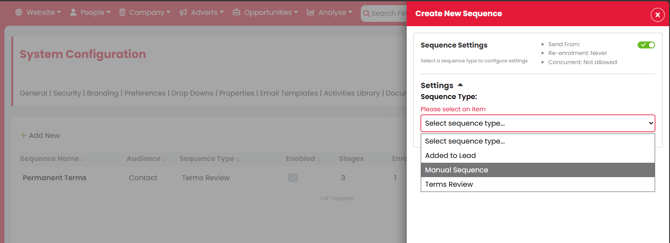
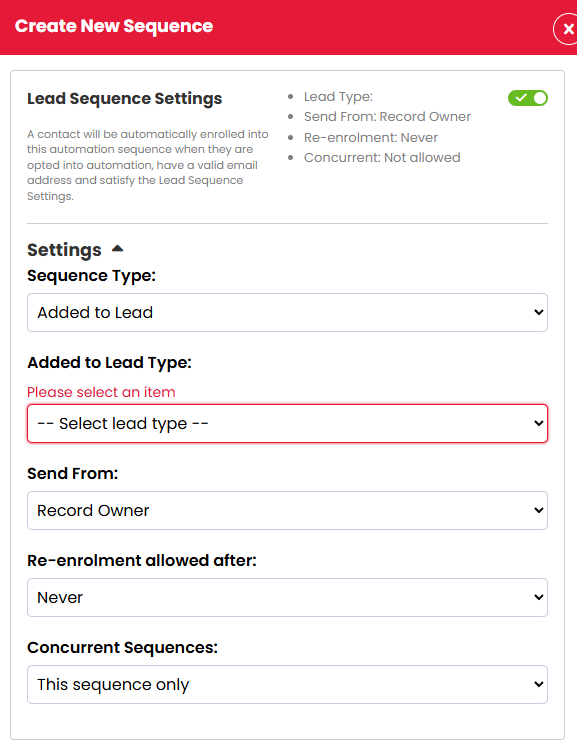
You’ll then set the sequence name and any details needed for that sequence type. For example, an Added to Lead sequence needs a Lead Type, and a Terms Review sequence needs a Terms Type.
Edits to Existing Sequences
Any edits made to existing sequences will only impact newly enrolled contacts. Any contacts that have already been enrolled will continue to progress through the existing rules until such time that they are unenrolled. This includes disabling a sequence using the green toggle to prevent new enrolments being added.
Deleting Existing Sequences
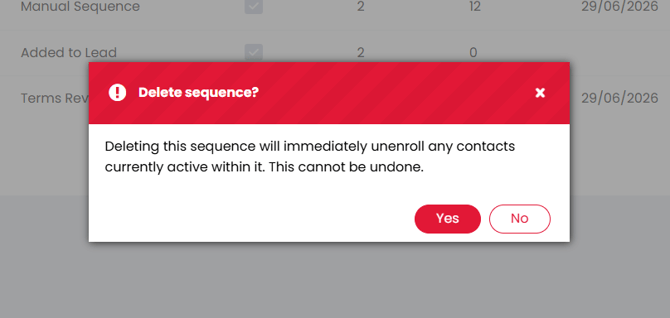
Deleting a sequence can be done by clicking the 'bin' icon in the summary list. Doing so will cause contacts in mid-flight to be immediately unenrolled.
Choose When Emails Are Sent
Each sequence has sending rules so emails go out at sensible times.
You can choose:
- who the email sends from
- whether Contacts can be re-enrolled
- whether Contacts can be in other sequences at the same time
- the days emails can send (weekdays only, or include weekends)
- the time window emails can send in
The default send window is 09:00-17:00, weekdays only.
If a stage becomes due outside your selected send window, Firefish waits until the next available send time.
Add Email Stages
Each sequence starts with Stage 1. This stage is required and can’t be deleted.
For each stage, choose:
- the email template to send
- how many days to wait before sending it
You can add more stages after Stage 1. Each stage is sent in order, based on the wait time from the previous stage.
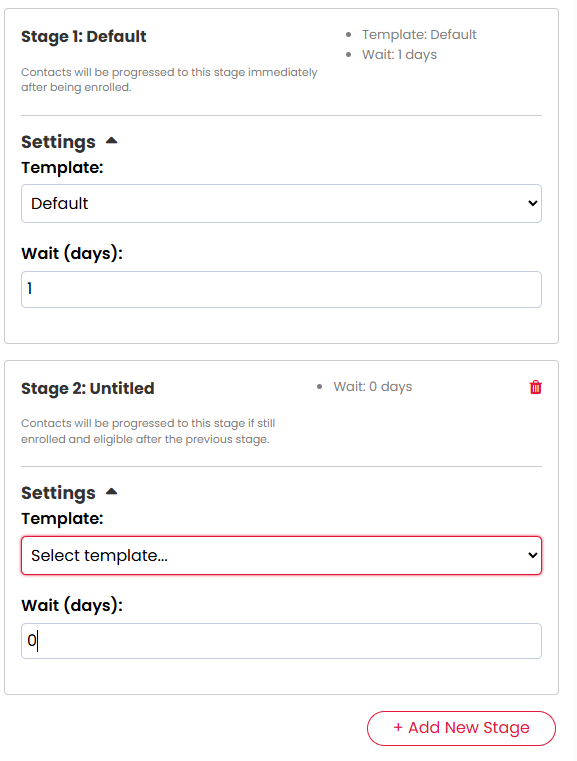
Stages can’t be reordered in this release, so it’s worth planning your sequence before enabling it.
Manually Enrol a Contact
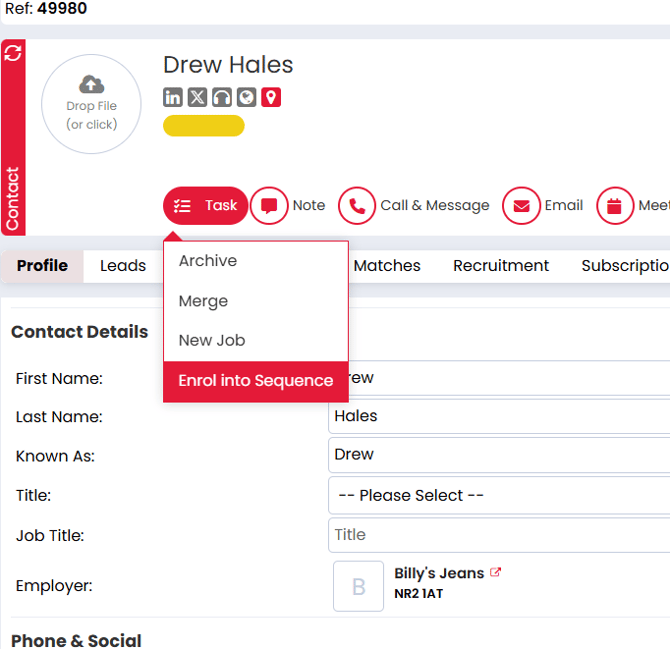
Manual Sequences can be started from a Contact Record.
Open the Contact, then use the task menu to choose Enrol into Sequence. Select the Manual Sequence you want to use and confirm.
You’ll only see this option if:
- you have the Manual Sequences permission
- the Contact has a valid email address
- the Contact has Automations switched on
- there is at least one enabled Manual Sequence available
- the Contact isn’t already active in that same sequence
Once enrolled, Firefish records the sequence activity against the Contact and Company.
Bulk Enrol Contacts From Contact Search
You can also add multiple Contacts to a Manual Sequence from Contact Search.
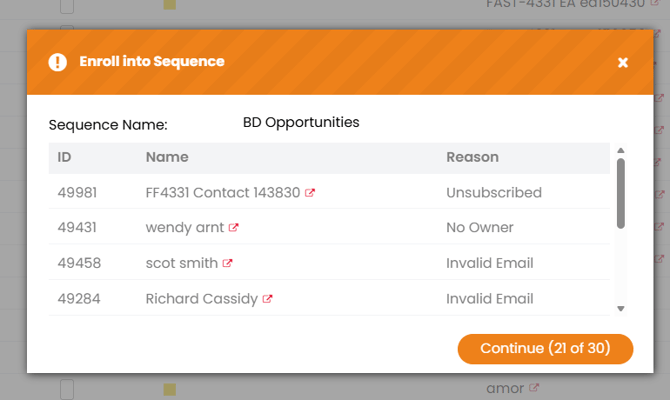
Select the Contacts you want to enrol, then choose the Sequence bulk action. Pick the enabled Manual Sequence you want to use and confirm.
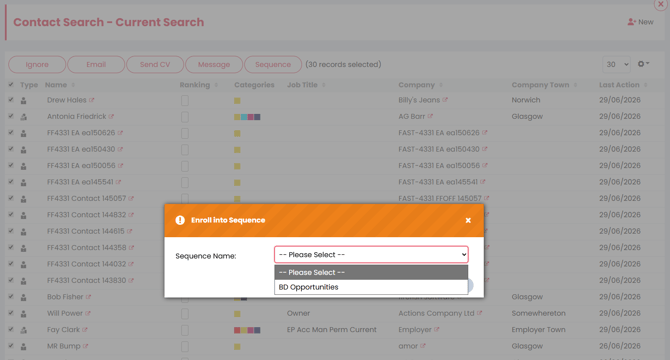
Firefish checks each selected Contact first. Any Contacts who aren’t eligible are skipped, but eligible Contacts will still be enrolled.
Use Added to Lead Sequences
Added to Lead sequences start automatically when a Contact is added to a Lead with a matching Lead Type.
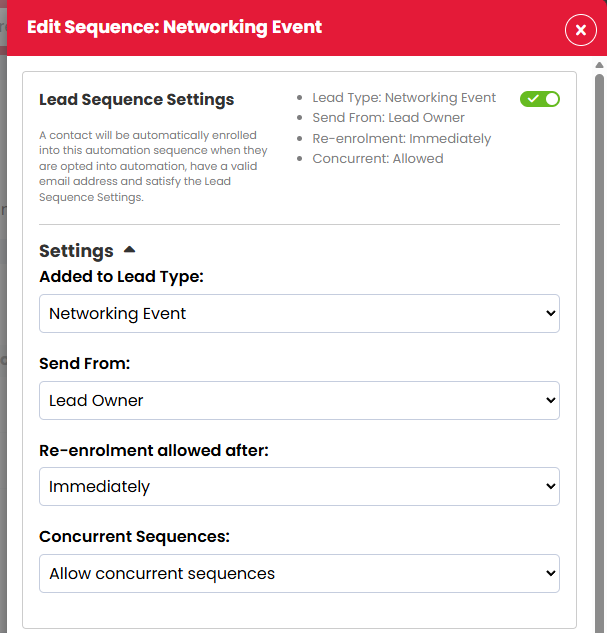
For example, you could create a sequence for a “New Business” Lead Type so key client follow-ups happen automatically after the Lead is created.
The sender can be:
- System Email
- Record Owner
- Lead Owner
If the Record Owner or Lead Owner changes while the Contact is in the sequence, future emails use the updated owner.
A Contact is automatically removed from an Added to Lead sequence if the Lead is moved to Qualified, moved to Disqualified, or the Lead Type is changed.
Use Terms Review Sequences
Terms Review sequences help you follow up with the right Contact when Terms are due for review.
They can be created for:
- Permanent Terms
- Contract Terms
Terms Review sequences have fixed rules for Re-enrolment and Concurrent Sequences to ensure that contacts can be enrolled appropriately without impacting any other sequence types.
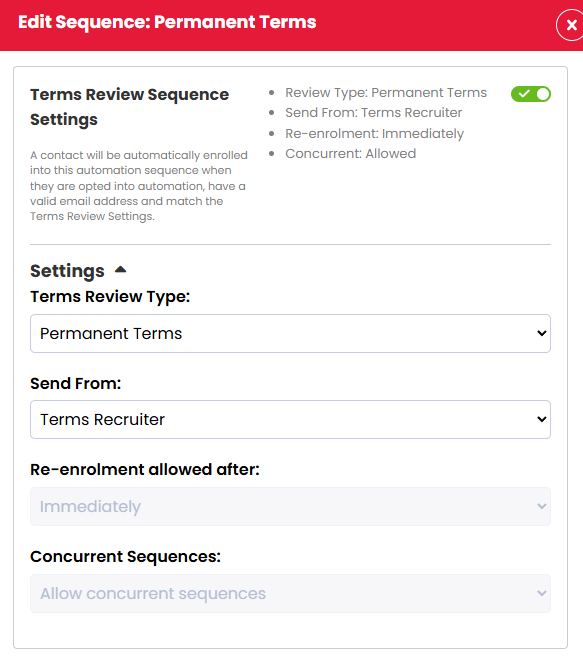
When the Terms Review Date is due, Firefish checks the nominated Terms Contact. If they’re eligible and there’s an enabled matching sequence, they’re enrolled immediately.
If the review date is in the future, the first email waits until that date. If the review date changes before the first email is sent, Firefish reschedules the sequence.
If the Terms Contact changes, the previous Contact is removed from the sequence and the new Contact is checked.
If the Terms status changes to Requested or Completed, the Contact is removed from the Terms Review sequence.
Track Active Sequences
Go to People > Email Sequences to see active sequence enrolments.
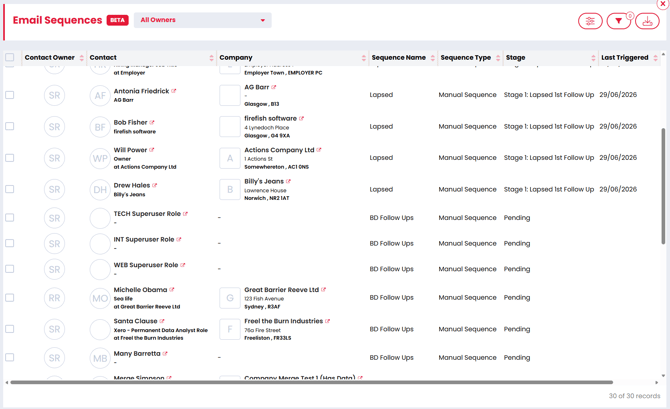
Each active sequence enrolment appears as its own row. If a Contact is in more than one sequence, they’ll appear once for each active sequence.
You can view details such as:
- Contact Owner
- Contact
- Current Employer
- Sequence Name
- Sequence Type
- Stage
- Last Triggered
You can also filter by Contact, Company, Sequence Name, Sequence Type, Stage, and Last Triggered date.
On the Contact Record, Firefish also shows when a Contact is currently in a sequence.
Unenroll Contacts
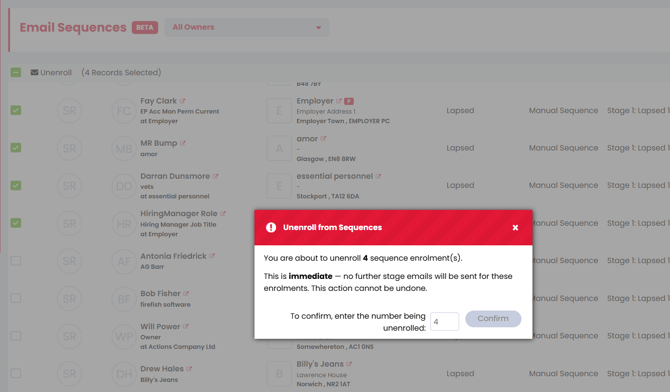
You can remove a Contact from a sequence from the Contact Record or from People > Email Sequences.
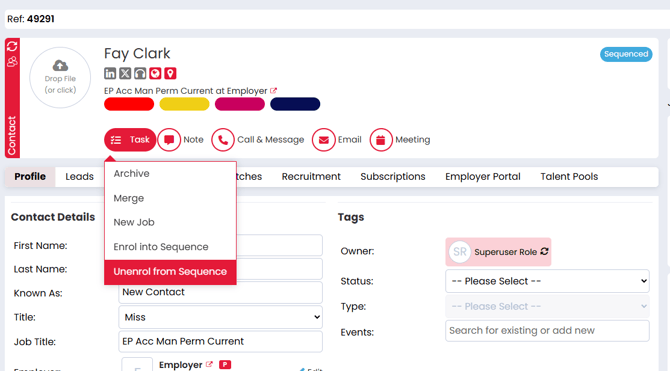
If the Contact is in more than one sequence, you can choose which sequence to remove them from.
Users with the right permission can also bulk unenroll Contacts from the Email Sequences list. Firefish will ask you to confirm before removing them.
Once a Contact is unenrolled, future emails in that sequence stop.
FAQs
Why can’t I see Contact Sequences?
Your site may not have Sequences enabled, or your user permissions may not allow you to access that area.
Why can’t I enrol a Contact?
The Contact may not have a valid email address, may not have Automations switched on, may be archived, or may already be active in that sequence.
Can a Contact be in more than one sequence?
Yes, if the sequence settings allow concurrent sequences. If they’re in more than one, each active sequence is tracked separately.
What happens if I switch off Automations for a Contact?
They’re removed from active sequences and future sequence emails stop.
What happens if I disable a sequence?
Disabling a sequence stops new Contacts being added. Contacts already active in the sequence continue unless they’re unenrolled.
What happens if I edit an active sequence?
Changes apply to Contacts enrolled from that point onwards. Contacts already in the sequence continue with the version they were added to.
Can I pause a sequence?
No. Pause and resume controls aren’t available in this release.
Can I reorder stages?
No. Stages send in the order they’re added.
Can sequences send SMS or tasks?
No. Contact Sequences send emails only.
Where can I see what happened?
Sequence enrolments, email stages, and unenrollments are recorded on the Contact and Company activity feed.