You can use a company-wide email signature or customise your own. This article explains both options and how to fix common issues.
Contents
- Create a Company Signature (Super Users only)
- Create a Personal Signature (All Users)
- Using the Signature Editor
- Fix Image Display Issues
- Test and save
Create a Company Signature (Super Users only)
-
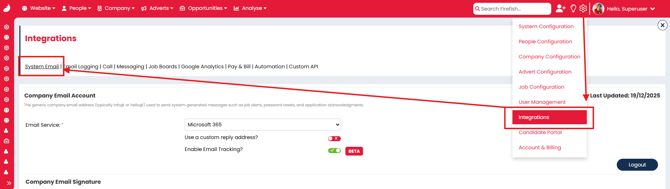
Go to: Settings > Integrations > System Email
-
Enter your branded signature.
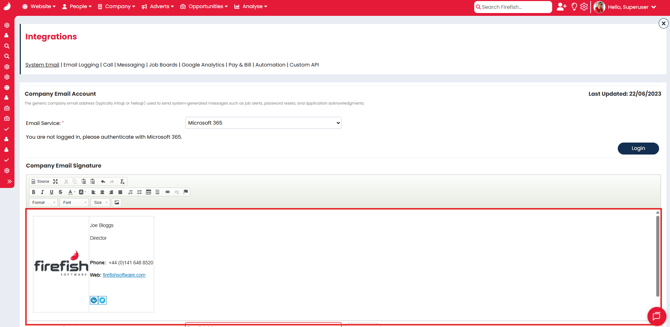
- Enter your email address into the Send Test Email To field and click Test & Save
💡Top Tip: All users can copy this as a base in their personal email integration.
Create a Personal Signature (All Users)
Copy the Company Signature
To apply the company signature:
- Go to Hello, Your Name > My Integrations > Email Settings
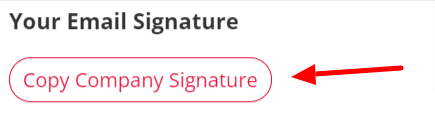
- Click Copy Company Signature
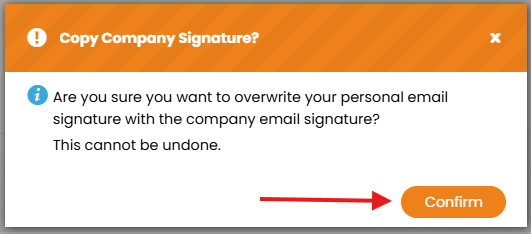
- Confirm the overwrite.
- Make any relevant edits.
- Enter your email address in the Send Test Email To field and click Test & Save.
⚠️ Warning: This will replace your existing signature.
ℹ️ The Copy Compay Signature button only appears if a Super User has set a company signature.
Create or Paste a Personal Signature
You can:
- Type directly in the signature editor.
- Or paste from another source (e.g. Outlook)
- Use Ctrl + V or Cmd + V to paste, or
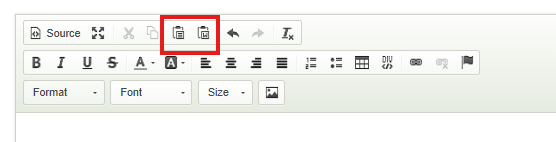
- Use the paste tools on the editor toolbar
Using the Signature Editor
The tools available on the toolbar are:
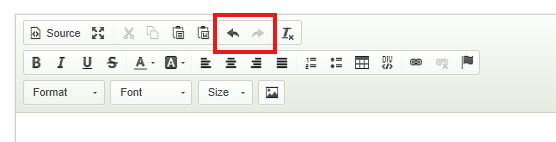
- Undo, redo.
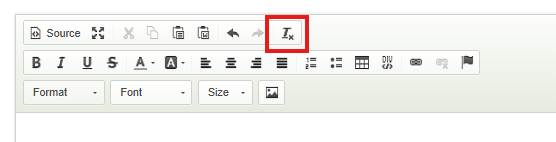
- Remove all formatting.
-
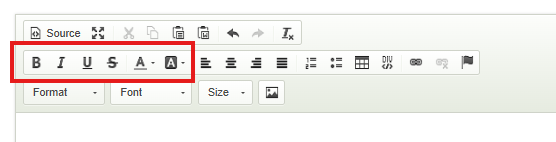
Apply bold, italics, colours to your text.
-
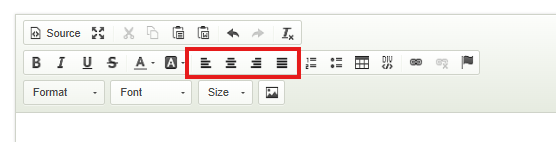
Set alignment
-
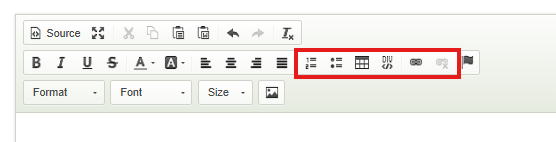
Add bulleted or numbered lists, tables, and links
-
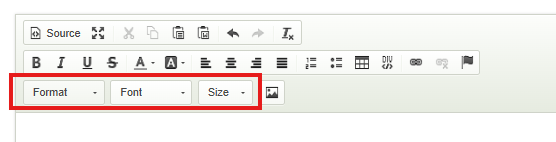
Format your font family and size
💡Pro Tip: To remove double spacing applied by the editor, select Normal (DIV) from the Format dropdown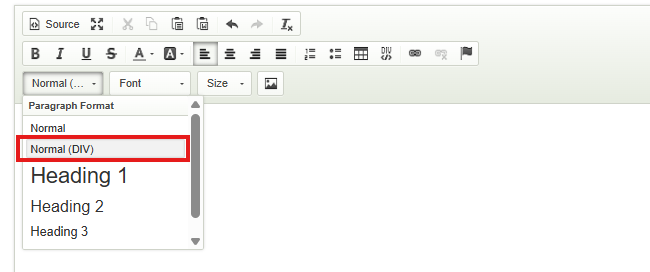
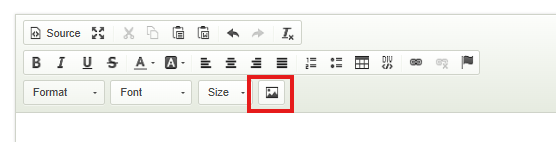
- Add images
Fix Image Display Issues
If images do not appear correctly, the most likely reason is the URL is incorrect or malformed. In these cases it is always best to replace the image from scratch using the image properties:
- Select the image by clicking on it.
- Select Image Properties
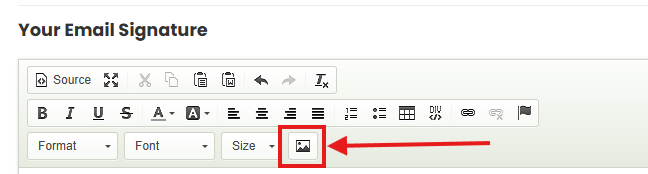
- Click Browse Server
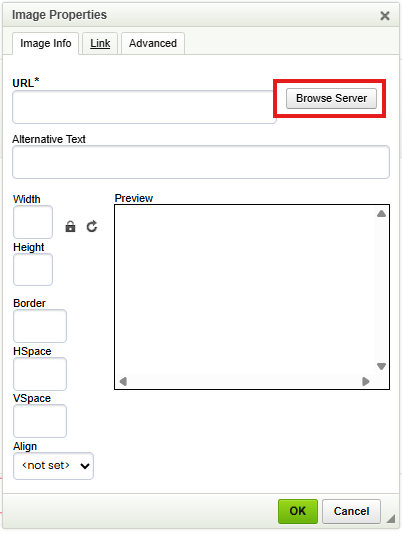
- Choose an uploaded image.
🛠️ Avoid copying image files directly from other apps - always use uploaded images in Firefish.
Test and Save
- Enter your email address into the Send Test Email To field.

- Click Test & Save

- Check your test email.