- What is the Document Library?
- What are the Available Standard Documents?
- Uploading, Replacing and Deleting a Document
- Editing a Document
What is the Document Library?
The Document Library is a place for you to upload standard documents that can be sent to candidates or contacts via specific emails within the system.
Super Users can access the Document Library:
-
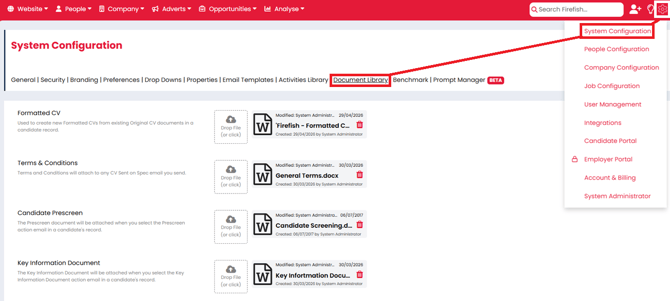
Click the cog icon in the top-right.
-
Navigate to System Configuration.
-
Select Document Library.
What are the Available Standard Documents?
Formatted CV
Use this template to create a new formatted CV for a candidate. This will merge with the original CV document in the candidate record.
You can also add merge fields to the Formatted CV template.
For more on how to create and edit a formatted CV from an original CV, check out this page.
Terms & Conditions
This document will attach to any CV Sent on Spec email you send, as well as the Terms Sent email to contacts.
Candidate Pre-screen
The Pre-screen document will be automatically attached when you select the Pre-screen action email in a candidate’s record.
Key Information Document
The Key Information document will be automatically attached when you select the Key Information action email in a candidate's record.
Interview Guide
This document will be sent to candidates whenever you arrange an employer interview on the job workflow.
Reference Document
Update your reference template and it will automatically attach the document to the 'Reference Requested' action in a candidate's record.
Permanent Offer
When you run the offer action for a permanent role, you may want to send some information to the contact. Just upload that document here, and it’ll attach to their offer confirmation email.
All of the above documents can only hold one version at a time.
Candidate Contract
If you’d like to set up template documents to send your candidates a standard contract every time you confirm a contract placement, just click the red button to enable, and you can then upload and edit the documents here.
You can also add merge fields to the Candidate Contract template.
For more on how to set up and use contract templates, check out this page.
Employer Contract
If you’d like to set up template documents to send your contacts a standard contract every time you confirm a contract placement, just click the red button to enable, and you can then upload and edit the documents here.
You can also add merge fields to the Employer Contract template.
For more on how to set up and use contract templates, check out this page.
Uploading, Replacing and Deleting Documents
To upload a new document you can either drag and drop into the Drop File icon or click on the icon to choose the document from your computer.

These templates can be uploaded as both a Word Doc and PDF, but please note that PDFs are not editable.
Uploading Multiple Documents
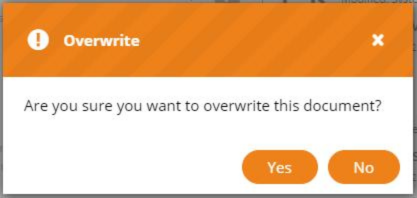
While you can upload multiple Candidate/Employer Contracts, uploading one of the other document types will overwrite any document that is already saved. You will see a warning message confirming if you want to overwrite the existing document.
Deleting a Document
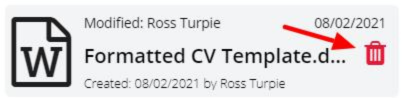
You can also delete an existing document by pressing on the red bin icon:
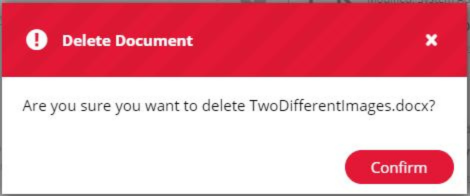
You'll see a warning message confirming if you want to delete the document.
Editing a Document
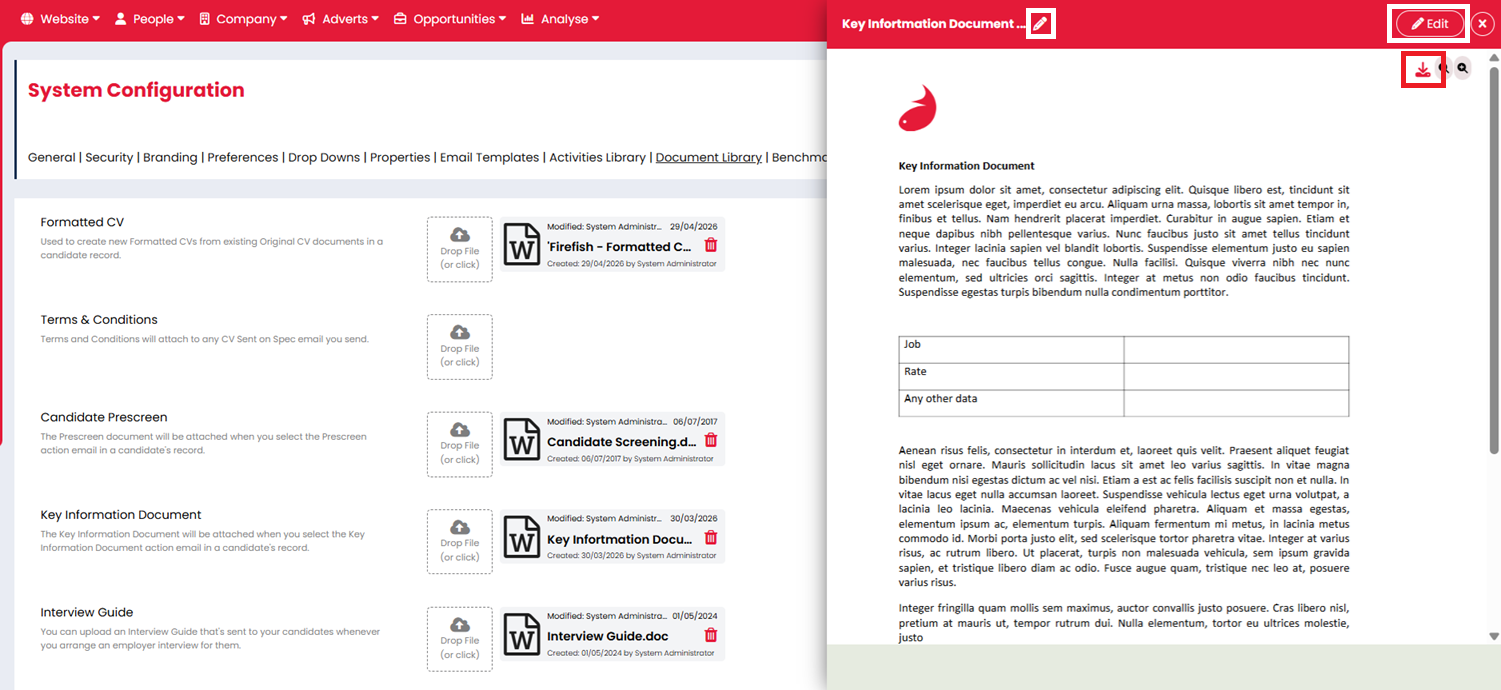
Clicking any of the documents will open them in preview mode. From here you can:
-
Rename via the pencil icon next to the current name
-
Download via the download button
-
Edit via the Edit button
After making all of your changes, remember to click Save before leaving the page to ensure your changes are not lost.