Editing email templates in Firefish allows you to keep your communication accurate, consistent, and aligned with your brand. This guide walks you through how to access, update, and manage your templates so you can ensure every message sent to candidates and clients is clear, professional, and up to date.
Only Super Users and Marketing Users have access to edit email templates.
- Accessing Email Templates
- Using Merge Fields
- Best Practice Tips
- Editing Email Templates via the Activities Library
Accessing Email Templates
To begin editing an email template, you first need to locate where templates are stored within Firefish.
- Click the Settings cog.
- Choose System Configuration.
- Go to the Email Templates tab or the Activities Library.
- Candidate and Contact bulk emails and emails sent directly from their record are now held in the Activities Library - learn more here.
- Navigate to the relevant Module, Category and Email Template.
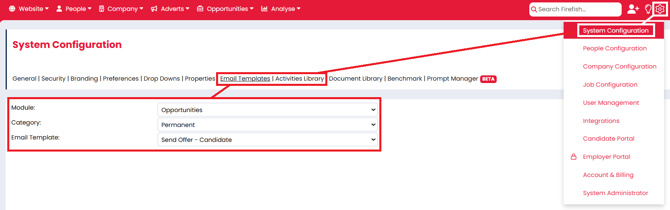
Edit Email Templates
Once you have opened a template, you can update its content to reflect your current messaging.
- Update the subject line to ensure it is clear and relevant.
- Edit the email body with your desired content.
- Adjust formatting to keep the message easy to read.
- Remove any outdated or unnecessary information.
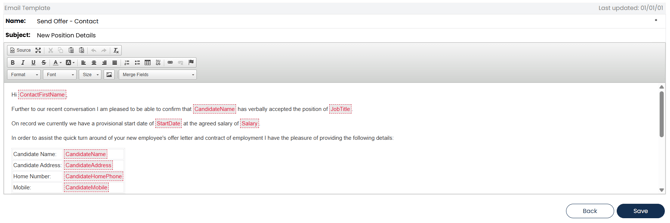
Using Merge Fields
Merge fields allow you to personalise emails automatically using candidate, client, or job data. Whilst editing the email template, it will display as red font inside a grey box, but when you send the email it will populate with the relevant details from any corresponding records.
- Click where you would like the merge field to display in the email.
- Select the merge field button in the editing menu.
- Select the desired merge field.
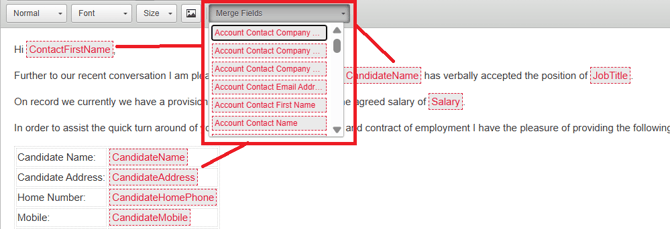
Common examples include:
- Candidate first name
- Job title
- Company name
Using merge fields ensures your emails feel personalised without requiring manual edits each time.
Adding an Email in HTML Code
You can create bespoke email templates outwith Firefish, on the lives of Canva or with the help of a web developer. These can be easily added to Firefish by copying and pasting the HTML code of the email into the relevant email template Source on the system.
- Locate the email template you would like to add the code to.
- Press the Source button in the editing tools.
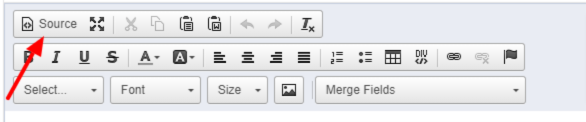
- Remove anything that is in here currently and paste in your code.
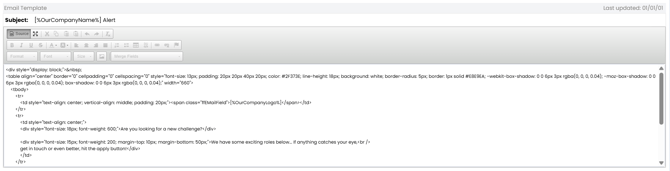
- Click the Source button again to preview the email.
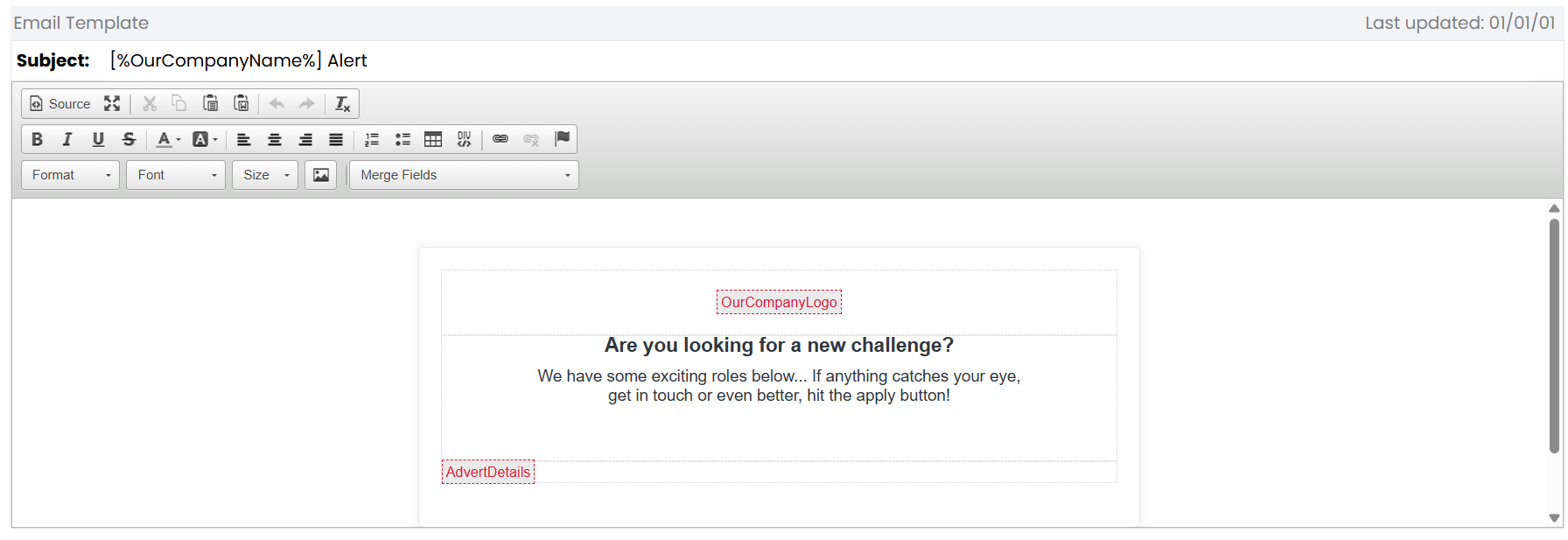
- Make any necessary tweaks to the content and add in any relevant merge fields.
- Save when you're finished.
Email Templates on Secondary Sites (Enterprise Only)
As an Enterprise client, you can have secondary sites. Each of these sites will have email templates that can be edited. Updating a template on a primary site will not update the same template on any secondary sites you may have. Similarly, updating an email template on a secondary site will not update the same template on the primary site, or any other secondary sites.
Best Practice Tips
Follow these tips to get the most out of your email templates:
- Keep templates clear and concise.
- Use a consistent brand voice and tone.
- Avoid large blocks of text.
- Regularly review and update templates.
- Use merge fields to improve personalisation.
- Test templates before using them in bulk emails.