TalentLynk is a communications platform designed for recruitment agencies, bringing calling, messaging and conversation management together in one place.
By connecting TalentLynk with Firefish, you can make calls from candidate and contact records, automatically log call activity and access recordings and AI-generated call summaries.
Quick Jump to:
- What is TalentLynk?
- Available Features
- How to Set Up the TalentLynk Integration
- Configuring Your Communication Settings
- Making Calls from Firefish
- Receiving Calls and Viewing Contact Details
- Viewing Call Notes and Recordings
- AI-Generated Call Summaries
- Managing Calls and Messages in TalentLynk
- Using TalentLynk with Firefish
What is TalentLynk?
TalentLynk is a business communications platform designed to help recruitment agencies manage conversations with candidates and clients.
It provides a cloud-based phone system alongside messaging and AI-powered call summaries, helping recruiters keep track of their communications.
When integrated with Firefish, TalentLynk automatically logs supported communication activity against the relevant candidate or contact record, giving your team access to their conversation history within your CRM.
Available Features
Once the TalentLynk integration is enabled, you'll have access to the following features:
- Click-to-Call: Make calls to candidates and contacts directly from Firefish.
- Automatic Call Logging: Record incoming, outgoing, answered and unanswered calls against the relevant Firefish records.
- Call Recordings: Access recordings stored in TalentLynk using links added to Firefish communication notes.
- AI Call Summaries: Automatically capture summaries of eligible conversations, including key discussion points and actions.
- Communication Activity Mapping: Choose how different types of calls and messages are recorded in Firefish.
- Messaging Activity: Keep supported SMS, WhatsApp and other configured communications connected to your CRM.
- Linked Contact Records: Access the associated Firefish record from a conversation in TalentLynk.
How to Set Up the TalentLynk Integration
Before getting started, you'll need an active TalentLynk account and access to your Firefish integration settings.
Step 1: Enable the Integration in Firefish
Your Firefish Super User will need to enable the integration and generate your connection credentials.
- In Firefish, navigate to Settings > Integrations.
- Locate the TalentLynk integration.
- Select Enable to activate the integration.
- Once enabled, a Client ID and Client Secret will be generated.
- Copy both credentials to use when connecting TalentLynk.
Keep these credentials secure, as you'll need them to complete the setup.
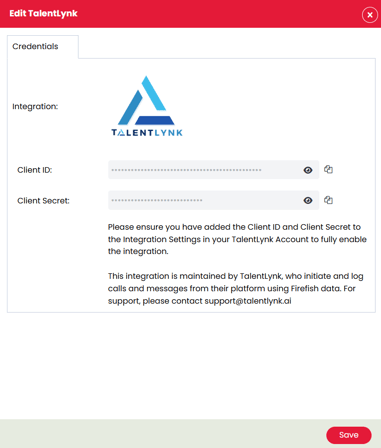
Step 2: Connect Firefish in TalentLynk
Once you've enabled the integration in Firefish:
- Log in to TalentLynk.
- Open Settings.
- Scroll to App Integrations and locate Firefish.
- Select Connect.
- Enter the Client ID and Client Secret copied from Firefish.
- Complete the connection process.
Once connected, the Firefish integration will display a Connected status within TalentLynk.
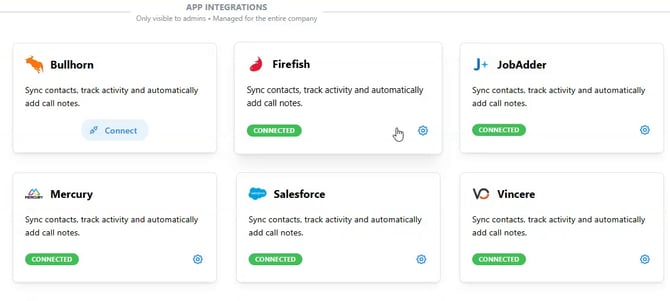
Configuring Your Communication Settings
After connecting Firefish, you can configure how TalentLynk records different types of communication activity in your CRM.
In TalentLynk:
- Navigate to Settings > App Integrations.
- Locate Firefish.
- Select the Settings icon.
- Review the available communication settings.
Mapping Communication Activity Types
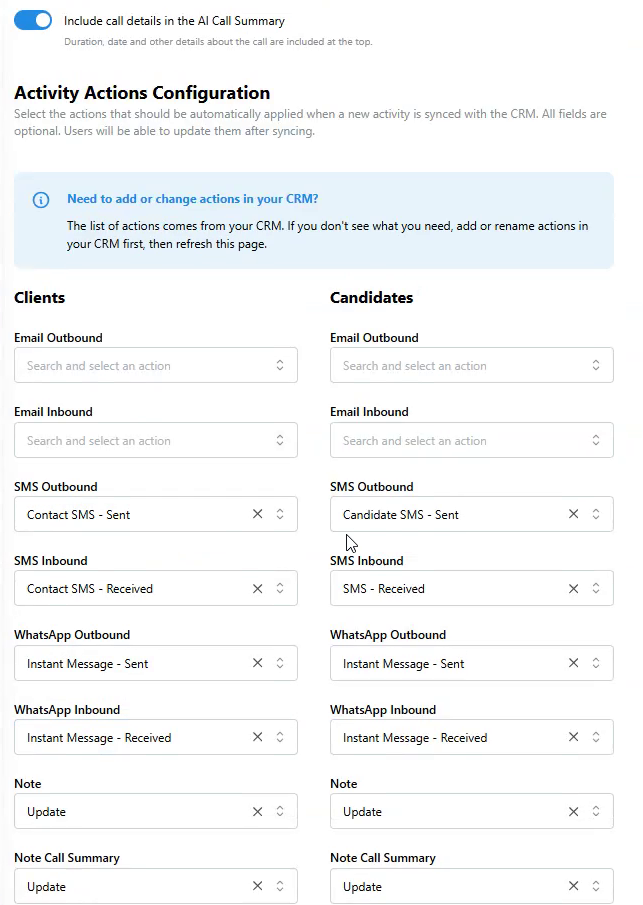
Under Activity Actions Configuration, you can choose which Firefish activity type should be used when TalentLynk logs a call or message.
Separate settings are available for Clients and Candidates.
The available communication categories include:
- Inbound and outbound calls
- Answered and unanswered calls
- Inbound and outbound SMS
- Inbound and outbound WhatsApp messages
- Email activity
- Notes and AI call summaries
For each category, select the appropriate Firefish action from the dropdown menu.
For example, you might configure an unanswered outbound call to be recorded using your agency's Left Message activity type, while an answered inbound call uses Received.
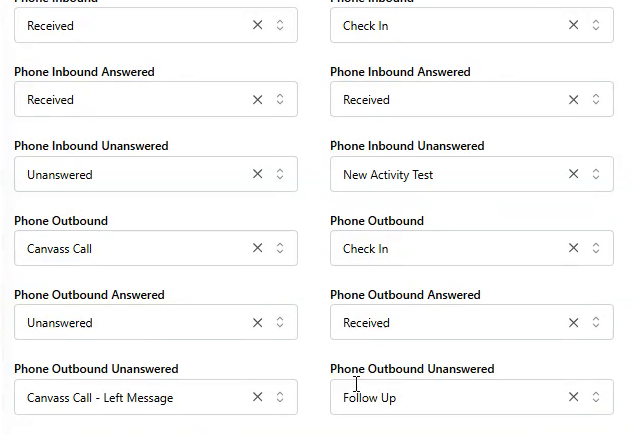
Please note: The available actions are taken from your Firefish CRM. If you need to add or rename an action, make the change in Firefish first, then refresh the TalentLynk settings page.
These mappings are optional and can be updated after syncing.
Additional Activity Actions
TalentLynk also allows you to make additional Firefish actions available for recruiters to select manually.
Under Additional Activity Actions, you can configure extra actions for candidates and clients.
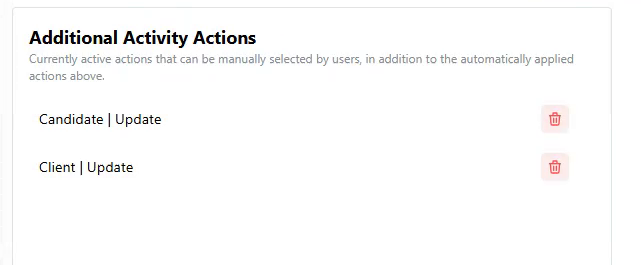
This gives your team flexibility to categorise communications beyond the automatically assigned activity types.
Including Call Details in AI Summaries
You can also enable Include call details in the AI Call Summary.
When enabled, information such as the call date, duration and other relevant details will be included at the beginning of the generated summary.
Making Calls from Firefish
Once the integration is active, you can make calls directly from candidate and contact records in Firefish.
- Open the relevant Candidate or Contact record.
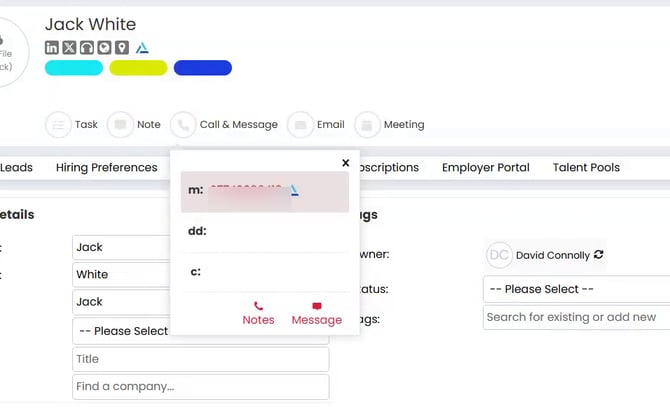
- Select Call & Message in the record header.
- Choose the telephone number you want to call.
- Select the TalentLynk calling option to initiate the call.
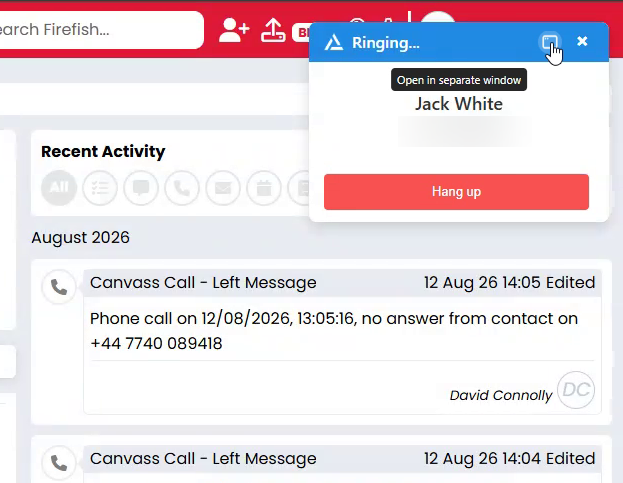
TalentLynk will open a calling window, showing the name and number of the person you're calling.
From here, you can manage the conversation and end the call using the Hang up button.
Once your call is finished, TalentLynk will log the call against the associated Firefish record using your configured communication settings.
Receiving Calls and Viewing Contact Details
When you receive a call through TalentLynk, the platform can identify the caller using the phone number associated with their Firefish record.
Within TalentLynk, you can view the caller's information and access their linked Firefish record.
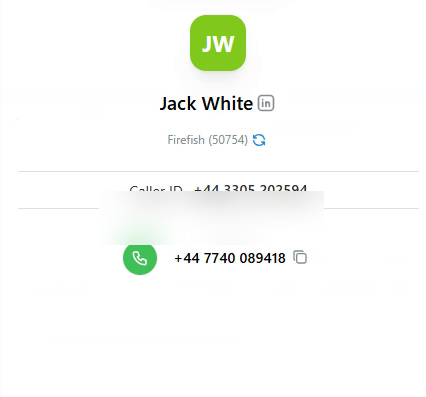
Answered and unanswered incoming calls can also be logged within Firefish, allowing you to keep track of previous communication attempts.
Viewing Call Notes and Recordings in Firefish
TalentLynk automatically adds call activity to the Recent Activity section of the associated candidate or contact record in Firefish.
Viewing Your Call History
To review your calls:
- Open the relevant candidate or contact record in Firefish.
- Navigate to Recent Activity.
- Locate the communication entry created by TalentLynk.
Depending on the call, the note can include:
- Call date and time
- Call duration
- Contact and consultant telephone numbers
- Call outcome, such as Received or Unanswered
- A link to the call recording in TalentLynk
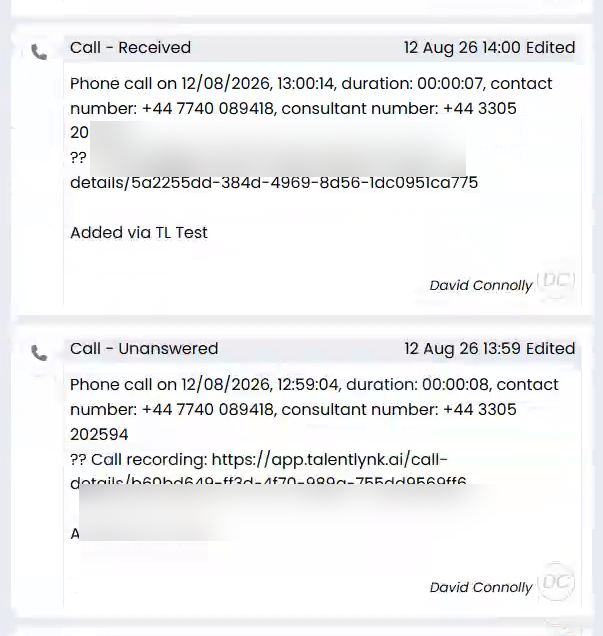
The call will be logged using the activity type configured in your TalentLynk integration settings.
Accessing Call Recordings
Where a recording is available, TalentLynk includes a link in the Firefish communication note.
To listen to a recording:
- Open the communication note in Firefish.
- Select the Call recording link.
- The call details will open in TalentLynk, where you can play the recording.
Please note: Call recordings are stored in TalentLynk. Firefish contains a link to the recording rather than storing the recording itself.
AI-Generated Call Summaries
TalentLynk can automatically generate a summary of your conversation and add it to the associated Firefish record.
For eligible calls, the summary can include:
- Tone: An indication of the tone of the conversation.
- Candidate Points: Key information shared by the candidate.
- Recruiter Points: Questions, discussion points and information covered by the recruiter.
- Action Items: Follow-up tasks or next steps identified during the conversation.
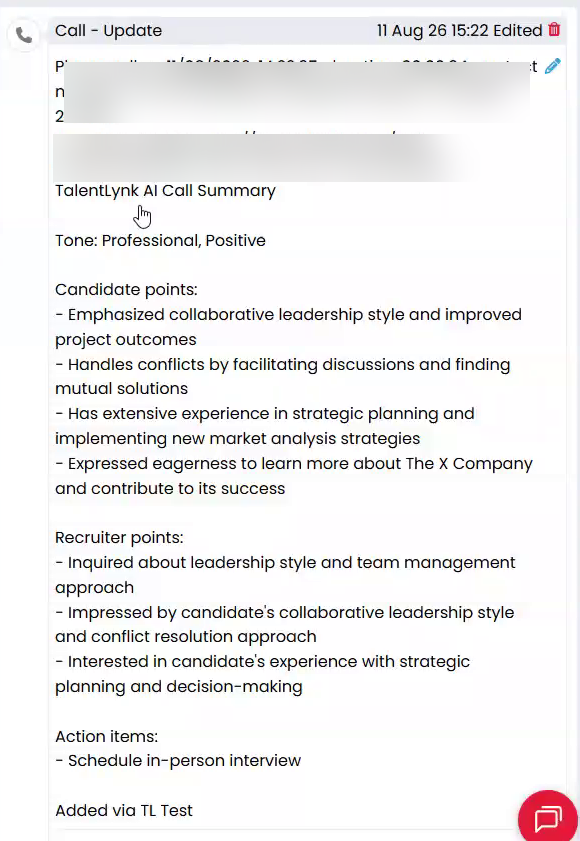
For example, following a candidate screening call, the summary might include the candidate's experience, responses to questions and any agreed follow-up actions.
This helps maintain a more detailed record of conversations without requiring recruiters to manually write out the full discussion.
Please note: AI summaries depend on the recording being suitable for processing. Short calls may not generate a summary.
Managing Calls and Messages in TalentLynk
You can also review your communication history directly within TalentLynk.
Viewing Your Conversation History
- Log in to TalentLynk.
- Open your Inbox.
- Select the relevant candidate or contact.
- Review their previous calls and messages.
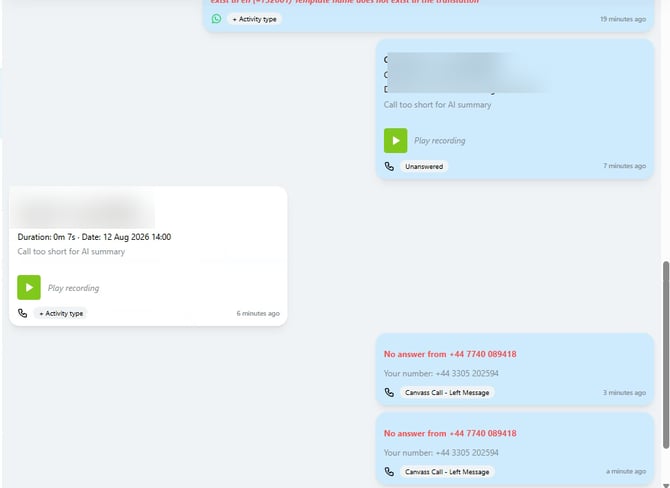
From the conversation view, you can see incoming and outgoing call activity, including previous attempts where the call wasn't answered.
Where recordings are available, you can play them directly within TalentLynk.
The conversation view also provides access to the linked Firefish record, allowing you to move between your communications and the candidate or contact's CRM information.
Recording Messaging Activity
TalentLynk also supports communication through channels including SMS and WhatsApp.
When these services are connected and configured to sync with Firefish, supported message activity can be recorded against the relevant candidate or contact record using your selected communication types.
You can manage how these activities are categorised in the Activity Actions Configuration settings described earlier.
Using TalentLynk with Firefish
The TalentLynk integration helps keep your recruitment communications connected to the candidate and contact records in Firefish.
With automatic call logging, recording links and AI-generated summaries, your recruiters can access previous conversations and follow-up information without manually updating every call.
For more information about TalentLynk, visit talentlynk.ai or contact your Firefish Success Champion.