Vente AI is a recruitment lead generation platform that helps agencies identify businesses that are actively hiring.
By connecting Vente AI with Firefish, you can send hiring opportunities directly into your Firefish Leads, along with the relevant company, hiring manager and job information.
This helps your recruiters turn hiring activity into business development opportunities without having to manually transfer information between systems.
Quick Jump to:
- What is Vente AI?
- Available Features
- How to Set Up the Vente AI Integration
- Configuring Your Lead Settings
- Sending Leads from Vente AI to Firefish
- Viewing Your Leads in Firefish
- Customising Lead Information
- Using Vente AI with Firefish
What is Vente AI?
Vente AI helps recruitment agencies identify potential clients by finding companies with active hiring requirements.
The platform provides information about hiring activity, available vacancies and potential hiring managers, helping recruiters identify businesses to approach.
When connected to Firefish, you can send these opportunities into your CRM as Leads, ready for your team to review and action.
Available Features
Once the integration is connected, you can:
- Send Leads to Firefish: Transfer selected hiring opportunities from Vente AI directly into your Firefish Leads.
- Connect Company and Contact Information: Associate leads with relevant company and hiring manager records.
- Choose Your Lead Settings: Select the lead owner, type and stage when sending leads into Firefish.
- Control How Leads Are Created: Create a single lead or separate leads for individual hiring managers.
- Include Job Information: Add details such as job title, location, posting date and hiring insights to your lead notes.
- Customise Lead Templates: Choose how your lead names and notes are formatted in Firefish.
How to Set Up the Vente AI Integration
Before getting started, you'll need an active Vente AI account and access to the Firefish API settings.
Step 1: Create Your Firefish API Credentials
Your Firefish Super User will need to create an API profile for Vente AI.
- In Firefish, navigate to Settings > Integrations > Automation.
- Find the VenteAI profile and click enable.
- Copy the generated Client ID and Client Secret.
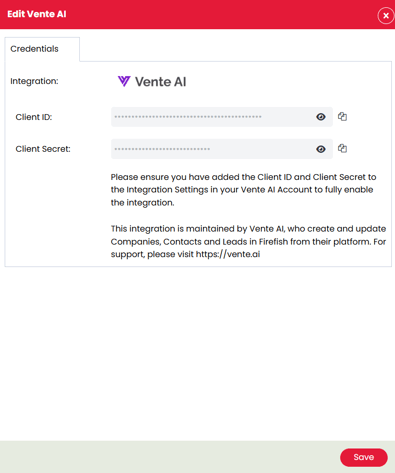
Important: Keep your Client ID and Client Secret secure. Updating the permissions on an existing API profile generates new credentials, which will also need to be updated in Vente AI.
Step 2: Connect Your Firefish Account in Vente AI
Once you've created your API credentials:
- Log in to your Vente AI account.
- Select Integrations from the left-hand menu.
- Open the Firefish integration.
- Click Add Account.
- Enter a name for your Firefish account.
- Paste the Client ID and Client Secret copied from Firefish.
- If required, enter your Firefish Leads page URL. This is optional and is used for links in export notifications.
- Save your connection details.
You can select Verify Connection to check that Vente AI can connect to Firefish.
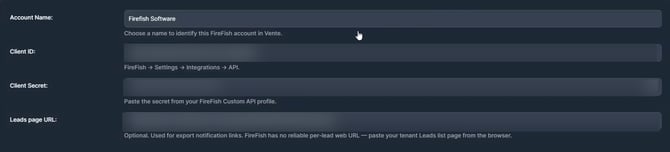
You can manage your connected accounts from the Firefish integration page in Vente AI. This includes editing, deactivating or removing connections.
Configuring Your Lead Settings
Once connected, you can choose how leads are created in Firefish.
Navigate to Integrations > Firefish in Vente AI and select Edit beside your connected account.
Under Defaults, you can configure the following settings:
| Setting | What it does |
|---|---|
| Default Owner | Choose which Firefish user will own the leads. |
| Default Lead Type | Select the lead type that will be assigned in Firefish. |
| Default Lead Stage | Choose the initial stage for new leads. |
| Lead Export Shape | Decide whether to create one lead or multiple leads for different hiring managers. |
| Company Source | Optionally specify a source for company records created through the integration. |
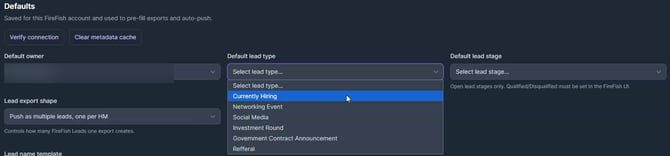
Choosing How Your Leads Are Created
The Lead Export Shape setting determines how hiring opportunities appear in Firefish.
You have two options:
- Push as a single lead: Create one Firefish lead for the selected hiring opportunity.
- Push as multiple leads, one per HM: Create separate leads for the hiring managers associated with the opportunity.
This allows you to choose whether your team manages the opportunity as one lead or tracks potential conversations with individual hiring managers.
Please note: Only open Lead Stages can be selected within Vente AI. Leads must be marked as Qualified or Disqualified within Firefish.
Once you're happy with your settings, save your changes.
Sending Leads from Vente AI to Firefish
With your integration connected, you can send selected leads into Firefish.
Step 1: Select Your Leads
- In Vente AI, select My Lists.
- Open the list containing the hiring opportunities you want to send to Firefish.
- Use the checkboxes to select one or more leads.
- Click Action Selected Leads.
- Select Push to Firefish.
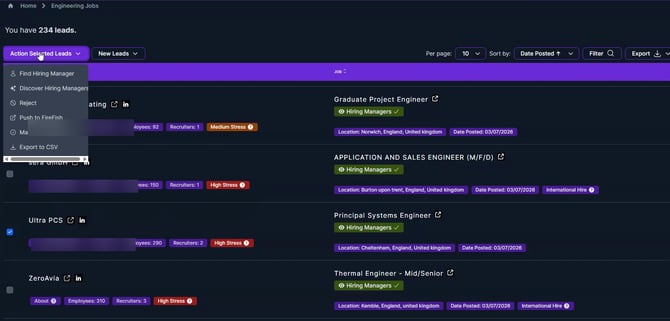
Step 2: Choose Your Export Settings
A Push to FireFish window will appear.
From here, you can review or select:
- Account: Choose the connected Firefish account.
- Owner: Select the Firefish user who will own the lead.
- Lead Type: Choose the relevant lead type.
- Lead Stage: Select the initial stage for the lead.
- Lead Export Shape: Choose whether to create a single lead or multiple leads for hiring managers.
You can also expand Advanced Options for additional export settings.
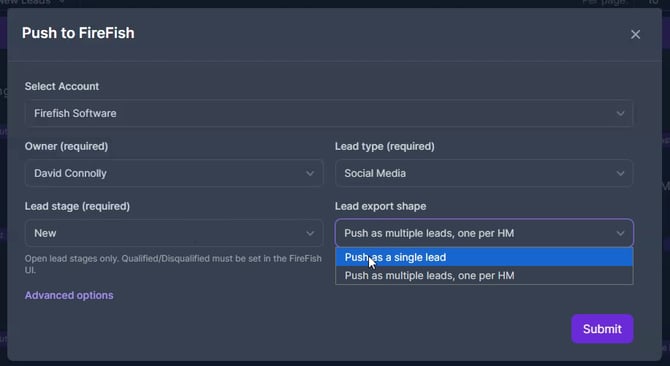
Once you've selected the appropriate options, click Submit.
Step 3: Wait for Your Leads to Be Processed
Vente AI will begin preparing your selected leads for export.
A notification will appear to confirm that your leads are being prepared for Firefish.

Once the leads are ready, Vente AI will notify you so you can review the result.
Viewing Your Leads in Firefish
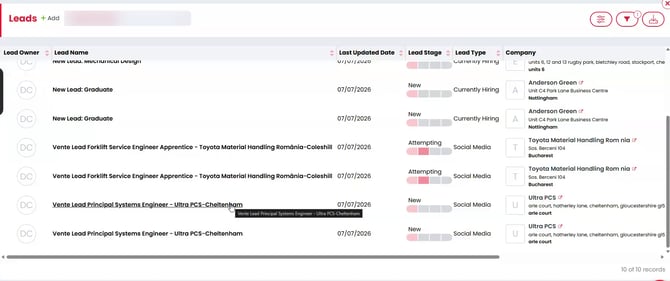
Once your leads have been sent successfully, you can find them in the Leads area of Firefish.
- Open Leads in Firefish.
- Locate the leads created from Vente AI.
- Select a lead to view its details.
What Information Is Added to Firefish?
Depending on the information available and your configured settings, the lead can include:
- Lead Name: A name generated using the hiring opportunity information.
- Lead Owner: The Firefish user responsible for following up.
- Lead Type and Stage: The values selected when exporting.
- Company: The company associated with the opportunity.
- Contact: The associated hiring manager, where available.
- Notes: Additional information about the hiring requirement.
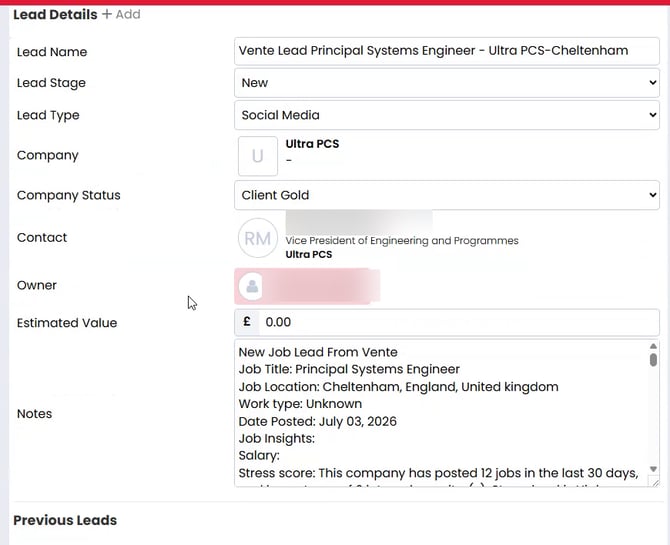
The Notes section can contain useful information about the vacancy, including:
- Job title and location
- Work type and posting date
- Hiring activity and company insights
- Job description
- Additional hiring manager information
Your recruiters can use this information to understand the opportunity before contacting the client.
From here, you can manage the lead using your usual Firefish business development workflow.
Customising Your Lead Information
Vente AI also allows you to control how information appears within your Firefish Leads.
To access these settings:
- In Vente AI, go to Integrations > Firefish.
- Select Edit beside your connected account.
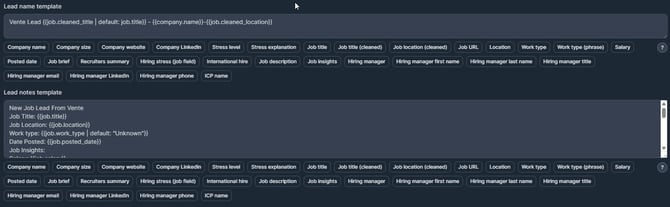
- Scroll down to the Lead Name Template and Lead Notes Template settings.
Lead Name Template
The Lead Name Template controls how the name of each new lead is generated.
You can use the available fields to include information such as:
- Company name
- Job title
- Job location
- Hiring manager details
For example, your lead name could include the job title, company and location to make opportunities easier to identify within Firefish.
Lead Notes Template
The Lead Notes Template controls which information is included in the Notes section of your Firefish leads.
You can customise the template using the available fields, including job descriptions, hiring insights, company information and hiring manager details.
Updating Existing Contacts
You can also enable Update existing contacts when matched in your Vente AI integration settings.
When this option is selected, Vente AI can refresh details for hiring managers who already have a matching contact record in Firefish.
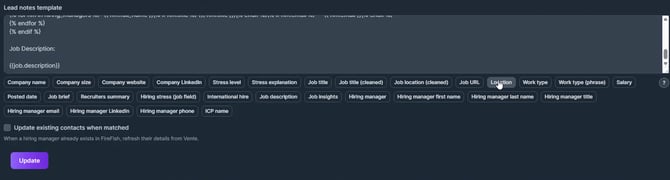
Once you've made your changes, click Update to save your settings.
Using Vente AI with Firefish
The Vente AI integration helps your team turn identified hiring requirements into business development activity within Firefish.
By transferring leads with their associated company, contact and job information, recruiters can review opportunities and manage their follow-up activity within their existing CRM.
For more information about Vente AI, visit www.vente.ai or contact your Firefish Success Champion.