- Why Have I Received an Application Without a CV?
- Why Can’t I Enter Advert Content?
- Why Doesn’t My Updated Advert Show Correctly on Social Media?
- Why is The Source Different to The Channel?
-
Why Did My Candidate Get a Job Alert Which They Shouldn’t Have?
Why Have I Received an Application Without a CV?
If you've received an application without a CV, it's likely because document uploads from mobile devices haven’t been enabled.
To allow CV uploads from mobile:
- Navigate to Settings > People Configuration > Candidate Registration > Web Registration.
- Tick 'Enable document uploads from mobile devices'
- Ensure 'Always non-mandatory from mobile devices' is unticked

📝 We recommend enabling the non-mandatory setting to allow applications without CVs, as some candidates may not have access to documents on mobile.
If an application is submitted without a CV, this will be noted in the Action History of both the candidate and the advert. Click the notepad icon to view more details.
Why Can’t I Enter Advert Content?
This usually occurs when an ad blocker is enabled in Google Chrome, such as the built-in Chrome AdBlocker.
To resolve:
- Click the AdBlocker icon in your browser.
- Select “Don’t run on pages on this domain”.
- Click Exclude on the confirmation prompt.
Try another browser
We recommend using Chrome, but if issues persist, test Firefish in another browser (e.g. Edge or Firefox) to confirm whether the issue is browser-related.
Try Incognito Mode
Running Chrome in Incognito Mode disables browser extensions and can help confirm whether an extension is causing the issue.
Why Doesn’t My Updated Advert Show Correctly on Social Media?
If you’ve updated an advert’s content or image and shared it on social media, you may need to clear the social cache before the changes display correctly.
Clear the social cache:
Facebook:
- Go to: Facebook Sharing Debugger
- Paste the advert URL and click “Fetch new scrape information”
LinkedIn:
- Go to: LinkedIn Post Inspector
- Paste your advert URL and click “Inspect”
🔗 You can find the advert URL from the top-right corner of the advert within Firefish.
Once done, you can share the advert with the updated content and image successfully.
Why is The Source Different to The Channel?
Channels and Sources track how applications enter your system. They help you report on where candidates and applications are coming from, and whether candidates return through the same method — for example, via certain job boards or through job alert engagement.
- Channel: Automatically assigned and not editable. It reflects the method the candidate used to apply, such as the application being manually added by one of your users, job board application, or self-registration on your site.
- Source: Manually selected by the user or candidate. It offers flexibility for tracking marketing spend - for example, using specific source labels for social media or non-integrated job boards.

Example: If a candidate sees your job on Facebook and applies via your site, the channel will be "Website", but they can select the source of "Facebook".
Why Did My Candidate Get a Job Alert Which They Shouldn’t Have?
If a candidate receives a Job Alert that seems irrelevant, the most common cause is that they have a Custom Job Alert set up with broad criteria. Check the candidate's Job Alert preferences and compare them against the preferences set on the Advert.
- Open the candidate record
- Click into the Subscriptions tab
It is important to understand the different Job Alert options:
- Preference Job Alerts – If you see that the candidate has My Preferences as the heading on their job alert, this means they will be sent adverts based on what is listed in their Preferences
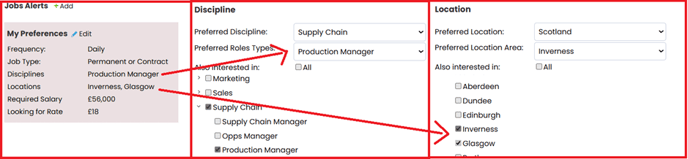
- Custom Job Alerts – These will have a heading reflecting the chosen discipline and location (or will say ‘Multiple Disciplines’ and/or ‘Multiple Locations’). These job alerts are typically created by the candidate themselves, and are not linked to their preferences (although they may well be the same on occasion).
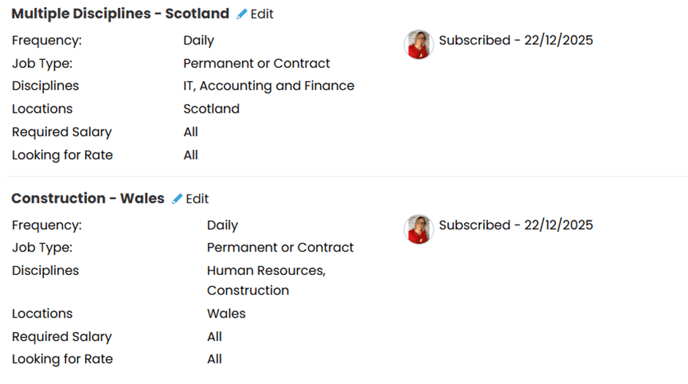
You should then compare the Job Alerts on the candidate record to those on the Advert.
To check the Advert preferences:
- Open the Advert
- Go to the Edit Details tab
- Review the Job Alert section (on the right).
The most common issue when Job Alerts have gone to the candidate seemingly incorrectly, is that the candidate actually has custom Job Alerts set up – and they might even have set this up with all disciplines, locations and/or specialities.
If the Job Alerts no longer match the candidate's requirements, you can update them from the Subscriptions tab on the candidate record: click the blue pencil icon to edit a Job Alert or the red bin icon to delete it.
Note: Having nothing ticked in a section is the same as having everything ticked, and will mean that the Job Alert will show ‘All’ next to the relevant field (disciplines, locations and/or specialities).