Note: The new Timesheets feature is currently in early access Beta and available to a select number of users. If you're interested in taking part in the next round, get in touch with your customer success manager.
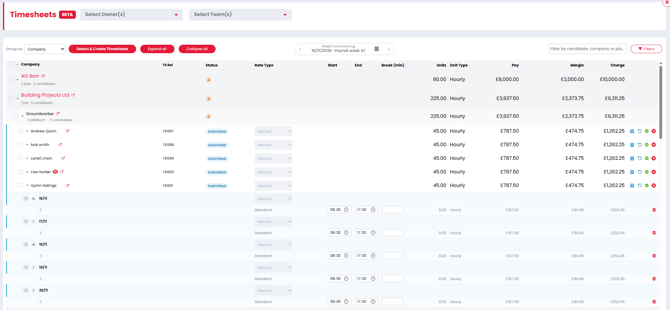
Timesheets brings work from your Contract placements and Temp bookings together in one place. You can prepare the week's entries, send them for approval and follow their progress without checking each assignment separately.
Before you start
Your agency needs to have Timesheets enabled. Your Super User manages the working week, approval settings and what each colleague can do.
If you cannot see Timesheets, ask your Super User to check that the feature is enabled and that you have access. For setup, follow Timesheet settings, permissions and approvers.
The weekly process
- Find the week's work. Open Timesheets, choose the working week and focus on your desk, team or client.
- Create missing Timesheets. Prepare Blank or Pre-calculated entries using the choices your agency has enabled.
- Check the daily entries. Review the hours or days worked, rate types and supporting documents. Where your agency allows it, blank Timesheets can be sent for an approver with editing access to complete.
- Send for approval. Named clients review through a secure email link. Authorised colleagues can also approve within Firefish where internal approval is enabled.
- Follow up. Check outstanding work, resolve rejections and review the Approved Timesheets.
Follow Manage your weekly Timesheets for the full process. Share Review & Approve Timesheets with clients who need help reviewing and approving their work.
Understand the statuses
| Status | What it tells you |
|---|---|
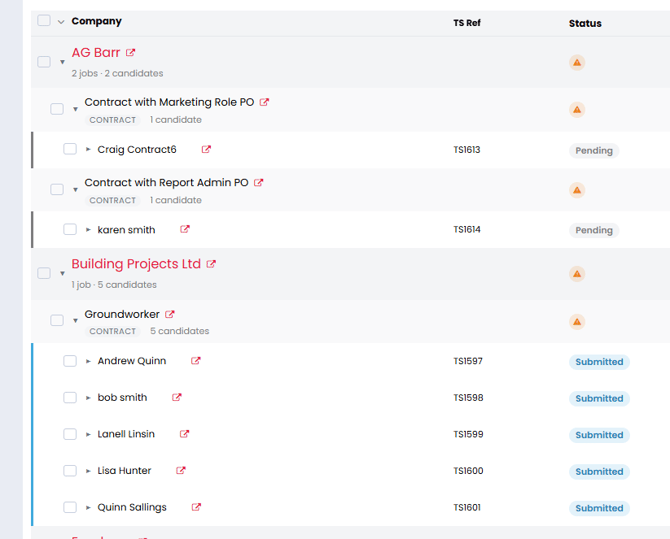
| Pending | The Timesheet has been created and is awaiting submission for approval. |
| Submitted | It has been sent to an approver for review. |
| Overdue | Your agency's configured overdue time has passed and the Timesheet still needs attention. |
| Approved | An approver has accepted the recorded work and authorised it for payroll. |
| Rejected | An approver has refused the Timesheet and recorded a reason for the responsible recruiter to follow up. |
| Processed | It has been captured by your agency's Pay & Bill process. |
Approval and processing are separate. These statuses describe the Timesheet's progress; your payroll team can confirm when payment will be made.
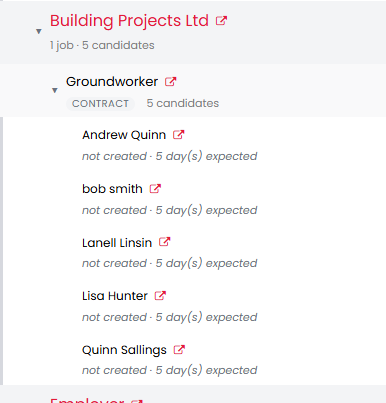
Expected work may appear before its Timesheet has been created. That is different from Pending, which means the Timesheet already exists.
Contract and Temp work
Both workflows use weekly Timesheets with daily entries on the same page.
- Contract: each Timesheet relates to a Placement and its relevant part. An original Placement and an extension can have separate Timesheets within the same week, each covering its own dates.
- Temp: a candidate's shifts for the same Job and week belong to one Timesheet, with separate entries for the shifts.
Hourly entries use start and end times or Units, depending on your agency's settings. Daily rates use Units for the number of days worked.
Moving from Time Capture
Time Capture is an earlier feature for recording time worked and is available exclusively for the Contract Workflow. The new Firefish Timesheets feature cannot be enabled whilst Time Capture is still in use on your site, and as such a defined switchover period needs to be handled with our customer team to ensure there are no conflicts or breaking changes.
Agree the switch with the colleagues managing your agency's setup, payroll and connected services. The switch applies across the client account at the beginning of a configured working week.
Work before the switch stays in Time Capture; the first new week is handled entirely in Timesheets. Each week belongs to one system, with no mixed-system week or historical migration.
Earlier Time Capture records remain read-only through your existing Reports. They do not appear as new-module Timesheets. If your agency still uses the earlier feature, follow the Contract Time Capture guide.
Before the first new week, check settings, access, expected placements/bookings and named approvers with the team managing the switch.
Integration access to Timesheet data
Integration partners can collect Timesheet data through the Firefish Public API to support their Pay & Bill process.
Via the Public API, Integration Partners are able to collect Placement & Booking data, Timesheet Details and their associated documents, and report back to Firefish that a Timesheet has been successfully collected and processed.
For more information on using our Public API to collect Timesheet information, please refer to our API Documentation
Where to go next
- Set up the agency process: Timesheet settings, permissions and approvers.
- Prepare and manage the week: Manage your weekly Timesheets.
- Help a client approve: Review & Approve Timesheets.