Contents
What is Email Logging in Firefish?
Email Logging in Firefish allows you to automatically store relevant email communications in your CRM. This ensures you maintain a complete communication history with your candidates, contacts, and clients — all in one place.
✏️NOTE: You MUST have Super User permissions to enable this across the system!
How do you enable Email Logging?
Super Users can activate Email Logging across the system:
- Go to Settings > Integrations > Email Logging.

- Toggle the Enable Email Logging option to ON.


Once enabled, all users will have the feature enabled. Individual users can access their own Email Logging setup via My Integrations, but they will not need to enable it manually.
You can also refer to the instructional video on this page for a visual walkthrough.
What are the BCC and Forwarding Addresses?
Within the Email Logging settings, you will see two system-generated addresses:
- BCC Address
- Forwarding Address
These are unique to your Firefish system and log emails automatically.
When sending emails directly from Outlook:
- The integration will automatically add these addresses, if installed, or
- Users can manually add them to their messages to log them into Firefish.
How do you prevent specific emails from being logged?
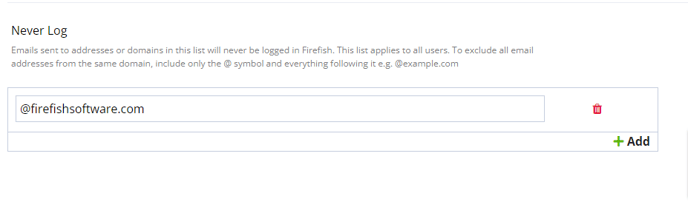
To ensure certain communications stay private, you can set up a Never Log List.
This list prevents logging of specific email addresses or entire domains into your CRM. To add an entry:
- Navigate to the Never Log section.
- Enter the email address or domain (e.g., @example.com).
- Save your changes.
Firefish will not log emails sent to email addresses on this list.