Firefish integrates with a number of Simply Jobs Boards:
-
Aviation Job Search
-
Careers in Recruitment
-
InAutomotive
-
Simply HR Jobs
-
Simply Law
-
Simply Marketing
-
Simply Sales
Setting up your integration with one or more of these job boards is quick and straight forward.
Adding a Job Board
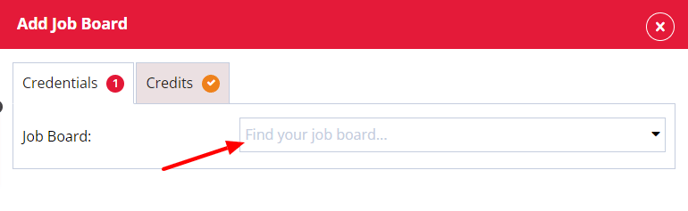
To add a Simply Job Board to your job board multi-posting, a Super User can go to Settings > Integrations > Job Boards then click Add.
Although there are differences between each Simply Job Board (for example industries and sectors), the set up process is identical. Here we will use the example of setting up Simply Law.
You'll need the Username and Password for your chosen Simply Job Board which you can request from your account manager.
Starred fields are mandatory and must be completed in order to set up the integration. A red status symbol will indicate tabs that have mandatory fields to complete and the number of mandatory fields for that tab.
Credentials
Select the Simply Jobs job board from the options provided in the Job Board drop down.
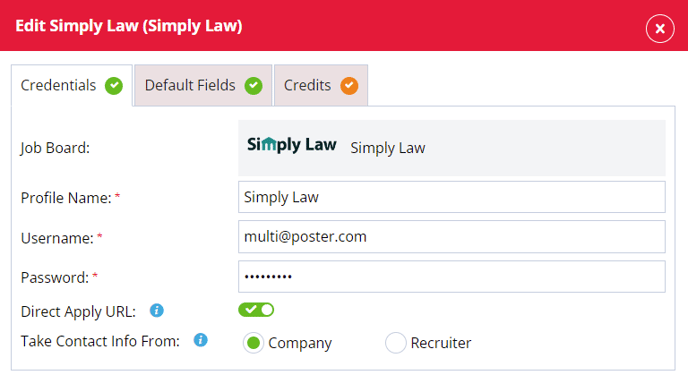
Firefish Profile Name
Give these job board settings a name - this will help identify different integrations with the same job board.
Take Contact Info from
You can choose whether to the contact info, added to each advert post, uses your company details or individual recruiter details:
**Company:** This uses the contact information stored in your System Settings.
Recruiter: This is dependent on the user listed on the advert. Contact information will be taken from their contact record.
Direct apply URL
Choosing a direct apply URL means candidates will be directed back to your website when applying for an advert posted on your Simply Job Boards.
You may need to contact your account manager to ensure this is enabled.
Default Fields
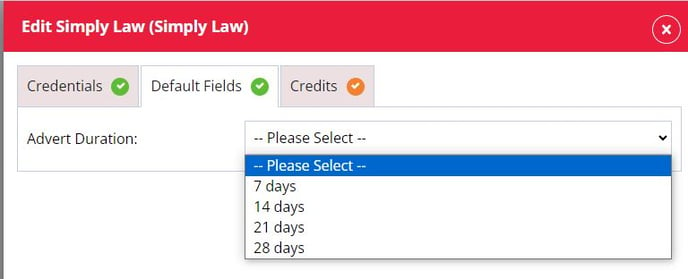
Setting the Advert Duration can be found in the Default Fields tab:
Advert Duration
Choose the default number of days an advert should be posted to the job board for. This can be changed per advert.
Credits
In this tab you will be able to set up a limit of the number of credits being used per user or have unlimited postings to the job board:
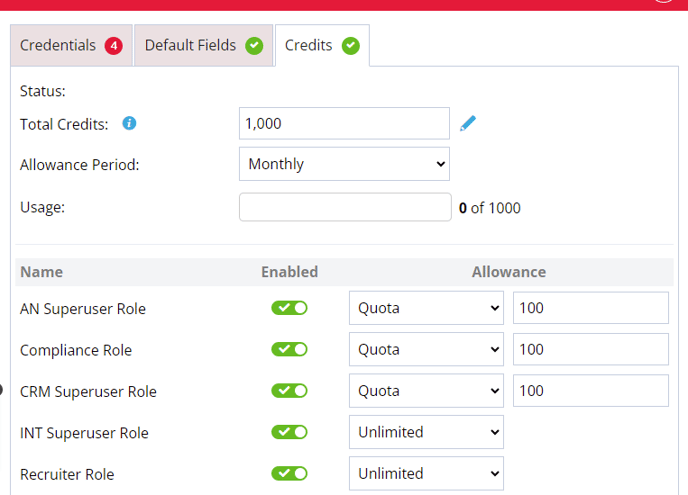
Status
This will display a date, which shows you the last time the allowance period began, or the last time the total credits were reset.
Total Credits
Total Credits is set to unlimited by default. You can update this to reflect the number of credits available from the job board, or set your own custom limit.
Allowance Period
The allowance period can be set to Monthly or Weekly. When set to Monthly the credits will reset the allowance at the beginning of a new month. When set to Weekly the credits will reset on the same day as the start of the business week.
Usage
When a advert is posted to a job board this will register in the usage to show how many adverts have been posted against the total amount of credits.
Users
In this column, you can configure each user's posting permissions: - **Unlimited:** The user can post as many adverts as they like, up to the total credits available on the job board. - **Quota:** Set a specific posting limit per user. The default quota is 5 but can be adjusted as needed. - **Off/On toggle:** Disable or enable a user's ability to post to this job board entirely.
Posting to Simply Job Boards
Go to the advert you're ready to post and click on the Reach tab.
You'll see all the available job boards listed; click on the Simply Job Board account you would like to post to:

The posting modal for that Simply Job Board will now open; any fields that are mandatory will display an asterisk:
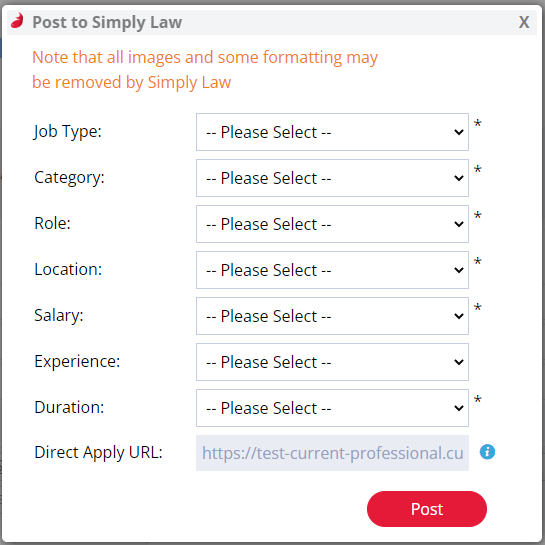
Complete the available fields and, once you're satisfied with your selections, click Post. A new action will be added to the Recent Activity tab of the advert for successful posts.
If a post is unsuccessful, an error message will be displayed. Check that your credentials are correct and that you have sufficient credits remaining, then try again.
Checking your settings
Simply Job Boards do provide the ability to validate your credentials when setting up your integration. This means that if any of the credentials you have entered on the Configuration tab are incorrect, an error message will be shown and you will be unable to save.