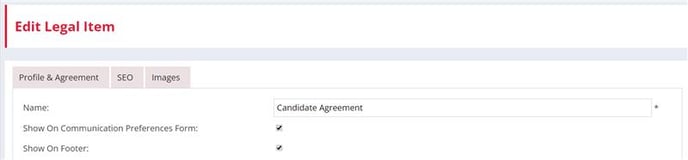
How do I update the Candidate Agreement or Terms of Business?
You can update your Candidate Agreement or Terms of Business via the Legal Plugin. From there you can save changes, send a test email, trigger consent request reminders to non-compliant Candidates in bulk, and manage Candidates who have not given consent.
Go to Website and select Legal Plugin. There's an edit button which will allow you to open up your agreement:
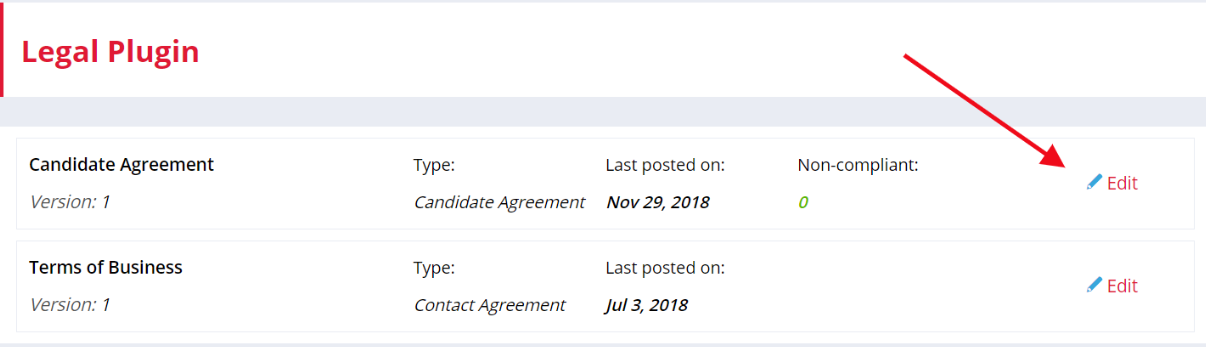
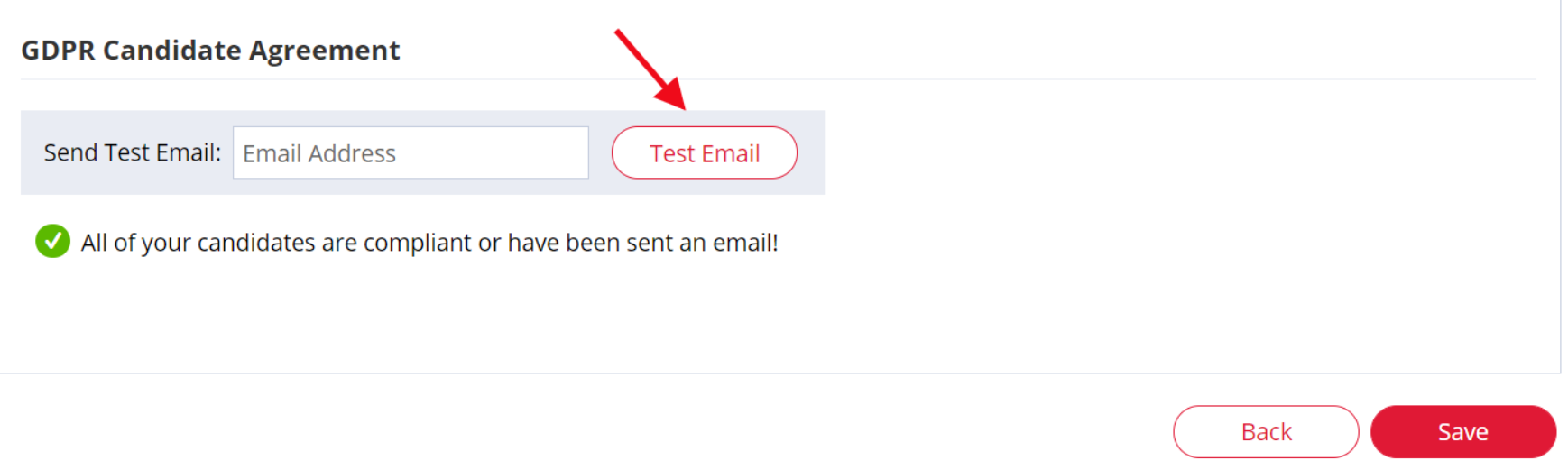
From here you can save any changes and send a test email to yourself.
 If you wish to change the wording in the GDPR email, you can update this by going to settings (cog in the top right of Firefish) > System Configuration > Email Templates. You can then select the following options:
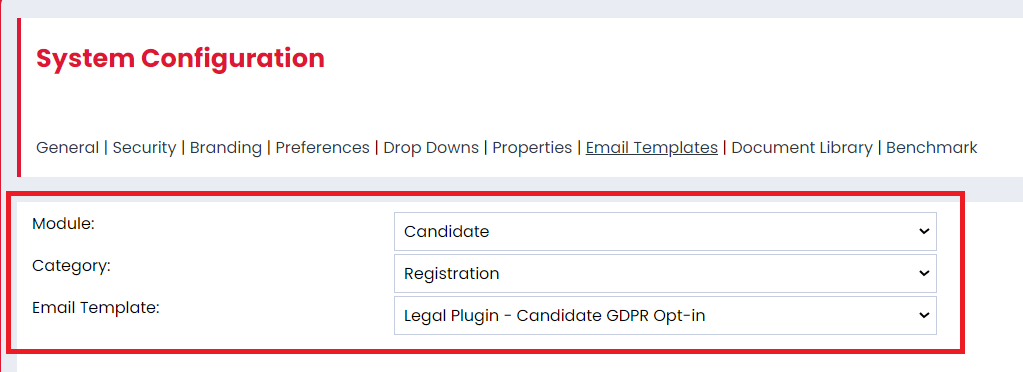
Once you're happy with the email, use Consent Request to send this out to your non compliant Candidates.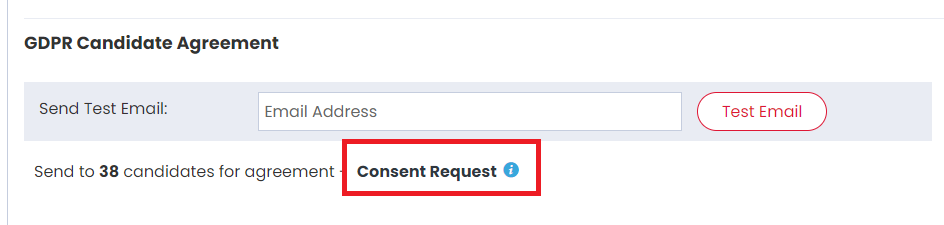
What should I do if a Candidate declines or ignores the GDPR email?
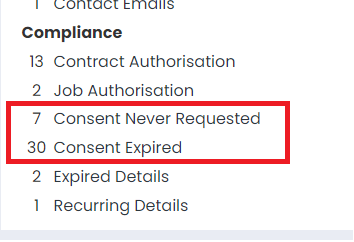
If a Candidate declines your agreement or does not respond to your GDPR email, you should consider removing them from your database — without their consent, you are not permitted to hold their data. To see a list of these Candidates, go to the To Do List on the main dashboard and view the Consent Never Requested and Consent Expired items within Compliance.
Deleting the Candidates will permanently remove their details from the system, including any documents attached to their profile.
Super Users can do this in bulk from a search, and all users can delete individual candidates from there record.
How do I show or hide the Candidate Agreement on the Communication Preferences Form?
The Candidate Agreement section can be shown or hidden on the Communication Preferences Form. This is useful because GDPR is not a legal requirement in all countries.
To update this setting:
- Go to Legal and select Candidate Agreement.
- Toggle the Show on Communications Preferences Form setting on or off.