Candidate Availability settings control how candidate availability is treated across your system. You can choose what Firefish assumes when a candidate has not confirmed their availability, create the availability statuses used by your team and candidates, and set rest rules for specific job codes.
This article explains how to set your default availability, add a new availability status and configure job code rest rules.
Contents
Accessing Candidate Availability Settings
To access the settings:
- Select the Settings cog.
- Select People Configuration.
- Select Candidate Availability.
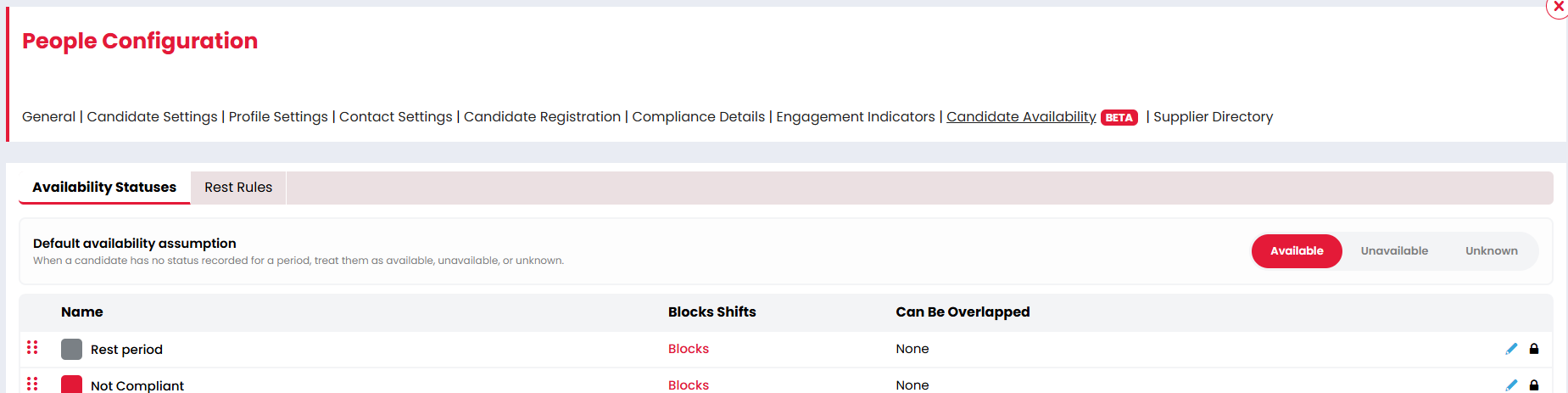
The page contains two tabs:
- Availability Statuses - Your default availability assumption and availability statuses.
- Rest Rules - The default rest rule and any job code rest rules.
Rest rules will only show when the Temp Workflow is enabled.
Setting Your Default Availability
Default availability is what Firefish assumes about a candidate when they have no availability status for a period. It affects two things: how the candidate shows in availability searches, and what happens when you drag and drop them onto a shift.
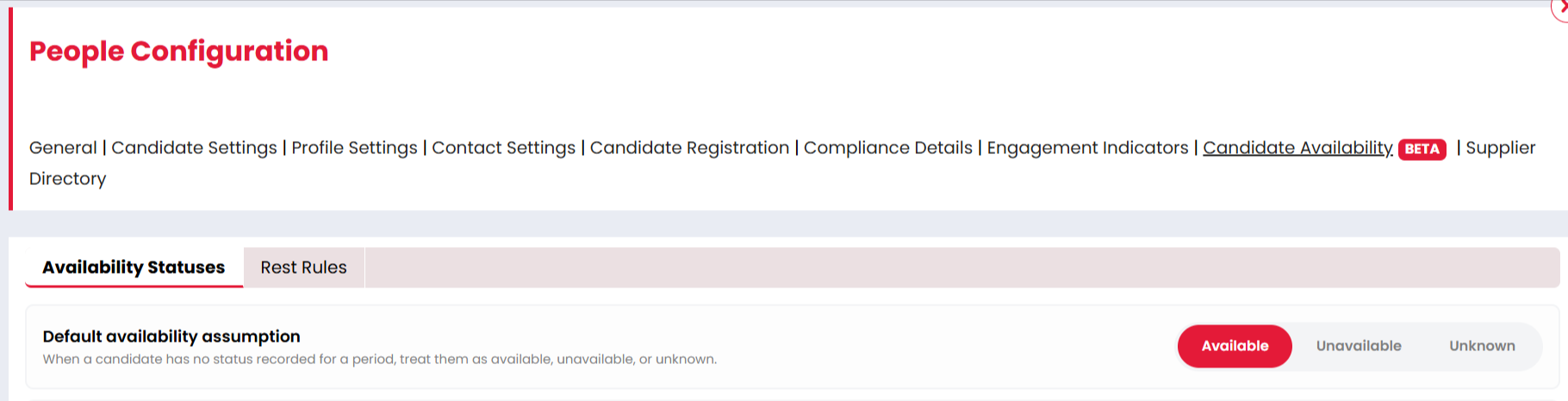
| Default | Availability search | Dragging and dropping onto a shift |
|---|---|---|
| Available | Candidates show as available. | Candidates can be added without a status saying they’re available. |
| Unknown | Candidates show as unknown. | Candidates can be added without a status saying they’re available. |
| Unavailable | Candidates show as unavailable. | If a candidate has no status saying they’re available, a warning appears before they’re added to the shift. |
The default only applies when a candidate has no status for that period. If they have a status, Firefish uses the status instead.
Adding a New Availability Status
Availability statuses record when a candidate is or is not available.
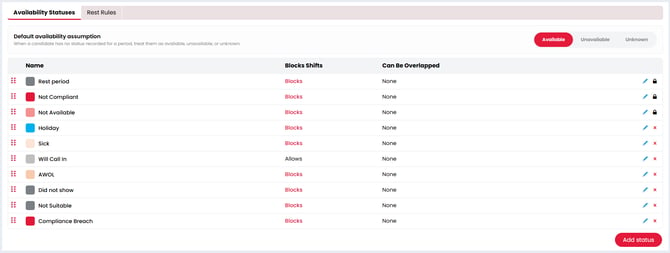
There are two system generated statuses that cannot be selected manually:
- Rest Period - Added after a candidate has been confirmed on a shift
- Not Compliant - Added when a candidate has not met all of the general compliance requirements.
All other statuses can be selected manually from the candidate record, the On Assignment page or a Temp Job's Availability Pool. Candidates can also add them from the Candidate Portal where this is enabled.
When adding or editing a status you'll see the following options:
|
Setting |
What it does |
|
Name |
The status name shown to your team and candidates. |
|
Description |
Explains when the status should be used. |
|
Colour |
The colour used to display the status. |
|
Blocks Shifts |
Whether the candidate can be added to shifts while the status applies. For example, Available does not block shifts, but Not Available does. |
|
When It Can Be Applied |
Whether the status can be applied to a candidate on a shift before they are confirmed, after they are confirmed, or both. |
|
On Shift Behaviour |
What happens to a candidate already on a shift when the status is applied: Keep on Shift or Remove from Shift. |
|
Show on Candidate Portal |
Whether the status is shown to candidates on the Candidate Portal. |
|
Candidate Can Select |
Whether candidates can select the status themselves on the Candidate Portal. |
|
Overlapping Statuses |
Other statuses that are allowed to overlap this status. |
Configuring Job Code Rest Rules
Rest rules make sure candidates get enough rest between shifts. When a candidate is confirmed on a shift, a rest period is automatically added to their availability, starting when the shift ends. During the rest period, they can’t be added to any shift the rest rule blocks.
Different types of work require different rest periods, so you can create rest rules for specific job codes. Any job code without its own rule uses the default.
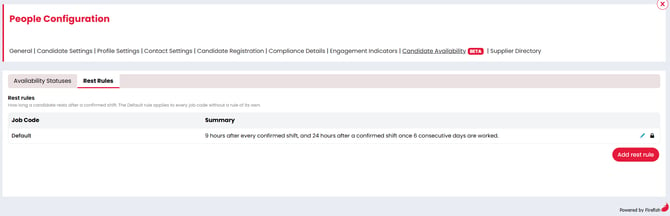
A job code rest rule lets you control:
- The rest after each shift: for example, 9 hours after every confirmed shift.
- Extra rest after consecutive days: for example, 24 hours after 6 days worked in a row.
- Which jobs are blocked during rest: A candidate resting after one job can still be added to shifts on job codes the rule doesn’t block.
Rest periods show in the candidate’s availability, so recruiters can see when a candidate is resting and why they can’t be added to a shift.
When adding a rest rule for a job code, you'll see the following options:
|
Setting |
What it does |
|
Job Code |
The job code the rule applies to. |
|
Rest After Every Confirmed Shift |
The rest period added after each confirmed shift. |
|
Rest After Consecutive Days |
A rest period added once the candidate has worked a set number of consecutive days. |
|
Blocked Job Codes |
Job codes the candidate cannot be added to during the rest period. |
For more information about how rest periods affect scheduling, see Managing Candidate Availability in the Temp Workflow.
Frequently Asked Questions
Where have our cancelled reasons gone?
They have been converted to availability statuses and are listed on the Availability Statuses tab in People Configuration > Candidate Availability.
Will changing the default availability change how shifts are booked?
Only if you select Unavailable. With Available or Unknown, candidates are added to shifts as they are today.
Can candidates update their own availability?
Yes, if the Candidate Portal is enabled and the status is set to show on the Candidate Portal and to be selectable by candidates.
Why can't I see the Rest Rules tab?
The Rest Rules tab is only shown if the Temp Workflow is enabled.
What happens if a job code does not have a rest rule?
The default rest rule applies.
Can a candidate work another job during a rest period?
Yes, as long as the other job's job code is not blocked by the rest rule.