In Firefish, you can merge duplicate company records into a single, consolidated record. When companies are merged, all contacts, documents, recruitment records, and other associated data from both records are combined into one. Note: this action cannot be undone once completed.
Quick jump to:
How to merge company records
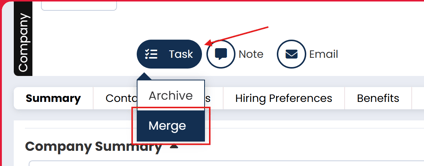
When viewing a company record, click on Task > Merge to open up the Merge Companies window.
The Merge Companies window will display with the company record you're viewing already populated - this is the company that you're merging into (wanting to keep):
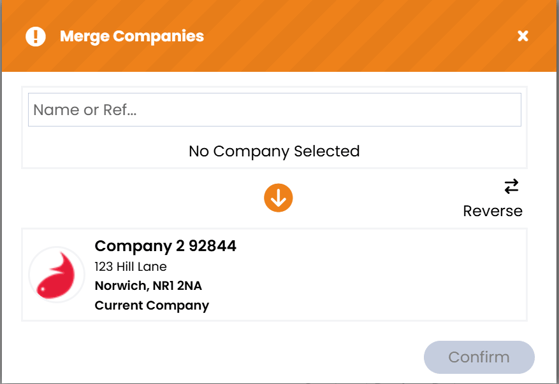
Next, search for and select the company you want to merge from — this is the company record that will be deleted after the merge.
As you type, a company will be auto-suggested for you to select. Once you select a company, you have the option to 'Reverse' the order and decide which company you want to keep.
Important: Merges cannot be undone. Make sure you have selected the correct company to keep before clicking Confirm.
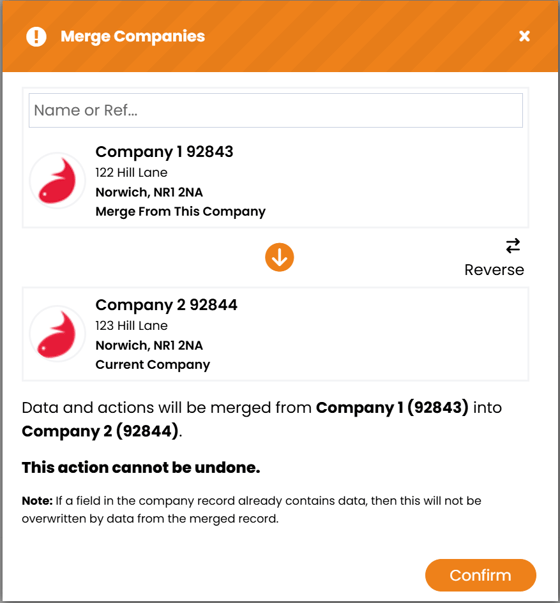
Once you're ready to merge the companies, the final step is to click Confirm. Once clicked, the companies will be merged and you'll be returned to the company record that you've chosen to keep.
Note that you can't close the window until the merge has been completed - but this should only take a few seconds.
Once the merge has been performed, the company that was merged in will be deleted and will no longer exist as a record in Firefish.
An action will be recorded in the kept company record to confirm that the merge has taken place:

What happens when companies are merged?
Generally, data in the company record you choose to keep will not be overwritten. Only fields that are empty will be populated with data from the company being merged in.
Summary Details
Data from the Summary Details tab of the company being merged from will be merged to the company being merged into, only if a particular field is empty.
Contacts
All the contacts in the company record will be merged from one record to the other. If either of the companies have associated contacts with active employer portal logins, the portal logins will remain active. If the same contact is associated with both companies, this contact will not be duplicated.
Hiring Preferences
Disciplines, Locations and Specialisation preferences from the company being merged from will be merged to the company being merged into.
Benefits
Data from the Benefits tab of the company being merged from will be merged to the company being merged into, only if a particular field is empty.
Recruitment
All recruitment records will be merged from one record to the other.
Compliance
Compliance information will merge from the company being merged from to the company being merged into, only if there is no associated compliance information on the company you are keeping. Compliance information on the company you are keeping will not be overwritten.
Documents
All documents from both records are merged into the kept company record. If the same document exists on both records, it will not be duplicated — it will appear only once.
Parent / Child Companies
- If you are merging a parent company into one of its child companies, the child company you are merging into (keeping) will become the new parent company to any other child companies that were present
- If you are merging a parent company into another parent company, all associated child companies will be grouped under the company record you are keeping
- If you are merging two child companies with different parent companies, parent company for the company you are keeping will remain the same
Are there any company records that can't be merged?
In most cases, all company records can be merged. If a merge fails for any reason, an error message will appear. Contact our Support team and they will investigate and explain what caused the error.