How to Reset a User's Password in Firefish SoftwareReset Your Own Password or Help Another User Regain Access
If you've forgotten your Firefish password or need to reset another user's password, there are two ways to do this.
Users can reset their own password through the Forgotten Password option on the login page, while Superusers can generate a password reset link through User Management.
Resetting Your Own Password Using Forgotten Password
If you've forgotten your password, you can request a reset directly from your Firefish login page without contacting your Superuser.
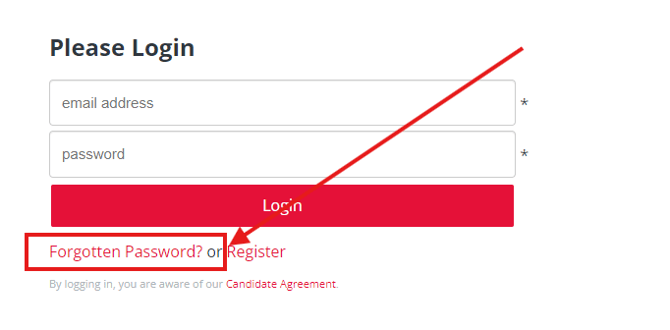
- Go to your Firefish login page.
- Click Forgotten Password.
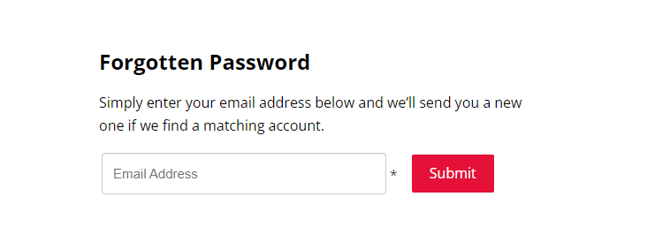
- Enter the email address associated with your Firefish account.
- Click Submit.
- Check your inbox for the password reset email.
- Follow the instructions in the email to reset your password.
You can then log in to Firefish using your new password.
 .>
.>
Resetting Another User's Password as a Superuser
Superusers can generate password reset links for any live user through User Management.
This is useful when a colleague has forgotten their password, cannot access their account or needs assistance resetting their login details.
To generate a password reset link:
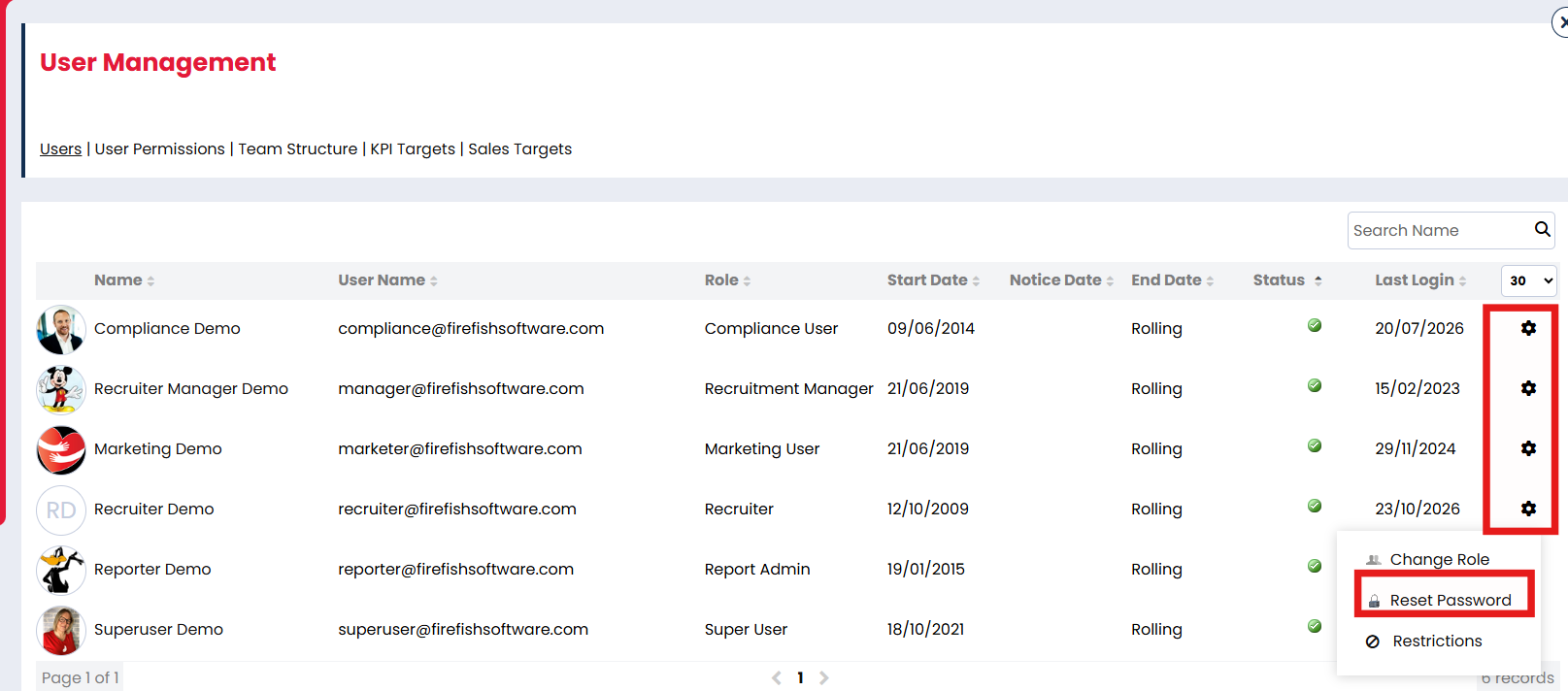
- Navigate to Settings > User Management > Users.
- Locate the user whose password needs to be reset.
- Click the cog icon on the right-hand side of their record.
- Select Reset Password.
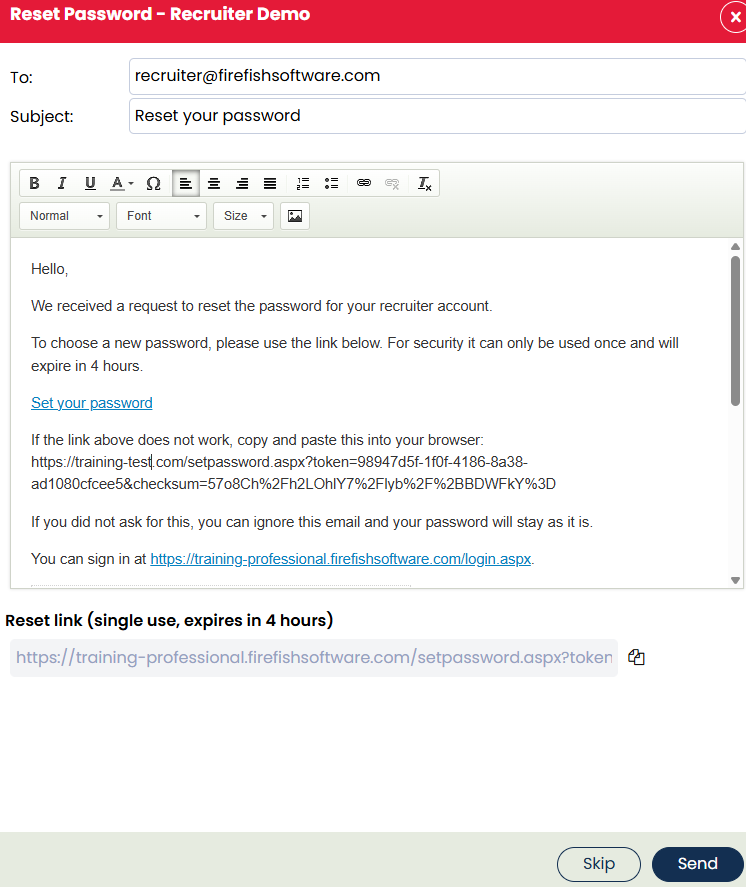
- Firefish will generate an email containing a Set Your Password link.
- Review the email and select Send.
The user can click the link to open a page on their Firefish site, where they can create a new password.
Copying and Sharing a Password Reset Link
If you'd prefer not to send the reset email, you can copy the password reset URL and share it with the user directly.
This can be particularly useful if the user is having difficulty accessing their email.
- Generate the password reset email using the steps above.
- Scroll to the bottom of the email.
- Copy the password reset URL.
- Share the link securely with the intended user, for example through Microsoft Teams.
- Select Skip if you do not wish to send the email.
The user can open the link and follow the on-screen instructions to create their new password.
Important: Password reset links expire four hours after the Superuser selects Send or Skip.
What Happens if a Password Reset Link Expires?
Password reset links generated by a Superuser remain valid for four hours from the moment the email is sent or skipped.
If the user opens the link after this time, Firefish will display a message explaining that the link has expired.
The user can request a new password reset link directly from this page, without needing to contact their Superuser again.
Frequently Asked Questions
Can I reset my own Firefish password?
Yes. Click Forgotten Password on your Firefish login page, enter your email address and follow the instructions in the password reset email.
Who can reset another user's password?
Superusers can generate password reset links for live users through Settings > User Management > Users.
Can a Superuser share a reset link without sending an email?
Yes. The Superuser can copy the password reset URL from the generated email and share it securely through another communication method.
How long does a password reset link last?
Password reset links generated through User Management expire after four hours from when the Superuser selects Send or Skip.
What happens if my reset link has expired?
Firefish will display an expired-link message with an option to generate a new password reset link.
What if I haven't received my password reset email?
Check your junk or spam folder and ensure you're using the correct email address. You can also ask a Superuser to generate a reset link and share it with you directly. If the issue continues, contact Firefish Support.