Note: The new Timesheets feature is currently in early access Beta and available to a select number of users. If you're interested in taking part in the next round, get in touch with your customer success manager.
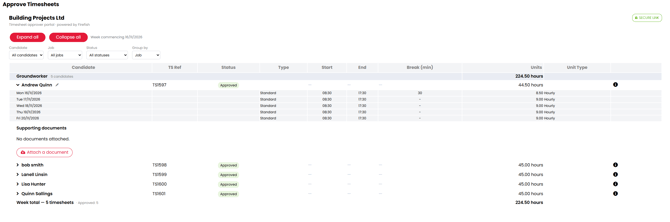
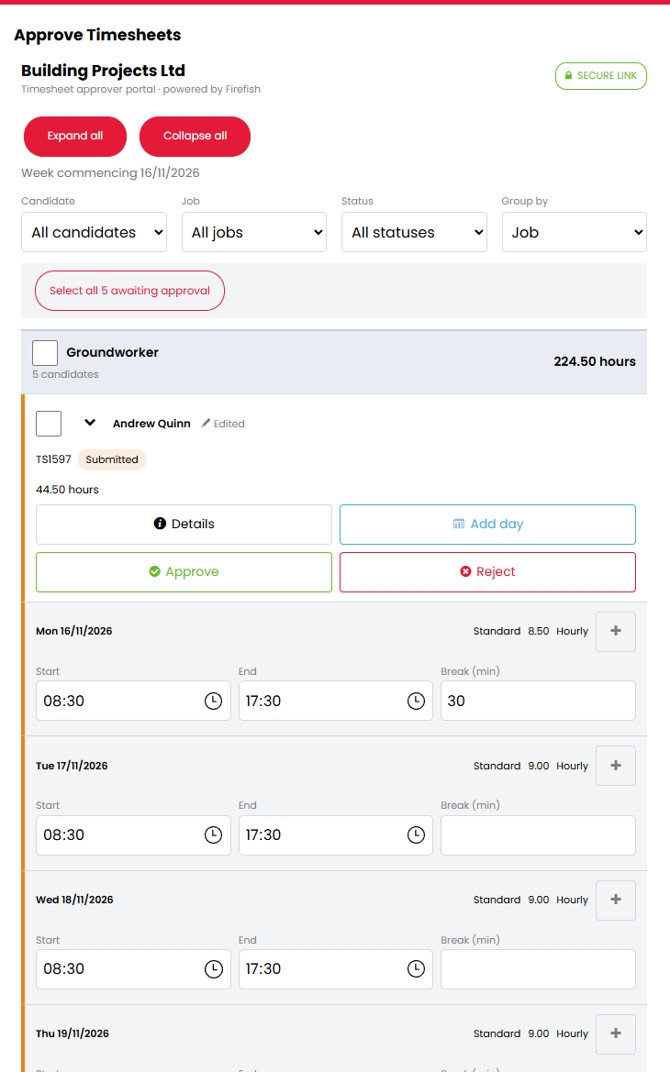
Your recruitment agency sends you a secure email link to the Timesheets that need your approval. You can review them on your computer or phone without a Firefish login.
In this guide- Open and review Timesheets.
- Complete or amend worked time.
- Approving Timesheets.
- Rejecting Timesheets.
- Frequently Asked Questions.
Open and review your Timesheets
- Open the approval email from your recruitment agency.
- Select the approval link.
- Check the week shown, then open the relevant Job and candidate's Timesheet.
- Review the work recorded for each day.
Timesheets are grouped by Job. Your link covers the relevant week and the Timesheets you are authorised to see. If you need another week or expected work is missing, contact your recruiter.
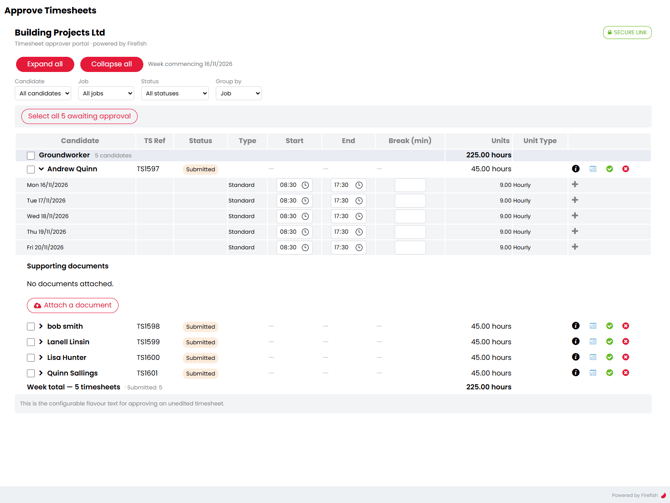
Check dates, hours or days worked, breaks and any separate shifts or Additional Rate entries. Open any supporting documents you need before making a decision.
A Timesheet can be approved without an attachment. Contact your recruiter if you need further evidence.
Complete or amend the worked time
The changes available depend on the access your agency has given you. This can range from adding and removing line entries, editing existing lines only, or restricted down to the Approve/Reject actions only.
For hourly work, enter start/end times or an hourly quantity in Units, according to the fields shown. Daily rates use Units for the number of days worked.
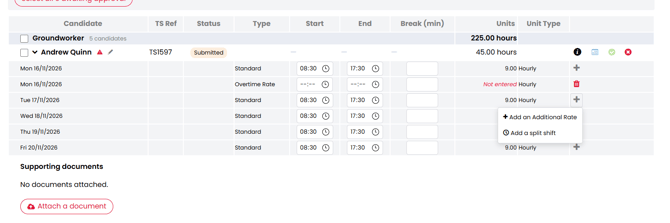
Where available, Split records separate shifts on the same day. Additional Rate records work against another rate, such as overtime. Adding these entries requires Full Edit.
Check the updated entries and totals before continuing. If something needs changing and you cannot edit it, contact your recruiter.
Blank values and zero
A blank means the entry has not been completed. A recorded zero confirms no hours or units for that entry.
Required values must be supplied before either Approve or Reject. A valid zero counts as supplied. If you cannot complete a missing value with your access, ask your recruiter to help.
Approve a Timesheet
- Review all daily entries, including your changes.
- Select Approve.
- Read the approval wording and complete the confirmation shown.
- Check the result is Approved.
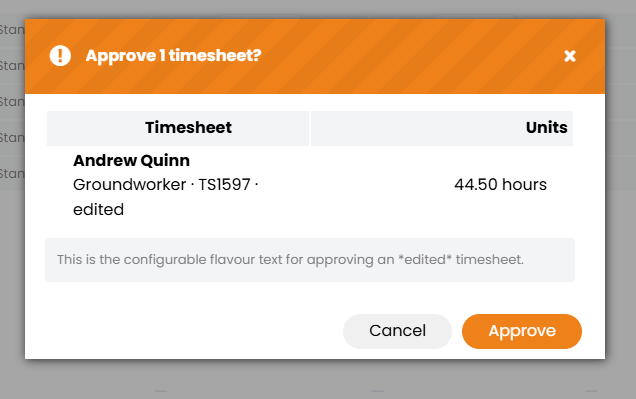
Your approval and changes are recorded in history. Firefish sends you an approval confirmation email and notifies the relevant agency users.
Approved entries become read-only. Contact your recruiter if you spot an error afterwards so they can arrange the correction.
Reject a Timesheet
If you cannot accept the recorded work:
- Review the entries and complete any missing required values you are able to supply.
- Select Reject.
- Choose the reason that best explains the problem.
- If you choose Other, add an explanation.
- Confirm and check the result is Rejected.
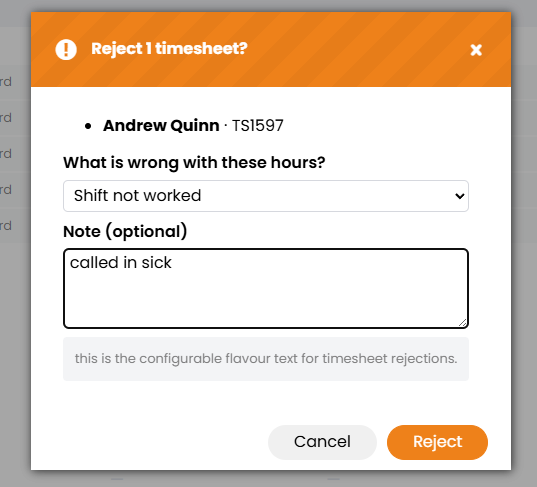
A reason is required every time. The responsible recruiter is notified and can arrange corrections before sending the Timesheet back for another review.
You cannot Reset, correct or resubmit rejected work from the approval page. Contact your recruiter if you need to add to the explanation.
Common questions
Can I approve from my phone?
Yes. Open the email link on your phone and follow the same review, editing and decision steps. Your access is the same as on a computer.
My link has expired. What should I do?
Ask your recruiter to send a fresh approval link, then use the link in the new email.
Links expire in line with the agency's Payroll Cut Off settings. A recruiter can issue a fresh link after cut-off; hours approved late go into the next payroll run. Ask your recruiter to confirm payment timing if needed.
Can I approve an Overdue Timesheet?
Yes, while the link is valid. Overdue means the agency's overdue time has passed; it does not mean the link has expired.
Why does the page say the Timesheet changed?
Someone updated it after you opened the page. Follow the message to load the latest version, then review the entries again before approval.
Can I return to an Approved Timesheet?
You can review it read-only through a valid link for that week. Once it is marked Processed by the agency's Pay & Bill process, it no longer appears through the approval link.