
Pay Configuration is where you tell Firefish how a temp rate is built up — the pay rate plus any components like holiday pay and Working Time Directive — and how that turns into the charge rate you bill your client. You set your defaults once, and every rate on your rate cards inherits them.
Contents
- Naming your pay types
- Building the pay calculation
- Grouping pay lines
- Choosing what each line is based on
- Setting your charge rate
- Scheduling Changes
- Saving changes and how they cascade
The pay configuration settings are within Settings > Job Configuration > Temp Workflow
Naming your pay types
At the top of the tab you can rename your pay types by selecting the edit pencil. 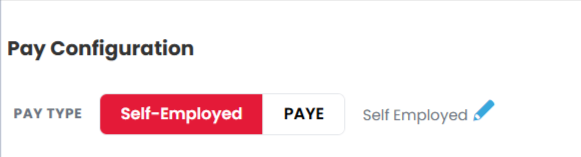
Renaming a pay type updates it everywhere it's used — the default pay type dropdown in your rate card settings and the pay type toggle on the temp rate card — so your own labels carry right through.
Building the pay calculation
You can toggle between the Self Employed and PAYE options to show the pay configuration table, where you can build the pay calculation, for each pay type.
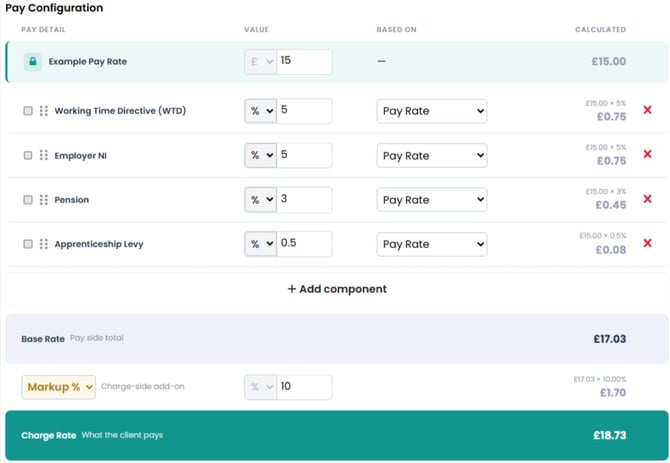
The Pay Configuration table is where you build up a rate line by line.
- Pay Rate is anchored as the first row and can't be moved — every calculation starts from it.
- Add further rows for the components you need, such as Working Time Directive (WTD), holiday pay or employer costs.
- Drag and drop any row (other than Pay Rate) to reorder the list. Order matters for some calculations.
- Rename any row by hovering to show the edit pencil, editing, then selecting the pencil again to save.
- In the Value field, choose between a percentage (%) or a fixed fee amount using the dropdown.
The Pay Rate shows with an example value and a live calculation preview. Change the example value and the preview updates, so you can sanity-check the maths as you build.
Grouping pay lines
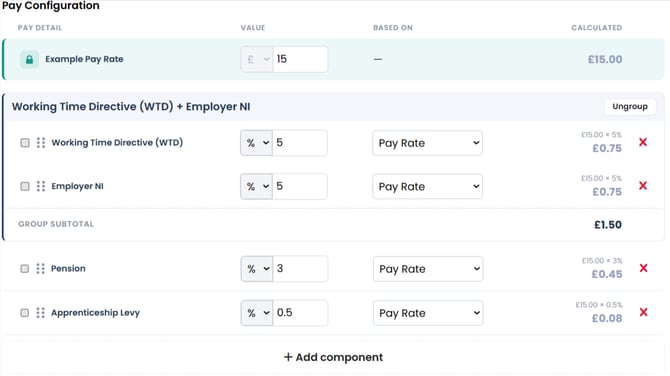
You can group related lines together — handy when several components should be totalled as one.
Tick the checkbox on two or more rows and a Group button appears. Select it to create a group:
- The group is named automatically from the lines within it (for example, Pay Rate + Working Time Directive (WTD)).
- A subtotal shows beneath the group.
- Drag a row into or out of a group and the name and subtotal update automatically.
- If a group is reduced to a single row, it ungroups on its own.
- Use Ungroup at any time to break a group apart.
Choosing what each line is based on
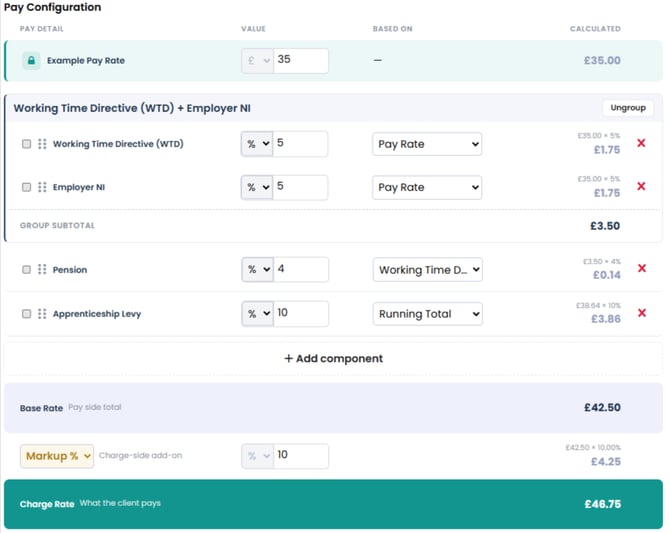
Every line except Pay Rate has a Based on dropdown that sets the calculation source for that line:
- Pay Rate — calculates against the base pay rate.
- A pay component above it — the dropdown only lists components that sit above the current row, and updates if you reorder.
- Group Total — calculates against the combined total of the lines in the group.
- Running Total — calculates against a running cumulative total, following the order of the lines.
Because Running Total works down the list in order, the sequence of your lines changes the result — so reordering will recalculate. You can mix and match, with some lines based on the pay rate and others on a group or running total, and the values update in real time as you go.
Setting your charge rate (Margin / Markup / Fixed Fee)
The Margin / Markup field turns your built-up pay rate into a charge rate. From the dropdown, choose:
- Margin %
- Markup %
- Fixed Fee
Margin and Markup show a % field; Fixed Fee shows the currency symbol for your selected currency. Enter the value and the calculation preview shows the resulting charge rate based on the base rate (Pay Rate plus your other configured lines).
Scheduling Changes
If you know a change to your Pay Configuration is coming — a new component, an updated percentage — you can schedule it in advance rather than making it on the day.
To do this, select Schedule Change 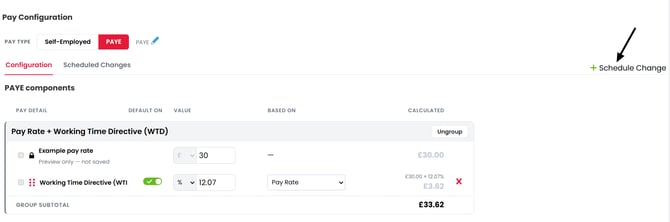
Choose the date the scheduled change will apply from:
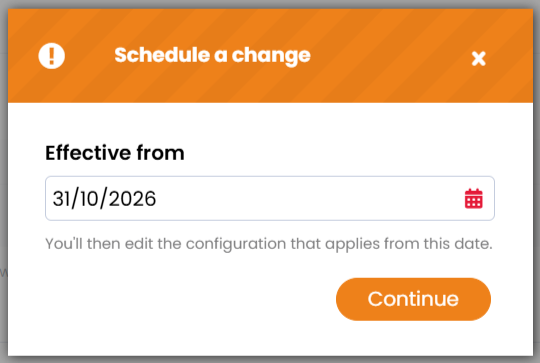
Once you've entered a date, a new copy of the Pay Configuration appears. By default it's populated with your current Pay Configuration, so you only need to edit what's changing — everything from building the pay calculation to setting your charge rate (above) works the same way.
Saving changes and how they cascade
When you save changes to Pay Configuration, a warning message appears before the change is applied. Once you confirm:
- Rate cards that are still unmodified copies of the settings pick up your changes automatically.
- Rate cards that have been manually edited are left as they are, so you never overwrite a deliberate override.
The same principle applies further down: your system-wide Pay Configuration is inherited as a copy at rate card, rate and company level — not a live reference — so teams can tailor a specific rate card without affecting your defaults, and your defaults won't retroactively wipe their overrides. You can adjust these inherited values wherever they appear using the same edit-pencil interaction.