What is the dashboard diary?
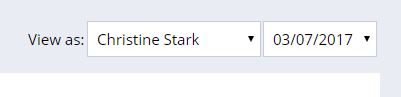
The dashboard diary lets you view past, current, and future appointments and activities by week. It displays the current week by default. Select any week to change the view, then click any diary item to view its details.
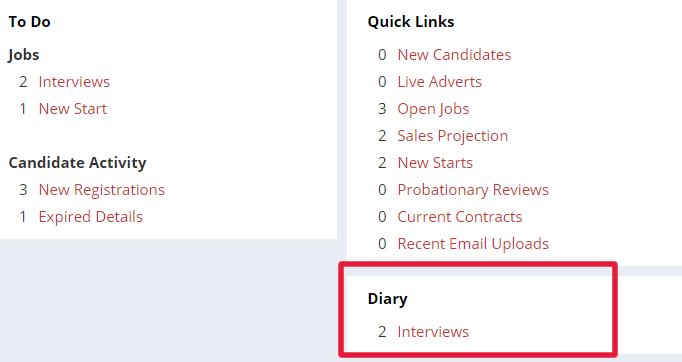
Click any diary item to view the details.
How do I view and add notes to a diary event?
The notepad icon on each event shows its notes status: a green icon means notes are attached; a red icon means there are none. If the icon is green, click it to view the notes.
You can add notes after an event has occurred — this will create a To Do action on the relevant candidate or contact's record.
- Click the event to open it.
- Add your notes in the pop-up screen.
- Optionally, set a follow-up date. If set, the event will appear on the diary and to-do list for the week it is due.
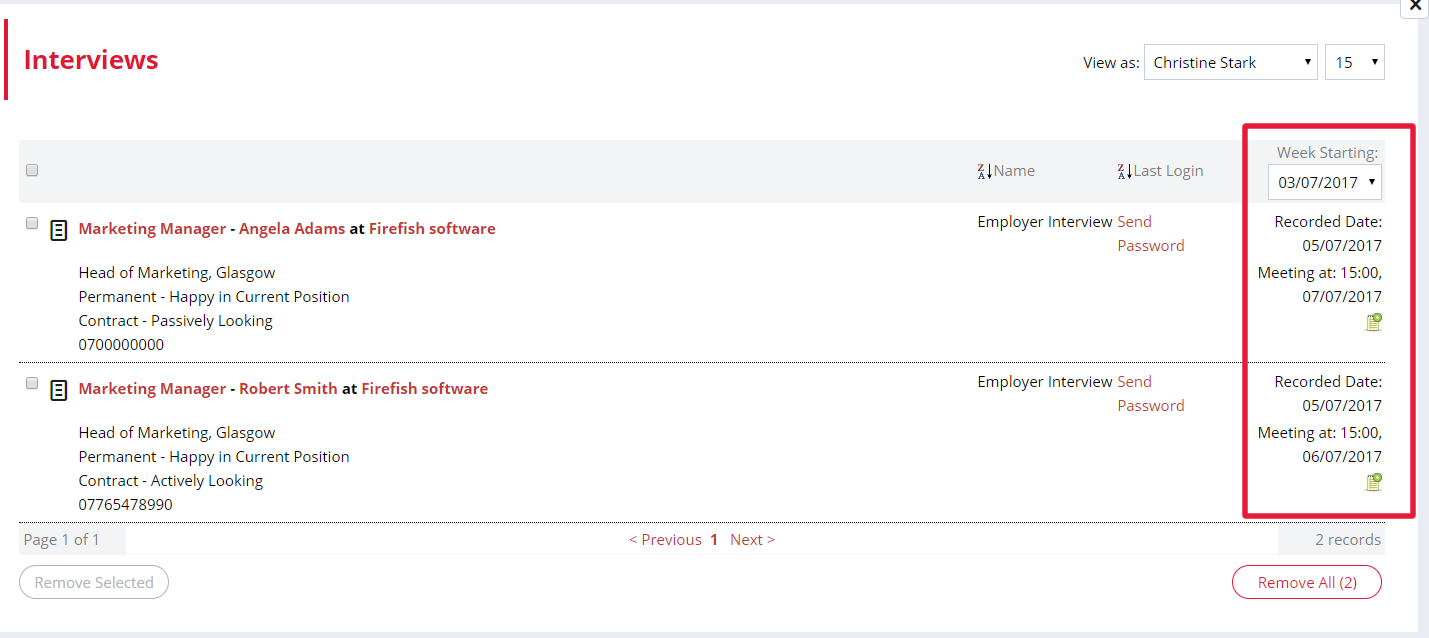
You can add notes after an event occurred as this will appear as a To Do action on the relevant candidate / contact's record.
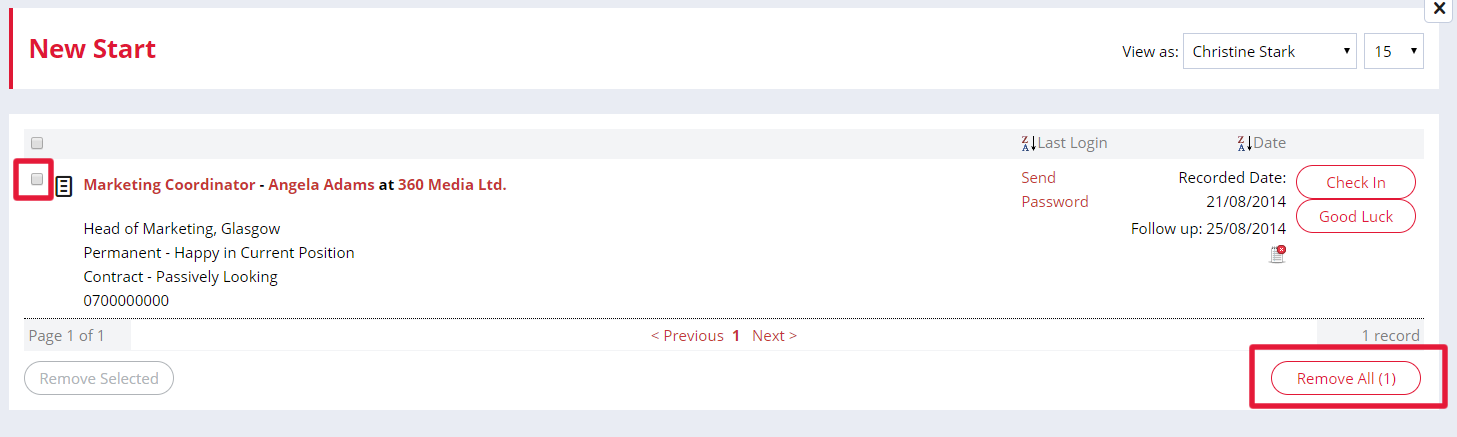
How do I remove an item from the dashboard diary?
To remove an item from your dashboard diary, check the box next to the event and click Done.