As a Hiring Manager on Firefish, you have access to the Jobs module, the Adverts module, and candidate search tools. These let you view and create vacancies, browse your recruiter's candidate database, review applications, and provide feedback on CVs and interviews.
Your Dashboard
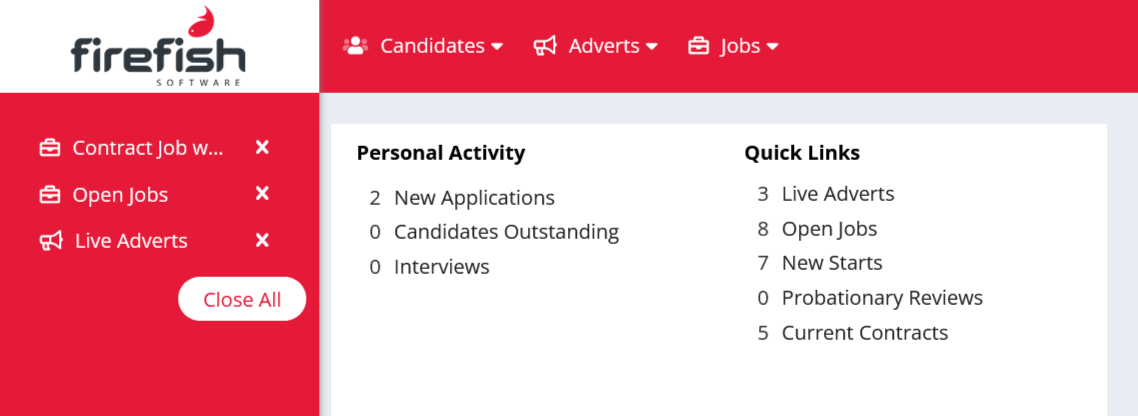
Your dashboard will give you an overview of your jobs, applications, candidates and interviews. From here you can also view any outstanding actions.
Searching
As a Hiring Manager, you can search for candidates within your recruiter’s system using the Candidates drop down menu. You can search the full database or look at saved talent pools that the recruiter has set up. From a candidate record you can:
- Search the full candidate database
- Browse saved talent pools that the recruiter has set up
- View candidate information and their CV
- Request further information from the recruiter
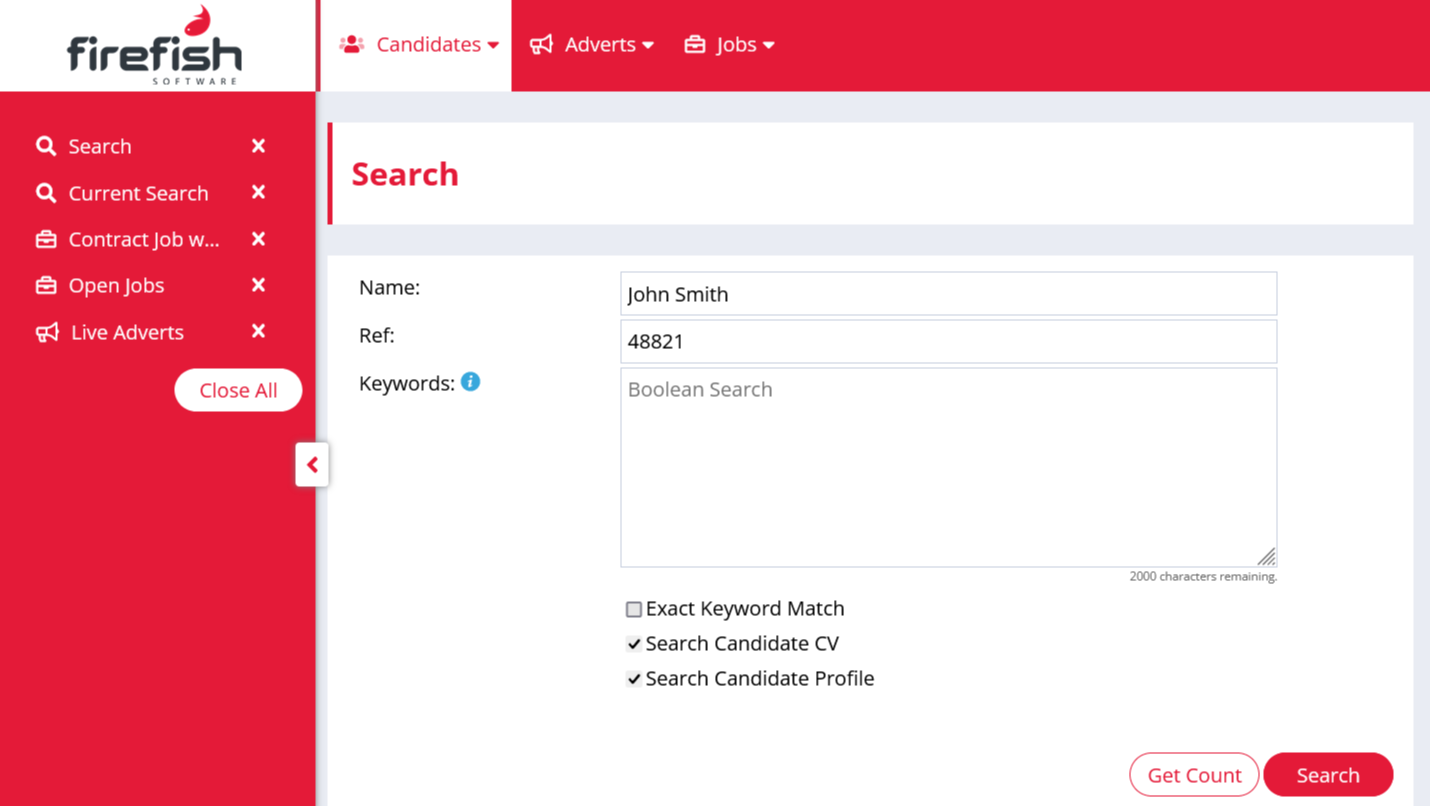
In this video you can see how the search function looks, what you can criteria you can filter candidates using and how to request information.
Adverts
Hiring Managers can view the adverts they currently have open in Firefish and, if you have the permissions, you can open new ones. The Adverts tab will allow you to view your adverts and see how many applications there are. You can also create a new advert to be approved by the recruiter.
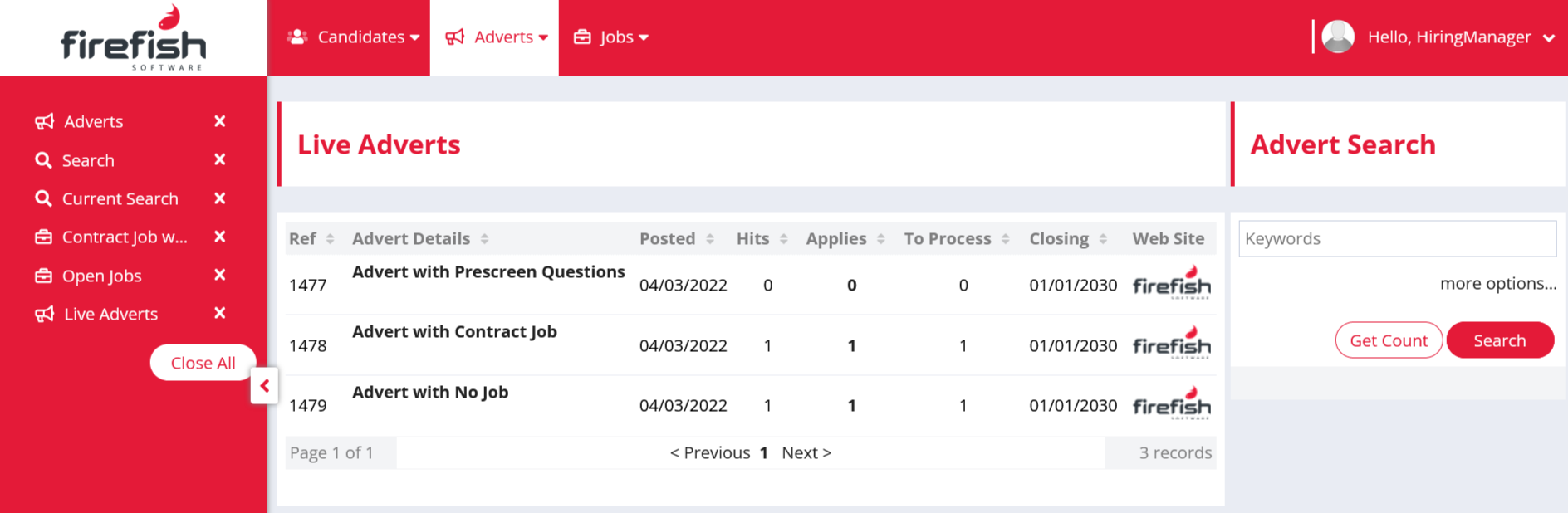
In this video, you can see how to create an advert for authorisation, preview it, and view the candidates who have applied.
Jobs
Similar to Adverts, within Jobs you can view existing Jobs where you are listed as the Hiring Manager and create new ones. The Jobs view will show you the job details. Within the Jobs module you can:
- View job details
- See candidates at each stage of the workflow
- Provide feedback on CVs sent to you
- Provide feedback on interviews you have conducted
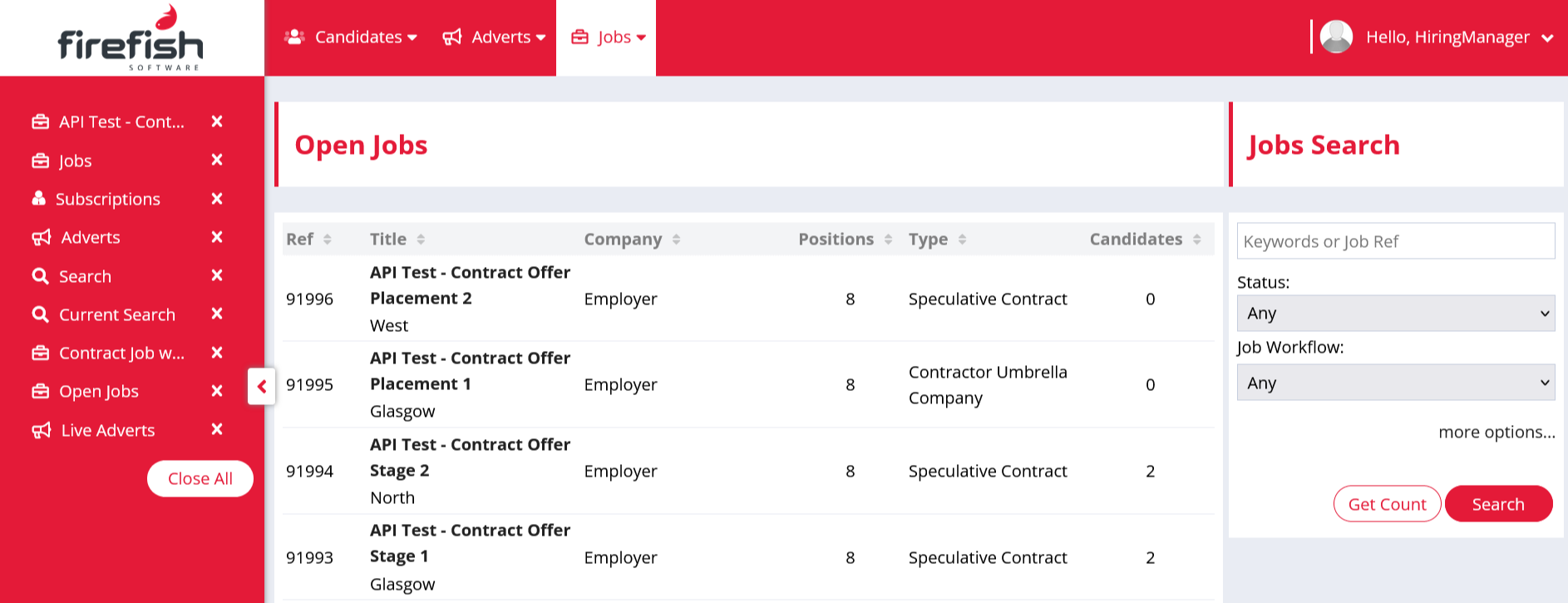
This video walks through creating a Job, reviewing the details of a Job, seeing candidates within different stages of the workflow and providing feedback on their application/interviews.
Tip: Remember if you find a candidate on the system you like that isn’t on your Job, you can request information from the recruiter!
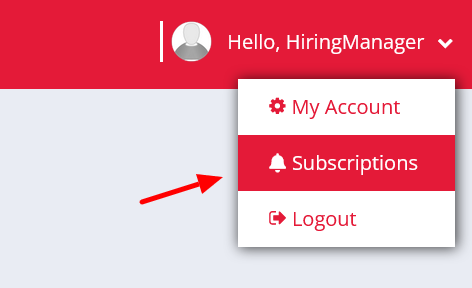
You can also manage your marketing preferences with the recruiter by clicking your name in the top-right corner, and then selecting Subscriptions.