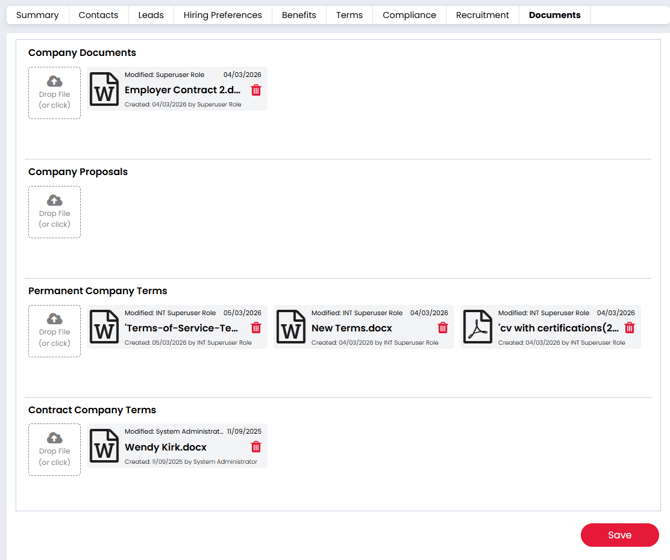
The eSign for Terms of Business feature allows you to automate the sending, signing and storage of your terms directly from Firefish. This helps you keep important agreements organised while reducing the time spent managing documents manually.
With eSign enabled, recipients can securely sign your Terms of Business electronically, countersigners can complete the document where required, and the final signed agreement is automatically stored against the company record.
In this article
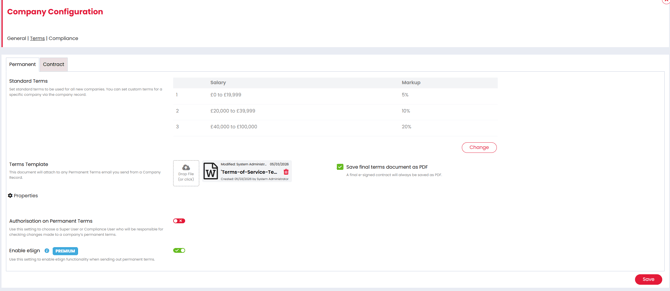
Enable eSign for Terms of Business
To start using eSign, you first need to enable it within your company configuration.
Navigate to Settings → Company Configuration and select the Terms tab.
From here you can enable eSign for:
-
Permanent workflows
-
Contract workflows
-
Or both
If the option is unavailable, check that your Terms template meets the requirements described in the next section.
Prepare your Terms template
Your Terms template must be a Word document in order to use eSign.
If no template is uploaded, or if the template is a PDF, the eSign setting will remain disabled.
To ensure all completed agreements are stored consistently, you can also enable the option:
Save final terms document as PDF
This converts the final signed document into a PDF before it is stored in Firefish.
Once your template and settings are configured, click Save.

Add the eSign merge field to your Terms email
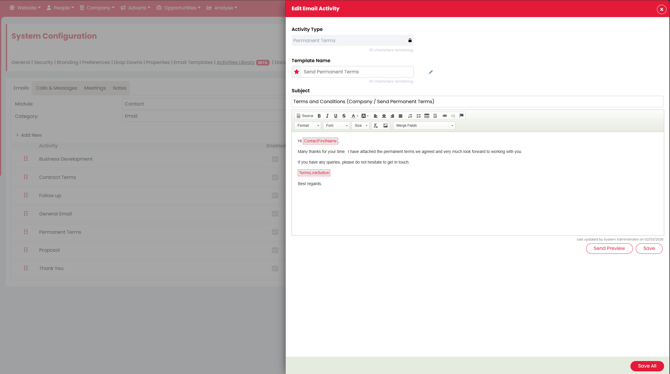
For recipients to access the document and sign it electronically, you must include the TermsLinkButton merge field in your Terms email template.
Navigate to:
Settings → System Configuration → Activities Library → Emails
Edit the email template used for your Terms activity.
Insert the merge field TermsLinkButton in the location where you want the signing button to appear.
When the email is generated, this merge field becomes a "View Terms" button that allows the recipient to open and sign the document.
Send Terms using eSign
Sending Terms with eSign follows the same process as your existing Terms workflow.
Open a Company or Contact record and click Email Activity.
Select the appropriate Terms activity and choose your email template.
Before sending the email, you must prepare the document for eSign.
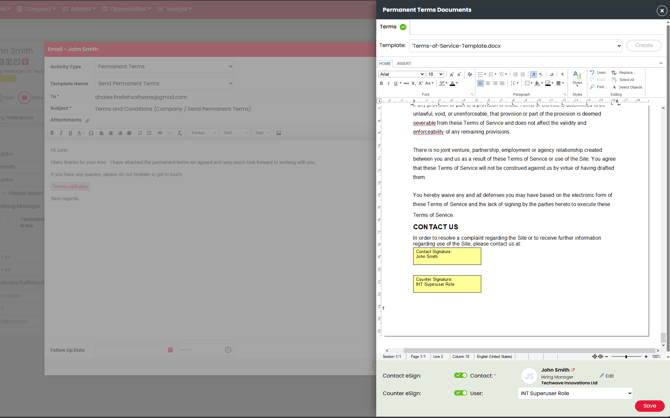
Click Preview Terms to open the Terms editor panel. From here you can:
-
Review and edit the Terms document
-
Add signature fields for the recipient contact
-
Add a signature field for an internal countersigner
After placing any required eSign fields, click Save.
If eSign fields were added, the TermsLinkButton will generate a View Terms button within the email.
If no eSign fields were added, the prepared document will simply be attached to the email instead.
What happens after you send Terms
Once the email is sent, Firefish automatically tracks the progress of the agreement.
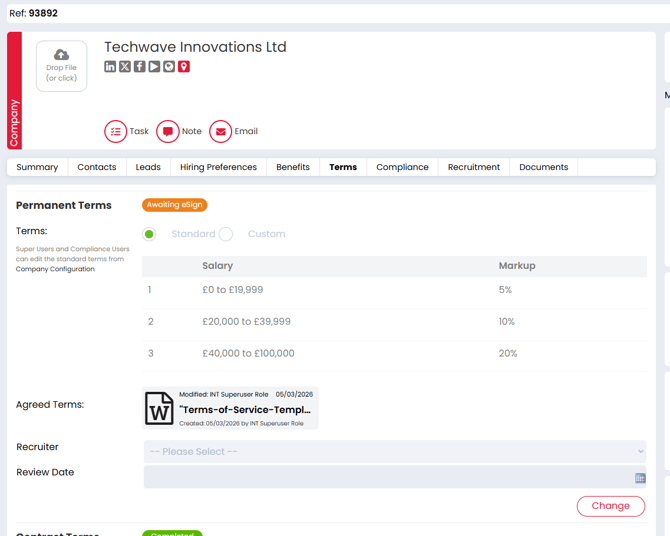
The Terms tab on the company record will:
-
Store the unsigned Terms document temporarily
-
Display the status Awaiting eSign
-
Add the item to your Dashboard To Do list so you can monitor outstanding signatures
The signing process then follows this sequence:
-
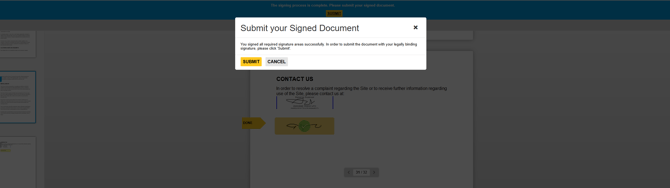
The recipient receives an invitation to sign the document electronically
-
If a countersigner is required, they are notified once the recipient has signed
-
After all signatures are completed, both the sender and recipient receive a confirmation email
Viewing signed Terms documents
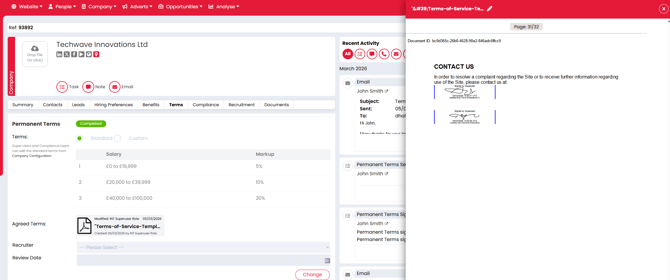
Once the document is fully signed, Firefish automatically stores the final version on the Terms tab of the company record.
From here you can open the document to view:
-
The completed agreement
-
Electronic signatures
-
Verification token and timestamp
This provides a secure and auditable record of when the agreement was signed.
Historical Terms documents
Any previous Terms documents that existed before using eSign remain available in the Company Documents tab.
This allows you to maintain a full history of how your agreements with each customer have changed over time.