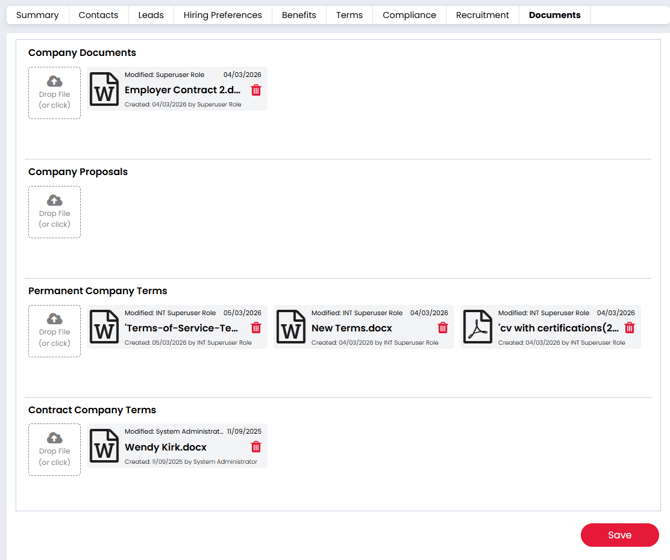
The eSign for Terms of Business feature allows you to prepare, send and store signed Permanent and Contract Terms directly in Firefish. This helps you keep important agreements organised while reducing the time spent managing documents manually.
The main journey starts from the Terms tab on the company record, keeping the company’s Terms details, signing contact and document together in one workflow. You can also start from a Company or Contact email activity when needed.
With eSign enabled, recipients can securely sign your Terms of Business online, countersigners can complete the document where required, and the final signed agreement is automatically stored against the company record.
- Enable eSign for Terms of Business
- Prepare your Terms templates
- Add merge fields to your Terms documents
- Add the eSign merge field to your Terms emails
- Send Terms from the Company Terms tab
- Send Terms from an email activity
- Resend outstanding Terms
- What happens after you send Terms
- View signed and historical Terms documents
Enable eSign for Terms of Business
To start using eSign, navigate to Settings → Company Configuration → Terms.
From here, you can enable eSign for:
- Permanent workflows
- Contract workflows
- Or both
Permanent and Contract eSign are configured separately, so you can use different document templates for each workflow.
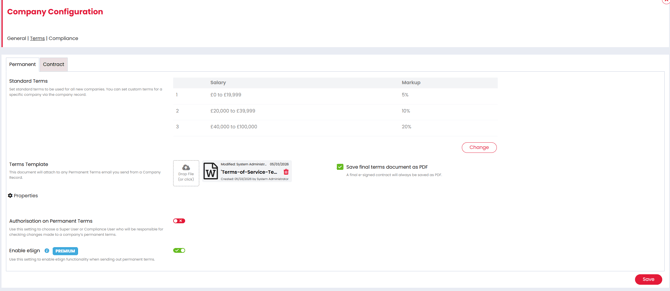
Your Terms template must be a Word document in .doc or .docx format and less than 10 MB. If no template is uploaded, or the current template is a PDF, the eSign setting will remain unavailable.
To store completed agreements consistently, you can also enable Save final terms document as PDF. This converts the fully signed document to PDF before it is stored in Firefish.
Once your templates and settings are ready, select Save.
Prepare your Terms templates
When eSign is enabled, you can upload multiple document templates for Permanent Terms and multiple templates for Contract Terms.
Each uploaded template appears as a document card in the relevant Terms tab. Permanent and Contract templates are kept separate, so a template uploaded to one workflow will not appear in the other.
Select a document card to open that template in the editor. From here, you can review the document, update its content and add merge fields.
When preparing Terms for a company, Firefish asks you to select the appropriate document template. The templates are listed alphabetically and no document is selected by default.

When adding a header to your formatted CV template, make sure only one header is used throughout the document as using multiple can trigger display issues across the entire document.
Add merge fields to your Terms documents
Merge fields allow you to tailor a Terms document using information already stored in Firefish.
While editing a Terms template, select Insert Merge Field to browse or search for a field. The available groups include:
- Company Fields
- Parent Company Fields
- Our Company Fields
- Permanent Rate Card for Permanent Terms
- Contract Rate Card for Contract Terms
Merge fields are populated when the document is generated. If a field has no value on the relevant record, it is left blank.
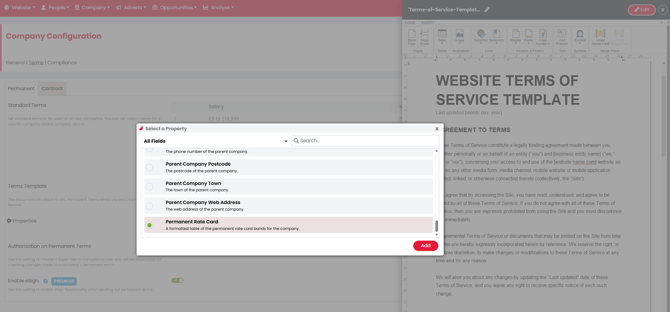
The Permanent and Contract Rate Card fields insert the applicable company rate card as a formatted table. Contract sub-rates include their parent band so that the relationship remains clear in the generated document and final PDF.
Add the eSign merge field to your Terms emails
For recipients to access and sign the document, your Terms email template must include the appropriate TermsLinkButton merge field.
Navigate to Settings → System Configuration → Activities Library → Emails and edit the email template used for your Permanent or Contract Terms activity.
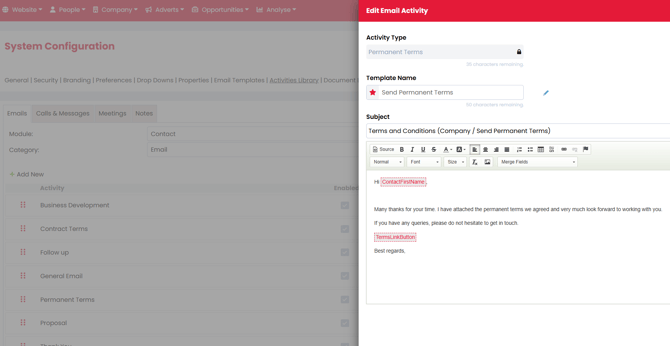
Insert the TermsLinkButton where you want the signing button to appear. When the email is generated, this becomes a View Terms button that allows the recipient to open and sign the document.
You can add the merge field to each saved email template used by your Terms workflow. Selecting a different saved email template before sending does not change the generated document or signing link.
Send Terms from the Company Terms tab
The Company Terms tab is the main route for preparing and sending Terms with eSign.
Open the company record, select Terms, then select Change in the relevant Permanent or Contract Terms section.
The Terms panel includes a Contact field. Select the contact who should receive and sign the document, then update any other Terms details and select Save.
When eSign is enabled, Firefish asks:
Would you like to prepare and send Terms of Business?
- Select Yes to prepare and send the document.
- Select No to save the Terms changes without starting the send journey.
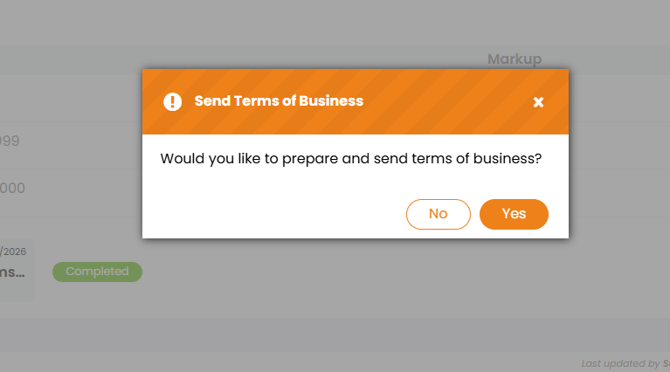
Selecting Yes opens the Terms document editor. From here, you can:
- Select the appropriate Terms template
- Review and edit the generated document
- Add a signature field for the contact
- Add a signature field for an internal countersigner
- Select No Terms Required if an agreed document has already been uploaded and you only need to send a confirmation email
The Contact selected on the Terms panel is automatically selected as the contact signer. You can change the signer before saving the document. If a countersigner is required, check that the correct internal user has been selected.
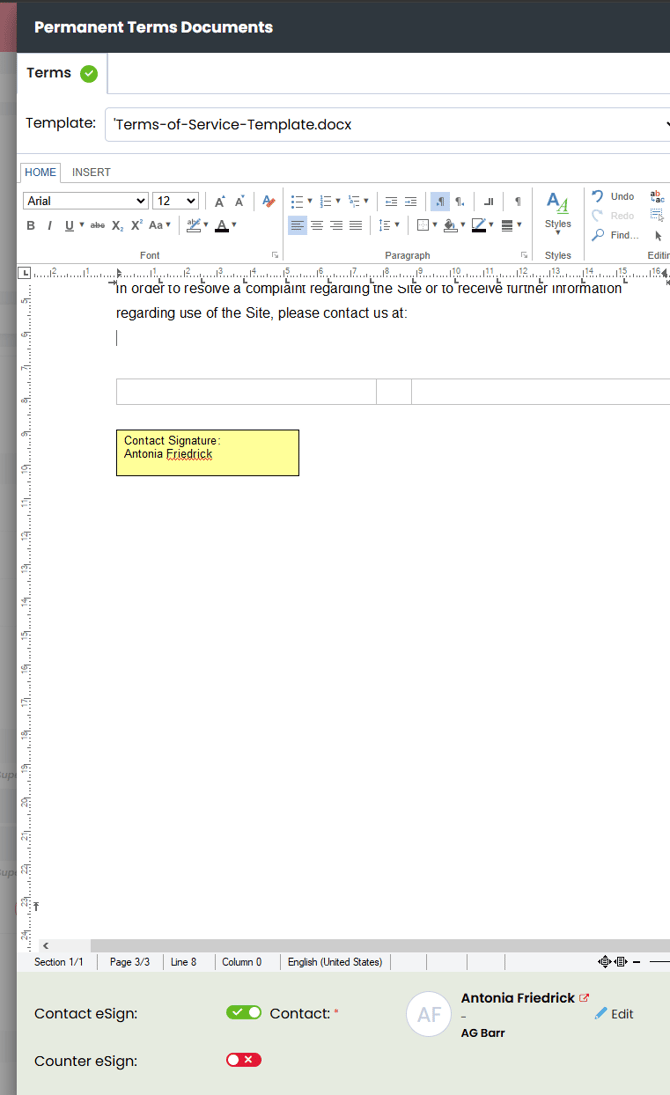
Closing the document editor with X cancels the send journey. Any Terms changes saved in the previous step remain on the company record.
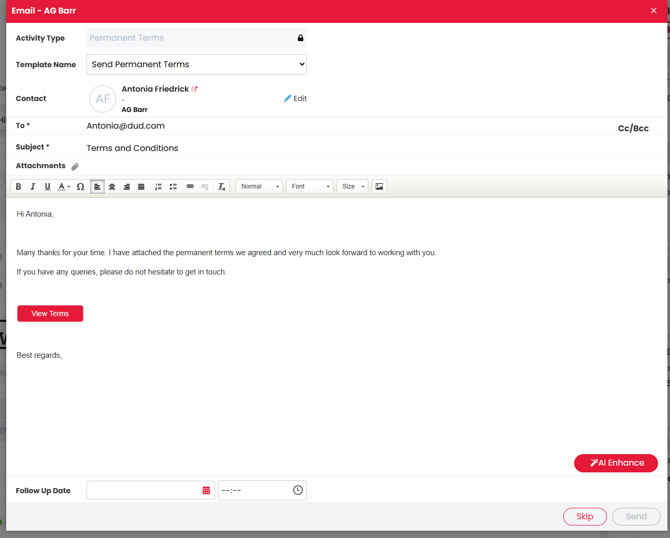
After placing the required signature fields, select Save. Firefish then opens the email modal with:
- The correct Send Permanent Terms or Send Contract Terms activity
- The selected contact in the To field
- The generated Terms document
- The View Terms signing link
Choose the required saved email template, review the email and select Send.
Send Terms from an email activity
You can also start the eSign journey from a Company or Contact email activity.
Open the record and select Email Activity, then choose the appropriate Permanent or Contract Terms activity and email template.
Select Preview Terms to open the same document editor used by the Company Terms workflow. Prepare and save the document, then return to the email modal and send the email.
This route uses the same document templates, signing process, statuses and completed-document storage as the Company Terms journey.
If no signature fields are added
If you prepare a Terms document without adding any signature fields, Firefish attaches the generated document directly to the email instead.
The View Terms button is removed, the document is stored against the company’s Agreed Terms, and the normal non-signature Terms workflow applies.
This is useful when you want to generate and send a tailored Terms document without requesting an electronic signature.
Resend outstanding Terms
When a Permanent or Contract Terms document is at Awaiting eSign, a Resend button appears next to Change in that Terms section.
Select Resend to open the email modal with the existing document and signing link. You do not need to select the document template or add the signature fields again.
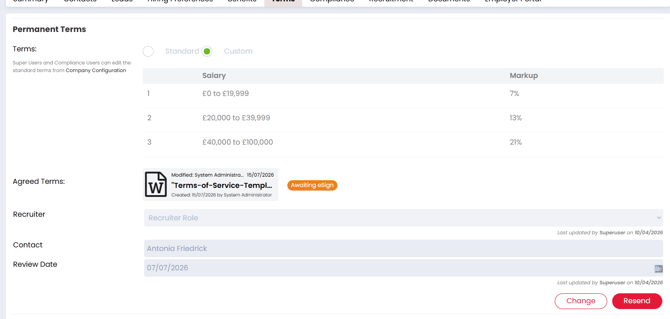
The request is sent to the original signing contact and the status remains Awaiting eSign until all required signatures are complete.
What happens after you send Terms
Once the email is sent, Firefish automatically tracks the progress of the agreement.
The Terms tab on the company record will:
- Store the unsigned Terms document temporarily
- Display the status Awaiting eSign
- Show the Resend option
- Add the item to the Terms to Action dashboard list for the relevant users
The signing process then follows this sequence:
- The contact receives the email and selects View Terms.
- The contact reviews and signs the document.
- If a countersigner is required, they are notified after the contact has signed.
- After all required signatures are complete, the sender and contact receive a confirmation email.
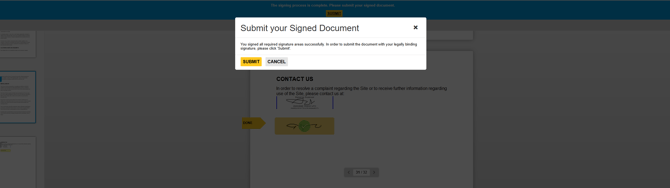
The Terms remain at Awaiting eSign until every required signer has completed the document.
If you skip a prepared email containing signature fields, Firefish still stores the unsigned document and sets the status to Awaiting eSign. You can then use Resend to issue the signing request later.
View signed Terms documents
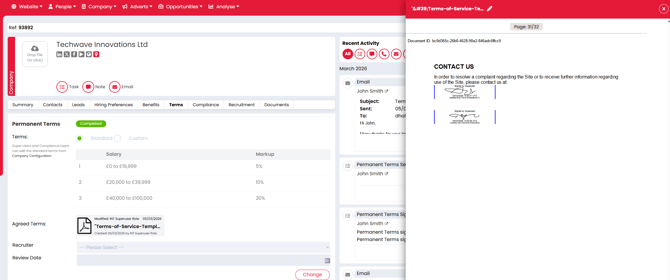
Once the document is fully signed, Firefish automatically stores the final version on the relevant Permanent or Contract Terms section of the company record.
From here, you can open the document to view:
- The completed agreement
- Electronic signatures
- Verification token
- Signature timestamp
If Save final terms document as PDF is enabled, the completed agreement is stored as a PDF.
The final Terms status depends on your authorisation settings:
- Completed when Terms Authorisation is off
- Requested when Terms Authorisation is on and approval is still required
Historical Terms documents
Previous Terms documents remain available through the company’s document history. This allows you to keep a record of how your agreements with each customer have changed over time.