Gengeral system settings allow Super Users to control global configuration across your Firefish system. This includes company information, regional formats, dashboard defaults, user restrictions and security settings.
You must be a Super User to access these settings.
Accessing General System Settings
-
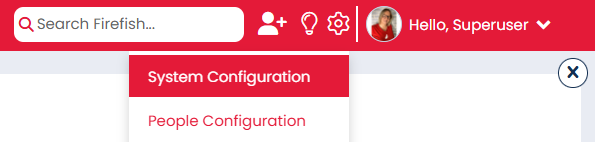
Click the cog icon in the top menu section of the page.
-
Select System Configuration from the drop down menu.
- You will default to the correct tab which is General.
Company Information
Company Information can be found on the General tab. Here you can add your company details such as:
- Company name
- Website address
- Phone number
- Email address
- Address

The information populated can be pulled into email templates if you add the corresponding mergefield (i.e. 'OurCompanyWebAddress').
Regional Settings
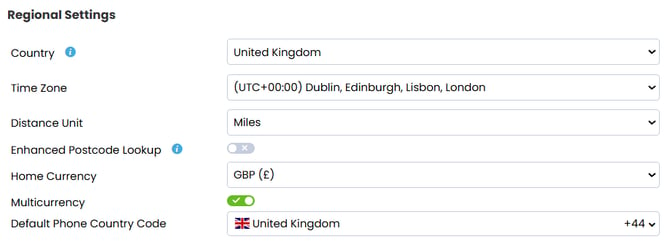
Regional Settings are also found on the General tab. Here you can update some of your general system settings:
- Country - This setting controls the format of the dates displayed throughout the system.
- Time Zone - You can set the time zone for your system.
- Distance Unit - This is used for postcode radius searching in searches and in potential matches.
- Enhanced Postcode Lookup - This is used to enable postcode radius searching in searches and in potential matches.
- Home Currency - Choose the default currency for your system. This will appear throughout your system including jobs, adverts and candidate records.
- Multi Currency - Activate multi currency.
- Phone Country Code - Choose the default country code for phone numbers on your system.
Enterprise users can edit all of these settings per individual site.
Calendar Settings
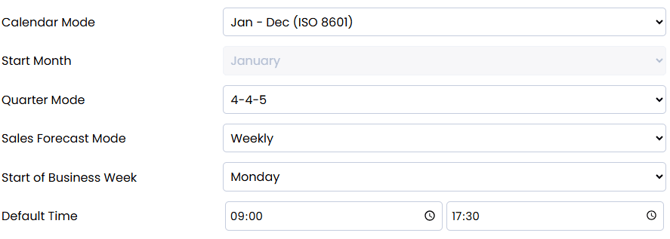
You can configure the calendar in Firefish to match your business year. For example, if your financial year begins in April, you can set April as the start of the year in Firefish.
Your selected calendar impacts your business plan and KPIs, both on the dashboard and within Settings. If you change the year settings, historical data will be recalculated and displayed according to the new configuration.
Set your Calendar Mode
-
Select Jan–Dec if your year runs from January to December.
-
Select Flexible Year Start if your year begins in any other month.
If you choose Flexible Year Start, use the Start Month dropdown to select the month your year begins.
Choose your Quarter Mode
Select how your quarters are structured:
-
4–4–5
-
4–5–4
-
5–4–4
This determines how weeks are distributed across each month in a quarter.
Select your Sales Projection Mode
Choose whether you forecast:
-
Weekly
-
Monthly
-
Quarterly
Set your business week
Use Start of Business Week to define the first day of your working week, for example Sunday.
Once you have updated your settings, click Save to apply the changes.
Set your default Start and End time
Use Default Time to choose the start and end times that are automatically filled in when creating Temp or Contract jobs. These times are also used when adding shifts from a Temp job or the candidate availability tab.
Dashboard Settings
Records Per Page
You can use the records per page setting to select the default number of records shown on quick links, to do lists, search results, and diary entries.

Within the setting you can choose if the default records per page are:
-
30
-
100
-
250
-
450
For Enterprise clients this setting will be site specific. As this is the case, primary and secondary sites can have different default records per page.