It is best practice to log any meetings you have with candidates within Firefish. When you do, you are able to send confirmation emails directly from the system, and have the meeting logged on their record. This allows you to keep a log of all your communications with candidates and when they happened.
Arrange a Meeting via a Candidate Record
To log a meeting with a candidate:
- Open the candidate's record within Firefish.
- Select the Meeting button in the header
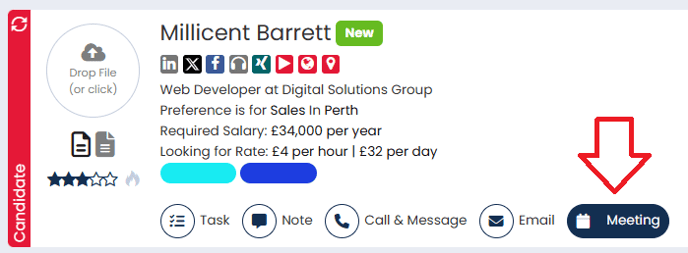
- You can then select the Activity Type and Template Name that you wish to use. This will dictate which email template will populate and will reflect in the Recent Activity as the meeting type.
- You should then populate the date and time of the meeting. If you select 'Merge Fields' this will then populate the correct details in the template (as long as you have the Meeting Date and Meeting Time mergefields included).
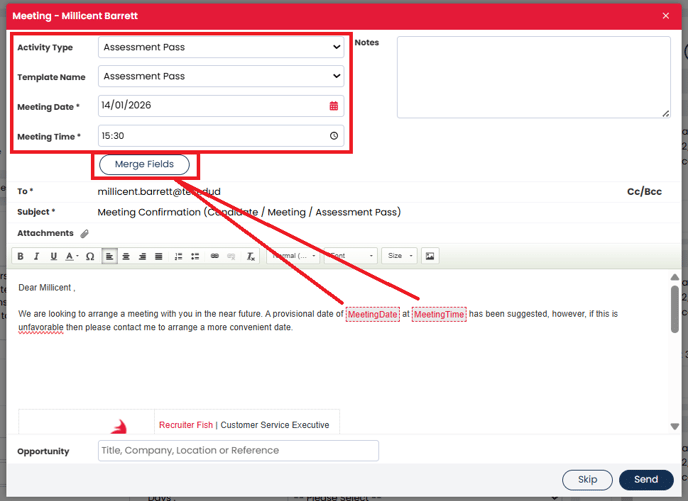
- If you wish, you can add note ahead of the meeting in the top right, and link the meeting to a particular job via the Opportunities field at the bottom.
- Make any necessary amendments to the email, and add in some personalisation too.
- Alternatively, you might wish to Skip the email and just log the meeting. When you're ready, hit Send.
Create New Meeting Types
If you would like to create a new meeting type, rename an existing one, or change the order, then a Super User can do so on behalf of the whole team.
- Go to settings (cog).
- Select System Configuration.
- Select Activities Library.
- Choose the Meetings tab.
- Set the Module to Candidate.
From here you can:
- Add - Click Add New to create a new meeting type
- Reorder - Click the dots to the left of the meeting title and drag into the desired order.
- Amend - Click the blue pencil to the right of the meeting title
- From here you can create additional email templates, amend existing template, amend the note template

You can learn more about the Activities Library here.