- How to Call a Candidate
- How to send an Message - From the Candidate Record
- How to Send a Message - From a Search
How to Call a Candidate
In order to call a candidate you must either have a call package activated on your Firefish account, or have a relevant integration set up. You can learn more about the setting up a call package here and about the associated integration with Ringover here.
Once you have your chosen integration set up you can call a candidate:
- Open the candidate record.
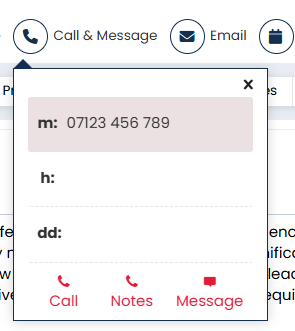
- Select Call & Message in the candidate header.
- Select the number you would like to call.
- Press Call.
- You can make notes during the call. Make sure to select the Call Type so that the note will log correctly once the call is complete.
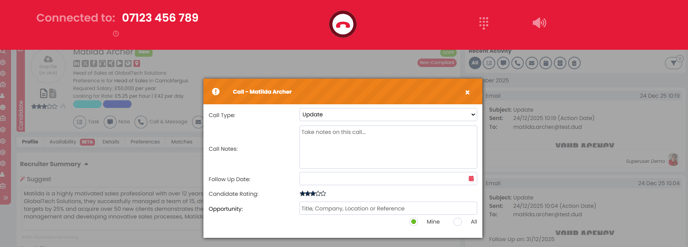
- When you're finished, press the red Hang Up button at the top of the screen.
You can see the Firefish Call Packages here.
The call note pop-up won't close when the call ends, so you'll still have time to finish typing up your notes.
How to Send an Message - From the Candidate Record
In order to message a candidate you must either have a SMS package activated on your Firefish account, or have a relevant messaging integration set up. You can learn more about the setting up an SMS package here and about the associated integration with Payemoji here.
Once you have set up your messaging integration, you can send an message to the candidate from their record:
- Open the candidate record.
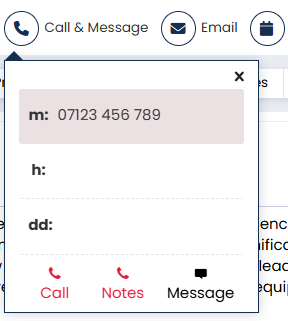
- Select Call & Message in the candidate header.
- Select the number you would like to message.
- Select the Message button.
- Choose which message Template you would like to use.
- Type out your message
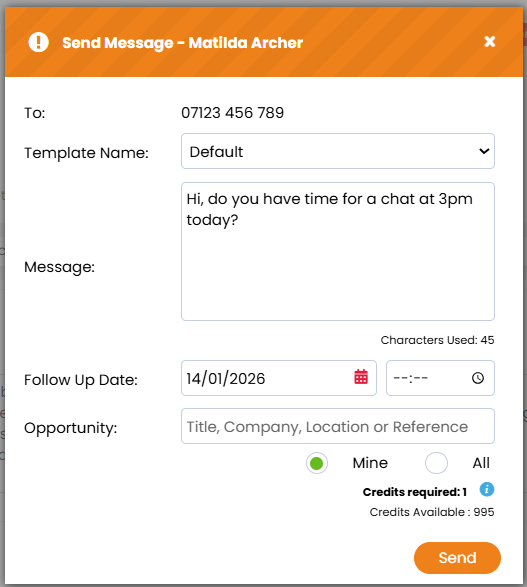
- When you're ready, hit Send.
You can see the Firefish SMS Packages here.
Remember to keep an eye on the number of characters and credits being used.
- Characters can be tracked under the message field whilst typing
- Credits can be checked above the send button
How to Send a Message - From a Search
In order to message a candidate you must either have a SMS package activated on your Firefish account, or have a relevant messaging integration set up. You can learn more about the setting up an SMS package here and about the associated integration with Payemoji here.
Once you have set up your messaging integration, you can send an message to the candidate from their record:
- Run a candidate search.
- Tick the candidate(s) you would like to message.
- Select Message at the top or bottom of the search.
- Choose which message Template you would like to use.
- Type out your message.
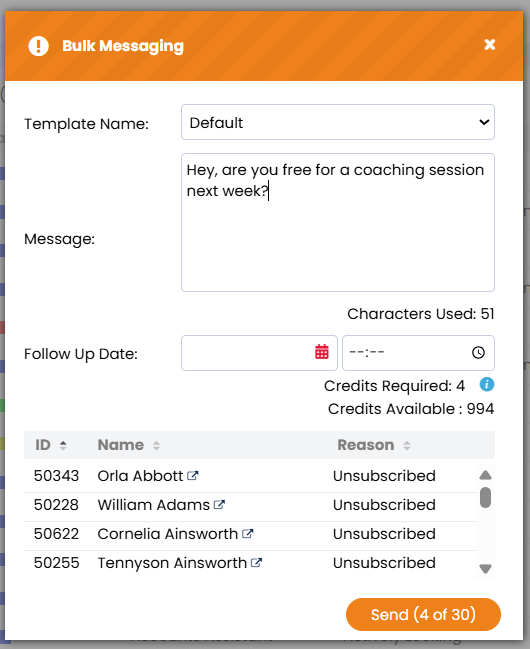
- When you're ready, hit Send.
You can see the Firefish SMS Packages here.
Remember to keep an eye on the number of characters and credits being used.
- Characters can be tracked under the message field whilst typing
- Credits can be checked under the Follow Up Date