Check out below how to Log in to our Outlook, Gmail and Chrome Add-In's or troubleshoot why you can't log in.
What you need before you log in
When you open your Add-In or Extension, you will be asked for three things:
-
Firefish URL
-
Username
-
Password
Your Firefish URL
Your Firefish URL is the web address you use to access your Firefish system.
To find it:
-
Open Firefish in your web browser
-
Copy the URL from the address bar - excluding the end of the URL, anything after .co.uk/.com/.eu/.ie
Examples:
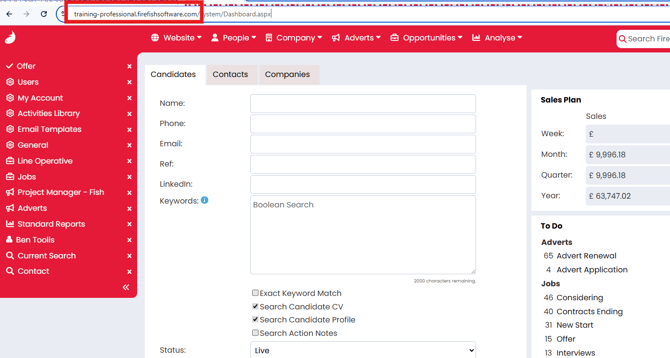
This URL is unique to your company.
Your username
Your username is the email address you use to log into Firefish.
Your password
This is the same password you use to log into Firefish.
If you do not know your password, you can:
Use your browser password manager
-
Open your browser settings (Chrome, Edge, etc.)
-
Go to Passwords
-
Search for your Firefish URL
-
View your saved password
Reset your password
-
Go to your Firefish login page
-
Click Forgot Password
-
Follow the steps to reset it
How to log back in
-
Open your Outlook Add-In, Chrome Extension, or Gmail Add-In
-
Enter your Firefish URL and click Sign In
-
Enter your username (email address) and password
-
Click Log In to confirm
If you are using Gmail, you may also be asked to authorise the connection after signing in.
Once completed, your Add-In or Extension will be ready to use as normal.
🎥 Video walkthrough
Common issues and fixes
I don’t know my Firefish URL
-
Log into Firefish in your browser
-
Copy the URL from the address bar - excluding the end of the URL, anything after .co.uk/.com/.eu/.ie
My password isn’t working
-
Check your password manager using your Firefish URL
-
Try logging into Firefish directly in your browser
-
If you still cannot log in, reset your password
The Add-In or Extension won’t accept my login details
Check the following:
-
Your URL is your companies unique Firefish URL and not Firefish's internal Login Page or an External site.
-
You are using your email address as the username
-
You are using your Firefish password (not your Outlook or Gmail password).