Leaving notes on candidate records in Firefish is essential for maintaining a clear, centralised history of interactions, making it easy for anyone on the team to pick up where someone else left off. It improves collaboration, avoids duplicated effort, and helps ensure consistent communication with candidates.
Notes also support key workflows, including GDPR compliance and candidate re-engagement strategies. For example, logging a note can reset a candidate’s engagement status, helping keep records active and contributing to successful placements. Overall, good note-taking is a simple step that drives better outcomes across your recruitment process.
Create a Note
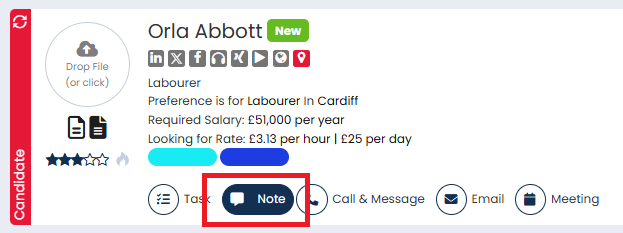
- Open the candidate record.
- Select the Note button in the candidate header.
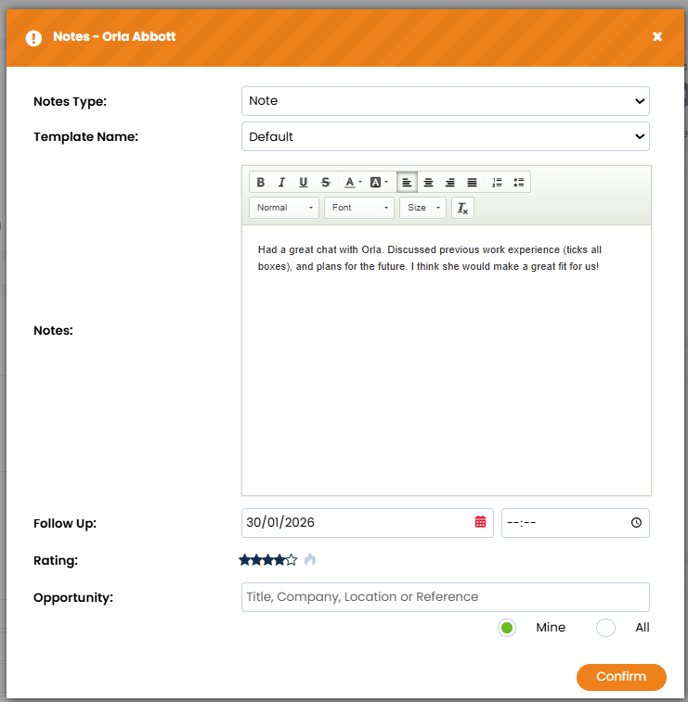
- Choose the Note Type that you would like to log.
- Type out the note content.
- If you wish, you can also add a follow-up date, adjust the candidate's star rating and link the note to a particular opportunity.
- When you're ready, hit Save.
📌 The default Note Type is Quick Note, which is the note that pins to the top of the recent activity.
Edit a Note
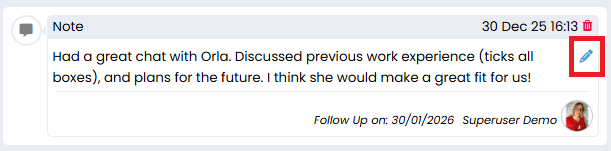
- Locate the note on the candidate's record.
- Select the blue edit pencil.
- The note will open and you will be able to amend the content, change the note type and set a different follow-up date.
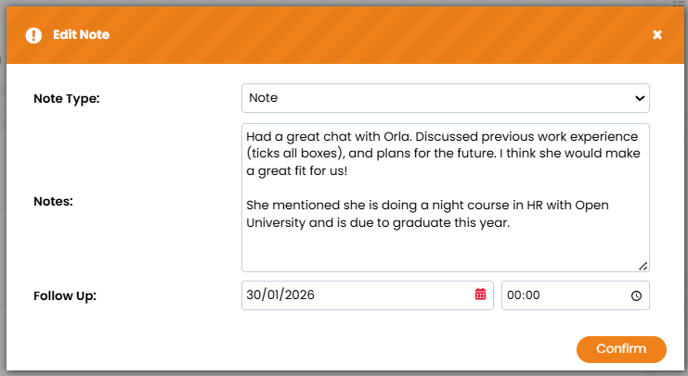
- When you're finished, click Confirm.
When you edit a note, the old note will not be logged in the recent activity. The updated version of the note will be marked with an 'Edited' tag to confirm changes were made to the note.
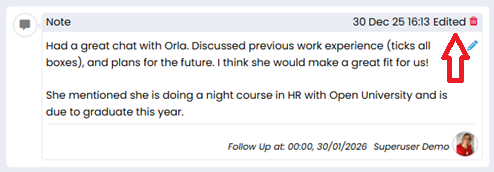
Users can only edit a note if permissions allow users to change their own and/or other users' actions. This can be configured by a Super User in User Management > User Permissions.
Delete a Note
- Locate the note on the candidate's record.
- Select the red bin icon.
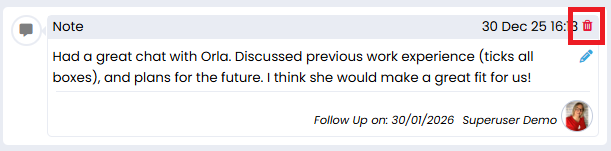
- You will be presented with a warning letting you know what you're about to delete the note and that the action can't be undone. If you're happy to proceed, click Confirm.
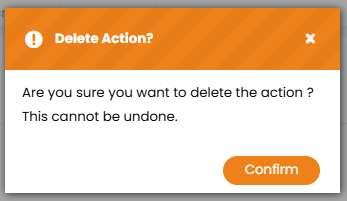
There will be no trace of the note in the recent activity once it has been deleted. An exception to this comes with removing pinned notes. You can learn more about this in the next section.
Users can only delete a note if permissions allow users to change their own and/or other users' actions. This can be configured by a Super User in User Management > User Permissions.
Unpin or Edit a Quick Note
A quick note is the note type which automatically pins to the top of the Recent Activity section.
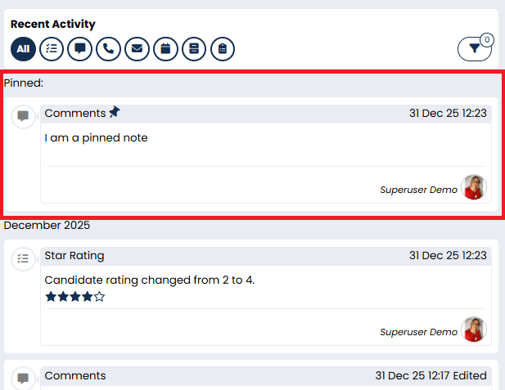
There are two methods you can use to unpin a quick note:
Blue Edit Pencil
This method will replace or remove the content in the existing note, and the original note will be lost.
- Locate the note on the candidate's record.
- Select the blue edit pencil.
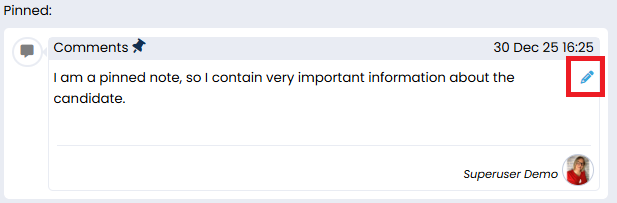
- You can remove all of the content from the box and Confirm, or you can replace the content with something else.
- Confirm once finished.
Note Button
This method will replace the existing note, and the original version will log in the recent activity.
- Press the Note button in the candidate header.
- The Note pop-up will open and will default to the Quick Note, and you'll be able to see the original contents here. You can update the note content as needed.
- When you're ready, press Confirm.
This method will not allow you to completely remove the content. You will have to replace it with something else.