
Offering shifts to candidates gives you a controlled way to notify candidates when they have been assigned to one or more shifts. Depending on your setup, you can either send the offer email as soon as a candidate is assigned, or send offers later from the Availability Pool.
Candidates receive a Shift Offered email with a secure link to review their shifts. From there, they can accept or decline shifts individually or in bulk.
This feature is currently in Beta and is not currently available to all users.
- Configure Shift Offered notifications
- Add or update your Shift Offered email template
- Offer shifts immediately when assigning candidates
- Reviewing shifts from the email
- Shift Statuses
Configure Shift Offered notifications
Go to Settings > Job Configuration > Temp Workflow > Bookings.
In the Bookings tab, you'll see a Shift Offered setting. When this setting is disabled, candidates continue to follow the existing workflow and no Shift Offered notification is sent when they are assigned to a shift.
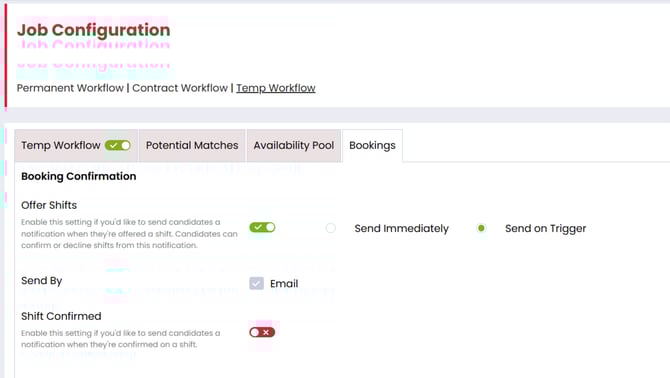
When Shift Offered is enabled, you can choose if the notification is:
- Sent Immediately
- Sent on Trigger
Use Send Immediately when you want the Shift Offered email to be sent as soon as a candidate is assigned to a shift.
With this option selected:
- the candidate moves to Offered as soon as the email is sent
- the candidate receives the offer email immediately after being assigned to the shift
Use Send on Trigger when you want to assign candidates first and send the offer email later.
With this option selected:
- the candidate remains at Pending when first assigned to the shift
- you can then send the offer from the Availability Pool using the Send Offer button
- once the email is sent, the candidate moves to Offered
The Send By option is greyed out because email is currently the only notification method available.
- If email settings are already configured, the option appears checked.
- If email settings are not configured, the option appears unchecked and no confirmation shift offer emails will be sent to candidates.
Add or update your Shift Offered email template
The Shift Offered workflow uses the corresponding email action available in the activities library: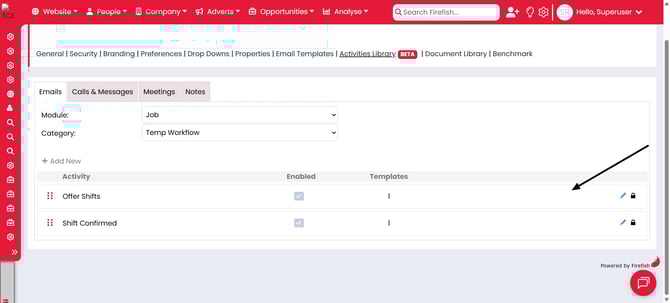
The Offer Shifts email has the following default template: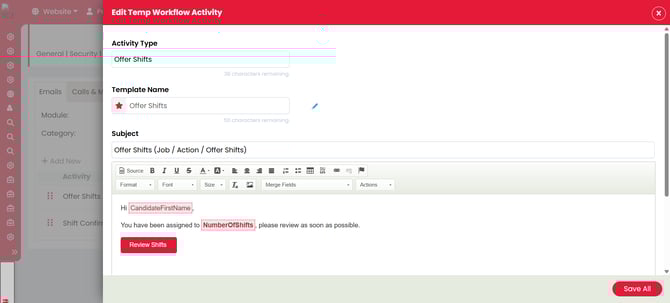
This email:
- Confirms the number of shifts a candidate has been assigned to.
- Navigates a candidate to a secure landing page where they can accept or decline these shifts.
Offer shifts straight away with Send Immediately
If Send Immediately is enabled, as soon as a candidate is assigned to a shift:
- the candidate is sent the Shift Offered email
- the candidate status updates to Offered
Offer shifts later with Send on Trigger
If Send on Trigger is enabled, you can still assign candidates to shifts as normal, but the email is not sent at that point.
Instead:
- candidates stay at Pending when first assigned
- an Offer Shifts button shows in the Availability Pool
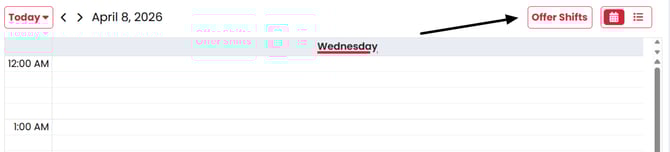
When you select Offer Shifts:
- A modal opens showing the candidates and shifts that are about to be offered. At this point any candidates you do not wish to be offered shifts can be deselected and they'll stay at 'Pending' :
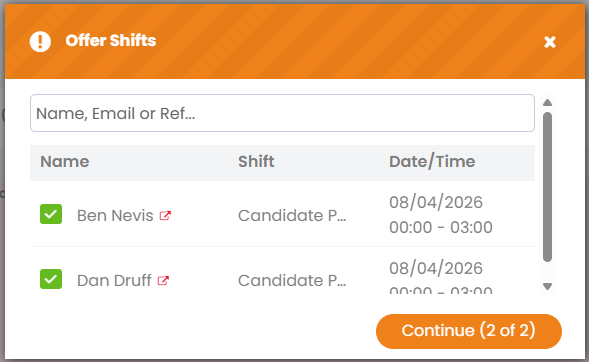
- Selecting Continue takes you to the Offer Shifts Email modal:
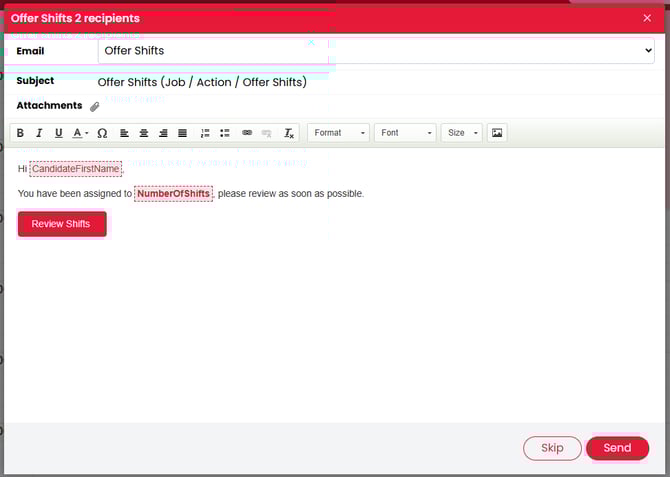
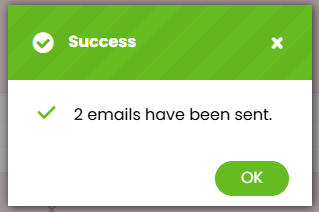
- Selecting 'Send' sends the emails to the candidates, after which a success modal shows to confirm the emails sent:
Note: If the same candidate is being offered more than one shift, only one notification is sent when triggered, covering all shifts they have been assigned to.
Reviewing shifts from the email
When the candidate selects Review Shift, they are taken to a secure landing page.
This page:
- uses a secure token
- does not require the candidate to log in during the valid token period
- remains valid for 24 hours
- mirrors the list view used in the candidate portal for pending shift actions
From here, the candidate can:
- accept individual shifts
- decline individual shifts
- accept in bulk
- decline in bulk
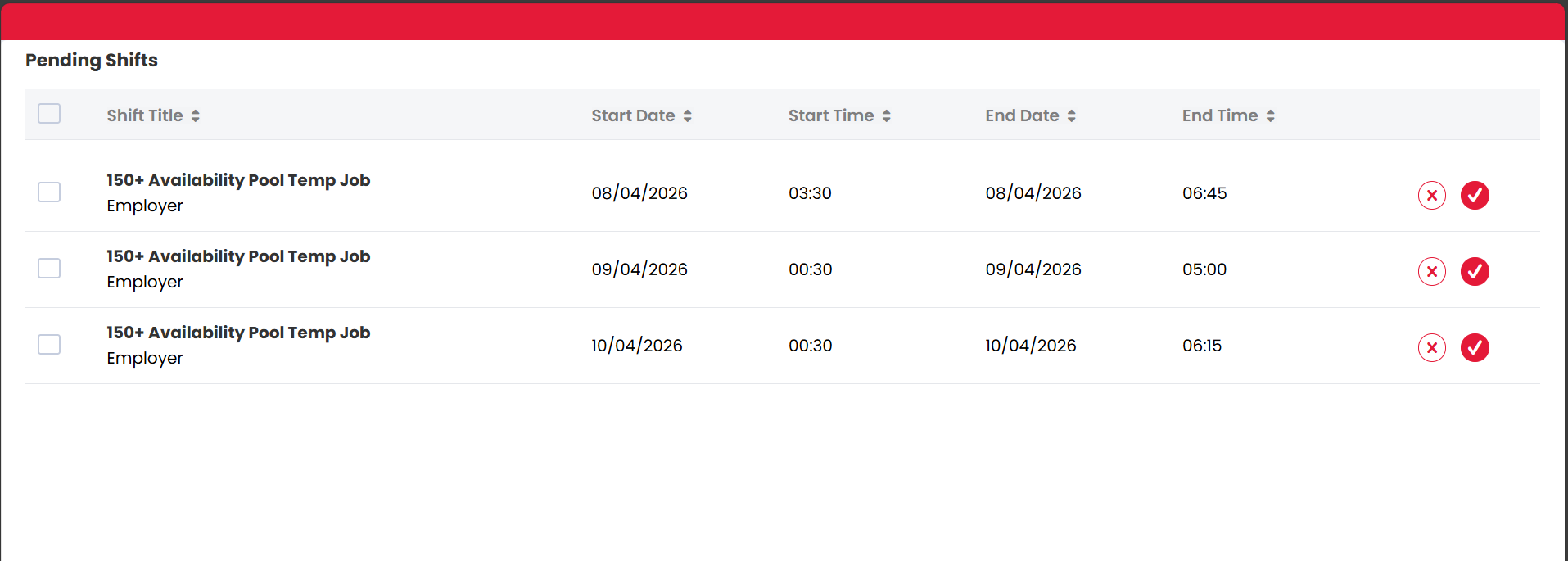
If the secure link has expired and the candidate portal is enabled, the candidate is taken to an expired link page with the option to log in to the candidate portal.
If the secure link has expired and the candidate portal is disabled, the candidate is taken to an expired link page with the option to request a new email.
Shift Statuses
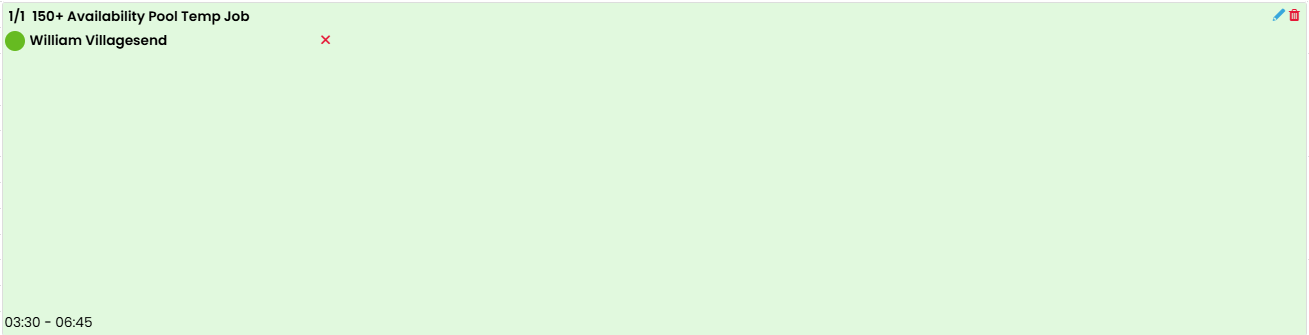
When the Shift Offered setting is disabled a candidate can have the following statuses on a shift:
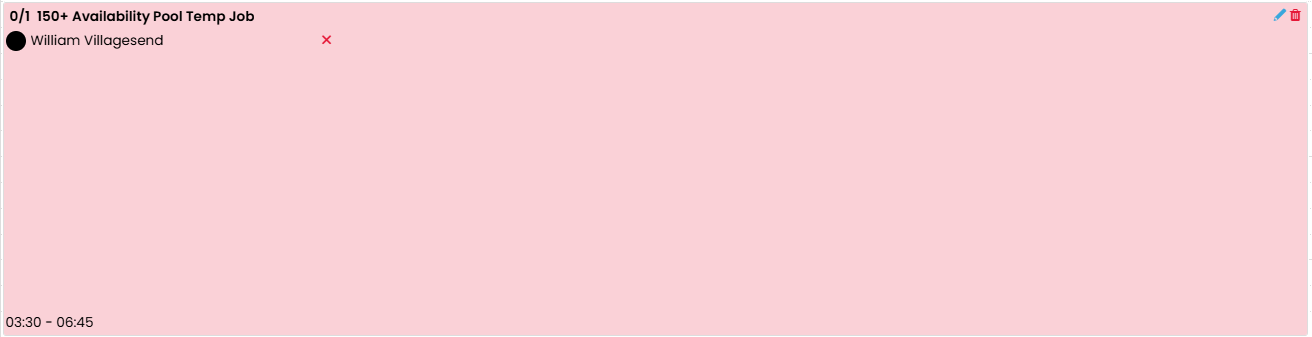
- Pending
- Confirmed
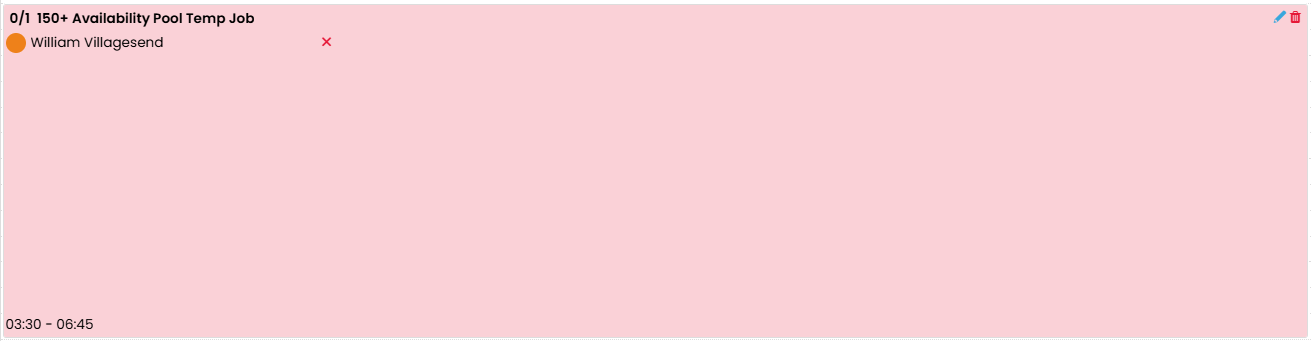
When Shift Offered is enabled a candidate can have the following statuses on a shift:
- Pending
- Offered
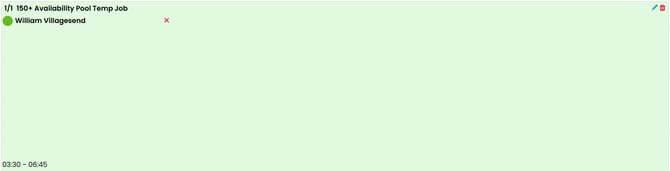
- Accepted
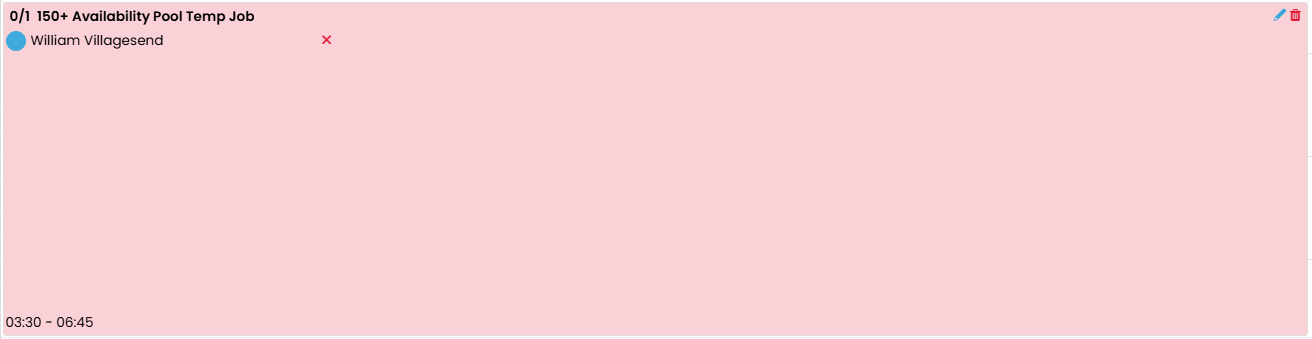
- Confirmed
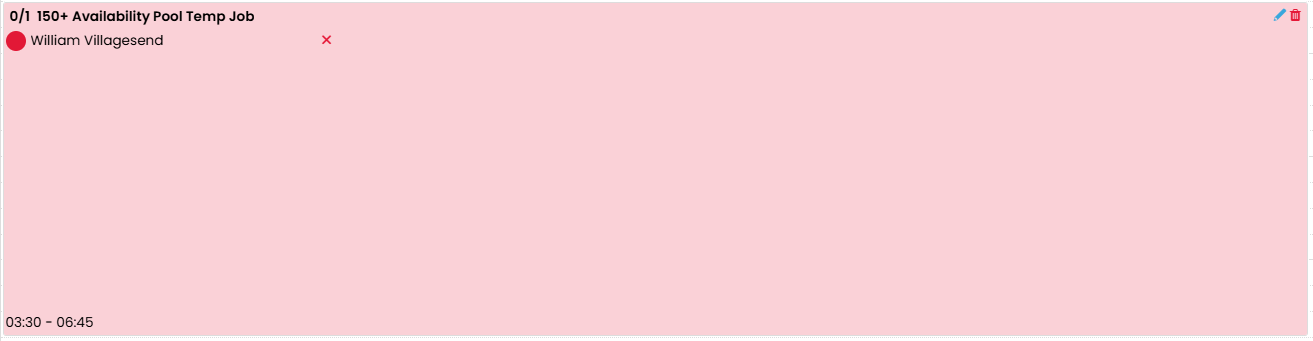
- Declined
When Send Immediately is selected, the candidate moves from:
- Pending when assigned
- to Offered once the Shift Offered email is sent
When Send on Trigger is selected, the candidate moves from:
- Pending when assigned
- to Offered once you sent the offer
Once the candidate reviews the shifts from the secure page, they can move to:
- Accepted when they accept the shift
- Declined when they decline the shift