- Send Job Alerts
- Send Mailshots
- Track Candidate Prospects
- Share to Social Media
- Post to Job Boards
- Share via WhatsApp
- FAQs
Send Job Alerts
Job Alerts are automated emails sent to candidates whose preferences match your advert criteria. Available to Professional and Enterprise users.
How to Send Job Alerts
- Create or edit a job advert.
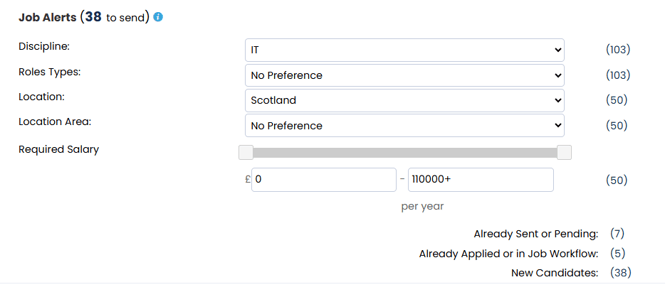
- On the Job Alerts section, view how many candidates are eligible to receive alerts based on the advert details.
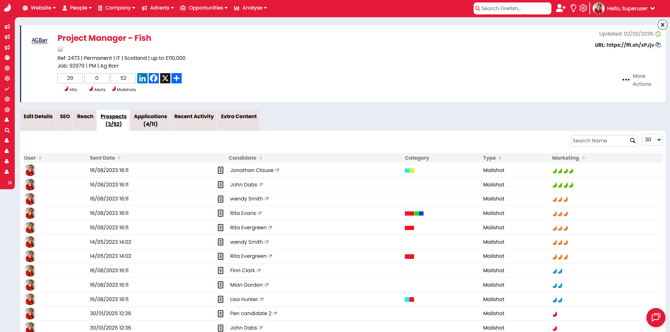
- Open the Prospects Tab to see which candidates will receive the alert.
Customise Your Job Alert Template
- Go to Website > Job Plugin > Job Alerts.
- Under General Layout, upload your company logo and define brand styles.
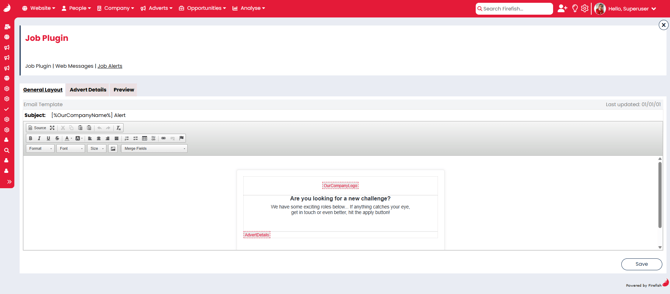
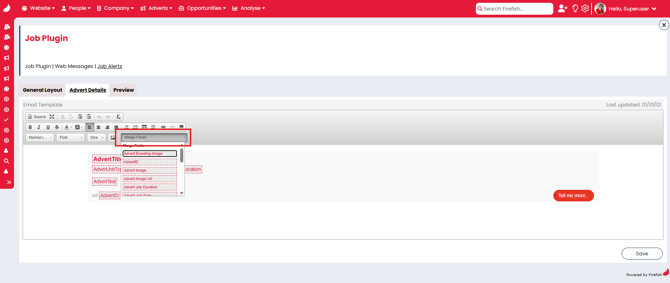
- Ensure the Advert Details merge field remains in the template.
- Preview your alert under the Preview Tab.
- Send yourself a test email to confirm the appearance.
📃 Note:
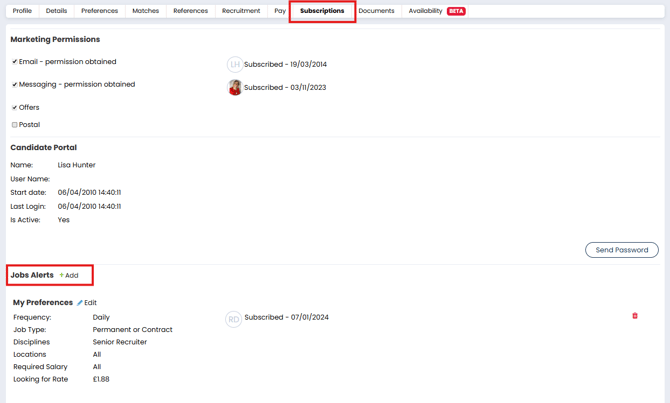
You can view a candidate’s Job Alert preferences on the Subscriptions tab of their record.
Send Mailshots
Mailshots allow you to manually send job adverts to selected candidates.
How to Send a Mailshot
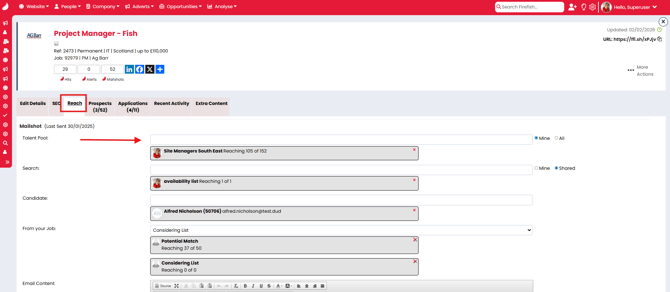
- Open your advert and go to the Reach
- Select from the following recipient groups:
- Talent Pools
- Saved Searches
- Individual Candidates
- Potential Matches
- Considering list
- Firefish filters out:
- Candidates already applied
- Candidates in the workflow
- Candidates due to receive a Job Alert ⚠️ This prevents duplication.
- Start typing in the boxes or use dropdowns to select recipients.
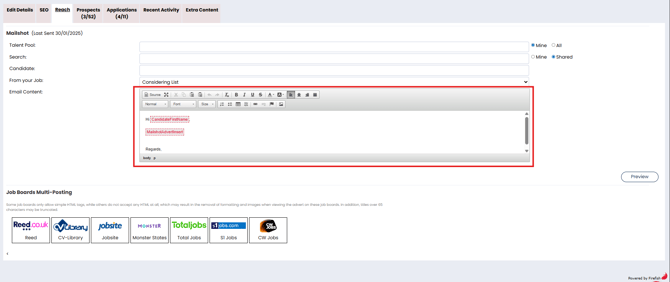
- Edit the Mailshot template as needed.
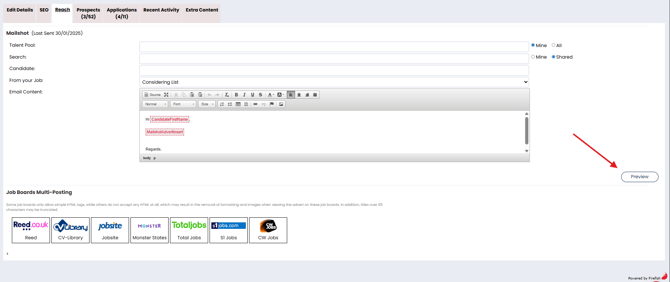
- Click Preview and Send to complete.
Track Candidate Prospects
The Prospects Tab tracks engagement from Job Alerts and Mailshots.
Prospect Outcomes Explained
- 4 Green Fish: Clicked “Apply”, no application submitted
- 3 Orange Fish: Clicked link in email
- 2 Blue Fish: Email read
- 1 Red Fish: Sent
- 1 Light Grey Fish: Pending
- 1 Dark Grey Fish: Unsubscribed
- 1 Black Fish: Failed
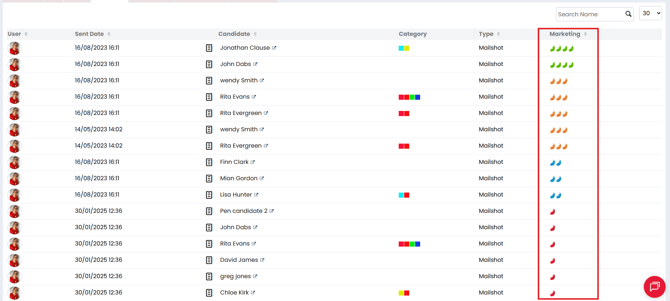
This helps you build a warm lead list and re-engage active candidates.
📃 Note:
Only completed applications appear in the Applications Tab.
Share to Social Media
Increase advert reach by sharing directly to your social channels.
How to Share
- Open the advert.
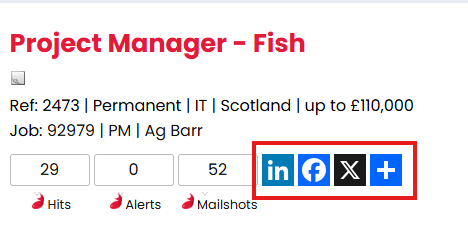
- On the header, click a quick-post button:
- X (formerly Twitter)
- Click More to access over 200 platforms including:
- Pinterest, WhatsApp, Email, and more
- Pinterest, WhatsApp, Email, and more
- A popup will open for your selected platform using the login session already active.
Post to Job Boards
Firefish integrates with most major UK and Ireland job boards.
Setup First
View supported boards and setup guide
How to Post
- Navigate to the Reach tab in your advert.
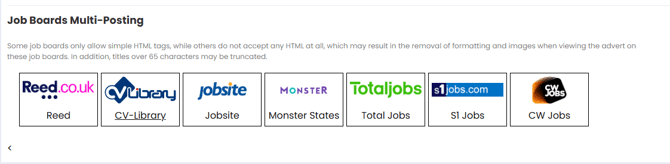
- Scroll below Mailshots to the Job Board
- Click on a job board tile (you’ll see logos and profile names).
- Fill in any required fields (varies by job board).
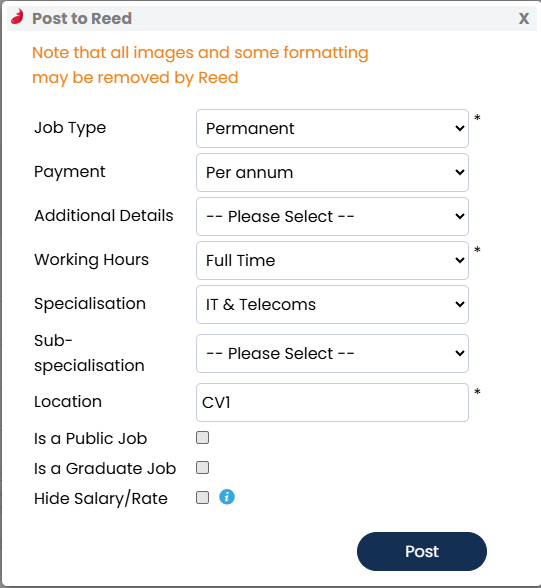
- Click Post.
⚠️ Warning:
-
Formatting and images will be stripped by job boards.
-
Salaries must be in GBP £
Share via WhatsApp
Firefish allows you to share job adverts to individual or multiple WhatsApp contacts.
How to Share
- Open the advert.
- Click the WhatsApp share icon in the social share options.
- Choose a contact or group and confirm the share.
FAQs
Q1. What if a candidate doesn’t receive their Job Alert?
A: Check if they’re opted in and match the advert preferences.
Q2. Can I customise Mailshots for different audiences?
A: Yes, edit the template before sending to each recipient group.
Q3. Can I schedule Mailshots or Job Alerts?
A: Job Alerts are triggered automatically. Mailshots must be sent manually.
Q4. How do I avoid sending duplicates?
A: Firefish automatically filters out candidates who already received the job.
Q5. Where do I track responses?
A: Use the Prospects Tab to see opens, clicks, and engagement.