The Potential Matches tab saves time for your team by automatically identifying suitable candidates for your jobs using preferences, keywords, salary information, and location data.
By configuring your Potential Matches settings correctly, you can improve the quality of candidate suggestions shown within your job workflows and reduce manual searching.
Access Potential Matches Settings
To access Potential Matches settings:
- Click the Settings cog icon in the top menu.
- Select Job Configuration.
- Choose either Permanent Workflow or Contract Workflow.
- Select the Potential Matches tab.
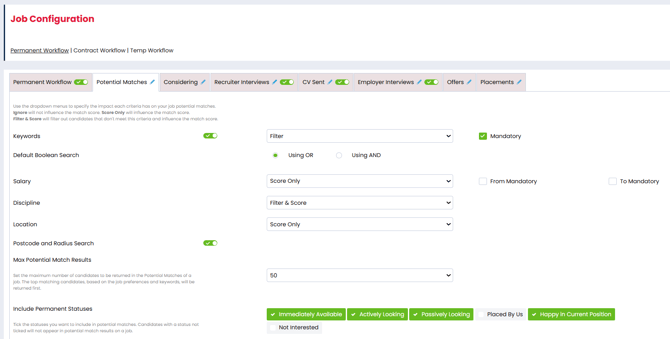
Permanent Workflow and Contract Workflow use separate Potential Matches settings. Changes made to one workflow will not affect the other.
Keyword Matching
Keyword matching helps Firefish identify candidates using keywords stored across candidate records and job details.
You can decide whether keywords should be combined using:
- OR matching
- AND matching
OR Matching
OR matching returns candidates matching any selected keyword.
This produces broader results and is useful when candidate data is limited.
AND Matching
AND matching only returns candidates matching all selected keywords.
This narrows results and improves accuracy for highly specific roles.
Preference Impact Settings
You can dictate what level of impact the following preference criteria has on your Potential Match results:
- Keywords
- Desired Salary
- Discipline
- Location
- Speciality
For all of the above you can either filter, filter & score or ignore their impact.
- Filter - The preference will be ranked, but candidate's will still show in the Potential Match results even if they don't have the same preference requirement.
- Filter & Score - If the candidate's preferences don't exactly match on this preference then they'll be filtered out of the results.
- Ignore - This preference is not taken into consideration at all for Potential Matches.
Postcode & Radius Search
If you disable Postcode and Radius Search:
- The postcode radius slider will no longer appear on jobs
- The Postcode and Miles columns will be removed from the workflow

Max Potential Match Results
The Max Potential Match Results setting controls how many candidates appear within the Potential Matches tab of a job.
Using the dropdown menu, you can limit results to:
- 25
- 50
- 75
- 100
- 500
Reducing the number of results can help recruiters focus on the strongest matches more quickly.
As you remove or consider candidate's from the Potential Match results, new ones will pull into the list until there are no longer new matches, so choosing a lower number does not mean that you are missing matches - it just means you see the best ones first!
Include Statuses
You can decide if you would like to filter out candidate's based on their current permanent or contract status (depending on which workflow settings page you're in).
If the status is showing in green with a tick then it will be included, but if it is showing with a grey background and not ticked then candidates with that status will be excluded from Potential Match results.
