Manage supplier records used within Contract Workflow, including umbrella companies and limited companies linked to candidate pay details - This will allow users to select from the list of Suppliers, when updating a candidates Pay details, to auto populate each field instantly
Keeping your Supplier Directory accurate helps ensure recruiters select the correct supplier during placement setup, reduces payroll errors and supports compliance tracking across contract workflows.
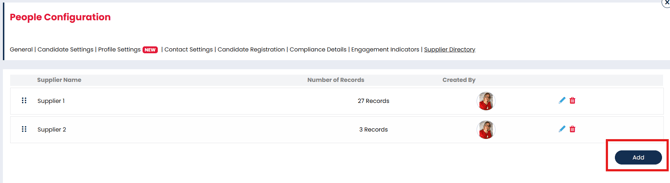
You can access the Supplier Directory settings page via Settings > People Configuration > Supplier Directory:

Note: the Supplier Directory settings page will only be visible when Contract Workflow is enabled within Candidate Settings.
- Why use the Supplier Directory
- How to Create a Supplier
- Edit a Supplier
- Delete A Supplier
- Best Practise
- FAQ's
Why Use the Supplier Directory
The Supplier Directory gives your business a central place to manage suppliers used within Contract Workflow.
Using a maintained supplier list helps recruiters:
- Select approved suppliers consistently
- Reduce manual data entry errors
- Keep payroll and compliance records accurate
- Standardise supplier information across the business
- Maintain cleaner historical records for auditing and reporting
This is especially useful when working with:
- Umbrella companies
- Limited companies
- Contractor payment suppliers
- Preferred payroll providers
Create a Supplier
To add a new supplier:
- Navigate to Settings.
- Select Supplier Directory.
- Click Add .
- Enter the supplier details.
- Upload any relevant supplier documentation if required.
- Save the supplier record.
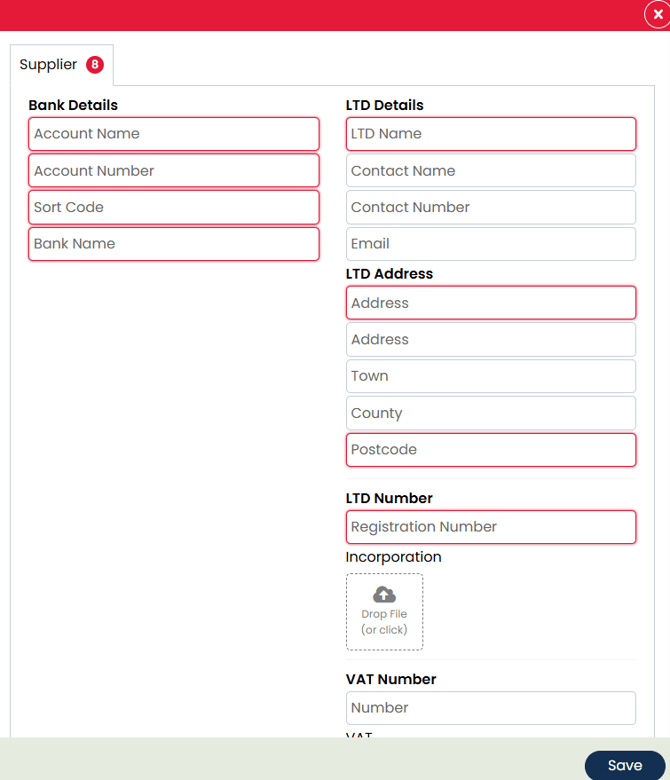
Once saved, the supplier will become available within candidate pay details when using Contract Workflow.
Best practice when creating suppliers
- Use the supplier’s full legal business name to avoid duplicate records
- Include accurate contact details so payroll and compliance teams can easily reference them
- Upload supporting documentation where appropriate, such as agreements or compliance documents
- Avoid creating duplicate supplier records for the same organisation
Maintaining a clean Supplier Directory makes supplier selection faster and improves reporting consistency.
Edit a Supplier
To update an existing supplier:
- Navigate to Settings.
- Select Supplier Directory.
- Locate the supplier you want to update.
- Select the supplier record.
- Edit the required information.
- Save your changes.

You can update supplier information such as:
- Supplier name
- Contact details
- Uploaded documents
- Other supplier-related information used during contract setup
Important Information About Supplier Changes
Changes made to a supplier in the Supplier Directory will not automatically update the pay details of candidates who already have that supplier selected.
This means:
- Existing candidate pay details remain unchanged
- Historical payroll and contract data are preserved
- Updated supplier information will only apply to future selections
If you want to apply the latest supplier information to an existing candidate, you can use the Refresh button within their pay details.
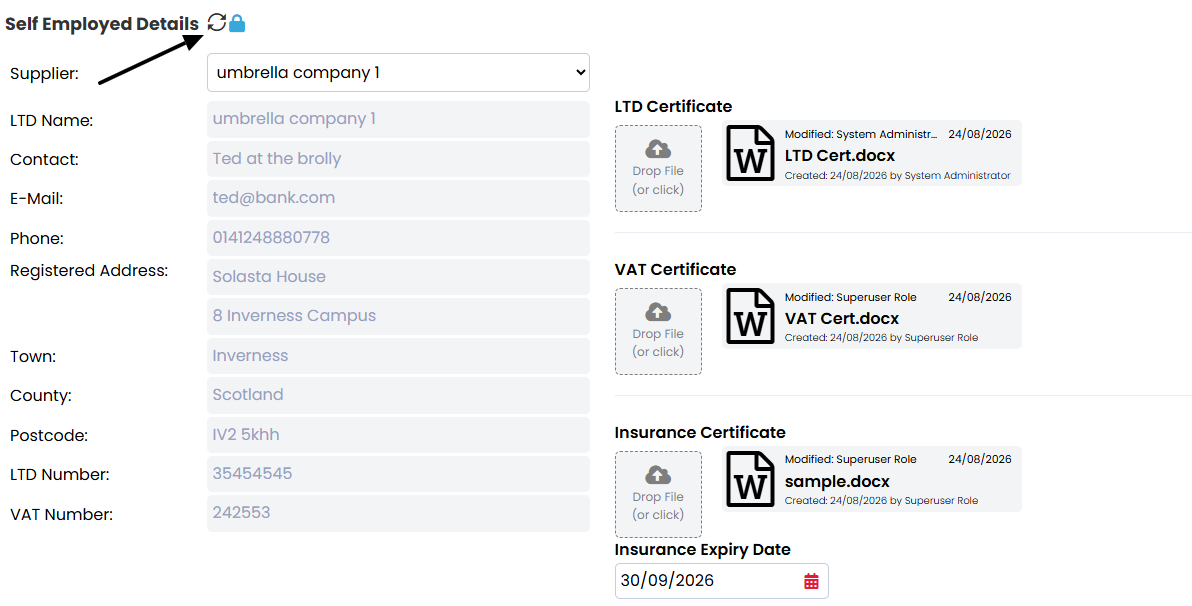
The Refresh option is also available from the Compliance side panel within a job.
Supplier details will remain unchanged on existing candidate records unless you choose to refresh them.
This helps maintain accurate historical records for compliance, auditing and payroll tracking purposes.
Why keeping supplier details updated matters
Keeping supplier records up to date helps ensure:
- Recruiters select the correct supplier during placement creation
- Finance and payroll teams reference accurate information
- Compliance documentation remains current
- New placements use the latest supplier details
Regular reviews of supplier records can help prevent outdated information being reused in future workflows.
Delete a Supplier
To remove a supplier from the Supplier Directory:
- Navigate to Settings.
- Select Supplier Directory.
- Locate the supplier you want to remove.
- Use the Red Trash Icon Delete the supplier record.
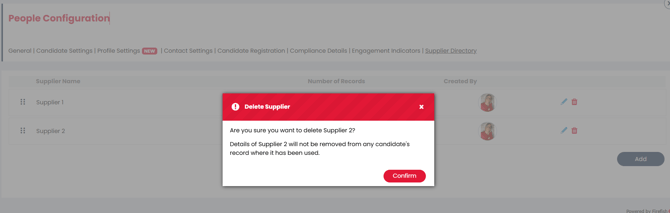
When a supplier has been deleted from the directory, any candidate assigned to the supplier will still have the details populated on their account with the value in the supplier dropdown removed..
Deleting a supplier removes it from future selection within candidate pay details.
Best Practice Recommendations
To keep your Supplier Directory accurate and easy to manage:
- Review supplier records regularly
- Remove duplicate or outdated records where appropriate
- Use consistent naming conventions across all suppliers
- Store relevant compliance documentation against supplier records
- Ensure recruiters understand which suppliers should be used for specific contract workflows
A well-maintained Supplier Directory helps improve operational consistency across recruitment, payroll and compliance processes.
Frequently Asked Questions
Does deleting a supplier remove historical candidate records?
No. Existing candidate pay details and historical records remain unchanged.
Can I upload supplier documents?
Yes. Relevant supplier documents can be uploaded and stored against the supplier record.
Who can manage suppliers?
Users with Superuser access to Firefish can access the Supplier Directory Settings
Will editing a supplier update existing placements or pay records?
No, supplier changes will not automatically update existing candidate pay details. If you want to apply the latest supplier information to a candidate who already has that supplier selected, use the Refresh button within their Pay Details or from the Compliance side panel within a job, then save your changes.
Why should we avoid duplicate supplier records?
Duplicate suppliers can cause reporting inconsistencies, recruiter confusion and payroll errors when incorrect suppliers are selected during contract setup.