Watch the video guide below or use the contents list to jump to a specific section of this article.
- Overview
- Advert Performance
- Finding and Reviewing Your Applications
- Pre-Screen Results
- Filter Candidates
- Postcode Radius
- Keyword Search
- Suitability
- Advert Actions
Overview
The Applications page on an advert allows you to view and manage all candidate responses.
Advert Performance
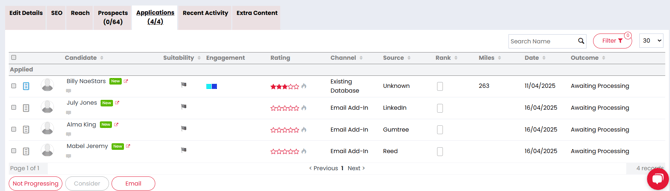
At the top of the page, you’ll see key performance stats for the advert:
- Hits: How many candidates clicked the advert on your website
- Alerts: How many candidates received the job via Job Alerts
- Mail: How many candidates received the job via Mailshots
For a more detailed analysis, you can access a dedicated advert performance report.
Finding and Reviewing Your Applications
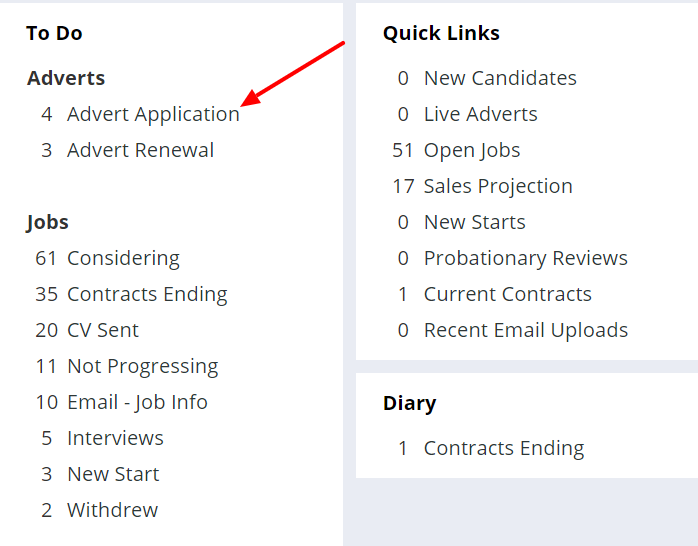
When a candidate applies, you’ll receive a Firefish email alert and a notification in your To Do list.
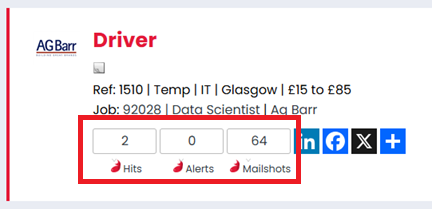
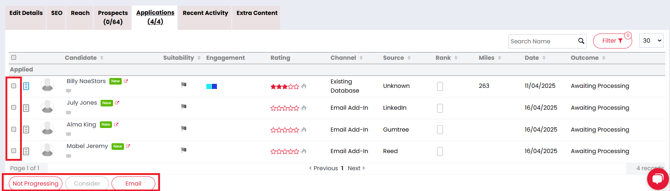
From the Applications tab: - Select the advert title to open the application list. - View, rate, and manage candidate responses. - Tick the checkbox next to each candidate to action them.
You can view candidate CVs and cover notes using the CV and Notes icons. If no cover note was added, the icon will appear greyed out.
Pre-Screen Results
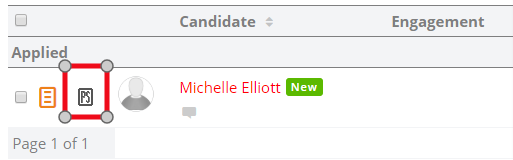
To review pre-screen answers: - Select the PS icon beside the candidate. - You’ll also see their suitability score and source (e.g., Google, LinkedIn).
If the status is Incomplete, the candidate submitted the application but did not finish the pre-screen questions. You can still contact them if interested.
Note: Incomplete applications will not trigger an Application Acknowledgement email.
Filter Candidates
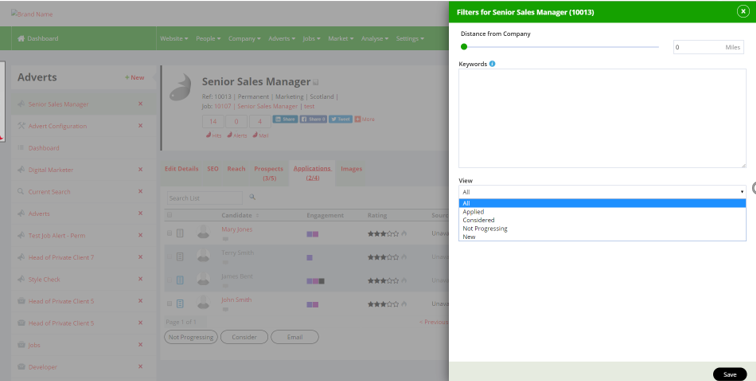
Use the Filter button to narrow your candidate list.
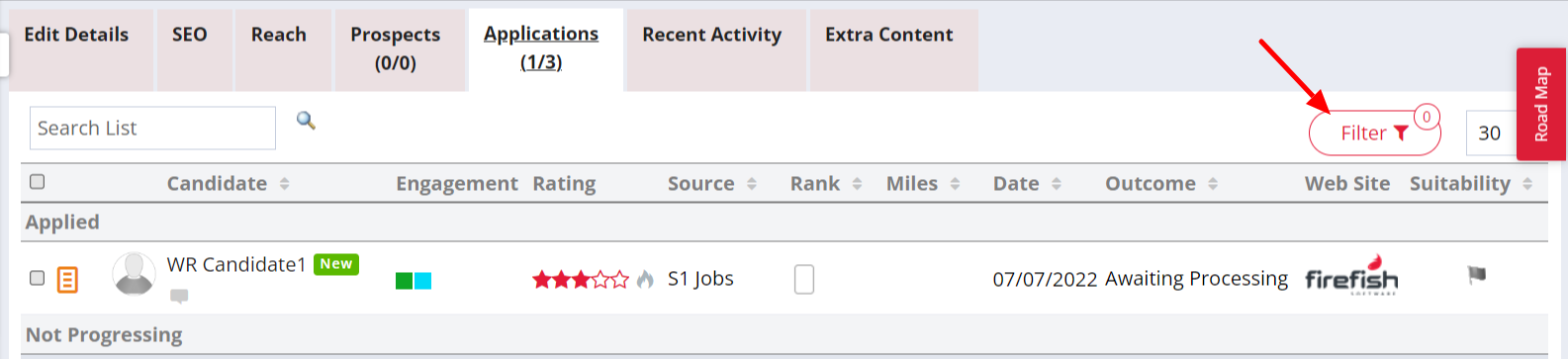
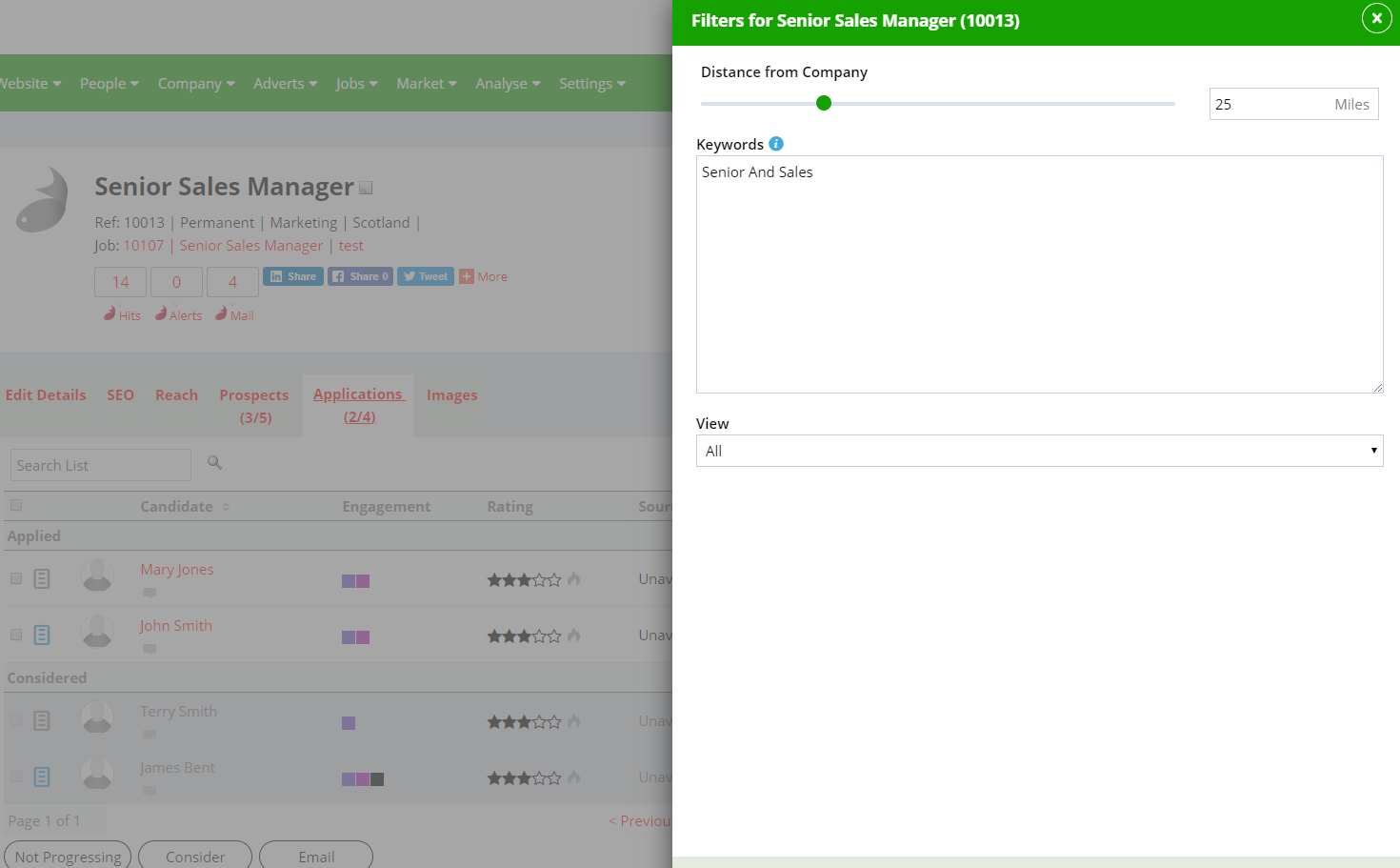
The filter panel allows you to apply: - Postcode radius - Keyword matching - Application view filters (e.g., New, Considered)
Postcode Radius
Filter candidates based on their distance from the company linked to the advert.
- If no postcode exists, you can add one manually.
- Adjust the distance using the slider or text field.
- Candidates without a postcode will be excluded when a radius is applied.

Keyword Search
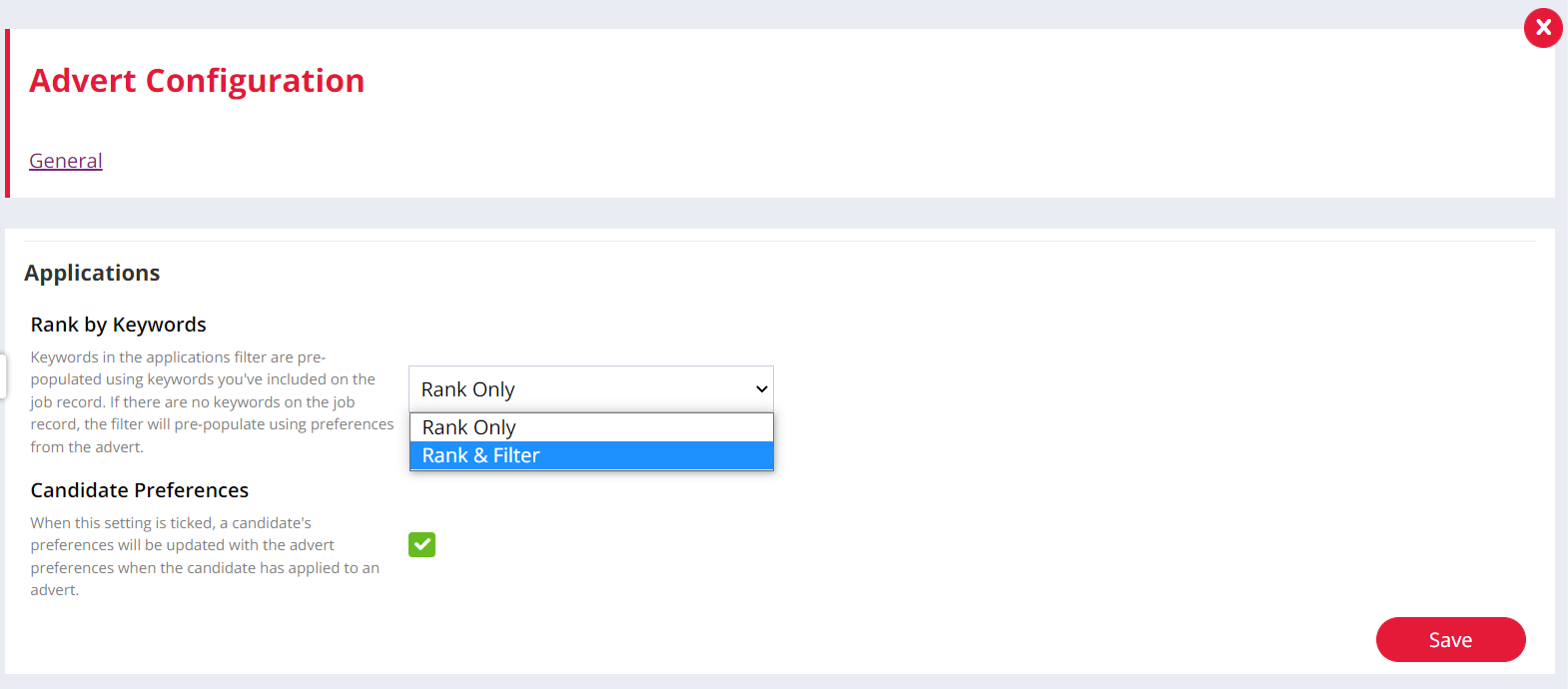
Keywords are auto-filled from the job record or advert preferences.
- The default Boolean operator is AND.
- Candidates who don’t match any keywords will still appear by default.
To filter out unmatched candidates: - Go to Settings > Advert Configuration > General > Applications - Enable “Rank & Filter” under “Rank by Keywords”
Suitability
Use the flag icon to mark candidate suitability:
- Green = Suitable
- Yellow = Maybe Suitable
- Red = Unsuitable
Candidates will automatically group by colour once flagged.

Advert Actions
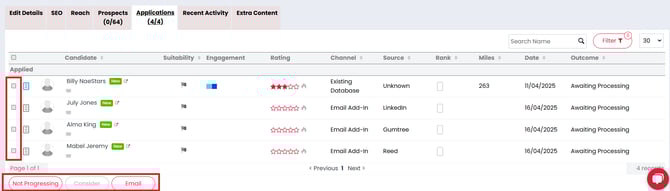
To take action on one or more candidates: - Tick the checkbox beside their names. - Select from the following options:
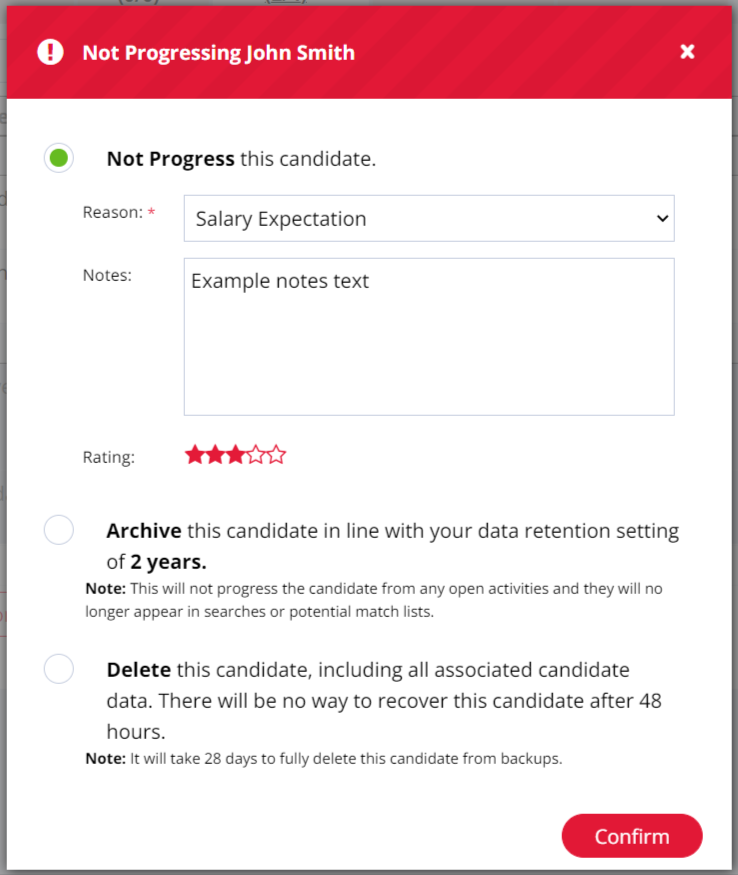
Not Progressing options: - Not Progress: Candidate remains in the database. - Archive: Candidate is archived (data retained). - Delete: Candidate is marked for deletion (48-hour reversal window).
After choosing an action, you’ll be prompted to send or skip a confirmation email. The candidate’s status will update, and they’ll appear greyed out in the list.
📝Note: To Consider a candidate, the advert must be linked to a job. - To link, go to Edit Details > select a job from the drop-down. - Or, create a new job using the More Actions menu.
Not Progressing pop up options