In Firefish you can add your own customised drop downs which suit the terminology your business uses.
Here's a quick video of how it works:
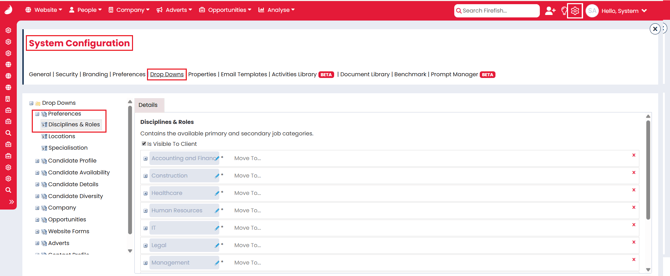
Access Drop Down Settings
To access Drop Down settings:
-
Click the Settings cog.
-
Go to System Configuration.
-
Select Drop Downs.
- Locate the drop down you're looking to amend in the left hand panel.
Add a New Drop Down
If you wish to add a new drop down:
-
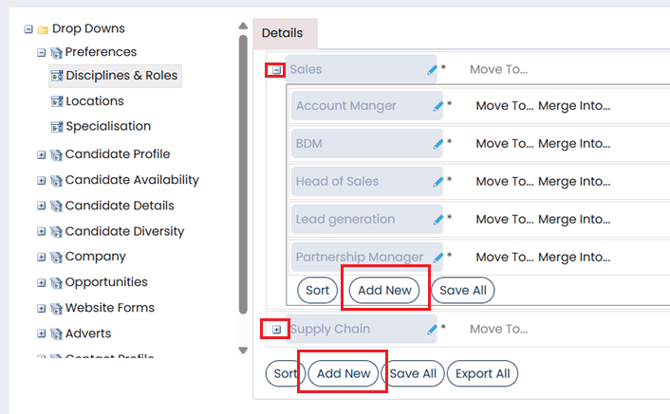
Select the area the drop down you wish to add to e.g. if you're adding to the roles you're recruiting for, this would be in Preferences > Disciplines & Roles.
- If adding to the main list, select Add New at the bottom
- If adding to a sub-category, open the main option first by clicking the + button, then select Add New under the list.
- Select Save once finished.
Renaming a Drop Down
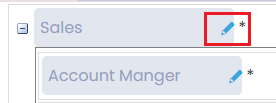
To rename a drop down option, select the blue edit pencil on the right hand side.
Moving Drop Downs
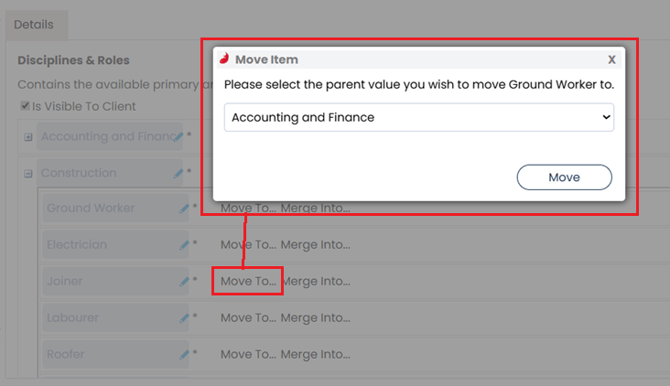
You can only move child drop down into a different parent category. To do this:
- Locate the drop down you would like to move.
-
Select the Move To... option.
- Select the new parent drop down.
Delete a Drop Down
To remove a drop down:
-
Locate the drop down.
-
Select the red cross next to the drop down name.

If you change your mind, you can Restore a drop down unless you have deleted the drop down then you will need to create a new drop down.

If you want to permanently Delete the drop down completely from the system you would use the red bin icon.

Merge Drop Downs
You can Merge a child drop-down by using the Merge To button for child values that are under the same parent value:
- Locate the drop down.
- Select Merge Into.
- Choose the drop down you would like to merge the value into.
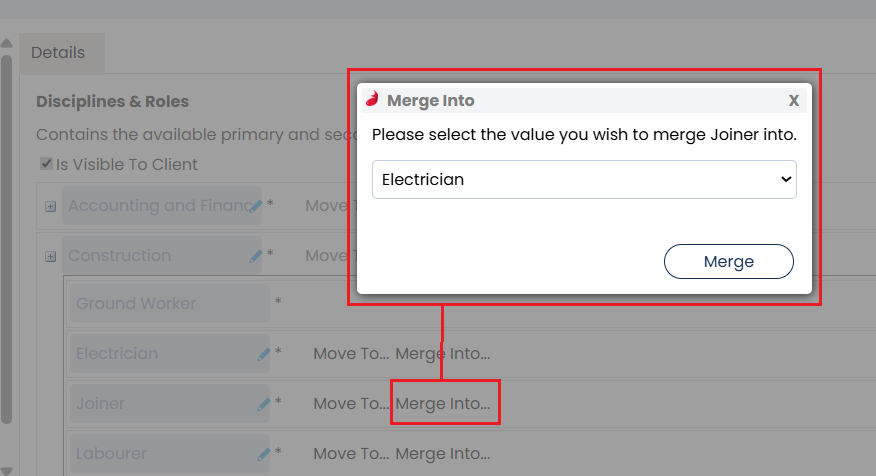
After pressing the merge button the system will merge your selected drop-down into the requested child value drop-down removing the selected drop down from the system.
Sort Drop Downs
You can reorganise your drop downs into a new order:
- Sort the main list - Click Sort at the bottom of the page
- Sort the sub-options - Click the + button next to the main drop down, then choose Sort at the bottom of that specific list.
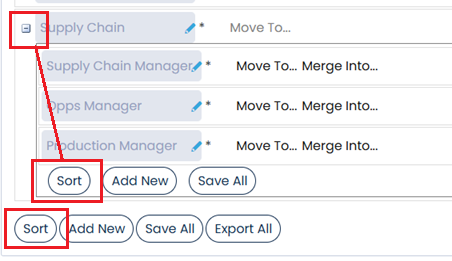
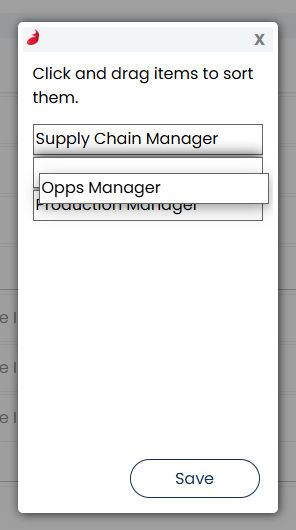
Once the list is open, just drag and drop the items into the desired order.