This article explains how to add and remove Firefish user licences, change a user’s licence type, and understand the different user roles and what they can do.
- Overview of User Licences and Roles
- User Levels and What They Can Do
- Adding a New User Licence
- Cancelling a User Licence
- Changing a User’s Licence Type
- Special Cases and Support
Overview of User Licences and Roles
Managing user licences and roles in Firefish ensures that team members have the right level of access to perform their job effectively. Depending on licence type and role, users will have different permissions throughout the Firefish system.
User Levels and What They Can Do
Below is a breakdown of the available user roles. Each role has distinct access rights and capabilities within Firefish.
Super User
Has full access to Firefish, including jobs, adverts, candidates, contacts, and company records. Can configure fields, dropdowns, emails, set user targets and amend system settings.
Compliance User
Full access to candidates, contacts, companies, jobs, and adverts. Also has access to reporting, legal plugins, compliance details, document library, and supplier directory settings.
Recruitment Manager
Full working access to Firefish including jobs, adverts, and records, plus ability to set targets and team structures (available on Professional and Enterprise packages).
Recruiter
Full working access to Firefish including jobs, adverts, candidate, contact, and company records.
Marketing User
Can update and manage your website, access Adverts (Reach & SEO), and manage email templates within Settings. Available on Professional and Enterprise packages.
Report Administrator
Read-only access to the dashboard of user activities and standard reports in Analyse.
Adding a New User Licence
To add a new user to Firefish, request a licence by emailing Support with the following information:
- New User’s Full Name
- New User’s Email Address
- Licence Type Required (see section above for user levels)
- Start Date
💡Tips:
- Make sure you choose the correct licence type based on the user’s responsibilities.
- For guidance on licence types and access, refer to the User Levels and What They Can Do
Cancelling a User Licence
If you need to remove a user’s licence, email Support with:
- User’s Full Name
- User’s Email Address
What Happens Next
Monthly Billing
- Unless otherwise specified, there is a 30 ‑day notice period before the licence expires.
- The user retains full access during this time.
- If you need to restrict access sooner, reset the user’s password.
Annual Billing
- The licence expires immediately and will become available for reuse for a new user when you are ready.
ℹ️ The super user requesting a licence cancellation can specify a future date for the licence to expire, provided it is beyond the contractual minimum.
Changing a User’s Licence Type
As a Super User, you can change a user’s licence type yourself - no need to contact Support in most cases.
Quick Guide
- Navigate to User Management
Go to Settings > User Management > Users to see a list of active users.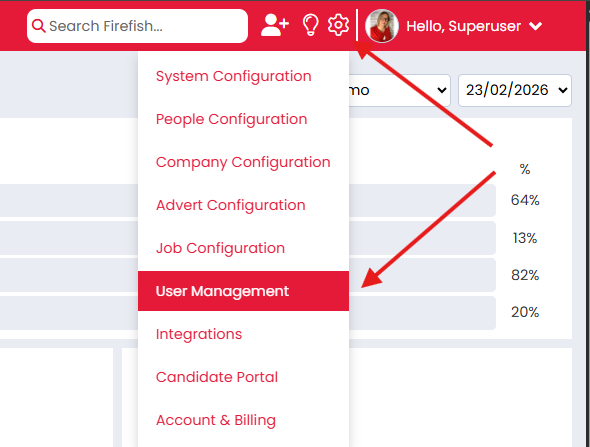
- Select the User
Find the user whose role you want to change. Under the Actions column, click the cog icon and select Change Role.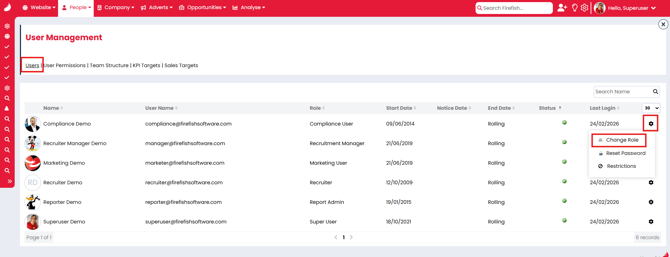
- Update the Role
In the pop ‑up window, choose the desired role for the user and click Save.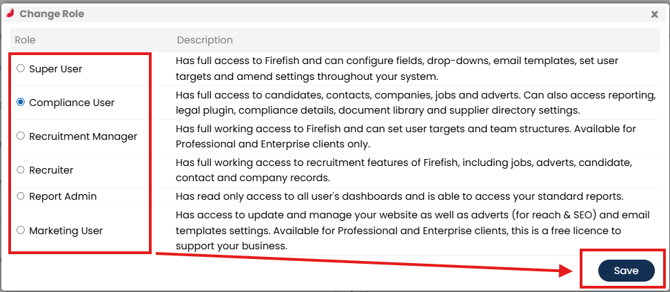
Special Cases and Support
If you need to change a user’s licence type to Marketing Admin or Report Admin, contact Support for assistance, for all other licence changes see above.
Please include the following for the user whose licence is being updated:
- Full name
- Email address
- New licence type