![Firefish_Icon_2019_RGB_72dpi (2).png]](https://fishtank.firefishsoftware.com/hs-fs/hubfs/Firefish_Icon_2019_RGB_72dpi%20(2).png?height=40&name=Firefish_Icon_2019_RGB_72dpi%20(2).png)
- Manual Registration
- Email Add-in
- Chrome Sourcing Extension
- Website Registration
- Advert Registration
- Troubleshooting Tips
- Use the links below to jump to each section:
Manual Registration
You can manually add a candidate directly within Firefish using the New Person workflow.
-
Select the +Add Person button in the top right

-
Select Candidate from the person type options.
-
Complete the mandatory fields: First Name, Last Name, Email Address.
-
Fill out any additional information as needed.
-
Click Create to add the candidate to your database.
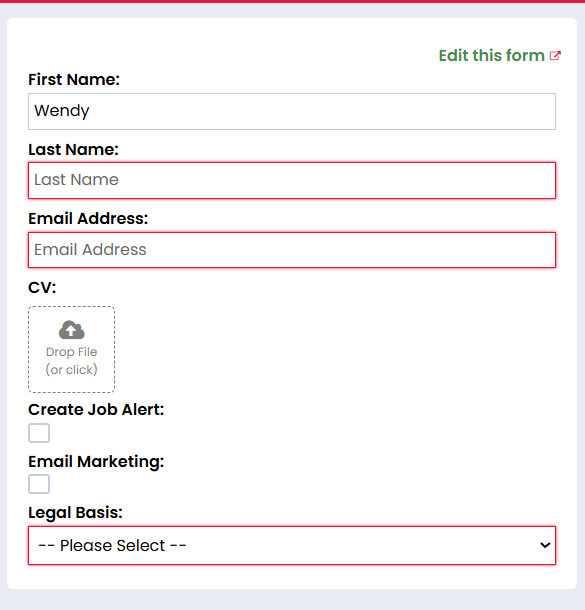
If a duplicate candidate already exists, Firefish will notify you before the record is created.
Super Users can customise this form by choosing 'Edit this Form' at the top of the side panel.
Email Add-in
Use the Firefish Email Add-in to add candidates directly from your inbox (Outlook or Gmail).
-
Open an email from the person you want to add.
-
Launch the Firefish Email Add-in.
-
Click Add to Firefish.
-
Select Candidate as the person type.
-
The system will auto-fill details from the email. Edit if required.
-
Click Create to save the candidate to your database.
Chrome Sourcing Extension
Add candidates directly from your browser using the Firefish Chrome Sourcing Extension.
-
Highlight the Candidate Name or email address
-
Right click and select Search Firefish:
-
Select Candidate on the extension panel
-
Review and edit details if necessary.
-
Click Save to add the candidate to Firefish.
Installing the Firefish Sourcing Extension
Website Registration
Candidates can register via your Firefish hosted website using a dedicated registration form.
-
Navigate to your Firefish website.
-
Click Register
-
Complete the registration form, including personal details and CV upload.
-
Hit Continue.
-
The candidate will be added to your Firefish database.
View how to customise your Candidate Registration Form
Ensure your registration form is active and has the correct settings under Website > Registration Forms
Advert Registration
Candidates can also be added to Firefish by applying for jobs posted on your website.
-
Candidates browse jobs on your Firefish hosted job board.
-
They click Apply on a vacancy.
-
They fill out the application form and upload their CV.
-
Upon submission, their details are added as a candidate in your database.
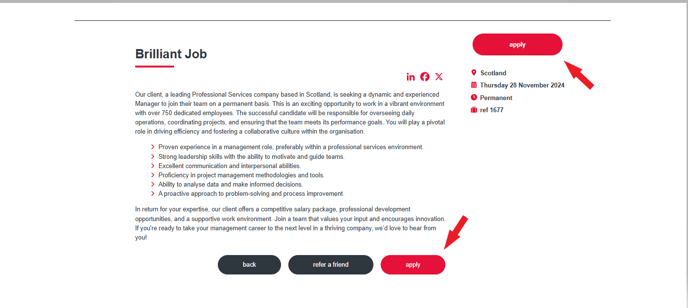
View how to customise your Candidate Registration Form
Firefish automatically links applications to relevant vacancies and flags duplicates where applicable.
Troubleshooting Tips
-
Duplicate Warnings: If a candidate already exists, Firefish will prompt you before creating a duplicate.
-
Missing Fields in Add-ins: Ensure you have the correct permissions and that the plugin/extension is up to date.
-
Website Registration Not Working: Check web settings for active forms and ensure form visibility.