![Firefish_Icon_2019_RGB_72dpi (2).png]](https://fishtank.firefishsoftware.com/hs-fs/hubfs/Firefish_Icon_2019_RGB_72dpi%20(2).png?height=40&name=Firefish_Icon_2019_RGB_72dpi%20(2).png)
You can search for contacts in Firefish using keywords, Boolean logic, and advanced filters. Once you've found your results, you can take actions, save your search, share it with colleagues, or export the data.
Contents
- Using Boolean Logic
- Advanced Search Filters
- Customising Search Results
- Performing Actions on Results
- Saving, Sharing and Exporting Searches
Keyword Searching
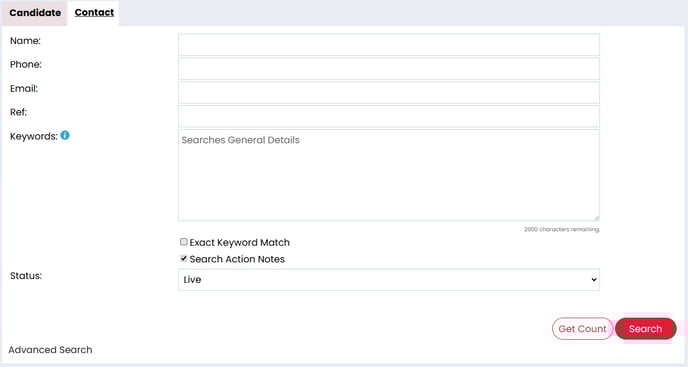
Use keywords to quickly search contact records. Type one or more words into the search bar and Firefish will return any contact that matches your terms.
You can search across names, emails, phone numbers, job titles, and custom fields.
ℹ️Tip: Use partial words for broader results, e.g., “Manag” will find “Manager” and “Management”.
Using Boolean Logic
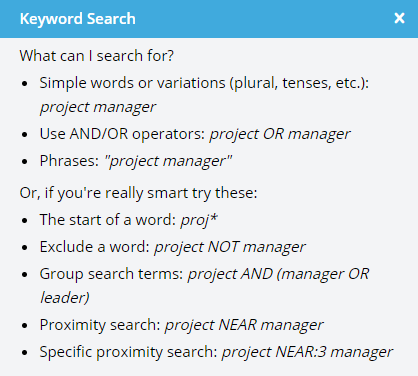
Use Boolean operators to build more complex search queries:
-
AND – returns results that include both terms
-
OR – returns results that include either term
-
NOT – excludes terms from results
Example:
Marketing AND Manager NOT FreelanceThis will return contacts who are both “Marketing” and “Manager” but exclude any with “Freelance”.
Boolean logic refines results for targeted searches.
Advanced Search Filters
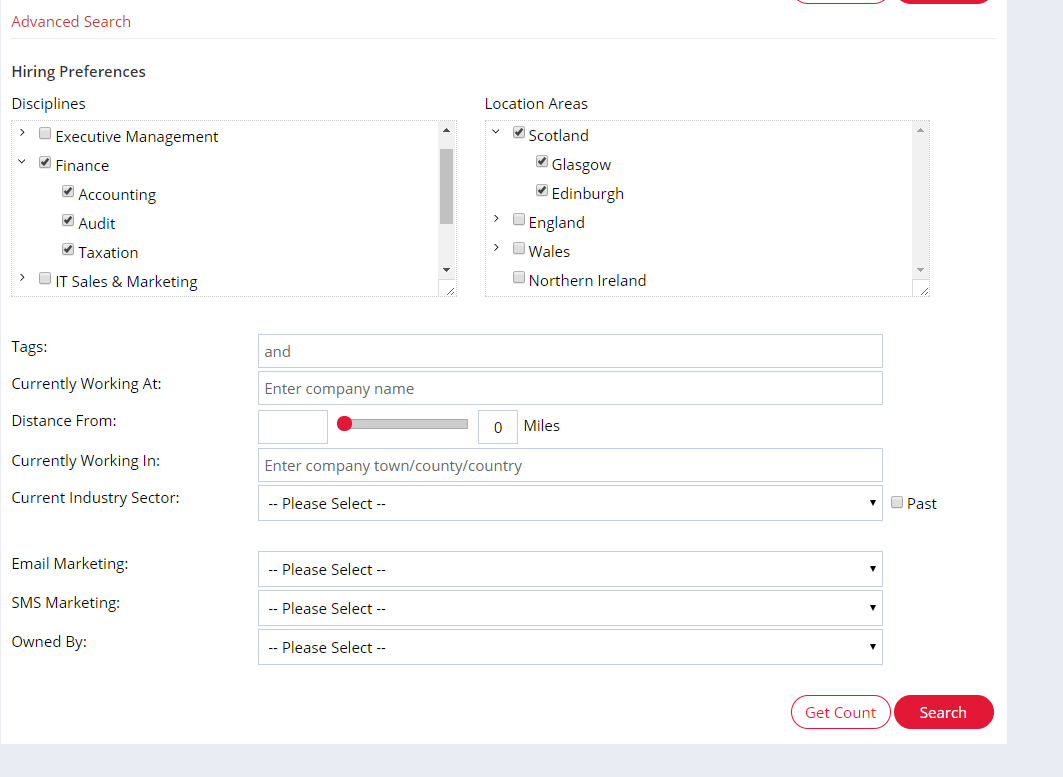
Click into Advanced Search to apply detailed filters including:
-
Location
-
Sector
-
Source
-
Date added
-
Custom fields
Use these filters to narrow your results without typing manually.
ℹ️ Tip: Combine filters for precision, e.g., “Location: Manchester” AND “Sector: IT”.
Customising Search Results
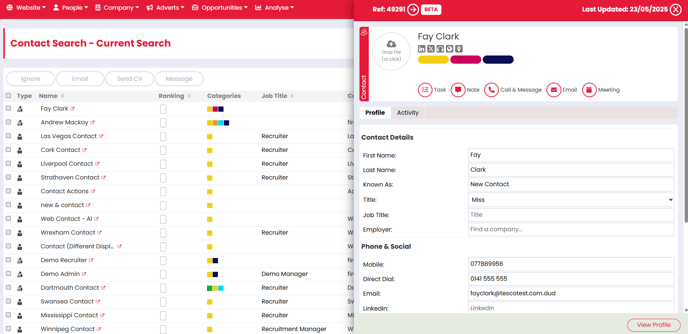
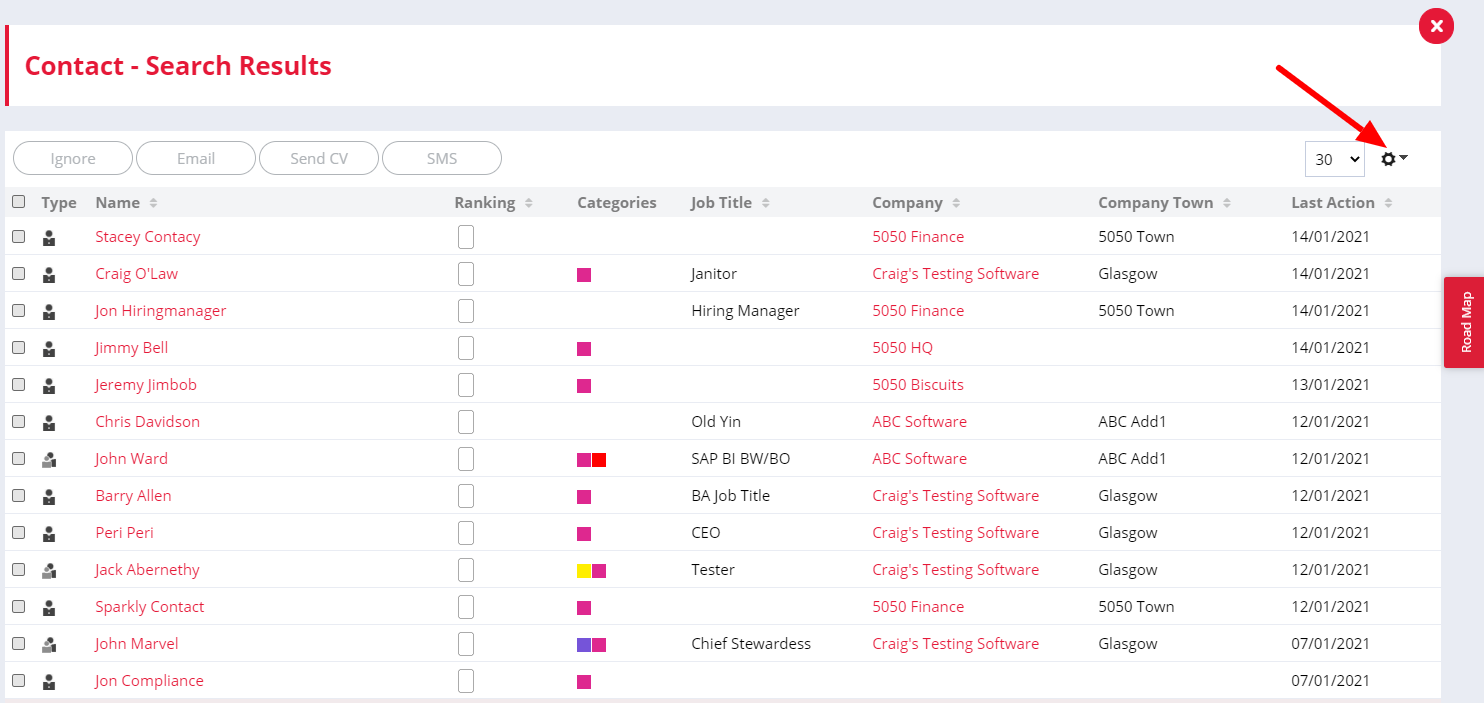
Once your search is complete, you can customise the display:
-
Show or hide columns
-
Change column order
-
Sort by any column heading
Your layout preferences will be saved automatically for your next session.
Performing Actions on Results
You can take action on one or more contacts directly from the search results:

-
Add to a List
-
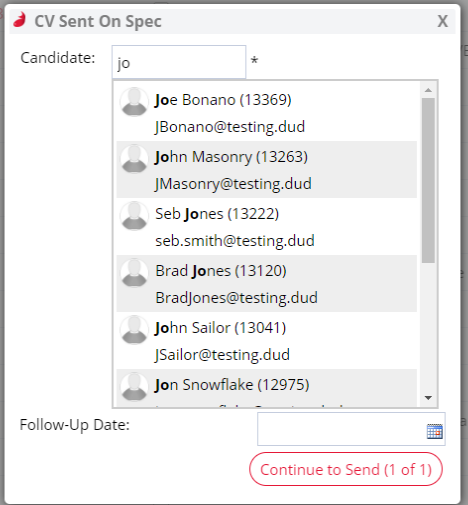
Send Email or SMS
-
Add Action Notes
-
Book to Job
Select contacts using the tick boxes and choose the desired action from the top bar.
Saving, Sharing and Exporting Searches
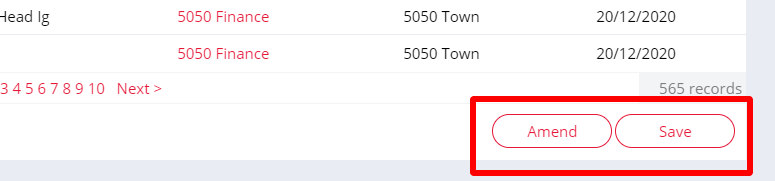
To reuse a search, click Save Search and give it a name. Saved searches can be:
-
Accessed from the left‑hand menu
-
Shared with colleagues
-
Set as your default view
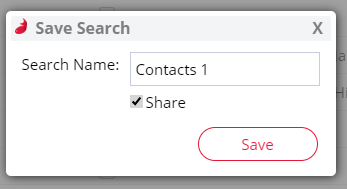
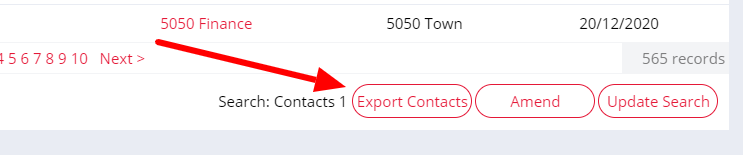
To export, click Export to CSV. This will download the current search results.