![Firefish_Icon_2019_RGB_72dpi (2).png]](https://fishtank.firefishsoftware.com/hs-fs/hubfs/Firefish_Icon_2019_RGB_72dpi%20(2).png?height=40&name=Firefish_Icon_2019_RGB_72dpi%20(2).png)
Creating a job in Firefish is simple and flexible. You can start from scratch, from an existing contact, or by copying a previous job. This guide explains each step so you know exactly what to complete and why it matters.
- Ways to Create a New Job
- Job Summary
- Company and Contact Details
- Job Details
- Finalising the Job
- Frequently Asked Questions
Ways to Create a New Job
You can create a job in Firefish in three different ways.
From the Opportunities tab
Go to Opportunities > New Job from the main menu. This opens a blank job record for you to complete.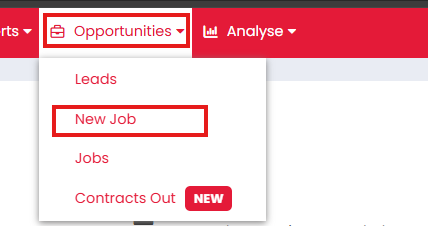
From a contact record
If you are viewing a contact, select Task > New Job. Firefish automatically fills in the company and contact details.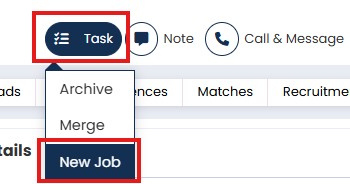 <>
<>
Create a similar job
Open an existing job and select More Actions > Create Similar. Firefish copies the job details so you only need to update what has changed.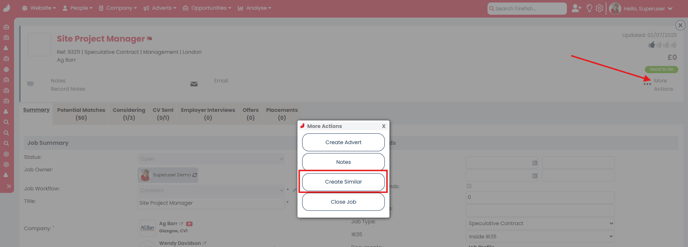
Job Summary
The Job Summary section defines the key information for the role.
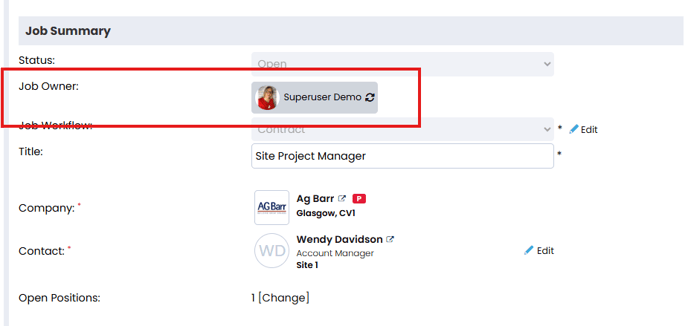
Job owner
The logged-in user is set as the Primary owner by default. Select Edit to change this if needed.
You can assign:
- One Primary owner
- Up to two Secondary owners
Secondary owners can see the job in their To Do lists and Quick Links.
Workflow
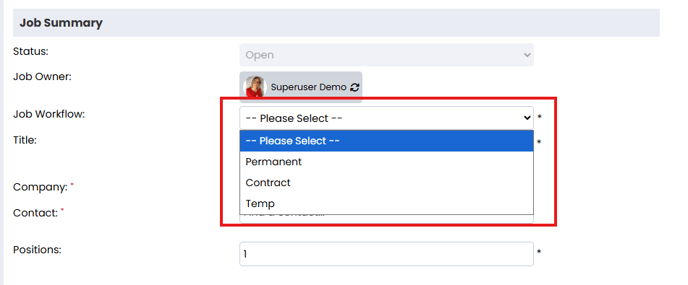
Select the workflow for the job, such as Permanent or Contract. Workflow names may vary depending on your system setup. Some users may only see one option.
Job title
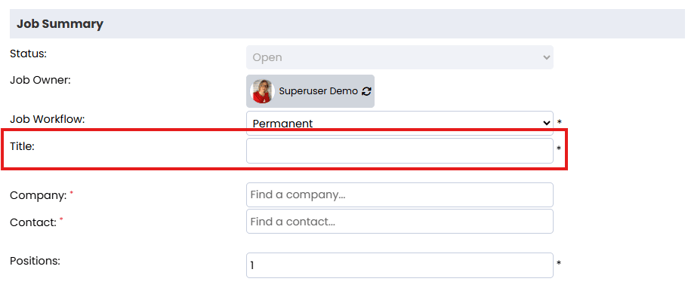
Enter a clear job title that accurately describes the role.
Company and Contact Details
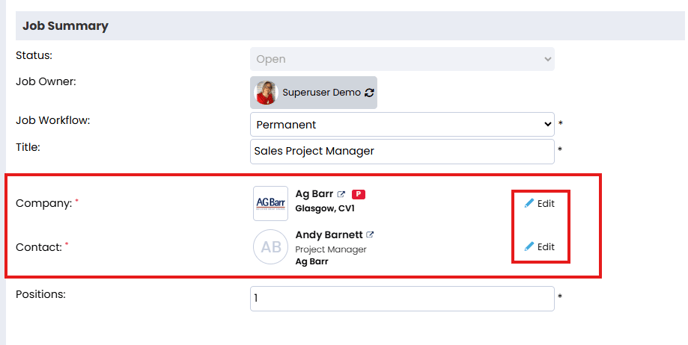
If you created the job from a contact record, the Company and Contact fields are already completed.
To make changes, select Edit next to the relevant field. You can:
- Choose another contact linked to the same company
- Tick Include Associated Companies to select contacts from related organisations
If you started from Opportunities > New Job, Firefish suggests companies as you type. Select the correct company and contact from the list.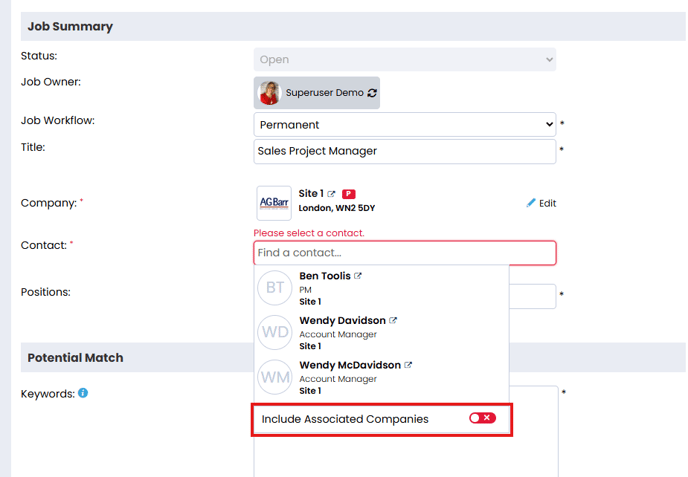
Job Details
Number of positions
Enter how many roles are available. You can add up to 100 positions to one job.
Keywords, discipline, location, and specialism
Add keywords to improve candidate matching. Select the discipline and location that best fit the role.
Salary or pay rate
Enter the salary or pay rate to help attract suitable candidates.
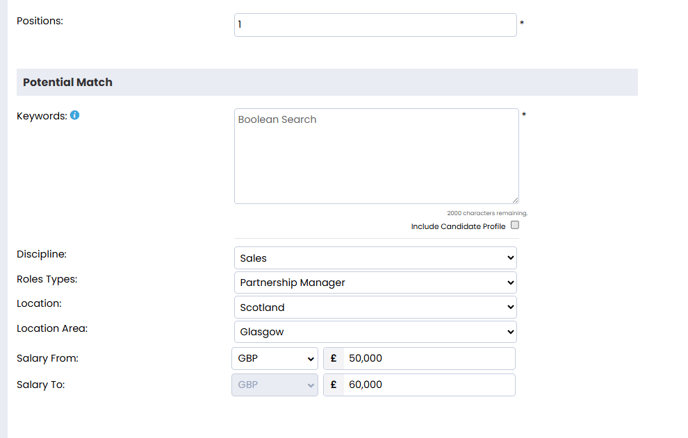
💡 Tip: Disciplines, Locations and Specialisms are shared across Firefish. This helps match candidates from your existing database more accurately. See Manage Job Potential Matches
Finalising the Job
When all required details are complete and any documents are attached, select Create. Your job is now live and ready to be worked.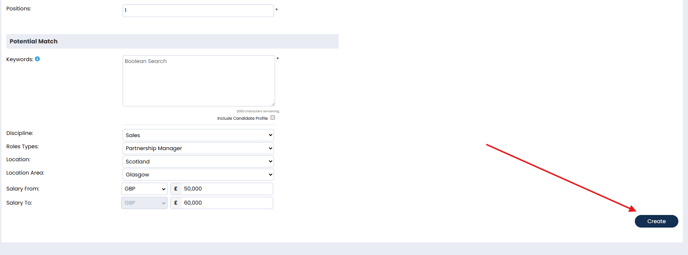
Frequently Asked Questions
Do I have to complete every field before creating a job?
No. Only required fields must be completed. You can update the job later if needed.
Why can I only see one workflow option?
This depends on your system’s Job Configuration. Some setups restrict workflows.
What are secondary job owners used for?
Secondary owners can see the job in their To Do lists and Quick Links, helping with shared workload and visibility.
Can I change the company or contact after creating the job?
Yes. Select Edit next to the Company or Contact fields to make changes.
Why are keywords important?
Keywords help Firefish match candidates to jobs more accurately using your existing database.