![Firefish_Icon_2019_RGB_72dpi (2).png]](https://fishtank.firefishsoftware.com/hs-fs/hubfs/Firefish_Icon_2019_RGB_72dpi%20(2).png?height=40&name=Firefish_Icon_2019_RGB_72dpi%20(2).png)
Firefish offers a range of powerful tools to help you quickly find Candidates that match your job criteria. This article explains how to use each Search method effectively and outlines when to use each one.
In this article, whether you're looking for new applicants, active candidates, or archived records, you'll find step-by-step guidance on using universal search, advanced filters, and boolean operators to pinpoint the right people.
- Universal Search
- Advanced Search
- Keyword Boolean Search
- Candidate Preferences
- Salary / Rate
- Availability
- Profile
- Details
- Results
- Bulk Search Actions
Universal Search
Universal Search is an always-accessible search bar located in the menu at the top of the screen, so you can use it no matter which page you are on within Firefish.
Use Universal Search when you want to quickly find a candidate by name, location, or keyword across your entire database.

-
Click the search bar in the top-right corner.
-
Enter the candidates name, reference, phone number or email address
-
Press Enter or select from the dropdown.
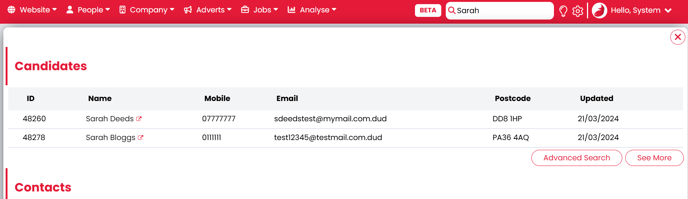
Troubleshooting Tip: If no results appear, check your spelling or try fewer keywords.
Advanced Search
Advanced Search gives you more control by allowing you to apply multiple filters at once.
Use Advanced Search when you:
-
Need to narrow results using specific criteria
-
Want to combine multiple conditions
-
Are searching by location, salary, availability, or preferences
To open Advanced Search:
- Go to Candidates.
- Choose the filters you want to apply.
- Select Search to view results.
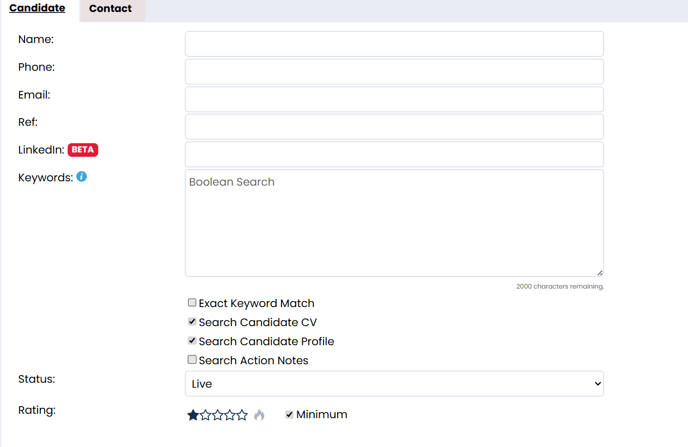
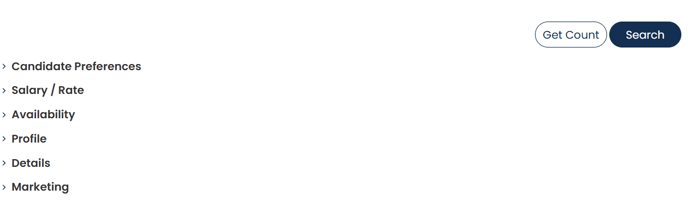
By default, Firefish will run the search on Live candidate records, however, you can change this to only Archived records or to include All by selecting the required option on the Status drop-down.
Keyword Boolean Search
Boolean keywords help you create more precise searches using operators. You can enter a search up to 2000 characters and combine words or commonly used phrases together to limit, widen, or define your search.
You can also search from the beginning of a word, exclude certain words, group terms together, and even look for words that appear close to each other. If you’re ever unsure how to use these rules, or just need a bit of inspiration for your searches, click the blue info icon for a handy tip.
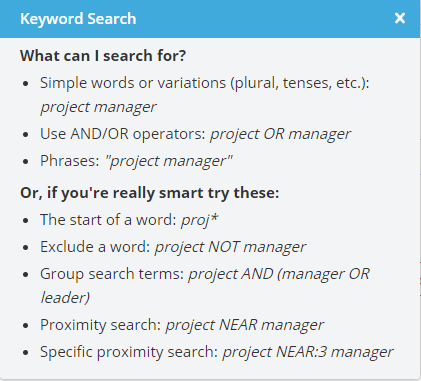
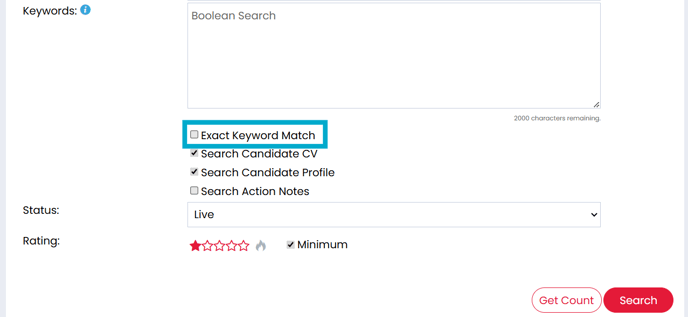
Because candidates often use different terms for the same skill or role, Firefish automatically includes close variations of any keywords you enter. If you only want to search for the exact word or phrase you’ve typed, tick the Exact Keyword Match checkbox.
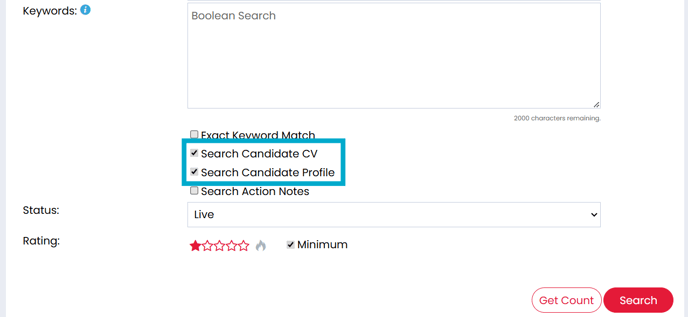
Once you have your Boolean search, you will be able to run it against:
- The Candidate Profile
- The most recently uploaded Original CV
- Candidate Action Notes
- A combination of all three!
You’ll need to select at least one of these options to run your Keyword search. By default, Candidate Profile and Candidate CV are ticked, but you can change this at any time by unticking the boxes next to the options you don’t want to include.
Candidate Preferences
You can drill down further into your database by searching for candidates based on their Discipline, Location and/or Specialisation preferences. Selecting Also Interested will include candidates that are also interested in the selected Discipline, Location and/or Specialisation, but do not have this set as their preferred option.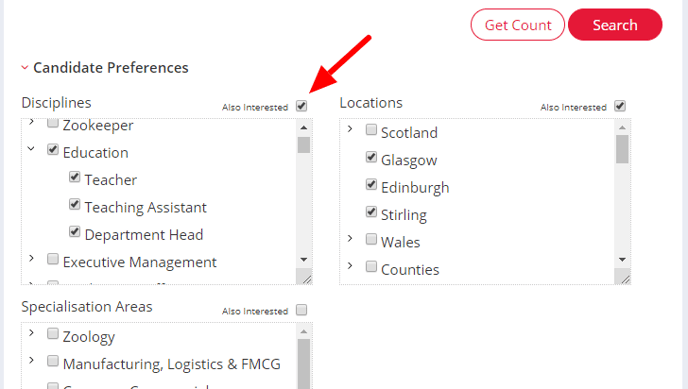
Salary/Rate
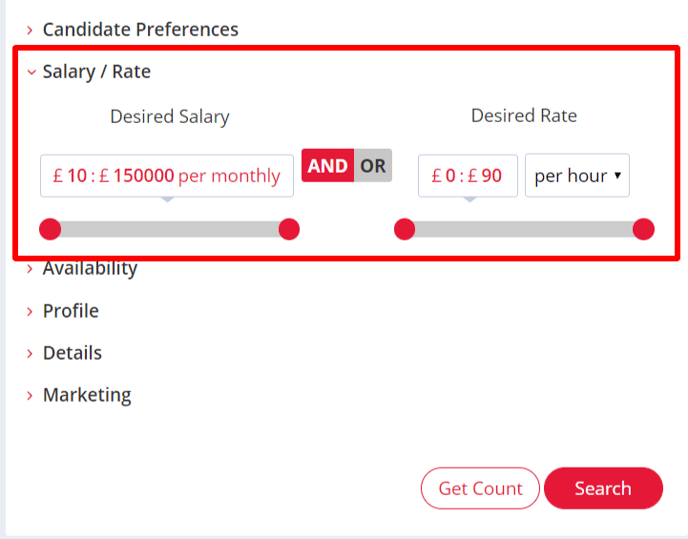
The Salary/Rate search filters can be used to find candidates who are looking for a salary or rate within a specific range.
Use the sliders to set a range, searching for candidates who have a desired salary and/or desired rate within that set range. You can also toggle between AND and OR if you want to find candidates with a Desired Rate AND Desired Salary, or either one.
Availability
The Availability search filters can be used to search candidates based on their Permanent and/or Contract Preference.
You can tick one or more preferences. You can also toggle between AND and OR if you want to find candidates with a Permanent preference and a Contract preference, or either one.
You can also search on a candidate's Availability status, Notice Period and Available date.

Profile
To conduct a postcode radius search for candidates, simply enter a UK postcode into Distance From and either type in a distance or use the slider:

If you want to search for a specific Skill, Language or Certification, or you are looking for a candidate who is either currently, or was previously Working At a specific company, start by typing into the corresponding field and selecting from the suggestions.
You can also search for candidates currently or previously employed by companies in a specific Industry Sector or Sub Sector.
If you are interested in recently added or updated candidates, you can filter your search results by date ranges for Last Updated, Created Date and CV Updated.
Details
Within the Details section of the candidate search, you can search up to 5 details at once. Click the +Add button then select the detail you want to search from the drop down.
You can then click the +Add button again to select another detail.
When more than one detail is selected, the search will be performed using the AND parameter e.g. Nationality AND Visa:
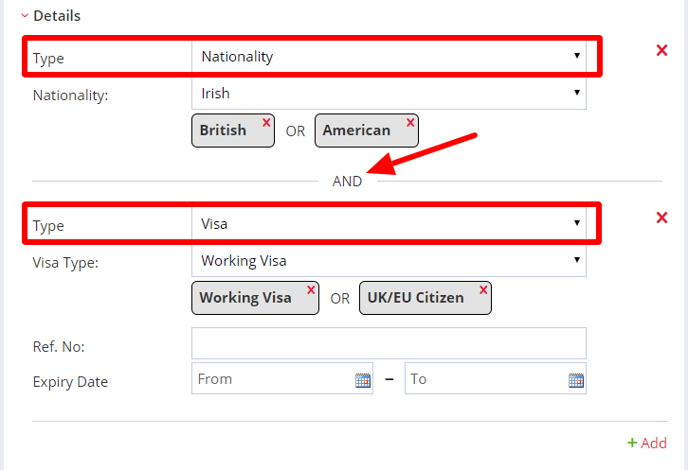
When you select a Detail, any fields which are enabled for that detail (within Compliance Details settings) will appear.
If a drop-down field is enabled, you can select multiple values from the drop-down list. If a text field is enabled, start typing in the field and you'll see a list of auto-suggestions based on the data entered in this detail for each candidate. When multiple values are added in the drop-down or text fields, they'll be searched using the OR parameter e.g. British OR American:
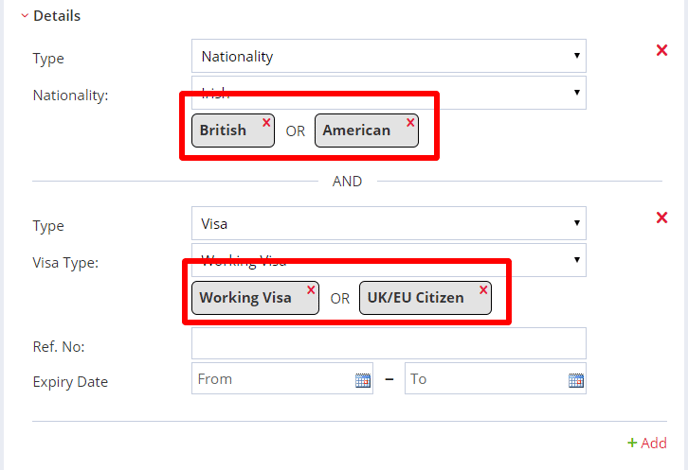
If a Date field is enabled on a particular detail, you can perform the search on a date range using the From and To fields.
Results
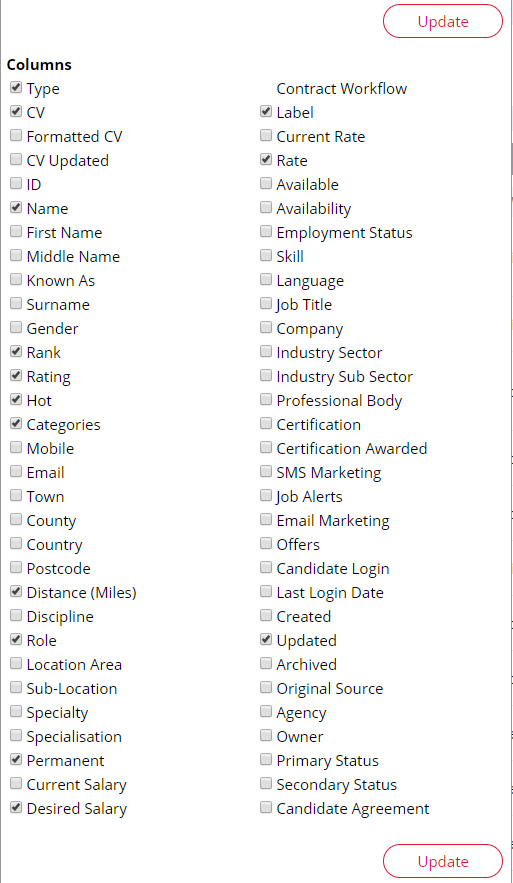
You can view up to 450 records at once and sort each column alphabetically by clicking on the column's Header. You're also able to change the information displayed in the results by using the Cog icon at the top of the search.
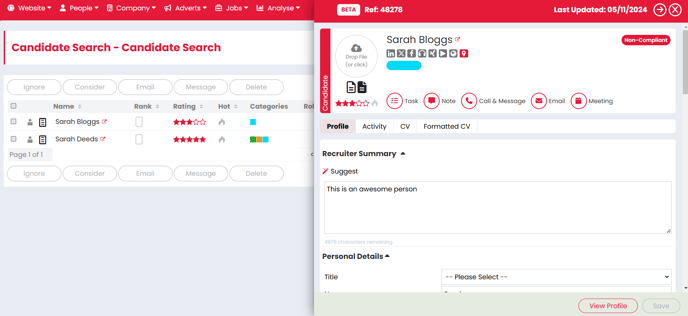
Hovering over a Candidate will display the Preview icon  Selecting this will open up the Candidate Side Panel, where you will be able to access and update their Profile information, view their CV and even get in contact with them, all without having to leave your search results page.
Bulk Search Actions
You can perform a number of bulk actions from your search results. Ignore unsuitable candidates from your list, Consider suitable ones straight to your live jobs, or send selected candidates a Bulk Email or Bulk SMS. Simply tick the box next to the candidates' names and then select an action:
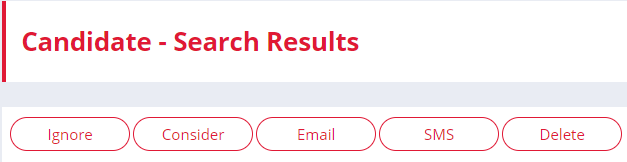
Find out how to send a Bulk Email here or send a Bulk SMS here.
When selecting Consider, you'll see a pop up allowing you to search all of your own (and all of your colleagues) open Jobs. Simply start typing, select the Job and Go:
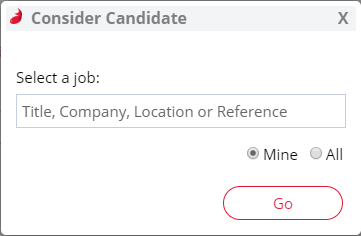
Please note that bulk considering several hundred candidates at once may take some time to process.
The Delete button allows you to bulk delete or archive candidates.