![Firefish_Icon_2019_RGB_72dpi (2).png]](https://fishtank.firefishsoftware.com/hs-fs/hubfs/Firefish_Icon_2019_RGB_72dpi%20(2).png?height=40&name=Firefish_Icon_2019_RGB_72dpi%20(2).png)
This article explains all of the actions you can take in Firefish after a placement has been made. It covers the full post-placement lifecycle, including new starts, probationary and AWR reviews, managing timesheets, rolling on and extending contracts, logging follow-ups, and terminating placements.
This guide is intended for recruiters and administrators who manage permanent, temporary and contract placements and need to ensure candidates are supported, contracts are maintained correctly and records remain accurate.
Contents
- New Start To-Do List
- Probationary Reviews
- AWR Reviews
- Managing Timesheets
- Rolling On a Contract
- Contract Extensions
- Terminating Placements
- Notes and Follow-Ups
New Start To-Do List
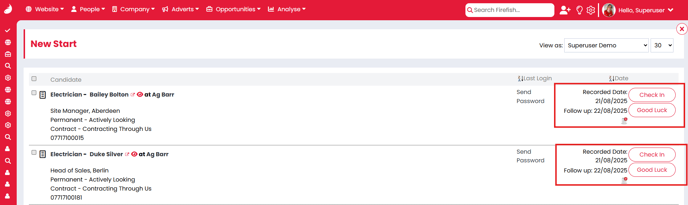
Firefish automatically creates a New Start to-do list item when a candidate begins a placement. This appears in the Jobs section of your Dashboard.
Prerequisites - A placement has been confirmed - Dashboard access to the Jobs section
You will see a list of all new starters that still require action. From this list you can complete two actions:
- Check-In
- Good Luck
Check-In
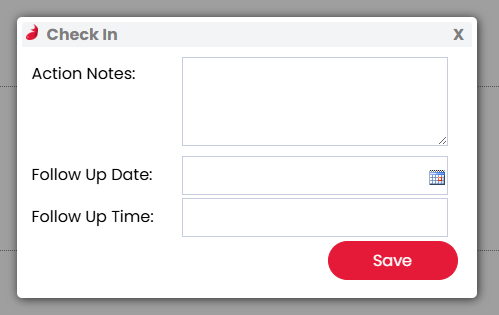
Selecting Check-In allows you to log a note confirming you have checked in with the candidate. You can also set a follow-up date and time if further contact is required.
Good Luck
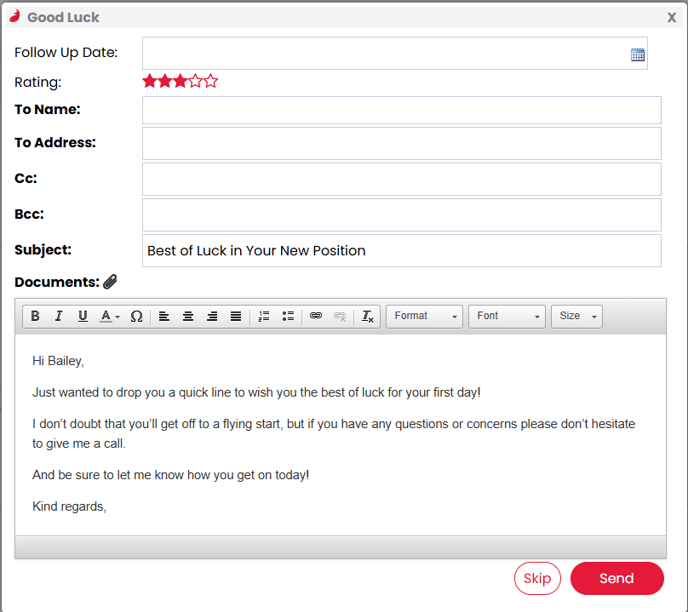
Selecting Good Luck generates an email to the candidate using your Good Luck email template.
Outcome Once either action is confirmed, the to-do list item is marked as complete and removed from your to-do list.
Troubleshooting - If the Good Luck email does not generate, check the template exists in Email Template Settings.
Probationary Reviews
Probationary Reviews allow you to track permanent placements during their initial review period.
Prerequisites - Probationary Reviews enabled in Job Configuration > Permanent Workflow > Placements
You can define how long a candidate appears in the Probationary Review quick links section of the Dashboard.
- Default period: 3 months
- Can be configured in days, weeks, months or years

Important Changes to this setting apply only to future permanent placements, not existing ones.
Outcome Candidates remain visible on the Dashboard for the configured probationary period.
AWR Reviews
AWR Reviews help you track Agency Workers Regulations milestones for eligible contract placements.
Prerequisites - AWR Reviews enabled in Job Configuration > Contract Workflow > Placements - Candidate placed on a contract job with PAYE pay type
The AWR review period uses the placement start and end dates as the reference.

Limitations - Does not account for paused, combined or restarted AWR clocks
Important Changes apply only to future contract placements.
Outcome Eligible candidates appear in the AWR Review quick links on the Dashboard.
Managing Timesheets
If Time Capture is enabled, you can log and manage timesheets for temporary and contract placements.
Prerequisites - Time Capture enabled - Placement linked to a contract or temporary job
The Time Capture column appears on the Placements tab of the job.
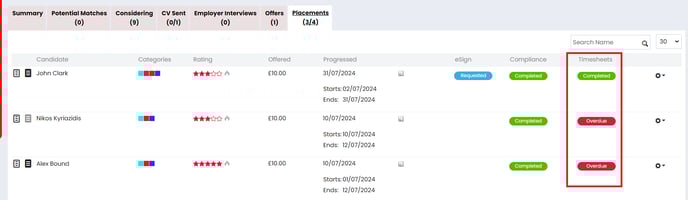
Time Capture Statuses
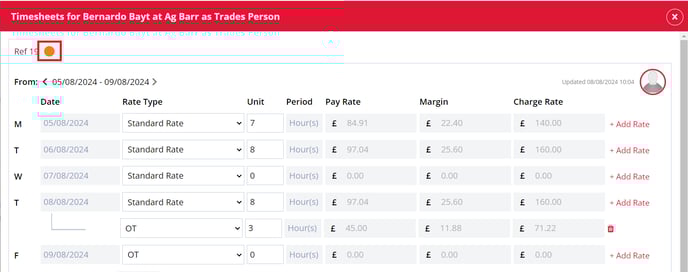
- Completed – All time entries complete
- Incomplete – Current week not complete
- Overdue – A previous week is incomplete
- Submitted – Submitted to Tempaid via integration
Selecting the status icon opens the timesheet side panel.
Editing a Timesheet
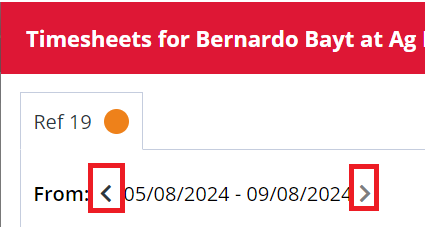
- Use the arrows to change the week being viewed
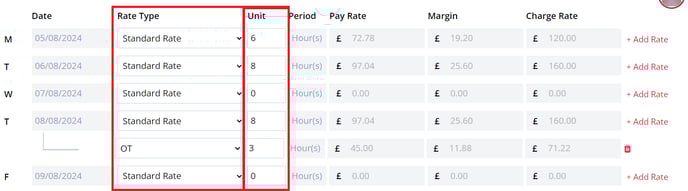
- Set the Rate Type and update the Unit values
- Select + Add Rate to log overtime, holiday or additional rates
Saving and Completing
- Save All saves changes across multiple timesheets
- Save saves the current timesheet
- Complete locks the timesheet and marks it as complete
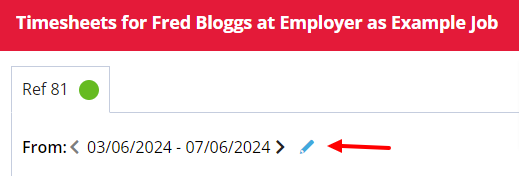
Completed timesheets can still be edited using the blue pencil icon.
Outcome Each completed or edited timesheet logs an action against the Candidate, Job and Company records.
Troubleshooting - If a timesheet cannot be completed, check required fields and rate types are populated.
Rolling On a Contract
Rolling on a contract allows you to extend the End Date only of an existing contract placement.
Prerequisites - Active contract placement - Access to the Jobs Dashboard
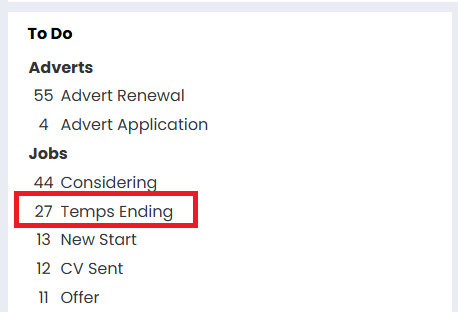
Navigate to the Contracts Ending to-do list in the Jobs section of the Dashboard.
Individual Roll On
Select Extend next to a candidate to update their End Date. You can also choose Thank You to send a thank you email.
Bulk Roll On
- Tick the required contracts
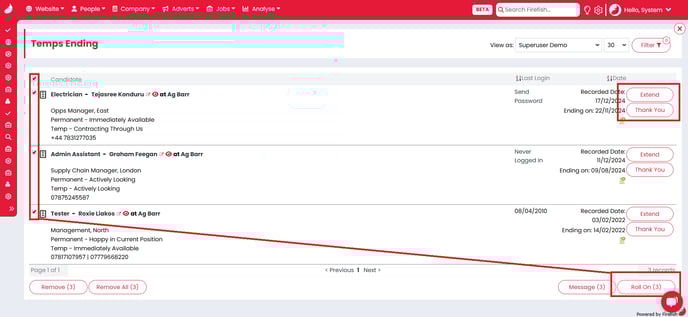
- Select Roll On
- Choose a new End Date that falls after the latest existing End Date
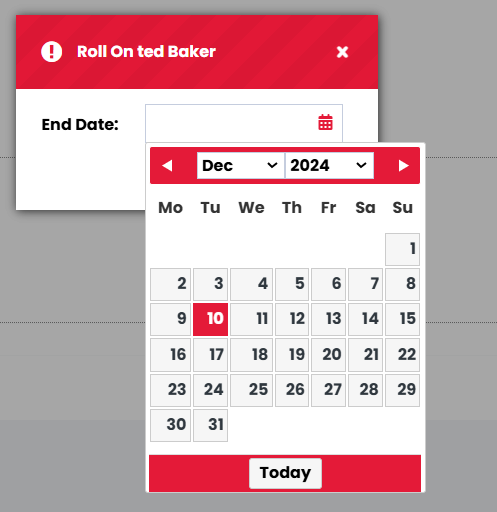
Confirm to apply the new End Date.
Outcome - Contracts are updated - Sales figures recalculate automatically - A Roll On – Contract activity is added to records
Contract Extensions
Contract Extensions are used when changes beyond the End Date are required, such as pay or rate changes.
Prerequisites - Active contract placement
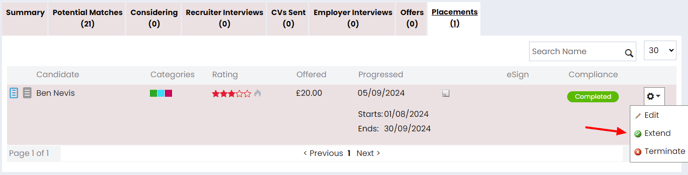
From the Placements tab on the job:
- Select the cog icon
- Choose Extend
<Screenshot: Extend option from placement cog>
Complete the extension details, including the new End Date and any pay changes.
Select Save and choose whether to Reconfirm the extension.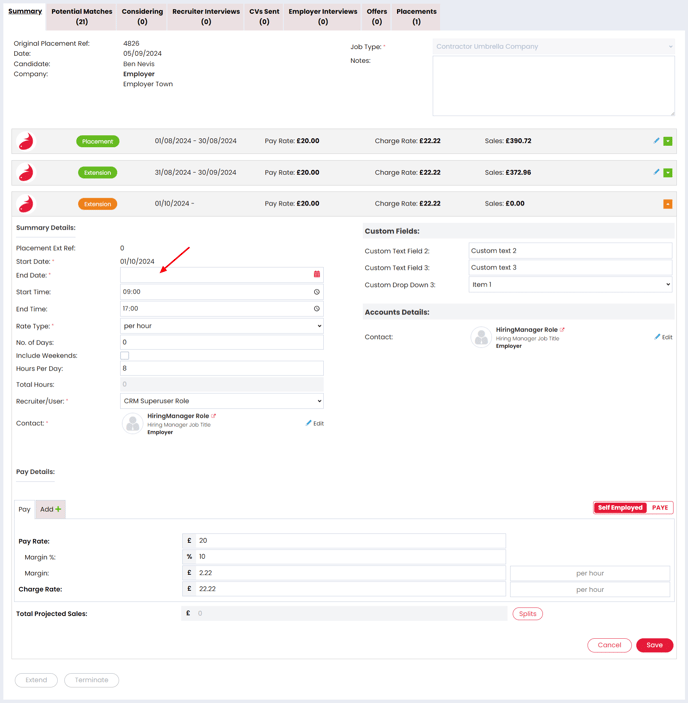
- Yes generates emails to Candidate, Contact, HR and Accounts (where configured)
- No saves the extension without emails
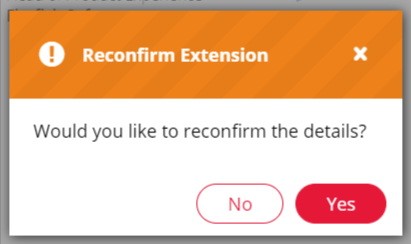
Outcome - Extension is created - Candidate Available On date updates - Extension activity logged on records
Terminating Placements
⚠️ Warning: Terminations are final and cannot be reversed
Be certain you want to proceed before actioning a termination. Once a placement has been terminated, this action cannot be undone and will permanently affect the placement, sales data and candidate record.
Placements can be terminated at any time from the job record.
Prerequisites - Active placement
From the Placements tab:
- Select the cog icon
- Choose Terminate
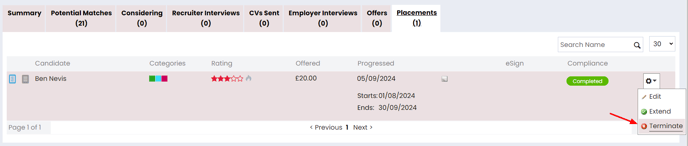
A termination record is created where you can:
- Confirm the End Date
- Select a Termination Reason
- Review or amend the calculated rebate
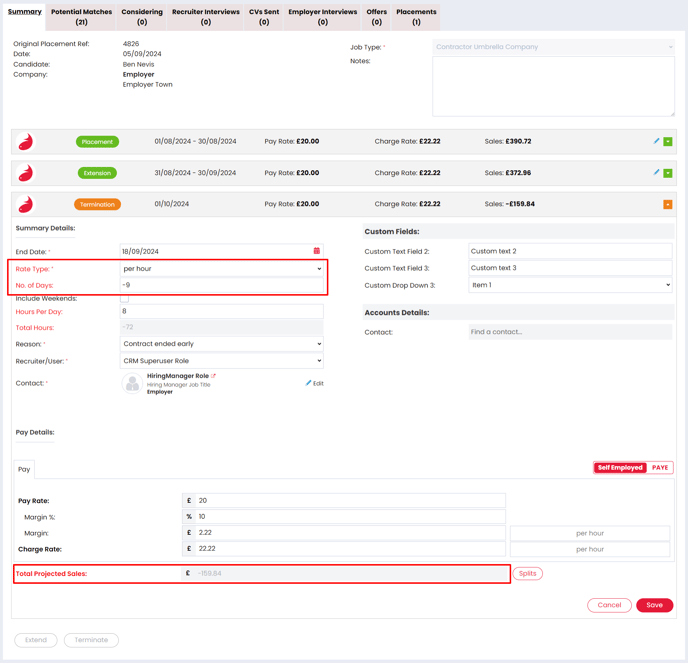
Termination reasons are managed in Drop Down Settings by Super Users.
Select Save and choose whether to Reconfirm.
- Yes sends termination emails
- No saves without emails
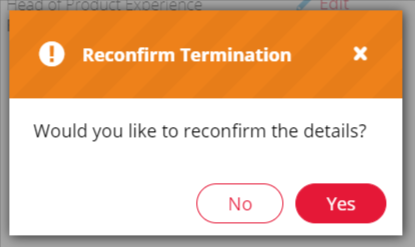
You will then be prompted to update the candidate and job, including:
- Candidate status
- Termination notes
- Star rating
- Email marketing and job alert subscriptions
- Reopening the job (permanent jobs only)
Outcome All updates and notes are logged against the Candidate, Job, Contact and Company records.
Notes and Follow-Ups
Notes and follow-ups help you track ongoing communication with placed candidates.
Prerequisites - Access to the candidate record
Open the candidate record and select Note from the header.
- Choose a Note Type
- Enter the note
- Set a follow-up date
- Link to a job if required
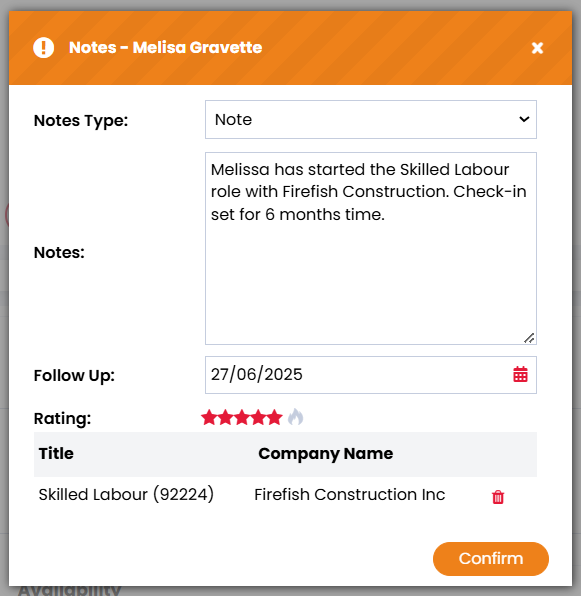
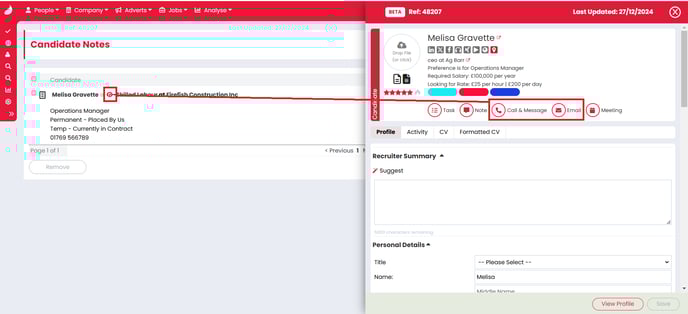
On the follow-up week, the item appears in the creator’s to-do list under Candidate Notes.
You can open the candidate side panel to email, message or call (where add-ons are enabled).
Once completed, remove the item from the list.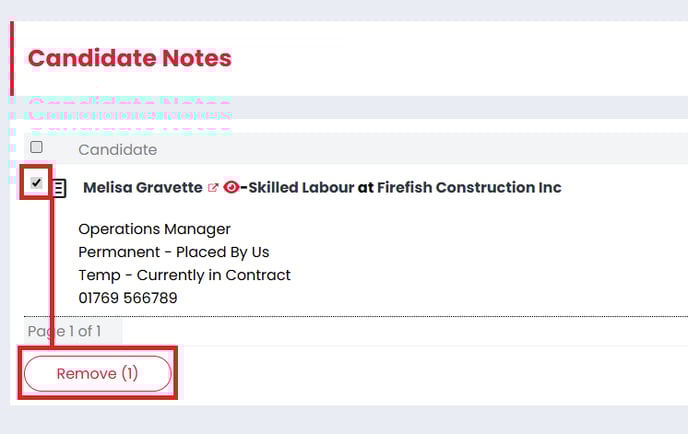
Outcome Follow-ups are completed and communication history remains fully logged.