![Firefish_Icon_2019_RGB_72dpi (2).png]](https://fishtank.firefishsoftware.com/hs-fs/hubfs/Firefish_Icon_2019_RGB_72dpi%20(2).png?height=40&name=Firefish_Icon_2019_RGB_72dpi%20(2).png)
Use bulk email to quickly contact multiple candidates at once from a search result. This is useful for marketing campaigns, updates, or general communications.
You can watch the video below for a walkthrough, or follow the step-by-step written guide underneath.
- Prerequisites
- Sending a bulk email
- Choosing an email template
- Sending and confirmation
- Viewing email results in your search
Prerequisites
Before sending a bulk email, make sure that:
- You have run a candidate search
- The people you want to email are included in the search results
- Recipients have valid email addresses
- Recipients are subscribed to email marketing, if required
- Your email templates are set up in the Activities Library
Sending a bulk email
- Run a candidate or search.
- Select the people you want to email from the results.
- Click Email.
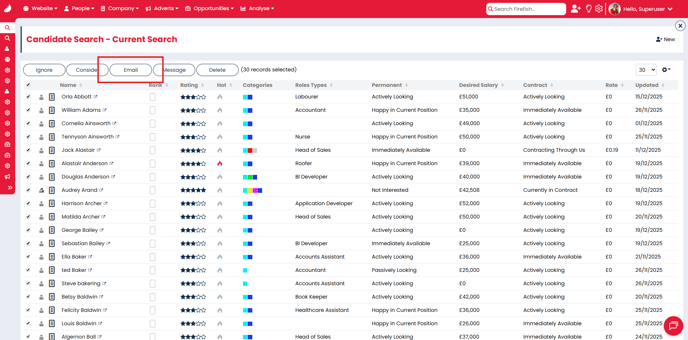
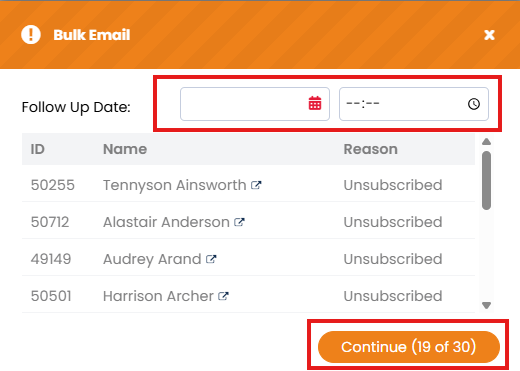
- A popup window will appear.
- Review the list of records that will not receive the email. This can happen if:
- They have unsubscribed from email marketing
- They have an invalid email address
- Optional: Exclude non-compliant candidates using the setting in People Configuration.
- Optional: Set a follow-up date to create a reminder in the To Do list on your dashboard.
- Click Continue to Send.
Choosing an email template
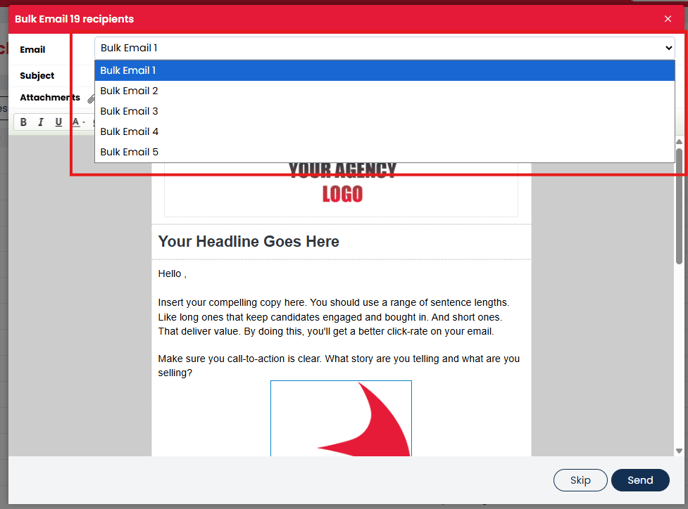
- The default template shown is Bulk Email 1.
- To use a different template:
- Click the template drop-down above the Subject field
- Select the template you want to use
Bulk email templates are managed in Activities Library settings, where you can create and edit standard templates.
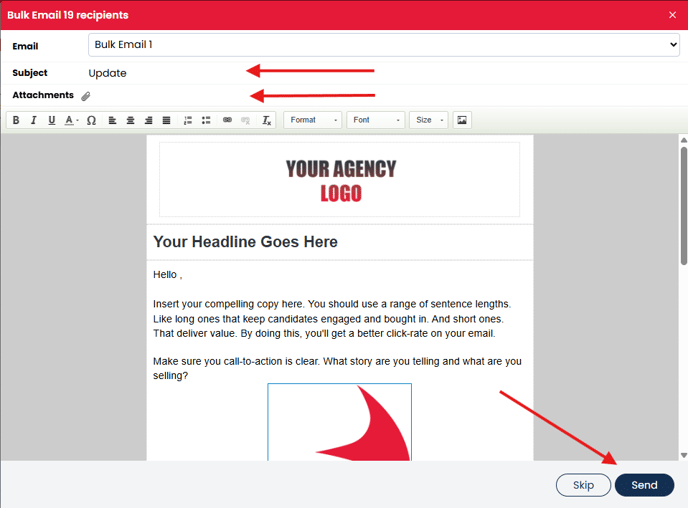
- Edit the email subject if needed.
- Make any changes to the email body.
- Add attachments, such as a job description.
- When you are happy with the content, click Send.
Sending and confirmation
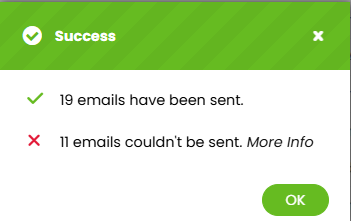
- After clicking Send Email, a success message will appear.
- This confirms:
- How many emails were successfully sent
- How many emails were not sent
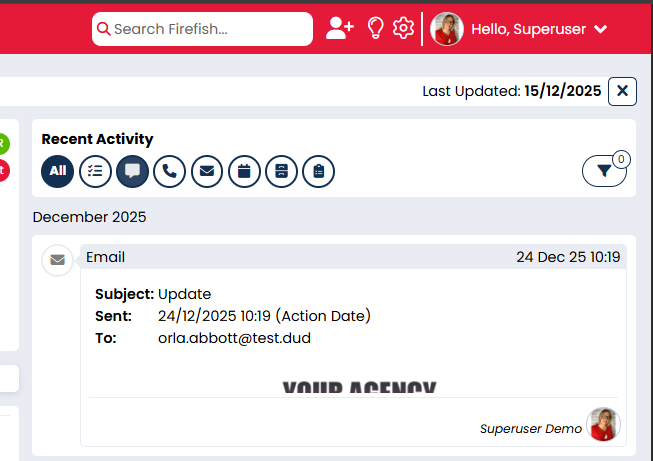
- The email and related notes are recorded on each candidate or contact record under Recent Activity.
Viewing email results in your search
If you missed the list of records that were not sent the email:
- Return to your search results.
- Open the column picker.
- Add the following fields:
- Email Marketing
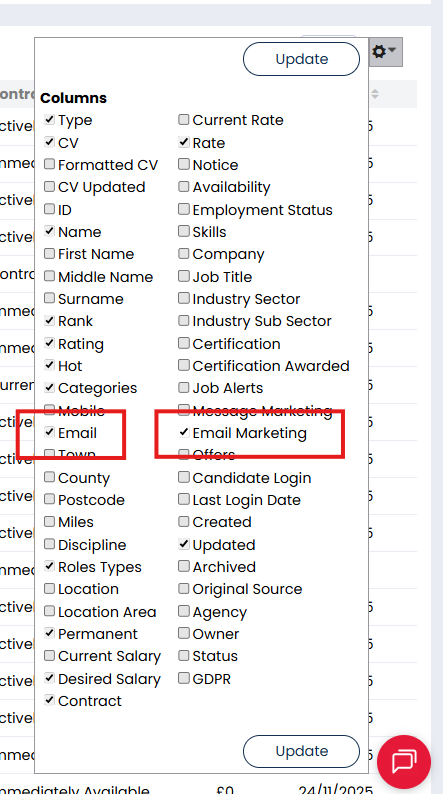
This allows you to clearly see which records were excluded and why.
FAQs
-
What happens if a recipient has unsubscribed from marketing emails?
If someone has unsubscribed from email marketing, they will be excluded from bulk email communications. You can still email them individually from their record or via a job workflow. -
Can I schedule a bulk email to send later?
No. Bulk emails cannot currently be scheduled to send at a later date. -
How do I create or edit bulk email templates?
You can create and edit bulk email templates in the Activities Library.
-
Is there a limit on the number of recipients for a bulk email?
There is no overall recipient limit. However, you can only send up to 450 emails at a time from search results.
You should also consider any sending limits imposed by your email service provider. -
I forgot to subscribe all my records to marketing, can I bulk subscribe them?
No. The system does not allow you to bulk subscribe candidates or contacts to marketing.
If you need help, contact Firefish Support for advice on the best way forward.