![Firefish_Icon_2019_RGB_72dpi (2).png]](https://fishtank.firefishsoftware.com/hs-fs/hubfs/Firefish_Icon_2019_RGB_72dpi%20(2).png?height=40&name=Firefish_Icon_2019_RGB_72dpi%20(2).png)
Sometimes a permanent placement needs to be ended after it’s been confirmed in Firefish — for example, if a candidate doesn’t start or leaves early within a rebate period. This article explains how to terminate a permanent placement, adjust rebate amounts, and choose whether to notify contacts via email.
In this article
- When to Terminate a Placement
- How to Terminate a Permanent Placement
- Understanding Rebate Amounts and Splits
- Termination Emails and Notifications
When to Terminate a Placement
You should terminate a permanent placement if: - The candidate withdraws or fails to start - The candidate leaves within the rebate period - You need to correct sales plan data and remove the associated figures
⚠️Terminating a placement will: - Remove the placement from revenue and sales plans - Trigger optional termination emails to clients and candidates
How to Terminate a Permanent Placement
- Go to the Placements tab from your menu or dashboard.
- Locate the candidate you want to terminate.
- Click the Actions button and select Terminate.
- In the termination window:
- Select a Termination Label (e.g. Withdrew, Terminated Early).
- Add Termination Comments for internal reference.
- Choose whether to send termination emails to the contact and/or candidate.
- Confirm by clicking Terminate Placement.
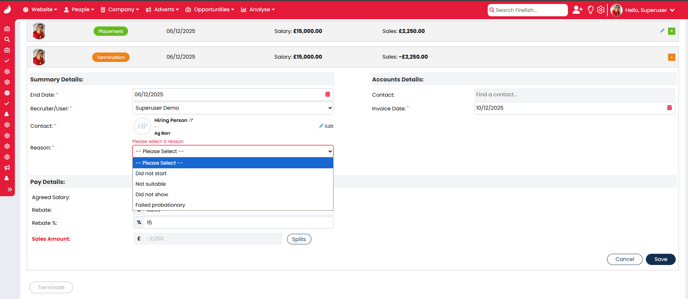
Understanding Rebate Amounts and Splits
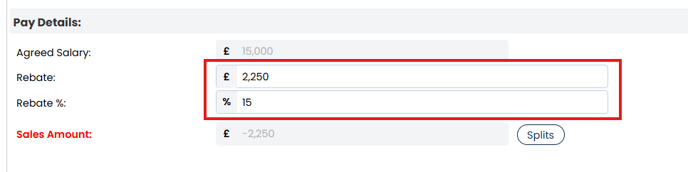
When terminating a placement, you may need to adjust rebate values and user splits.
- Rebate Amount: The value returned to the client due to early departure or non‑start.
- Rebate %: The percentage of the placement fee that is rebated.
- User Splits: Adjust the revenue splits for users involved in the deal if needed.
To edit these values: - Enter the Rebate Amount manually, or let Firefish calculate based on percentage. - Adjust Split values to reflect accurate commission distribution.
Termination Emails and Notifications
You can choose to notify both the candidate and the client contact with automated emails.
- Tick the relevant boxes for Send to Contact and/or Send to Candidate.
- Email templates are set up under Settings > System Configuration > Email Templates > Opportunities > Permanent > Termination.
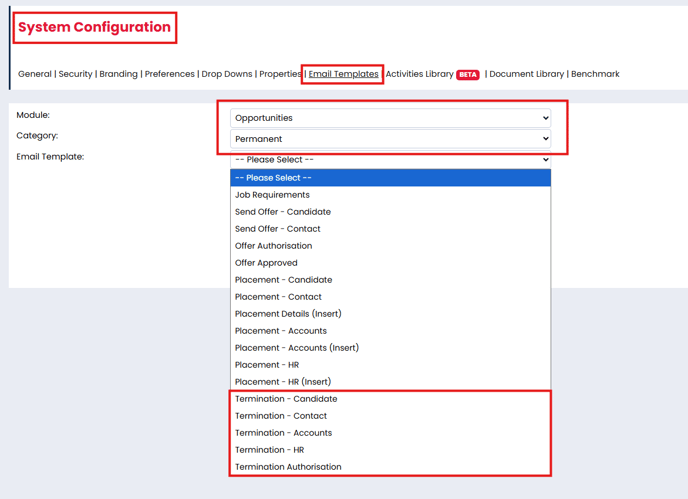
These emails provide a consistent message confirming the placement has been terminated.
ℹ️ Note: Emails will only be sent if the contact or candidate has an email address saved in their record.
FAQs
Can I undo a termination once it’s confirmed?
No — terminations are final and remove the placement from sales figures. Create a new placement if needed.
What happens to the sales plan when a placement is terminated?
The placement is removed from revenue totals and commission calculations.
Can I customise termination email wording?
Yes — go to Settings > Email Templates > Termination to update the message.
Do I have to enter a rebate amount?
No, but it’s recommended to reflect accurate financial reporting.