Taking on a job and managing it well in Firefish starts with collecting accurate job details, configuring the system to reflect your process, and setting up appropriate compliance fields where relevant. This guide brings together best practices for job intake, custom field configuration and compliance tracking to help you get data right the first time.
- Why Job Data Matters
- Collecting Job Details Best Practice
- Why Use Custom Fields in Firefish
- Custom Job Field Setup and Examples
- Understanding IR35 / Off‑Payroll Working Rules
- Quick Tips for Recruiters
Why Job Data Matters
When taking on a job, gathering detailed and accurate information helps you to:
-
Build confidence with candidates and clients by answering questions precisely.
-
Improve matching against your talent database and avoid unnecessary back‑and‑forth.
-
Streamline compliance and reporting, particularly for contract jobs.
-
Ensure consistent tracking of job requirements, terms and special conditions.
Collecting Job Details Best Practice
When creating a new job, go beyond the surface to ask comprehensive questions. The following areas should be covered in every job intake:
Role Essentials
-
Duties and responsibilities: go past the title — ask what the person will actually do.
-
Hours and schedule: including remote, hybrid or flexible options.
-
Location and travel requirements.
-
Salary or rate expectations.
Skills & Fit
-
Must‑have vs desirable skills: helps narrow your candidate pool.
-
Standout qualities: what would immediately impress the client?
-
Successful background patterns: industries, roles or companies that have worked well previously.
Company & Process
-
Why the role exists: growth hire, backfill, temporary coverage, etc.
-
Hiring stages and timelines: including who does interviews and expected turnaround.
-
Other agencies involved: helps set expectations on competition and exclusivity.
A thorough intake increases placement success, reduces time‑to‑hire, and boosts client trust.
Why Use Custom Fields in Firefish
Once job details and custom fields are captured:
-
Recruiters can run more accurate candidate matching and searches.
-
Hiring constraints (skills, compliance, IR35 status) filter CVs and alerts.
-
Reporting dashboards can include compliance and job‑specific metrics.
-
Time and billing integrations can reflect job nuances like overtime rules or vehicle needs.
Best practice in job setup reduces manual follow‑ups, improves compliance, accelerates placements, and leads to better outcomes for clients and candidates.
Custom Job Field Setup and Examples
Firefish lets you add custom job fields to capture job‑specific or compliance information that aren’t included by default. You can customise your job fields to suit your industry and internal processes.
Where Custom Fields Appear
-
They show in the Job Summary for your chosen workflow (Permanent or Contract).
-
They can be used with certain integrations such as Timesheet Portal.
How to Create or Update Custom Fields
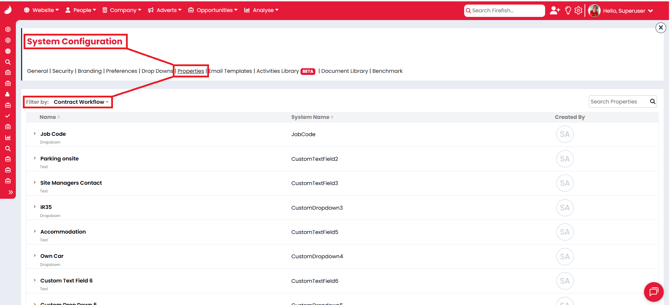
You can create either custom drop down or free text fields fields on the Permanent and Contract workflow:
-
Go to Settings > System Configuration > Properties.
-
Filter by workflow (Permanent or Contract)
-
Find an unused field and click the pencil icon to rename it.
-
Toggle on Job Summary (and/or Job Offer) to make it visible
-
Set as mandatory if needed.

-
-
For dropdown fields, use Add Item to add options.
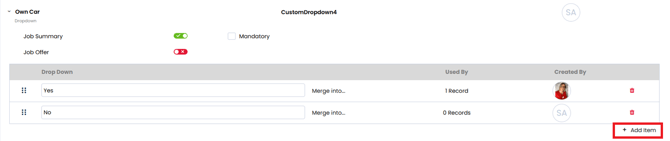
You can set up different custom fields for each workflow, or replicate them if you would like to have the same fields available regardless of the workflow.
Examples of Useful Custom Fields
Permanent roles
-
Exclusive: Yes / No dropdown.
-
PO Number: Text field for finance tracking.
-
Fixed Term End Date: Useful for short‑term permanents.
-
Compliance Level: Dropdown to capture compliance requirements.
Contract roles
-
Overtime rules: Dropdown with options like “Overtime permitted / Max 2 hours per day”.
-
Vehicle reg numbers: Text field for jobs needing specific transport info.
-
Role level/quality: Dropdown for internal grading.
-
IR35 status: Dropdown to mark inside/outside IR35.
-
Must‑haves: Open text for certificates, licences, ORM random requirements.
Custom fields help standardise data across your team and improve search and reporting accuracy.
Understanding IR35 / Off‑Payroll Working Rules
The off‑payroll working rules (commonly called IR35) are UK tax legislation designed to counter tax avoidance where workers supply services through a company or intermediary rather than as employees.
What IR35 Means
-
If a contractor falls inside IR35, their income should be taxed like an employee for tax and National Insurance purposes even if they work through a limited company.
-
Outside IR35 means the contractor is genuinely self‑employed for tax and National Insurance.
Why It Matters to Your Job Record
Capturing IR35 status protects your agency and clients by ensuring:
-
Financial compliance and correct invoicing.
-
Contracts reflect working arrangements.
-
Timesheet and billing workflows align with tax requirements.
Recording IR35 in Firefish
Add a custom dropdown field such as “IR35 status” to your contract workflow, then select Inside IR35 or Outside IR35 when creating or updating a job. This flags roles for recruiters to handle appropriately.
Make IR35 status a mandatory field on contract jobs so it is not overlooked.
Quick Tips for Recruiters
-
Always verify key job details with the hiring manager — don’t assume.
-
Use custom fields consistently across your team for reporting reliability.
-
Keep compliance fields (like IR35) up‑to‑date in contract workflows.
-
Review job data before posting adverts or shortlisting candidates.