Engagement Indicators help recruiters quickly identify how engaged a candidate or contact is based on their activity in Firefish. These indicators appear throughout the system to provide a visual snapshot of engagement levels and can help recruiters prioritise follow-up activity.
In this article, you’ll learn how to configure Engagement Indicators, understand how they work and manage the engagement criteria used in your system.
- What are Engagement Indicators?
- Where do Engagement Indicators appear?
- How to configure Engagement Indicators
- Understanding engagement criteria
- Best Practise
What are Engagement Indicators?
Engagement Indicators are colour-coded statuses used to show how active or engaged a candidate or contact has been within a defined timeframe.
Recruiters can use these indicators to:
- Identify engaged candidates more quickly
- Prioritise active talent pools
- Improve follow-up activity
- Spot inactive or disengaged records
The indicators are based on configurable engagement rules and scoring criteria set within People Configuration.
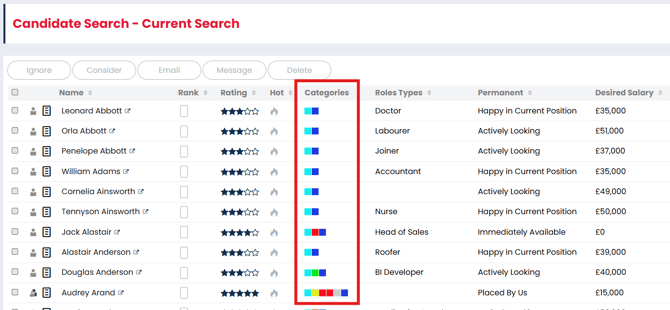
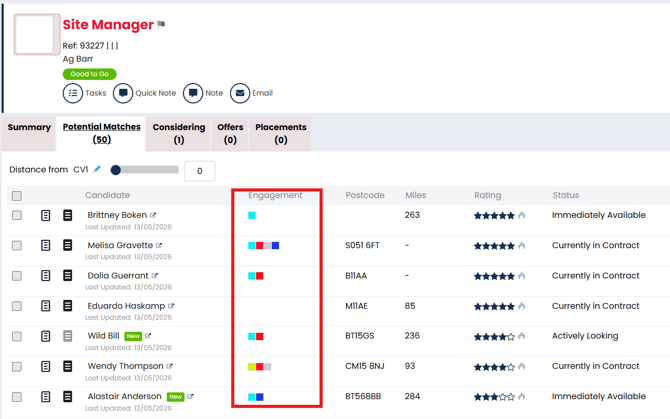
Where do Engagement Indicators appear?
Engagement Indicators can appear in several areas of Firefish, including:
- Candidate records
- Contact records
- Search results
- Candidate lists (such as considering)
- Talent pools
These indicators provide recruiters with a quick visual reference when reviewing records.
How to configure Engagement Indicators
To configure Engagement Indicators:
- Go to People Configuration.
- Select Engagement Indicators.
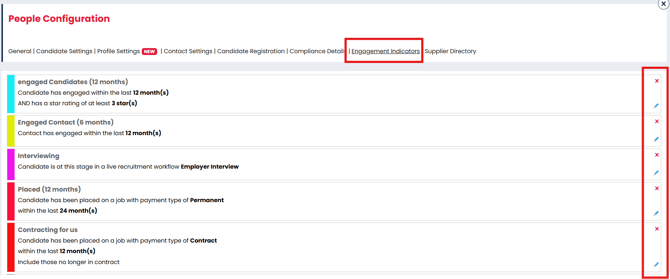
- Review the existing indicators and engagement settings.
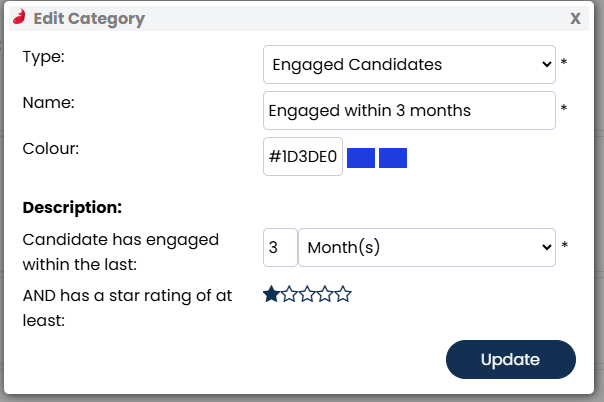
- Add a new indicator using the Add Button at the bottom, or edit an existing one by using the blue pencil icon.
The type is the type of Indicator - I.e the indicator will show candidate or contact engagement, Candidate Compliance Detail info, Candidates in a Job Workflow, Candidates who have been placed and candidates/contacts working at a certain company. - Choose a label and colour for the indicator.
- Configure the engagement criteria and scoring rules.
- Save your changes.
Understanding engagement criteria
Engagement Indicators are calculated based on candidate or contact activity recorded within Firefish.
If a candidate has done any of the following within a set time period (i.e. 1 month, 3 months) they are classed as engaged:
-
Applied to an advert or been put into a job workflow (Recruiter Interview stage or higher)
-
Has been active in their candidate portal (professional or enterprise only)
-
Clicked through from a job alert or mailshot (professional or enterprise only)
-
Been worked on – i.e 2-way communication, phone call received etc
Engagement is classed as 2 way engagement, so the candidate needs to take an action in order to be classed as engaged - therefore bulk emails to the candidate or voicemail left notes for example won't count.
You can also configure Engagement Indicators to highlight candidates who are currently at specific stages within a live job workflow.
Examples include:
- Candidate currently at interview stage
- Candidate currently at offer stage
- Candidate shortlisted for a role
- Candidate placed into a live workflow
Engagement Indicators can also be used to identify candidates with specific compliance information or qualifications.
Examples include:
- Candidate has a valid DBS check
- Candidate holds a CSCS Card
- Candidate has completed required compliance documentation
- Candidate has specific certifications or licences
You can customise
- The timeframe used for engagement tracking
- The colour and label shown for each indicator
- The thresholds required for each engagement level
- Workflow stage-based indicators
- Compliance-related indicators
Best practice for Engagement Indicators
To keep Engagement Indicators useful and accurate:
- Review engagement rules regularly
- Avoid creating too many indicator levels - Each system can have a maximum of 10
- Use clear labels recruiters can understand quickly
- Ensure inactive records are still reviewed periodically
- Align indicator colours with your team’s recruitment workflow
Troubleshooting Engagement Indicators
If Engagement Indicators are not appearing correctly:
- Check that engagement scoring has been configured correctly
- Confirm the candidate or contact has qualifying activity
- Review the timeframe settings for engagement tracking
- Ensure changes have been saved successfully
- Refresh the affected record or search page
If the issue continues, contact your Firefish administrator or support team.
Additional information
Engagement Indicators help recruiters make faster decisions by surfacing active and engaged candidates throughout Firefish. Regularly reviewing your engagement settings will help ensure indicators remain relevant and useful for your recruitment process.