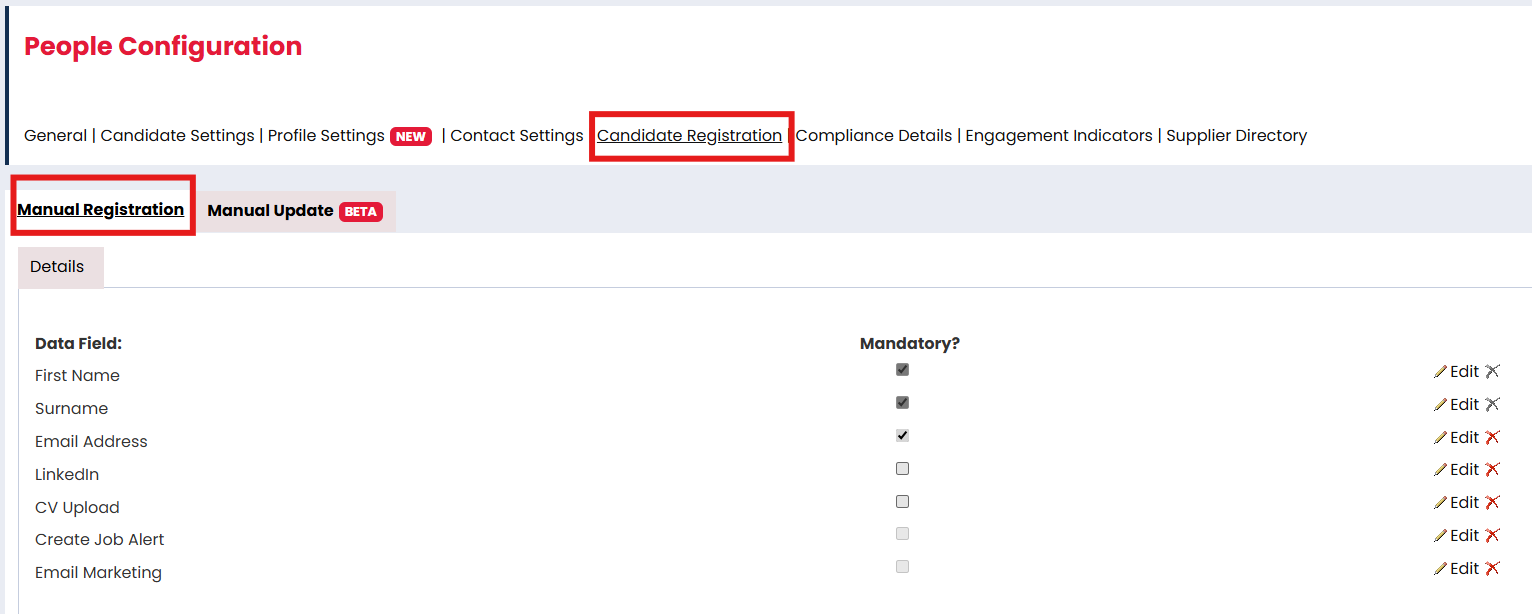
You can fully configure your manual registration form via Settings > People Configuration > Candidate Registration. This enables you to set the fields that should be completed before you add a candidate to your database via the New Person form.
Accessing Manual Registration
To configure Manual Registration settings:
- Hit the Settings Cog in the top right
- Go to People Configuration.
- Select Candidate Registration then Manual Registration.
- The configuration page will display all current registration questions and settings.
Adding Registration Fields
You can add additional questions or fields to the manual candidate registration form.
To add a new field:
- Select Add Field.
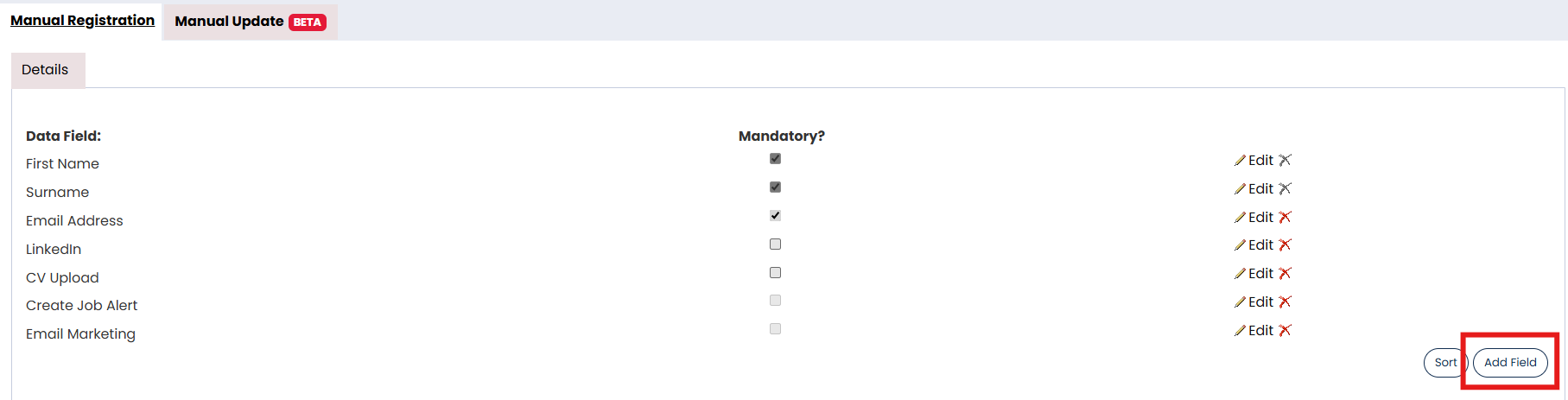
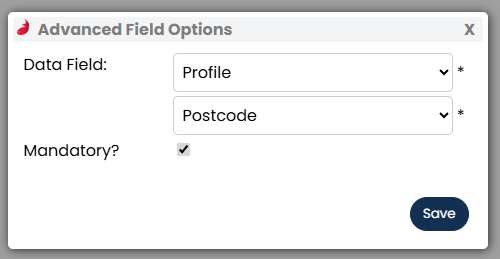
- Choose the field type you want to add.
- Enter the required field details.
- Save your changes.
The new field will now appear on the registration form.
Making Fields Mandatory
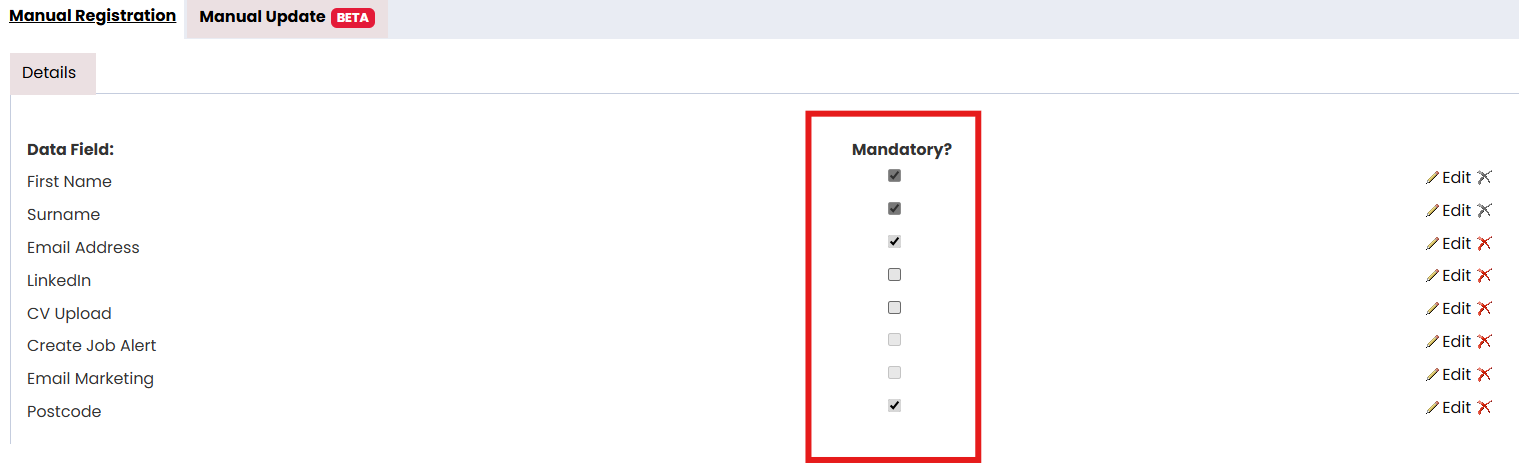
Mandatory fields must be completed before the candidate record can be saved.
To make a field mandatory:
- Locate the field you want to update.
- Enable the Mandatory option when creating the field or from the list.
- Save your changes.
Use mandatory fields carefully to ensure recruiters collect essential information without creating unnecessary barriers during registration.
Sorting Registration Questions
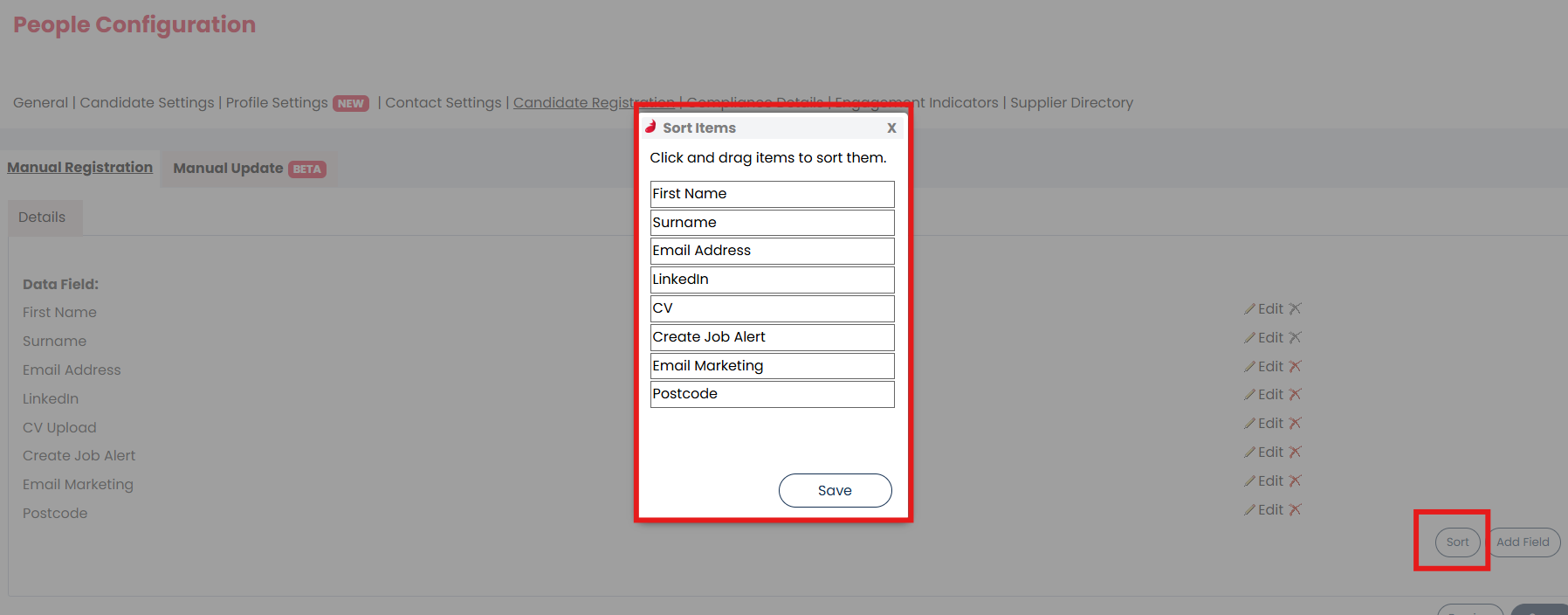
You can reorder registration questions to control how they appear during manual registration.
To sort registration fields:
- Select Sort.
- Drag and drop fields into the required order.
- Save your changes.
The updated order will apply immediately to the registration form.
Previewing the Registration Form
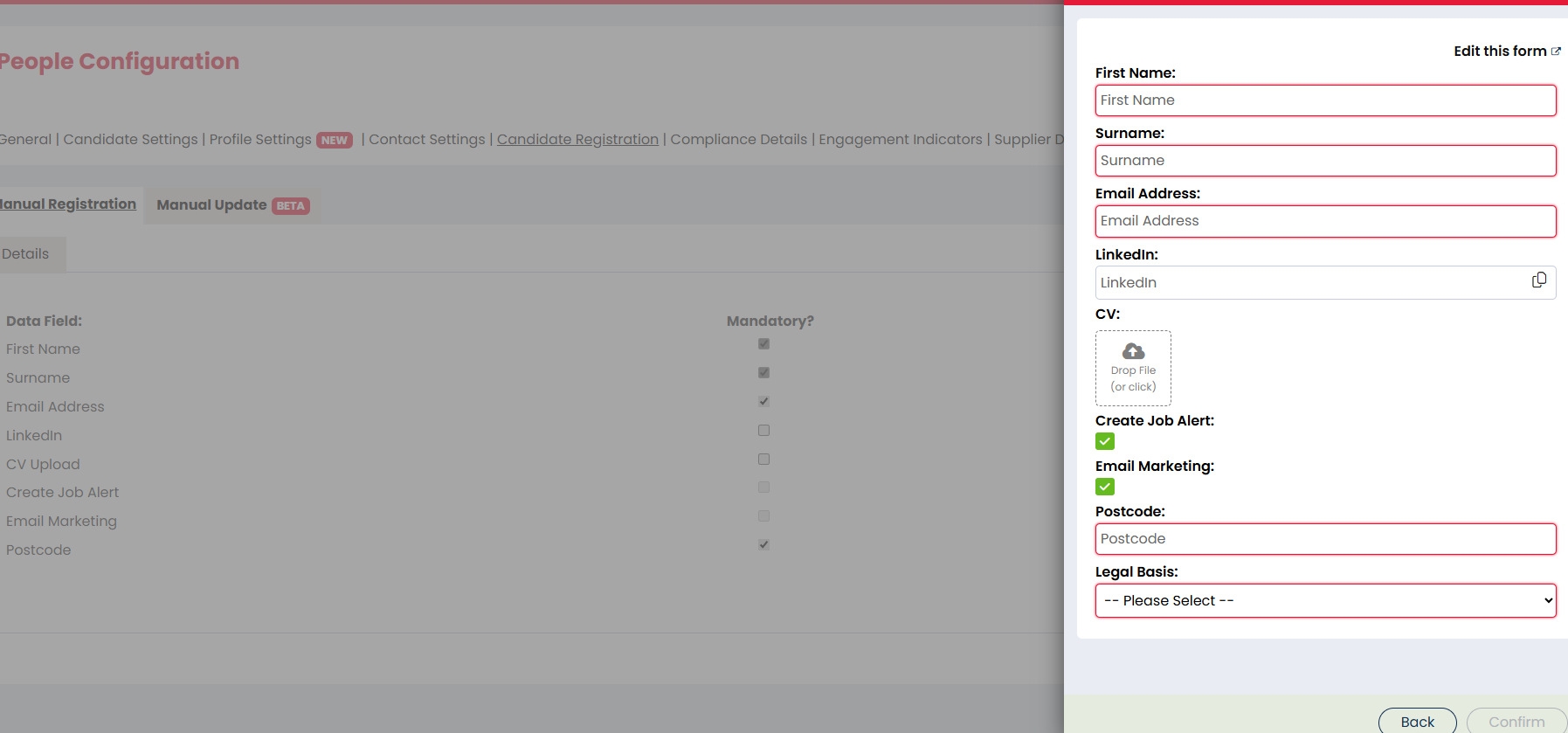
Previewing the form allows you to check how the registration process will appear before using it live.
To preview the registration form:
- Select Preview.
- Review the registration fields and question order.
- Confirm that mandatory fields and GDPR settings display correctly.
This can help identify formatting or usability issues before recruiters begin using the form.
Configuring GDPR Legal Basis Options
When creating a candidate record manually, recruiters will have to select a GDPR Legal Basis option.
The selected option determines the lawful basis for storing and processing candidate data.
Legal Basis options are:
-
Consent Request - Creates the candidate and sends login details to direct them to login and accept the agreement with the option of an email being sent. (Only applicable if Candidate Portal is enabled.)
-
Consent Provided - Creates & agrees to the candidate agreement with the option of an email being sent.
-
Legitimate Interest - Creates & agrees to the candidate agreement without an email being sent.
-
Not applicable at this stage - Just creates the candidate without opting them in to the candidate agreement and without an email being sent.
Always ensure your organisation’s GDPR processes align with your internal compliance policies.