Planning shifts in your Temp workflow ensures you have the right candidates in place at the right time. Whether you're managing short-term cover or recurring shift patterns, using the Availability Pool allows you to efficiently schedule, edit, and oversee all job shifts in one central location.
Availability Pool
Once your Temp job has been created, you're able to start adding shifts from the calendar view of the Availability Pool tab. 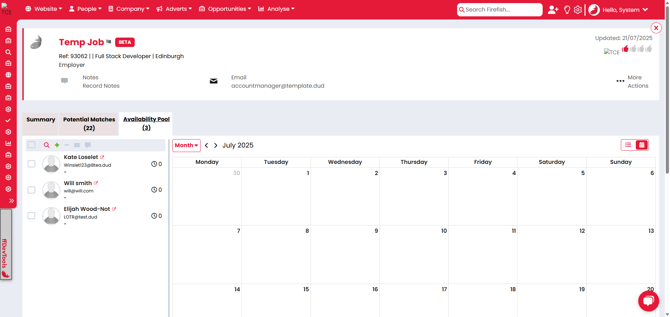
You can use the dropdown to select the calendar view you'd like to use, with the following options available:
- Today
- Day
- Work Week
- Week
- Month
Adding a Shift
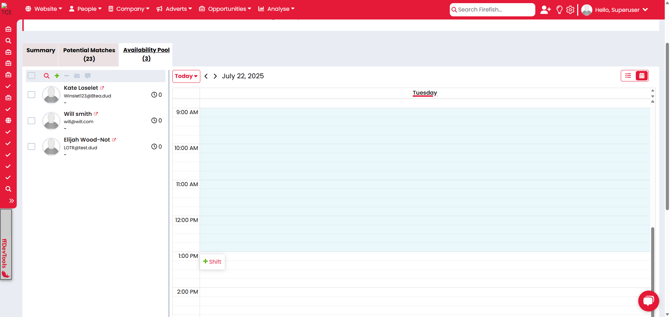
You can add a shift by selecting the date/time on the calendar and then selecting + Shift to open the 'Add a Shift' modal:
Stand Alone Shifts
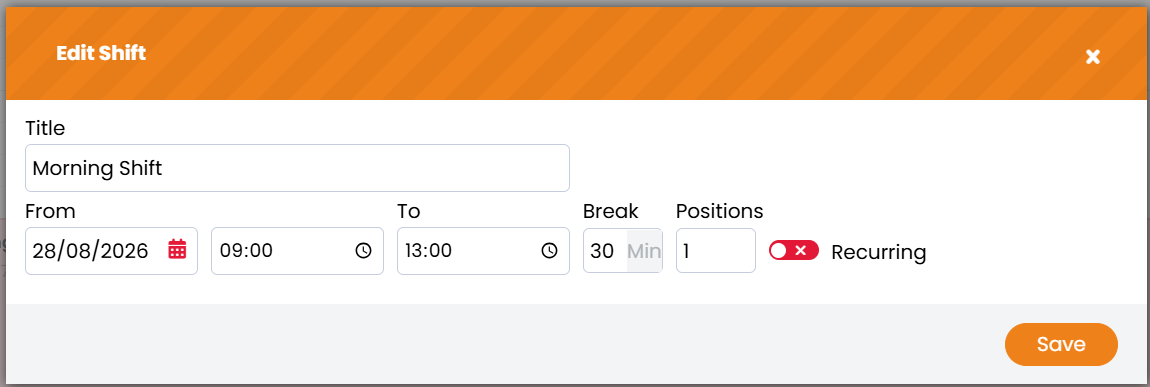
When adding a shift, the 'Add a Shift' modal has the following fields:
- Title - Defaults to the name of the job
- From Date/Time
- To Time
- Break
- Positions
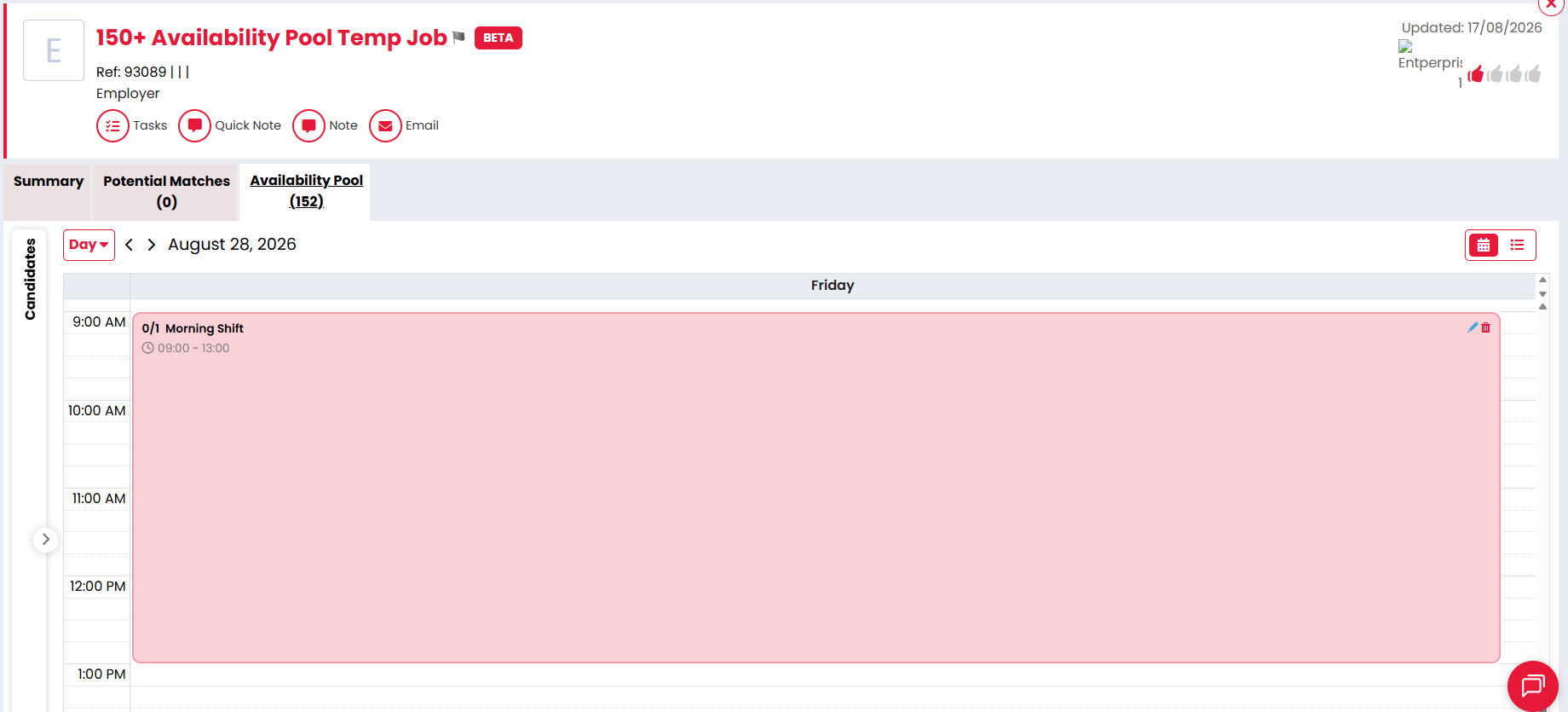
When saved, the shift will be added to the calendar:
Recurring Shift
If you have a recurring shift, this can be added to the calendar by toggling the 'Recurring' option:
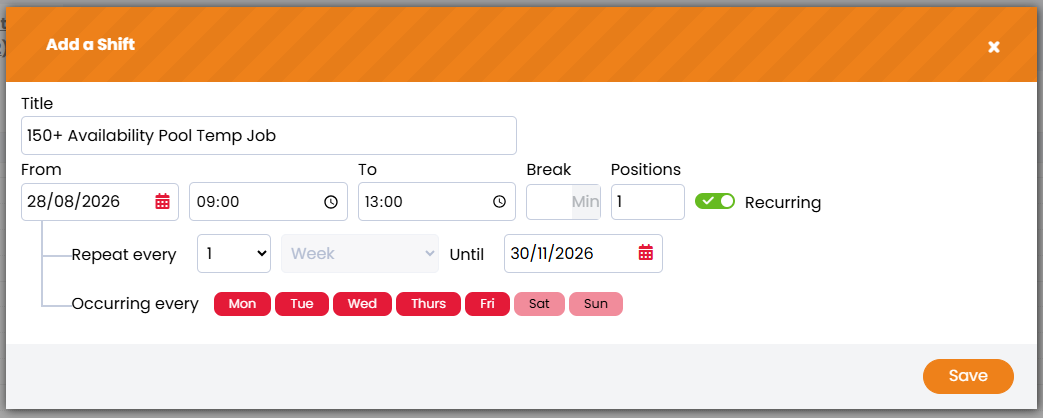
The recurring option allows you to populate:
- The frequency, in weeks, that the shift should be repeated
- The end date of the recurring shift
- The days that the shift should occur
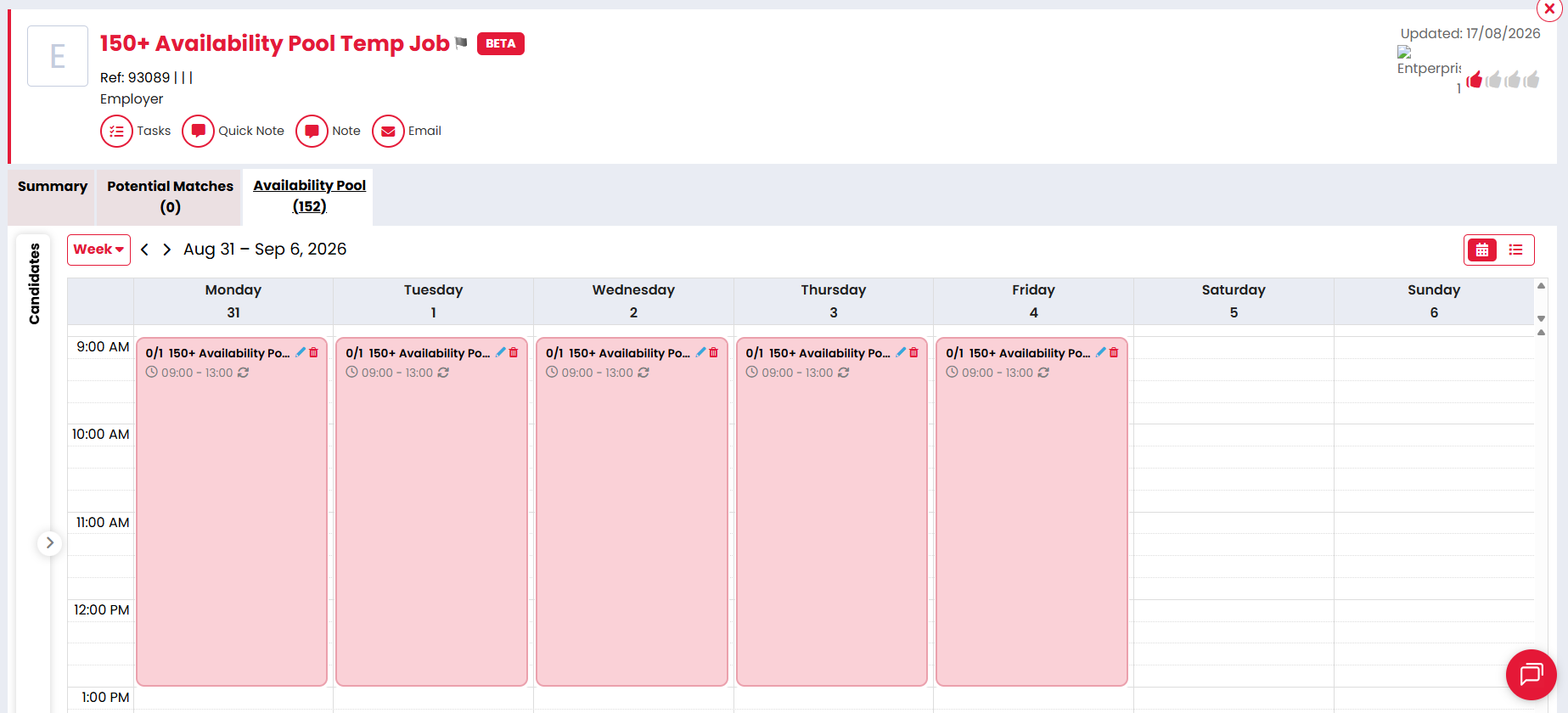
When saved, the occurrences of the shift will be added to the calendar:
Editing a Shift
Once a Shift has been created, stand alone or recurring, you can edit the shift by selecting the pencil icon: 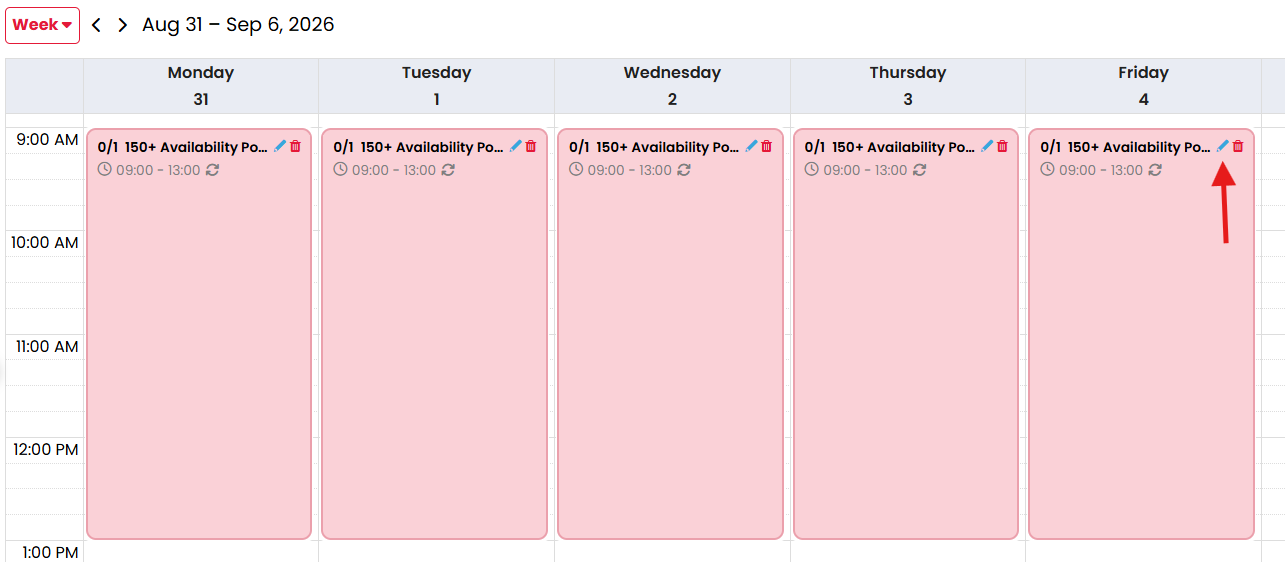
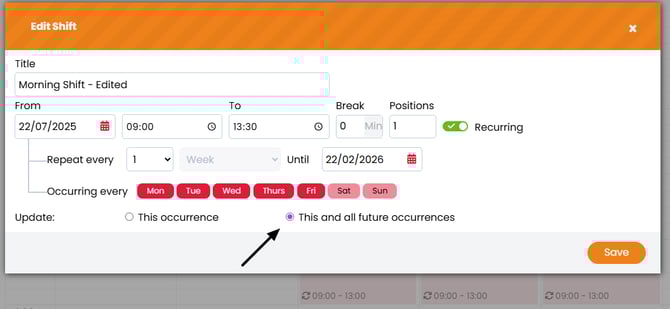
This will open the Edit Shift modal where you can make any amendments to the shift: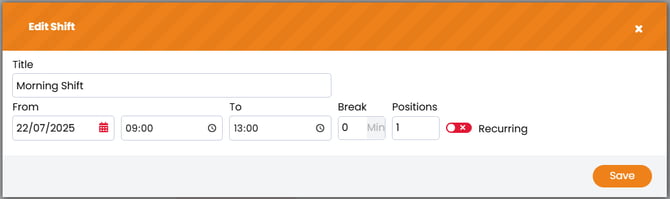
When editing a recurring shift you'll see the option to edit:
- This occurrence
- This and all future occurrences
When 'This occurrence' is selected the edits are only made to the selected shift. This will remove the edited shift from the recurring series to become a stand alone shift: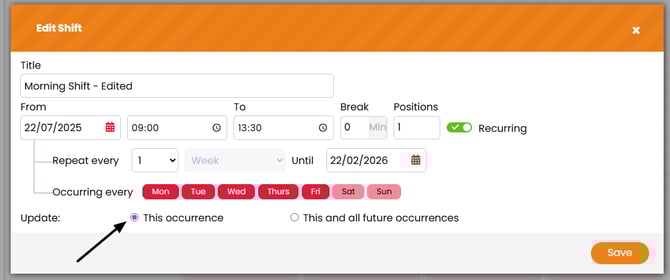
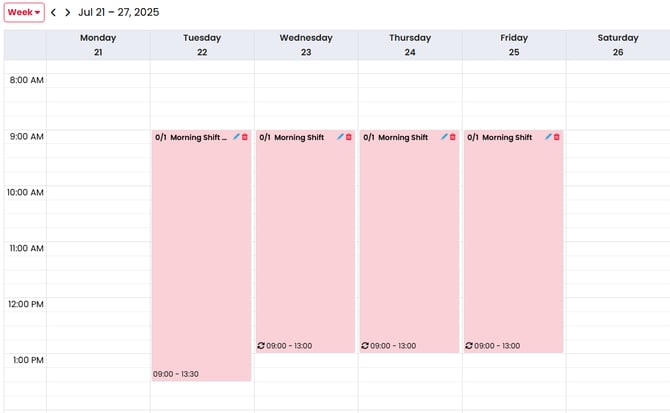
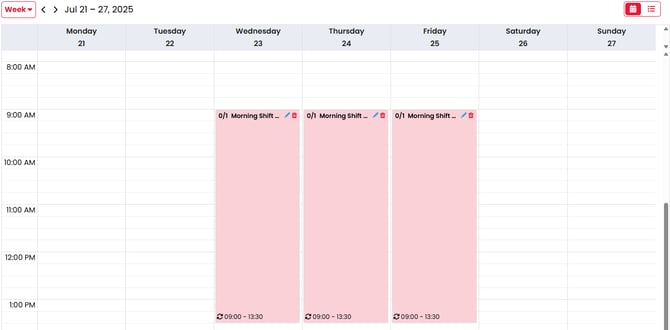
When 'This and all future occurrences' is selected the edits are made to the selected and all future shift. These shifts will remain in the recurring series: