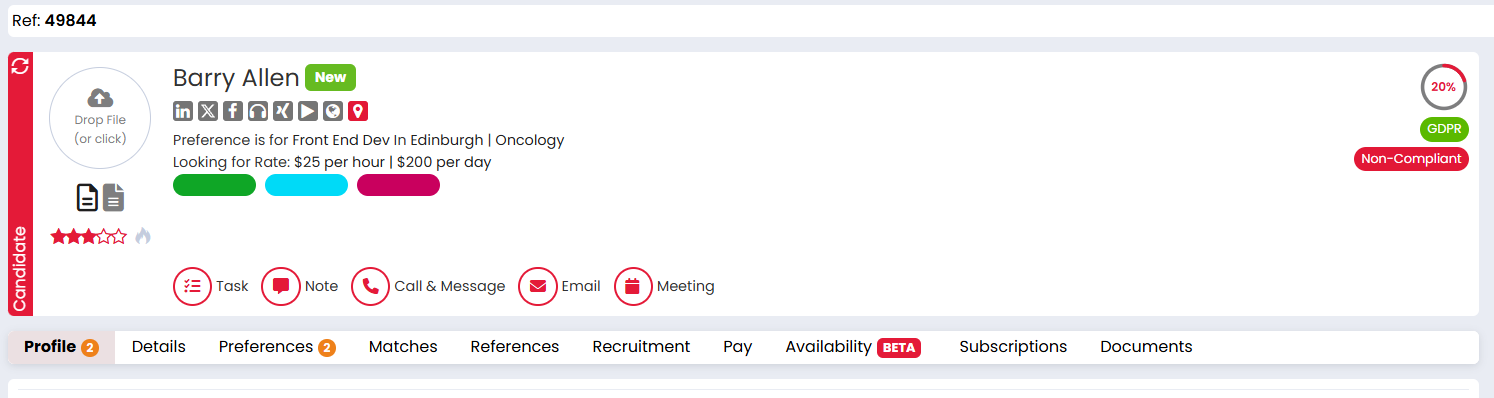
The Profile Completeness Score helps you track how much of a candidate’s required information has been completed in Firefish. It gives recruiters a simple percentage score on the candidate record and helps teams find incomplete candidate profiles from one dedicated list.
Contents
- What is Profile Completeness Score?
- How the score is calculated
- Required fields vs mandatory fields
- Setting fields as required
- Viewing missing information on a candidate record
- Using the Incomplete Candidates list
- Sending bulk emails or messages
- Recalculating scores
- Frequently asked questions
What is Profile Completeness Score?
Profile Completeness Score is a percentage that shows how complete a candidate’s profile is, based on the fields your business has marked as required.
For example, if 8 out of 10 required items have been completed, the candidate’s score will show as 80%.
You can use it to:
- See candidate data gaps at a glance
- Find candidates with incomplete profiles
- Prioritise which candidate records need attention
- Follow up with candidates in bulk by email or message
How the score is calculated
The score is calculated using this formula:
Completed required items ÷ total applicable required items × 100
The score is shown as a whole percentage, with no decimals.
Only applicable required items are included. This means Firefish will not count hidden, disabled, or non-relevant fields against the candidate.
Some sections count as one required item. For example, if Education is required, the candidate needs at least one saved education record for that section to be complete.
Required Fields Vs Mandatory Fields
Required fields and mandatory fields are not the same.
Required fields are used for Profile Completeness. They show recruiters which information is missing, but they do not stop you from saving the candidate record.
Mandatory fields are still enforced by Firefish. If a mandatory field is missing, you may be blocked from saving until it is completed.
In short:
- Required = affects the Profile Completeness Score
- Mandatory = may block saving or completing certain actions
Setting Fields As Required
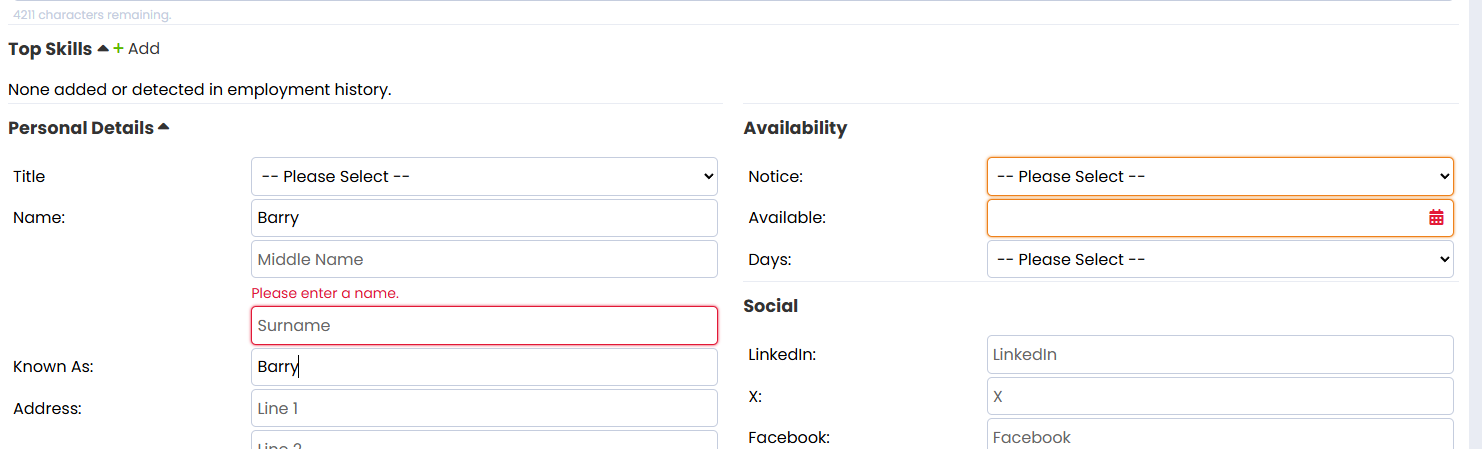
Super Users and admins can choose which fields are required for Profile Completeness.
Required fields can be configured in areas such as:
- Settings > People Configuration > Profile Settings
- Settings > People Configuration > Candidate Settings
- Settings > People Configuration > Compliance Details
- Settings > System Configuration > Preferences
- Settings > System Configuration > Properties
To set a field as required:
- Go to the relevant settings area.
- Find the field or section you want to include.
- Tick Required.
- Save your changes.
If you mark a full section as required, fields within that section may also be treated as required for completeness.
Viewing Missing Information On A Candidate Record
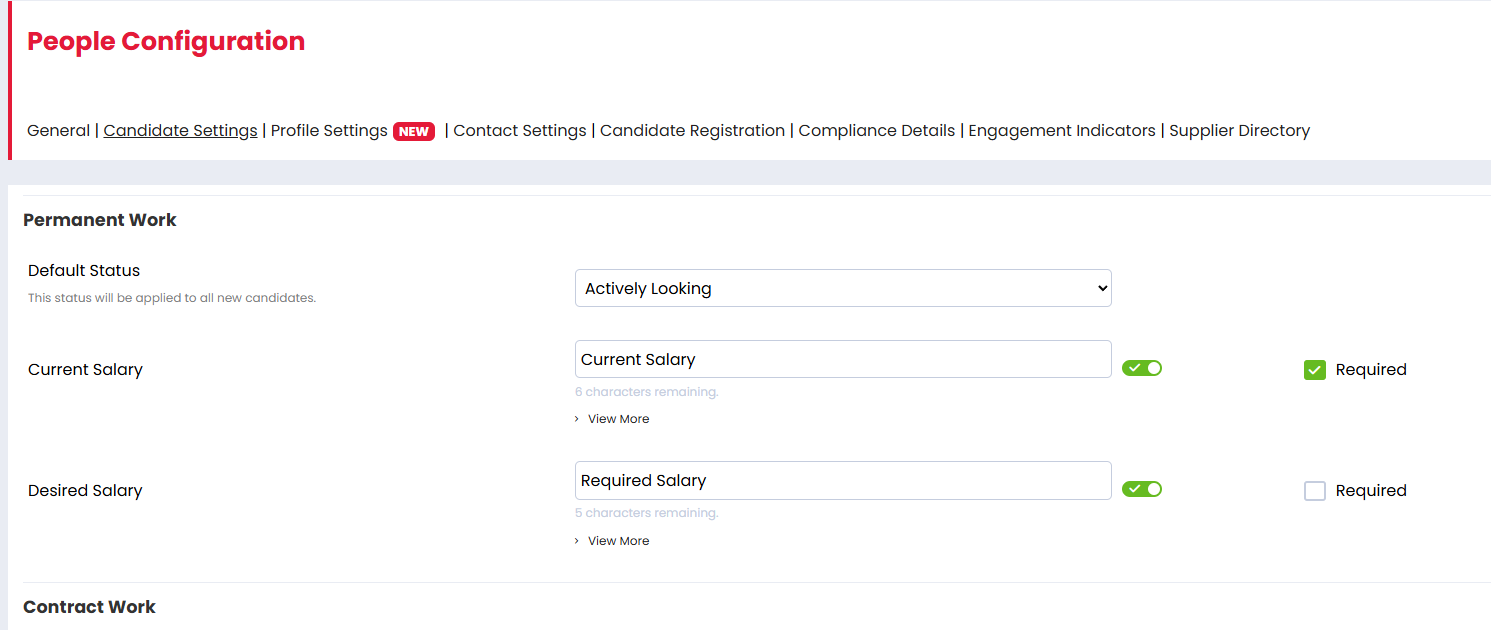
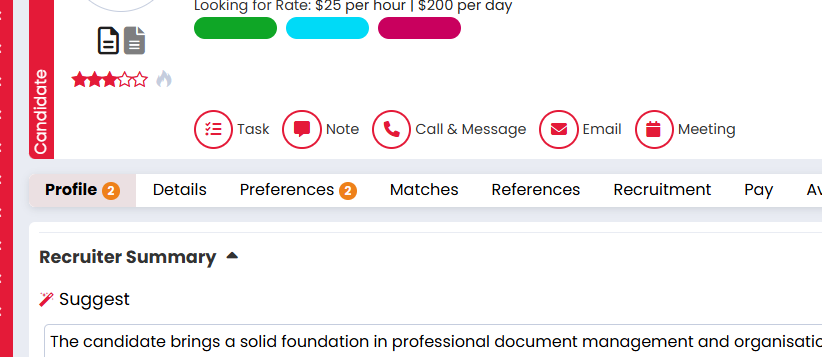
When you open a candidate record, the Profile Completeness Score appears in the candidate header.
You will also see indicators on the candidate tabs showing how many required items are missing in each area.
For example:
- Profile (2)
- Details (1)
- Preferences (3)
Open the tab to see which required fields still need to be completed.
Using The Incomplete Candidates List
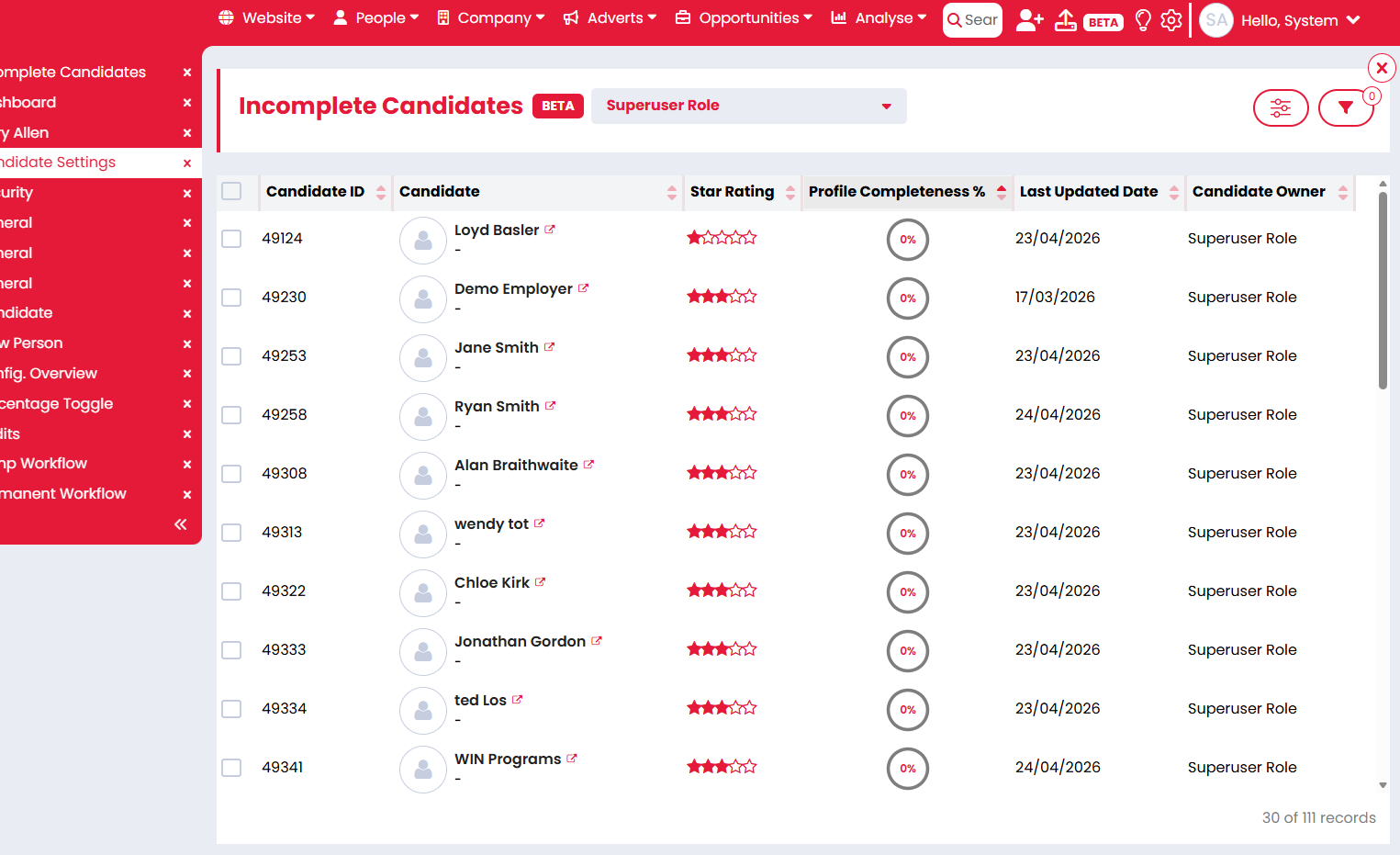
The Incomplete Candidates list shows candidates with a Profile Completeness Score below 100%.
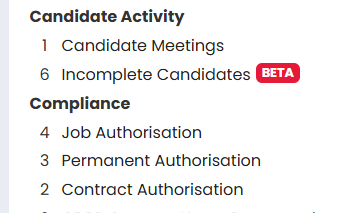
You can access it from the Home Dashboard under Candidate Activity when you have incomplete candidates assigned to you.
The list includes candidates where you are the Owner or Temporary Owner.
By default, the list shows the lowest completeness scores first, so the candidates needing the most attention appear at the top.
Filtering The List
You can filter the Incomplete Candidates list by:
- Candidate name
- Owner
- Updated date range
Candidates at 100% completeness will not appear in this list.
Sending Bulk Emails Or Messages
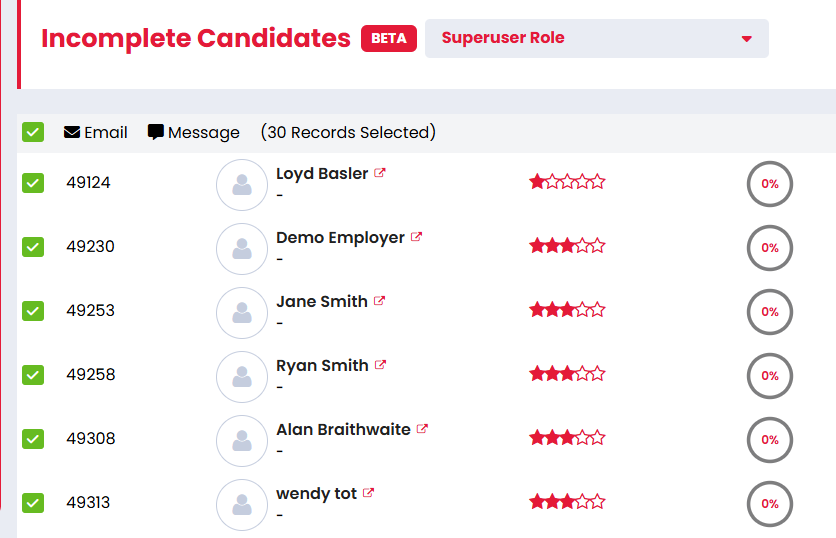
You can select one or more candidates from the Incomplete Candidates list and use the bulk actions to follow up.
When candidates are selected, you can choose:
- Message
Firefish will use the existing bulk email and bulk message tools. Candidates without a valid email address or phone number will be handled in the same way as other Firefish bulk actions.
Recalculating Scores
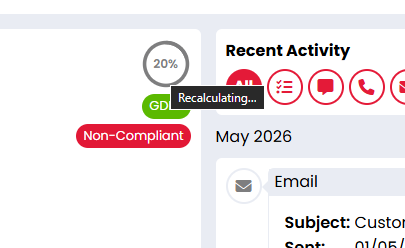
After candidate information is updated, the Profile Completeness Score may briefly show as recalculating.
When this happens, the score icon may appear greyed out with a Recalculating tooltip. Once Firefish has finished updating the score, the latest percentage will display.
Frequently Asked Questions
Why can’t I see a Profile Completeness Score?
The score only appears when required fields have been configured for Profile Completeness. If you still cannot see it, speak to your Firefish Super User or Firefish Support.
Does a required field stop me from saving?
No. Required fields guide profile completion, but they do not block saving. Mandatory fields may still block saving.
Do completed candidates appear in the Incomplete Candidates list?
No. Candidates with a score of 100% do not appear in the Incomplete Candidates list.
Does Profile Completeness replace compliance?
No. Profile Completeness helps you measure candidate data quality. Compliance checks and any placement or booking requirements remain separate.