You can record and forecast sales for contract jobs at every stage of the workflow: from initial job creation to extensions, terminations, and forecast planning. This guide explains how to manage pay, configure additional rates, record sales entries, and track forecasted values in Firefish.
- Add Pay & Additional Contract Rates
- Add Forecasted Sales
- Add Additional Sales
- Add Placement/Extension Sales Figures
- Manage Sales Figures for Terminations
- View Forecasted Sales in Report Dashboard
Add Pay & Additional Contract Rates
When you create a contract job, the Pay section in the job summary shows your standard pay rates.
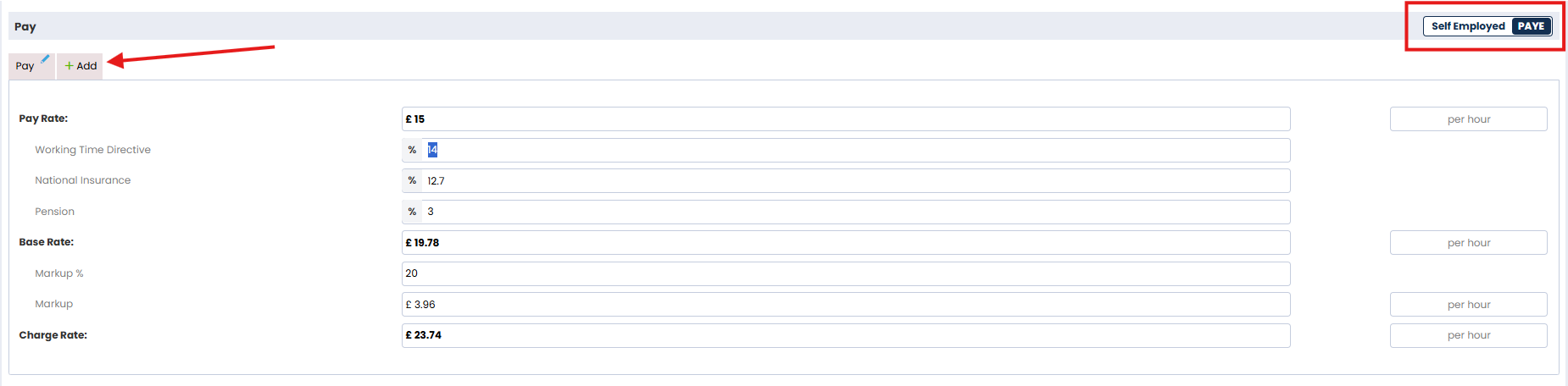
Firefish auto-calculates the Pay Rate using the minimum value set in the Potential Match section of the Job Details.
If an Agreed Rate % exists on the Terms tab of the Company record, it will populate the Markup % field on the job.
Contractor setup type determines rate entry:
- Self Employed: Enter Pay Rate and adjust Markup % or Markup £. Firefish calculates the Charge Rate.
- PAYE: Adjust Pay Rate, Working Time Directive %, NI %, and Pension %. Then add Margin % or Markup amount to calculate Charge Rate.
📝Note: Apprenticeship Levy and Payroll Cost fields are part of a beta feature.
Values display as per hour or per day based on Unit Type.
To configure custom values like overtime or weekend rates, click +Add to enter Additional Rates:
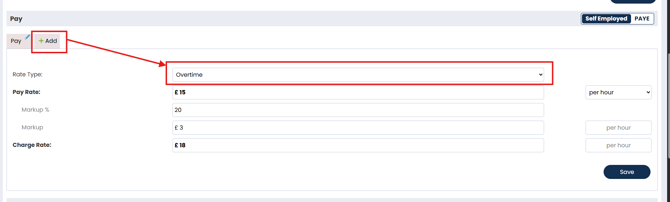
- Choose a Rate Type from the dropdown.
- Values are calculated the same way as standard pay.
- You can add up to 15 additional rates.
- Use the dropdown to toggle Unit Type (Per Hour / Per Day).
- You can change Rate Type at the Summary, Offer, or Placement stages.
All pay data pulls through to offers and placements automatically.
Add Forecasted Sales
The Pay section of the Job Summary includes Projected Salary and Markup % / Markup Amount.
Once populated, add your Forecasted Sales Amount and Forecasted Date (when you expect the role to be filled).
For jobs with one position, this is typically your markup + any additional sales. For multiple positions, increase the total accordingly (e.g. 3 x £3,000 = £9,000).

You can also use the thumbs rating to assign a probability:
- 👍 = Not Yet
- 👍👍 = Hopeful
- 👍👍👍 = Looking Good
- 👍👍👍👍 = Sure Thing
The forecasted sales amount and thumbs rating appear in the job header. Don’t forget to click Save.
💡Top Tip:
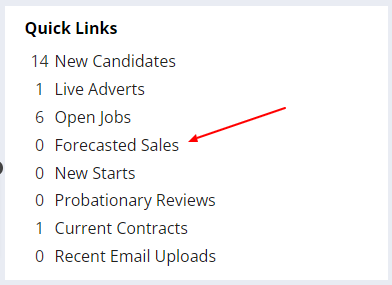
Any contract job with a thumbs rating of 2 or more appears in the Forecasted Sales Quick Link, even without a forecasted amount.
Add Additional Sales
Additional Sales are fees you expect on top of placement charges, such as retainers or commencement fees.
To add these:
- Go to the Sales section in the Job Summary.
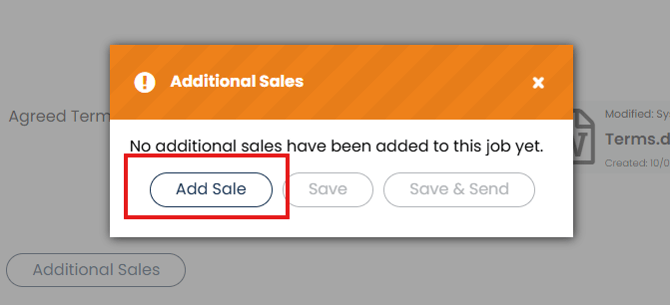
- Click Additional Sales.

- Click Add Sale, select the Type, and enter the Date and Amount.
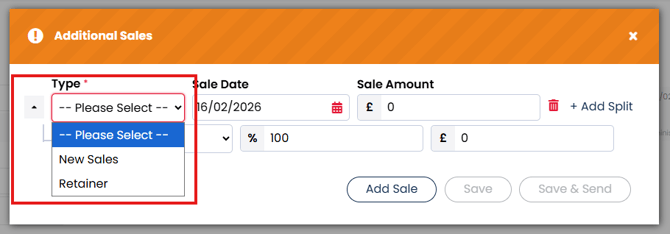
- Assign the sale to a user or split between up to 3 users.
- You can use percentages or amounts (Firefish will auto-calculate the remainder).
Click Save to complete the entry.
Add Placement/Extension Sales Figures
When you create a placement, extend a contract, or roll on an existing contract, Firefish pulls the pay and charge data from the Job Summary.
The Placement Summary appears in edit mode (orange label):
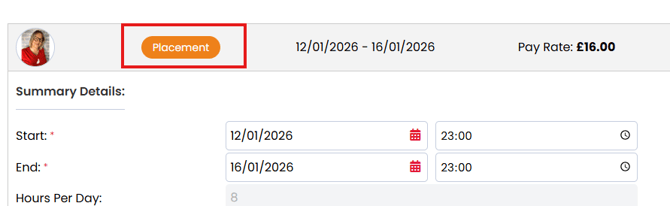
You can adjust pay values at the placement/extension level — helpful when different candidates require varied pay terms.
To split placement sales:
- Click Splits in the Placement Summary.
- Add up to 3 users using + Add Split.
- Enter either % or £ values and Firefish will calculate the other.
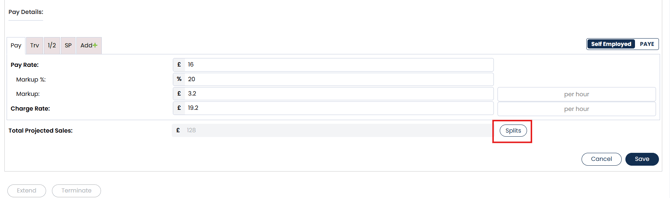
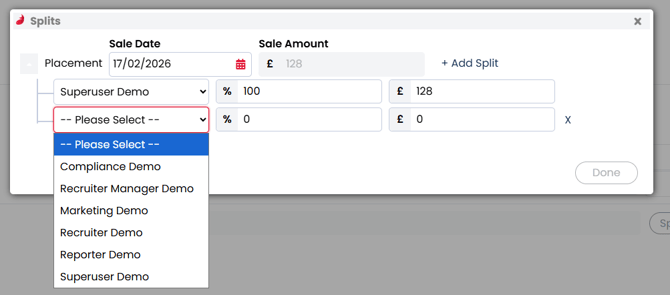
Click Done to save splits, then Confirm to finalise the placement. This will generate placement emails, and the label will switch to green (read-only mode).

Sales Plan values are updated on the placement start date.
You can edit sales values later by clicking the blue pencil icon on the placement/extension.

Manage Sales Figures for Terminations
If a contract placement ends early, Firefish automatically adjusts sales based on the revised End Date.
Click Terminate to open the Termination Summary (orange label).
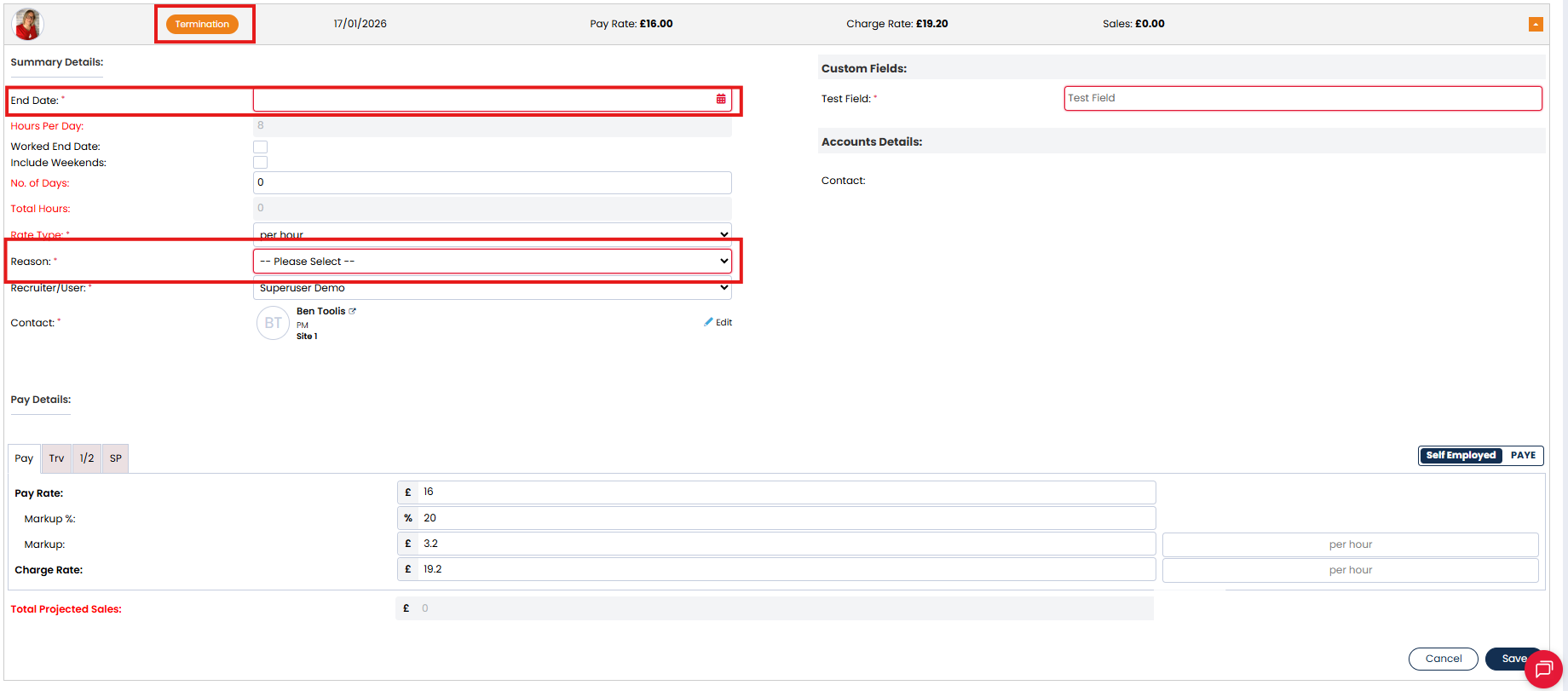
Here, update:
- Rebate amount or %
- User splits via the Splits button
Click Confirm to apply the changes and generate termination emails, or Update to save without emailing.
The Termination label will now display in red (read-only mode).

View Forecasted Sales in Report Dashboard
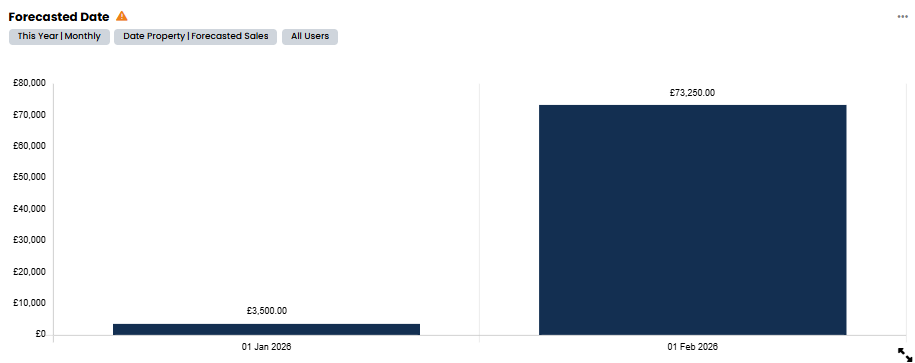
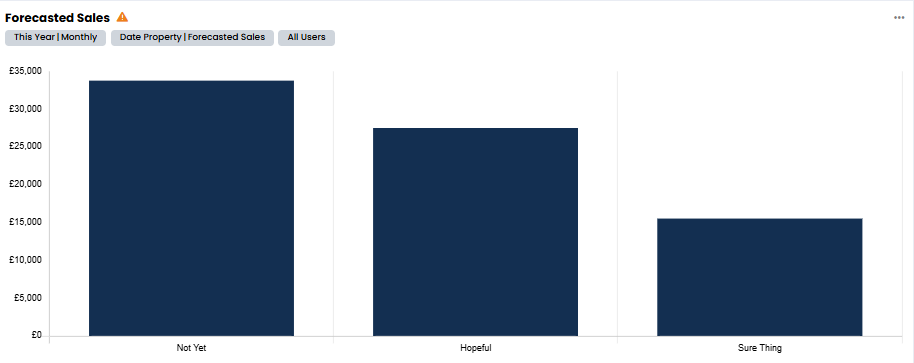
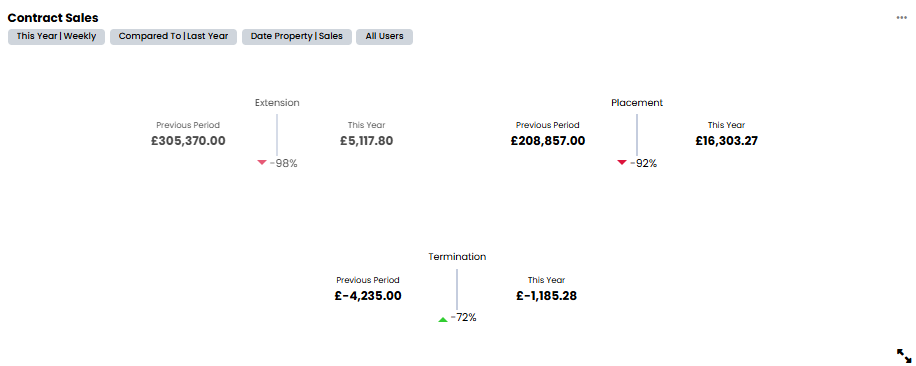
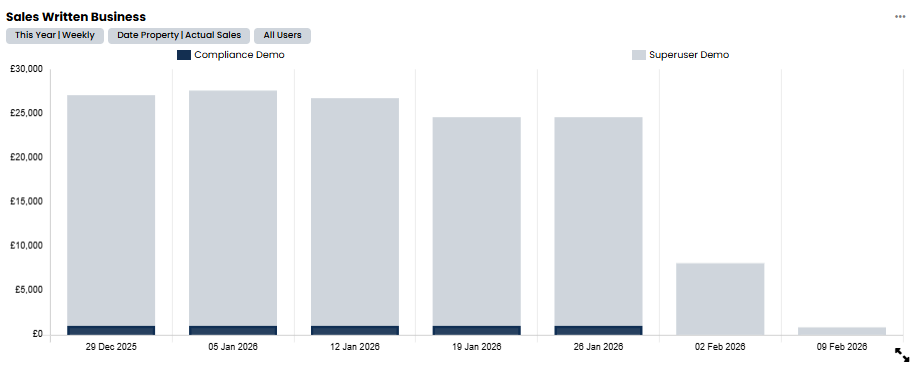
You can report on forecasted contract job sales by creating a card in the Reports Dashboard using the Job module.
Track fields such as:
- Forecasted Date
- Forecasted Probability
💡Top Tip: use the Report Library to find predefine cards for your dashboard.